



Question: create a web page following the instructions given Examples of a satisfactory page for Project7.1 1 . 0 Use absolute positioning to place banner text
create a web page following the instructions given 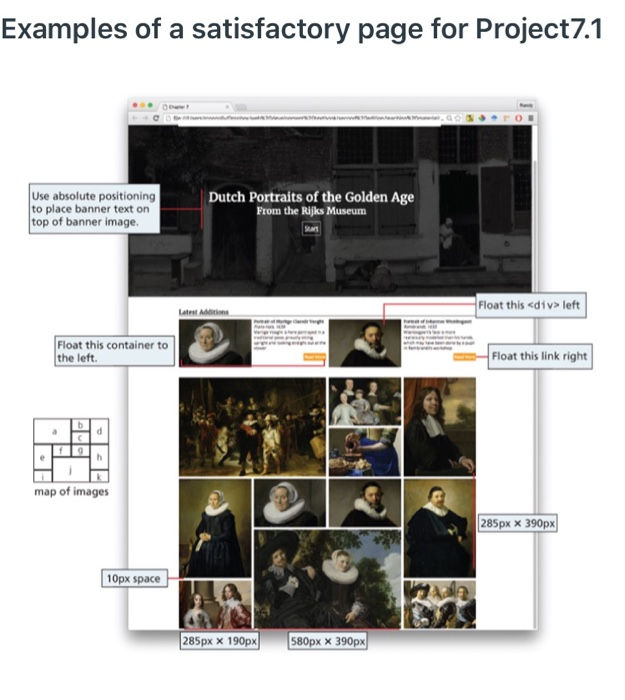
Examples of a satisfactory page for Project7.1 1 . 0 Use absolute positioning to place banner text on top of banner image. Dutch Portraits of the Golden Age From the Rijks Museum Float this
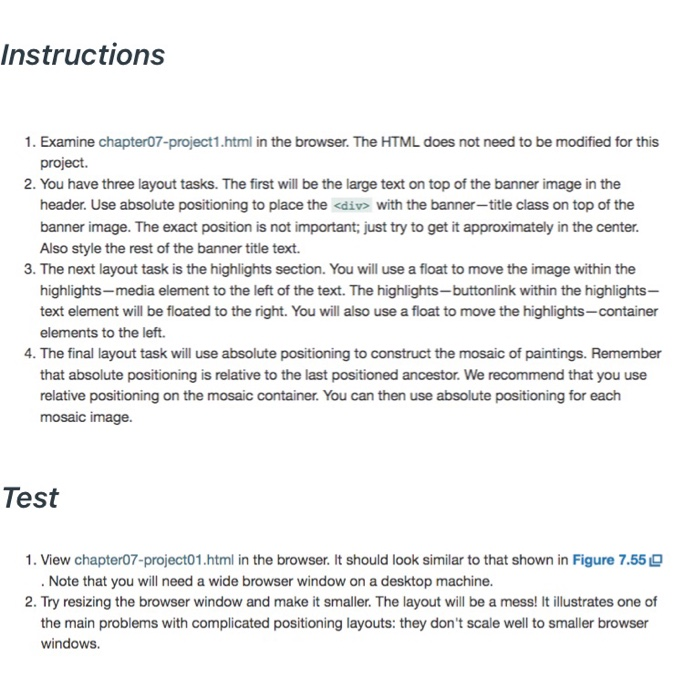
left La Aditions Float this container to the left. Float this link right map of images 285px x 390px 10px space 285px x 190px 580px x 390px Instructions 1. Examine chapter07-project1.html in the browser. The HTML does not need to be modified for this project. 2. You have three layout tasks. The first will be the large text on top of the banner image in the header. Use absolute positioning to place the
with the banner-title class on top of the banner image. The exact position is not important; just try to get it approximately in the center. Also style the rest of the banner title text. 3. The next layout task is the highlights section. You will use a float to move the image within the highlights-media element to the left of the text. The highlights-buttonlink within the highlights- text element will be floated to the right. You will also use a float to move the highlights -container elements to the left. 4. The final layout task will use absolute positioning to construct the mosaic of paintings. Remember that absolute positioning is relative to the last positioned ancestor. We recommend that you use relative positioning on the mosaic container. You can then use absolute positioning for each mosaic image. Test 1. View chapter07-project01.html in the browser. It should look similar to that shown in Figure 7.55 O . Note that you will need a wide browser window on a desktop machine. 2. Try resizing the browser window and make it smaller. The layout will be a mess! It illustrates one of the main problems with complicated positioning layouts: they don't scale well to smaller browser windows. Examples of a satisfactory page for Project7.1 1 . 0 Use absolute positioning to place banner text on top of banner image. Dutch Portraits of the Golden Age From the Rijks Museum Float this
left La Aditions Float this container to the left. Float this link right map of images 285px x 390px 10px space 285px x 190px 580px x 390px Instructions 1. Examine chapter07-project1.html in the browser. The HTML does not need to be modified for this project. 2. You have three layout tasks. The first will be the large text on top of the banner image in the header. Use absolute positioning to place the
with the banner-title class on top of the banner image. The exact position is not important; just try to get it approximately in the center. Also style the rest of the banner title text. 3. The next layout task is the highlights section. You will use a float to move the image within the highlights-media element to the left of the text. The highlights-buttonlink within the highlights- text element will be floated to the right. You will also use a float to move the highlights -container elements to the left. 4. The final layout task will use absolute positioning to construct the mosaic of paintings. Remember that absolute positioning is relative to the last positioned ancestor. We recommend that you use relative positioning on the mosaic container. You can then use absolute positioning for each mosaic image. Test 1. View chapter07-project01.html in the browser. It should look similar to that shown in Figure 7.55 O . Note that you will need a wide browser window on a desktop machine. 2. Try resizing the browser window and make it smaller. The layout will be a mess! It illustrates one of the main problems with complicated positioning layouts: they don't scale well to smaller browser windows
Step by Step Solution
There are 3 Steps involved in it
1 Expert Approved Answer
Step: 1 Unlock

Question Has Been Solved by an Expert!
Get step-by-step solutions from verified subject matter experts
Step: 2 Unlock
Step: 3 Unlock