







Question: - Create a web page using HTML5 with the heading CNIT 133 Homework 2 - Basic Operations. - Besides the heading, this page should contain:
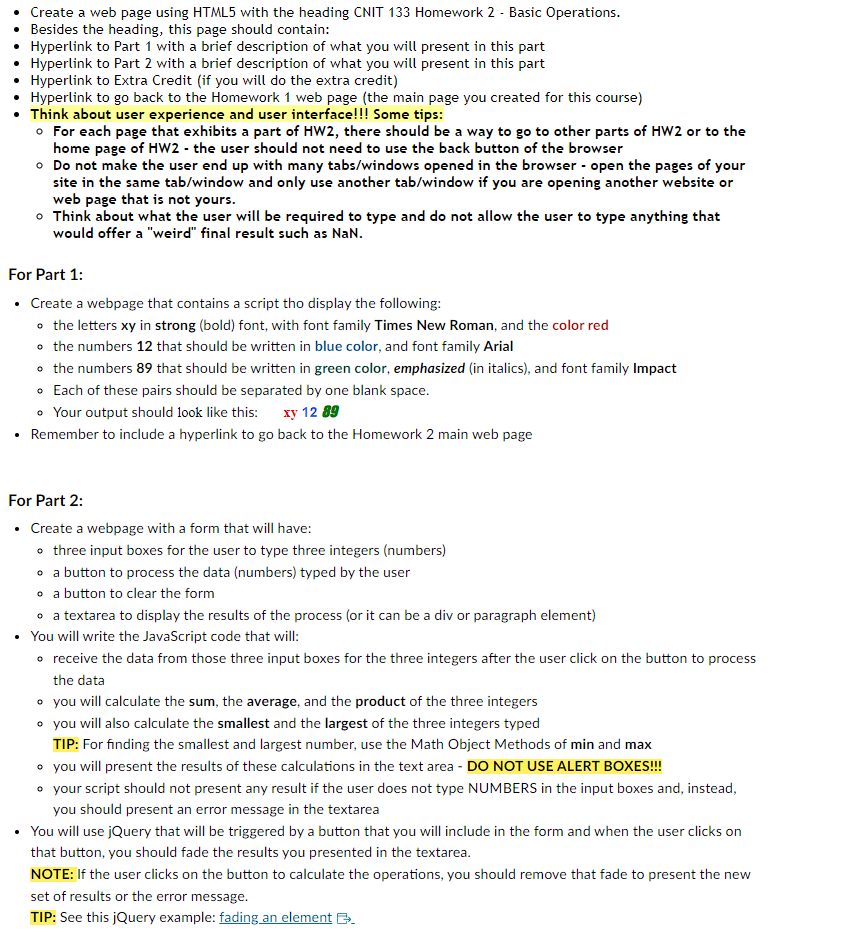
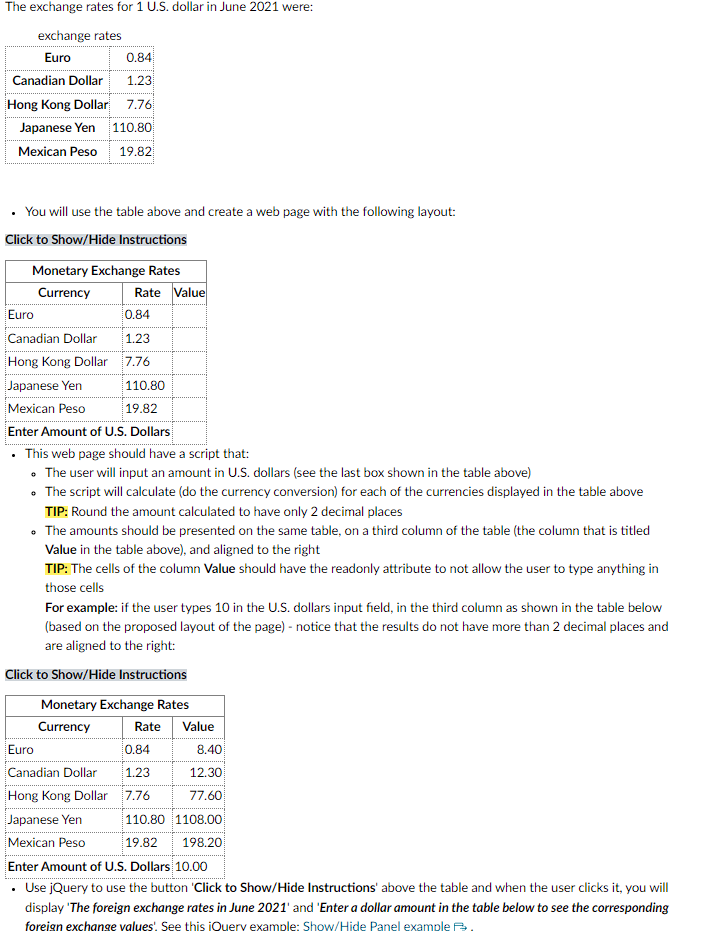

- Create a web page using HTML5 with the heading CNIT 133 Homework 2 - Basic Operations. - Besides the heading, this page should contain: - Hyperlink to Part 1 with a brief description of what you will present in this part - Hyperlink to Part 2 with a brief description of what you will present in this part - Hyperlink to Extra Credit (if you will do the extra credit) - Hyperlink to go back to the Homework 1 web page (the main page you created for this course) - Think about user experience and user interface!!! Some tips: - For each page that exhibits a part of HW2, there should be a way to go to other parts of HW2 or to the home page of HW2 - the user should not need to use the back button of the browser - Do not make the user end up with many tabs/windows opened in the browser - open the pages of your site in the same tab/window and only use another tab/window if you are opening another website or web page that is not yours. - Think about what the user will be required to type and do not allow the user to type anything that would offer a "weird" final result such as NaN. For Part 1: - Create a webpage that contains a script tho display the following: - the letters xy in strong (bold) font, with font family Times New Roman, and the color red - the numbers 12 that should be written in blue color, and font family Arial - the numbers 89 that should be written in green color, emphasized (in italics), and font family Impact - Each of these pairs should be separated by one blank space. - Your output should look like this: xy 1289 - Remember to include a hyperlink to go back to the Homework 2 main web page For Part 2: - Create a webpage with a form that will have: - three input boxes for the user to type three integers (numbers) - a button to process the data (numbers) typed by the user - a button to clear the form - a textarea to display the results of the process (or it can be a div or paragraph element) - You will write the JavaScript code that will: - receive the data from those three input boxes for the three integers after the user click on the button to process the data - you will calculate the sum, the average, and the product of the three integers - you will also calculate the smallest and the largest of the three integers typed TIP: For finding the smallest and largest number, use the Math Object Methods of min and max - you will present the results of these calculations in the text area - DO NOT USE ALERT BOXES!!! - your script should not present any result if the user does not type NUMBERS in the input boxes and, instead, you should present an error message in the textarea - You will use jQuery that will be triggered by a button that you will include in the form and when the user clicks on that button, you should fade the results you presented in the textarea. NOTE: If the user clicks on the button to calculate the operations, you should remove that fade to present the new set of results or the error message. TIP: See this jQuery example: fading an element G. The exchange rates for 1 U.S. dollar in June 2021 were: - You will use the table above and create a web page with the following layout: Click to Show/Hide Instructions - This web page should have a script that: - The user will input an amount in U.S. dollars (see the last box shown in the table above) - The script will calculate (do the currency conversion) for each of the currencies displayed in the table above TIP: Round the amount calculated to have only 2 decimal places - The amounts should be presented on the same table, on a third column of the table (the column that is titled Value in the table above), and aligned to the right TIP: The cells of the column Value should have the readonly attribute to not allow the user to type anything in those cells For example: if the user types 10 in the U.S. dollars input field, in the third column as shown in the table below (based on the proposed layout of the page) - notice that the results do not have more than 2 decimal places and are aligned to the right: Click to Show/Hide Instructions - Use jQuery to use the button 'Click to Show/Hide Instructions' above the table and when the user clicks it, you will display 'The foreign exchange rates in June 2021' and 'Enter a dollar amount in the table below to see the corresponding foreign exchange values'. See this iOuery example: Show/Hide Panel example - Use jQuery to color the input text box to the right of 'Enter Amount of U.S. Dollars' when the user clicks in that
Step by Step Solution
There are 3 Steps involved in it

Get step-by-step solutions from verified subject matter experts
 Study Help