







Question: Create a Windows Forms application. Use the following names for the project and solution, respectively: Florist Project and Florist Solution. Submit the assignment to Dropbox.
Create a Windows Forms application. Use the following names for the project and solution, respectively: Florist Project and Florist Solution. Submit the assignment to Dropbox.
- Change the form file’s name to Main Form.vb.
- Change the form’s Name property to frmMain.
- Change the form’s Font property to Segoe UI, 9pt.
- Change the form’s MaximizeBox property to False.
- Change the form’s StartPosition property to CenterScreen.
- Change the form’s Text property to Florist Haven.
- Add a button to the form. Change the button’s Name and Text properties to btnExit and E&xit, respectively. Position the button in the lower-right corner of the form.
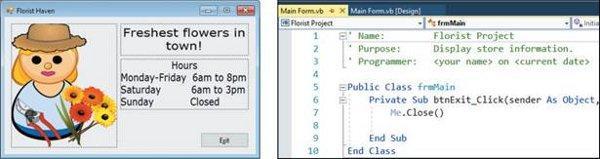
- Add three picture boxes to the form. PictureBox1 should display the image stored in the Florist.png file, which is located in the VB2017\Chap01 folder. PictureBox2 and PictureBox3 should display the images stored in the Message.png and Hours.png files, respectively. Use the interface shown in Figure 1-36 as a guide when sizing and positioning the picture boxes.
- Lock the controls on the form.
- Code the Exit button and then add comments to the Code Editor window, as shown in Figure 1-36.
- Open the Project Designer window and verify the name of the startup form, which should be frmMain. Also change the name of the application’s executable file to MyFlorist. Save the solution and then close the Project Designer window.
- Start the application and then test the Exit button.
- Print the application’s code and interface, and then close the solution.
- Verify that the MyFlorist.exe file works correctly. (The file is contained in the dropbox folder.)
EXCERSCISE 2
If necessary, complete Exercise 1. Use Windows to rename the Florist Solution folder to Florist Solution-Modified. Open the Florist Solution.sln file contained in the VB2017\ Chap01\Florist Solution-Modified folder. If necessary, open the designer window.
- Change the name of the picture box that displays the hours to picHours.
- The picHours control should not be visible when the application is started and the interface appears on the screen; set the appropriate property.
- Unlock the controls and then modify the interface as shown in Figure 1-37. Change the buttons’ names to btnShow and btnHide, and then lock the controls.
- Code the Show hours and Hide hours buttons. The Show hours button should display the picHours control when the button is clicked; the Hide hours button should hide the picHours control.
- Save the solution and then start the application. Test the buttons and then close the solution.
Florist Haven Freshest flowers in town! Hours Monday-Friday 6am to 8pm Saturday Sunday 6am to 3pm Closed Main Form.vbx Main Formvb (Design) Florist Project 2 3 A 5 Name: Purpose: Programmer: frmMain Florist Project Display store information. on Public Class fraMain Private Sub btnExit_Click(sender As Object, Me.Close() End Sub Egit 10 End Class
Step by Step Solution
There are 3 Steps involved in it

Get step-by-step solutions from verified subject matter experts
 Study Help