







Question: Create an Eclipse project named Lab_Project_8, then import the Graphix_Thing.java source code file. Do not create a Main class; instead: 1-Download the file into the
Create an Eclipse project named Lab_Project_8, then import the Graphix_Thing.java source code file. Do not create a Main class; instead:
1-Download the file into the src sub-folder of your project folder. Remember that if you created the project in the default location, the project folder is located in the workspace folder of your home folder (e.g.: C:\Users\doej1\workspace).
2-In Eclipse's Project explorer:
a-Expand your project folder to display the src sub-folder.
b-Right-click on the src sub-folder, and select the Refresh option.
c-Expand the src sub-folder, and then the default package sub-folder.
d-Open the file Grafix_Thing,java.
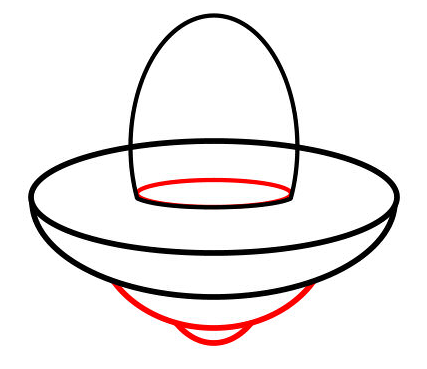
Then, using the documentation and code located on this Isidore site (Class Notes > 2-D Graphics in Java), design and write a program (in the Grafix_Thing's paint method, using the pen Graphics object) to draw a UFO similar to the following one:

Step by Step Solution
There are 3 Steps involved in it

Get step-by-step solutions from verified subject matter experts
 Study Help