







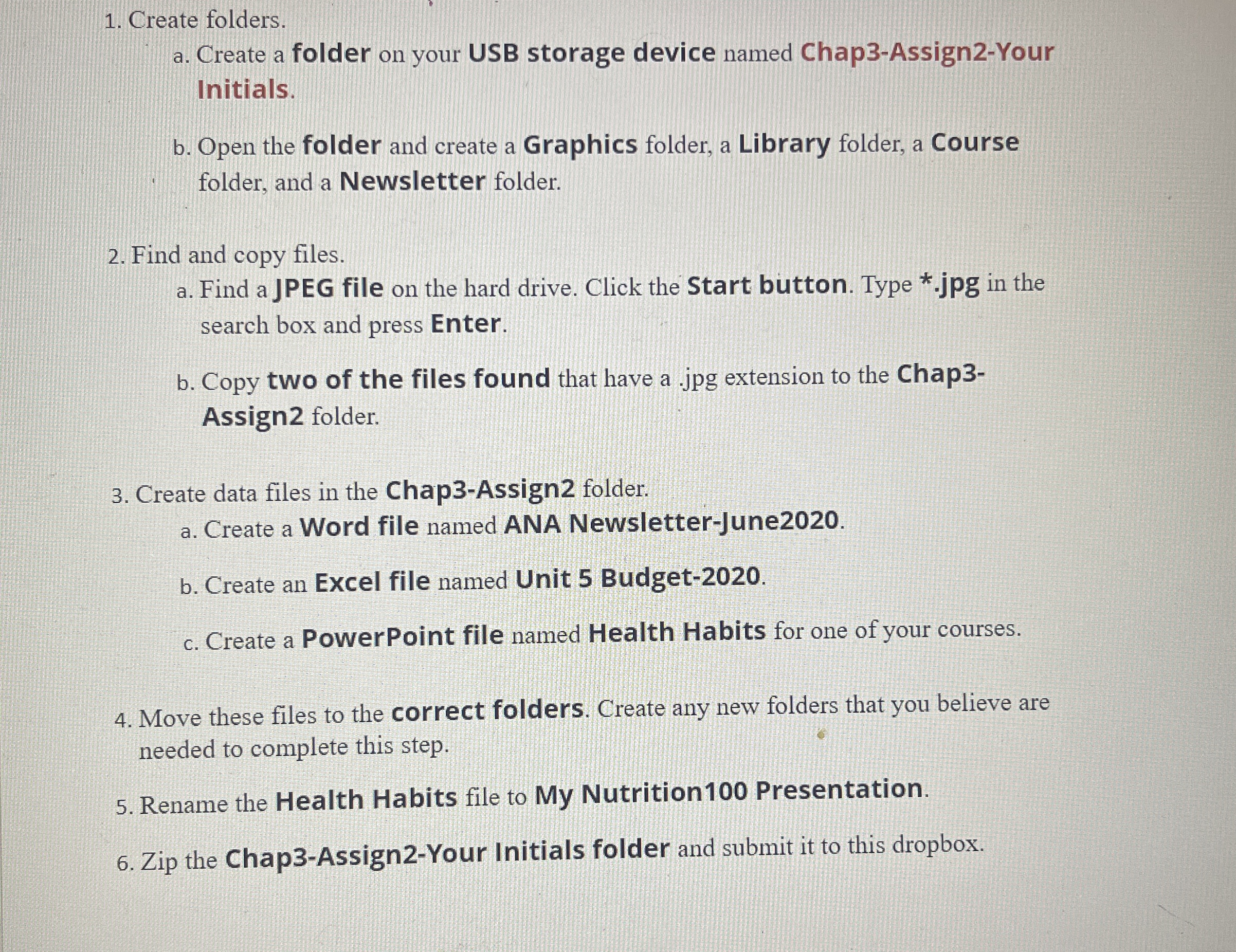
Question: Create folders. a . Create a folder on your USB storage device named Chap 3 - Assign 2 - Your Initials. b . Open the
Create folders.
a Create a folder on your USB storage device named ChapAssignYour Initials.
b Open the folder and create a Graphics folder, a Library folder, a Course folder, and a Newsletter folder.
Find and copy files.
a Find a JPEG file on the hard drive. Click the Start button. Type jpg in the search box and press Enter.
b Copy two of the files found that have a jpg extension to the ChapAssign folder.
Create data files in the ChapAssign folder.
a Create a Word file named ANA NewsletterJune
b Create an Excel file named Unit Budget
c Create a PowerPoint file named Health Habits for one of your courses.
Move these files to the correct folders. Create any new folders that you believe are needed to complete this step.
Rename the Health Habits file to My Nutrition Presentation.
Zip the ChapAssignYour Initials folder and submit it to this dropbox.
Step by Step Solution
There are 3 Steps involved in it
1 Expert Approved Answer
Step: 1 Unlock

Question Has Been Solved by an Expert!
Get step-by-step solutions from verified subject matter experts
Step: 2 Unlock
Step: 3 Unlock
 Study Help