







Question: Help please ! need help s Pacific Trails See Chapter 2 for an introduction to the Pacific Trails Case Study. Figure 2.38 shows a site
Help please ! need help 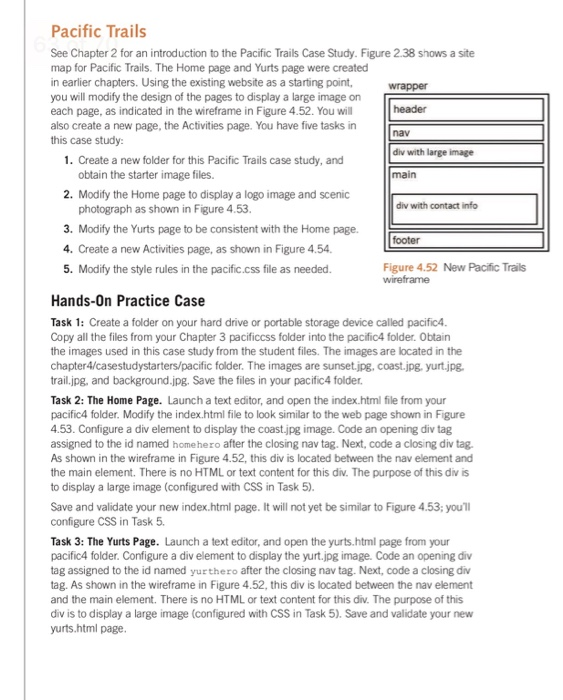
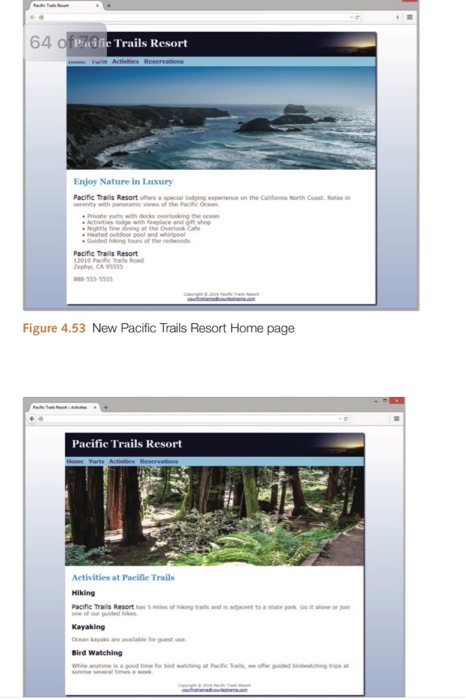
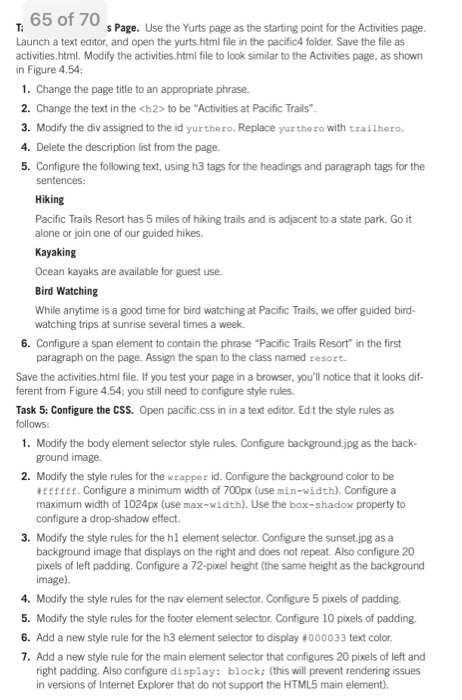 s
s
to be "Activities at Pacific Trails". 3. Modify the div assigned to the id yurthero. Replace yurthero with trailhero. 4. Delete the description list from the page. 5. Configure the following text, using h3 tags for the headings and paragraph tags for the sentences: Hiking Pacific Trails Resort has 5 miles of hiking trails and is adjacent to a state park. Go it alone or join one of our guided hikes. Kayaking Ocean kayaks are available for guest use. Bird Watching While anytime is a good time for bird watching at Pacific Trails, we offer guided bird- watching trips at sunrise several times a week. 6. Configure a span element to contain the phrase "Pacific Trails Resort in the first paragraph on the page. Assign the span to the class named resort. Save the activities.html file. If you test your page in a browser, you'll notice that it looks dif- ferent from Figure 4.54; you still need to configure style rules. Task 5: Configure the CSS. Open pacific.css in in a text editor. Edit the style rules as follows: 1. Modify the body element selector style rules. Configure background.jpg as the back- ground image. 2. Modify the style rules for the wrapper id. Configure the background color to be #ffffff. Configure a minimum width of 700px (use min-width). Configure a maximum width of 1024px (use max-width). Use the box-shadow property to configure a drop-shadow effect. 3. Modify the style rules for the h1 element selector. Configure the sunset.jpg as a background image that displays on the right and does not repeat. Also configure 20 pixels of left padding. Configure a 72-pixel height (the same height as the background image). 4. Modify the style rules for the nav element selector. Configure 5 pixels of padding- 5. Modify the style rules for the footer element selector. Configure 10 pixels of padding. 6. Add a new style rule for the h3 element selector to display #000033 text color. 7. Add a new style rule for the main element selector that configures 20 pixels of left and right padding. Also configure display: block; (this will prevent rendering issues in versions of Internet Explorer that do not support the HTML5 main element). Chapter 4 Visual Elements and Graphics 8. Add a new selector for an id named homehero. Code declarations to configure 300px height and to display the coast.jpg background image to fill the space (use background-size: 100% 100%;) without repeating. 9. Add a new selector for an id named yurthero. Code declarations to configure 300px height and to display the yurt.jpg background image to fill the space (use background-size: 100% 100%;) without repeating. 10. Add a new selector for an id named trailhero. Code declarations to configure 300p height and to display the trail.jpg background image to fill the space (use background-size: 100% 100%; without repeating. 11. Code a new style rule to prevent the hyperlinks in the nav area from displaying the default underline. Use nav a { text-decoration: none; } 12. Have you noticed extra empty space between the logo header area and the navigation Let's do something about that. We'll need to use the CSS margin property, which you' explore in depth in Chapter 6. Modify the style rules for the hl selector to set the bot- tom margin to o with the following code: margin-bottom: 0; Save the pacific.css file. Test your pages (index.html, yurts.html, and activities.html) in a browser. The Home page (index.html) should look similar to Figure 4.53. The new Activi- ties page (activities.html) should look similar to Figure 4.54. If your images do not appear, examine your work carefully. Use Windows Explorer or Mac Finder to verify that the image are saved in your pacific4 folder. Examine the src attribute on the tags to be sure you spelled the image names correctly. Another useful troubleshooting technique is to vali date the HTML and CSS code. See Chapters 2 and 3 for Hands-On Practice exercises that describe how to use these validators
Step by Step Solution
There are 3 Steps involved in it
1 Expert Approved Answer
Step: 1 Unlock

Question Has Been Solved by an Expert!
Get step-by-step solutions from verified subject matter experts
Step: 2 Unlock
Step: 3 Unlock
 Study Help