







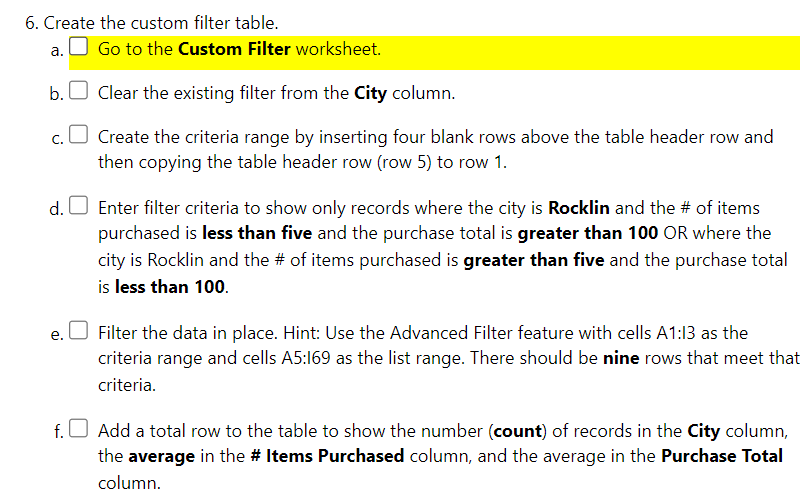
Question: Create the custom filter table. a . Go to the Custom Filter worksheet. b . Clear the existing filter from the City column. c .
Create the custom filter table.
a
Go to the Custom Filter worksheet.
b Clear the existing filter from the City column.
c Create the criteria range by inserting four blank rows above the table header row and
then copying the table header row row to row
d Enter filter criteria to show only records where the city is Rocklin and the # of items
purchased is less than five and the purchase total is greater than OR where the
city is Rocklin and the # of items purchased is greater than five and the purchase total
is less than
e Filter the data in place. Hint: Use the Advanced Filter feature with cells A:I as the
criteria range and cells A:I as the list range. There should be nine rows that meet that
criteria.
f Add a total row to the table to show the number count of records in the City column,
the average in the # Items Purchased column, and the average in the Purchase Total
column.
Step by Step Solution
There are 3 Steps involved in it
1 Expert Approved Answer
Step: 1 Unlock

Question Has Been Solved by an Expert!
Get step-by-step solutions from verified subject matter experts
Step: 2 Unlock
Step: 3 Unlock
 Study Help