







Question: Creating a new web application Task 1: Create a new project for web application a) Create the Student Web application project with the following
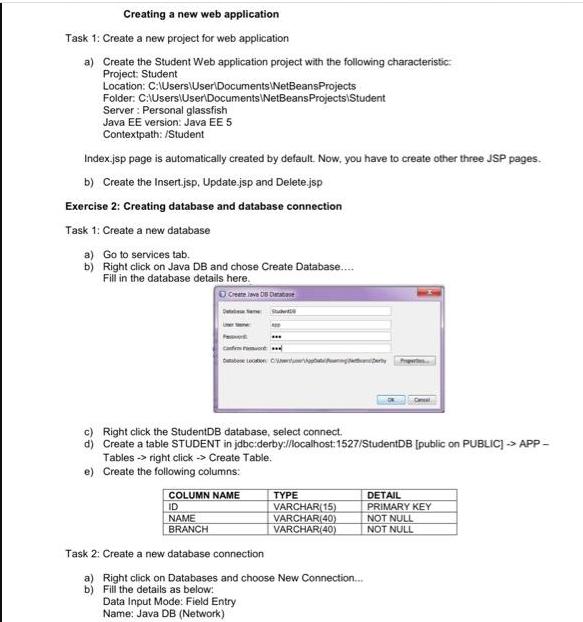
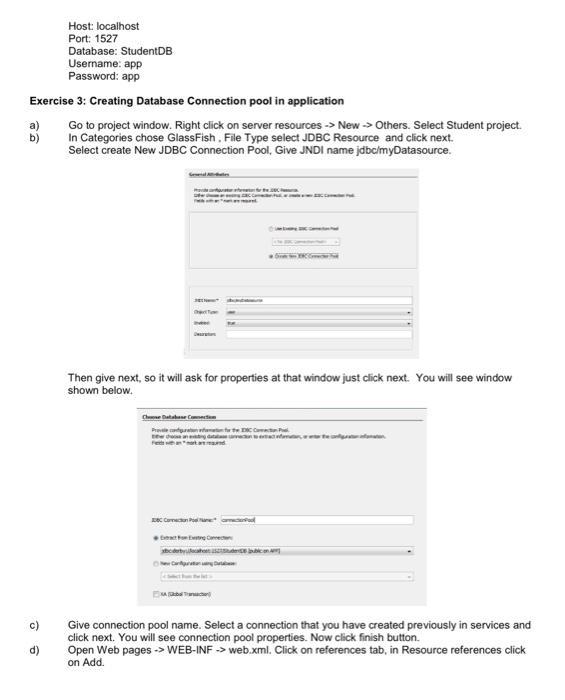
Creating a new web application Task 1: Create a new project for web application a) Create the Student Web application project with the following characteristic: Project: Student Location: C:\Users\User\Documents\NetBeansProjects Folder: C:\Users\User\Documents\NetBeansProjects Student Server: Personal glassfish Java EE version: Java EE 5 Contextpath: /Student Index.jsp page is automatically created by default. Now, you have to create other three JSP pages. b) Create the Insert.jsp. Update.jsp and Delete.jsp Exercise 2: Creating database and database connection Task 1: Create a new database a) Go to services tab. b) Right click on Java DB and chose Create Database..... Fill in the database details here. Create a DB D S ... can babes Location t COLUMN NAME ID NAME BRANCH c) Right click the StudentDB database, select connect. d) Create a table STUDENT in jdbc:derby://localhost: 1527/StudentDB [public on PUBLIC]> APP - Tables -> right click -> Create Table. e) Create the following columns: TYPE VARCHAR(15) VARCHAR(40) VARCHAR(40) Task 2: Create a new database connection a) Right click on Databases and choose New Connection... b) Fill the details as below: Data Input Mode: Field Entry Name: Java DB (Network) DETAIL PRIMARY KEY NOT NULL NOT NULL
Step by Step Solution
There are 3 Steps involved in it

Get step-by-step solutions from verified subject matter experts
 Study Help