







Question: CSCI 4200 Lab 1 Windows Command Prompt 8 Exploring a directory tree. At this point you are probably working down somewhere in your directory tree.
CSCI 4200 Lab 1 Windows Command Prompt 8
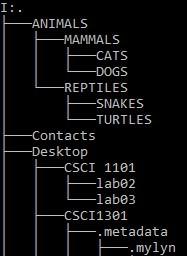
Exploring a directory tree.
At this point you are probably working down somewhere in your directory tree. Type cd your directory -- you will get an error message, The system cannot find the path specified. The problem is that Windows is looking for the directory name as a subdirectory of the current directory. To fix this, type
cd \your directory
This should work. Starting the path with \ creates an absolute path. The effect is similar to an absolute cell reference in an Excel formula.
Type dir /S to see a listing of the current directory plus all its subdirectories. Wow, that's a lot of information that scrolls by quickly. What a segway for our next segment, eh?
Capturing output to a file.
If any command gives output to the console, you can redirect it into a text file. Here's how:
Suppose we wanted to capture the output of the dir command to a filename called DirOutput.txt. All we need to do is add the > symbol (the greater-than sign here is the redirector) and then the filename to the end of the dir command like so:
dir > DirOutput.txt
We can use another command called type to view the contents of a file. Try it out below to check the newly created DirOutput.txt file.
CSCI 4200 Lab 1 Windows Command Prompt 9
type DirOutput.txt
Suppose you wanted to record the contents of your directory and all its subdirectories so that, at a later date, you could tell which files existed at this time. Remember adding the switch /S to the dir command gives us this information. To capture its output in a file with this month, type dir /S > oldDirInfo.txt --where the file should be named to match the current month.
Viewing files.
You can also view the contents of this text file using the type command. Enter
type oldDirInfo.txt
-- to see the contents of this file. However, this only works for text files! Try displaying an Excel or Word file such as one of your excel exercise files. (You will need to enclose the file name in quotes if it contains a space.) You will see only garbage. Recall from the lecture that an Excel document file is stored in a file format that can only be interpreted by the Excel application program.
Deleting files, directories or an entire directory tree.
The del command deletes files, and the rmdir command deletes directories. Make sure you are in the directory which contains the file oldDirInfo.txt, and type
del oldDir*
-- using the wildcard character * to avoid typing the full filename. Change directories to the
PLANTS directory and type
rmdir HERBS
-- which should delete the HERBS directory. Try the command
rmdir TREES
-- this fails because the TREES directory is not empty. You could go into TREES and clean it out. Instead, type
rmdir /S TREES
-- and answer Y at the prompt. As you can see, the /S switch for the rmdir command is very powerful, and with great power comes great responsibility. This command must be used with great caution since it can delete many things at once.
Step by Step Solution
There are 3 Steps involved in it

Get step-by-step solutions from verified subject matter experts
 Study Help