







Question: Lesson 3 CLI Intro Lab - Note your answers in a different color font Step 1 - Save this document as - LastName_Lesson3.docx 1) Open
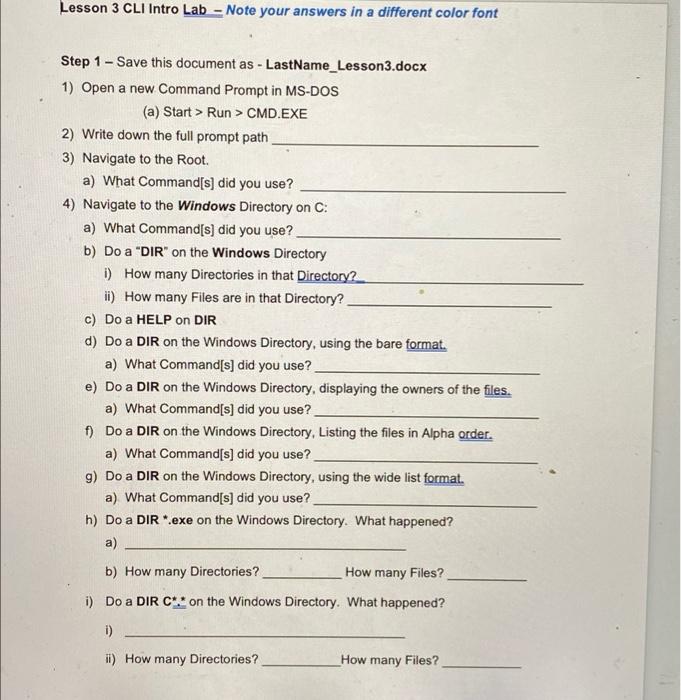
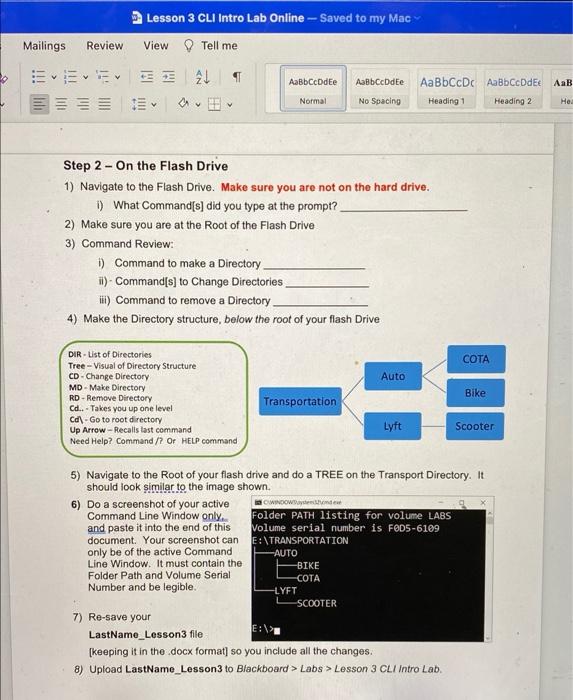
Lesson 3 CLI Intro Lab - Note your answers in a different color font Step 1 - Save this document as - LastName_Lesson3.docx 1) Open a new Command Prompt in MS-DOS (a) Start > Run > CMD.EXE 2) Write down the full prompt path 3) Navigate to the Root. a) What Command[s] did you use? 4) Navigate to the Windows Directory on C: a) What Command[s) did you use? b) Do a "DIR" on the Windows Directory 1) How many Directories in that Directory? ii) How many Files are in that Directory? c) Do a HELP on DIR d) Do a DIR on the Windows Directory, using the bare format. a) What Command[s] did you use? e) Do a DIR on the Windows Directory, displaying the owners of the files. a) What Command[s] did you use? f) Do a DIR on the Windows Directory, Listing the files in Alpha order. a) What Command[s] did you use? g) Do a DIR on the Windows Directory, using the wide list format. a) What Command[s] did you use? h) Do a DIR *.exe on the Windows Directory. What happened? a) b) How many Directories? How many Files? i) Do a DIR C, on the Windows Directory. What happened? 1) ii) How many Directories? How many Files? A Lesson 3 CLI Intro Lab Online - Saved to my Mac View Tell me Mailings Review 21 AaBbCcDdEe AaBbCcDdEe AaBbCcDc AaBb CcDdEt Heading 1 Heading 2 a v Normal No Spacing . Step 2 - On the Flash Drive 1) Navigate to the Flash Drive. Make sure you are not on the hard drive. 1) What Command(s) did you type at the prompt? 2) Make sure you are at the Root of the Flash Drive 3) Command Review: 1) Command to make a Directory il). Command[s] to Change Directories iii) Command to remove a Directory 4) Make the Directory structure, below the root of your flash Drive COTA Auto Bike DIR - List of Directories Tree - Visual of Directory Structure CD - Change Directory MD - Make Directory RD - Remove Directory Cd.. - Takes you up one level Cd - Go to root directory Up Arrow - Recalls last command Need Help? Command /? OF HELP command Transportation Lyft Scooter 5) Navigate to the Root of your flash drive and do a TREE on the Transport Directory. It should look similar to the image shown. 6) Do a screenshot of your active O WINDOWS Command Line Window only. Folder PATH listing for volume LABS and paste it into the end of this Volume serial number is FOD5-6109 document. Your screenshot can E:\TRANSPORTATION only be of the active Command -AUTO Line Window. It must contain the -BIKE Folder Path and Volume Serial -COTA Number and be legible LYFT LSCOOTER 7) Re-save your E: LastName_Lesson3 file [keeping it in the docx format] so you include all the changes. 8) Upload LastName_Lesson3 to Blackboard > Labs > Lesson 3 CLI Intro Lab
Step by Step Solution
There are 3 Steps involved in it

Get step-by-step solutions from verified subject matter experts
 Study Help