







Question: CSI 124 Programming III . Using the following data how to constract and display in the given list box using wpf window. Last Name Starting
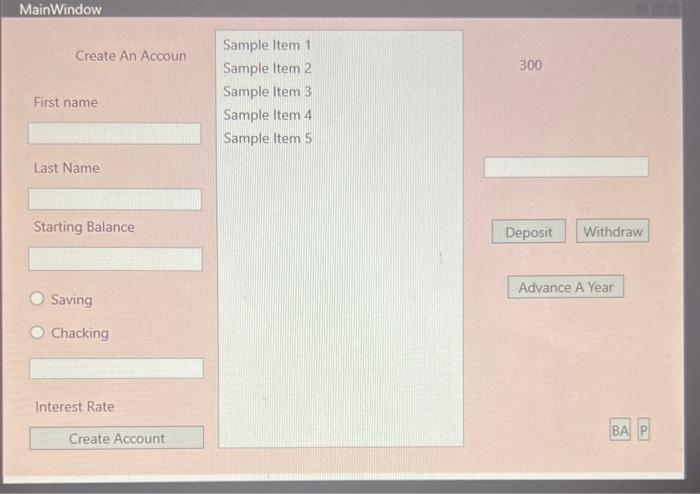
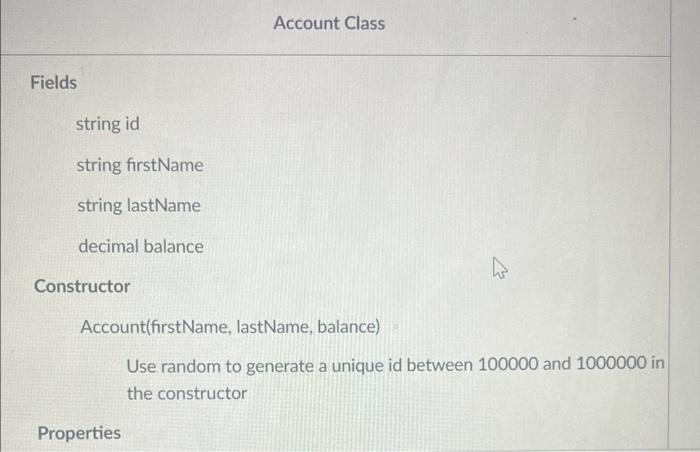
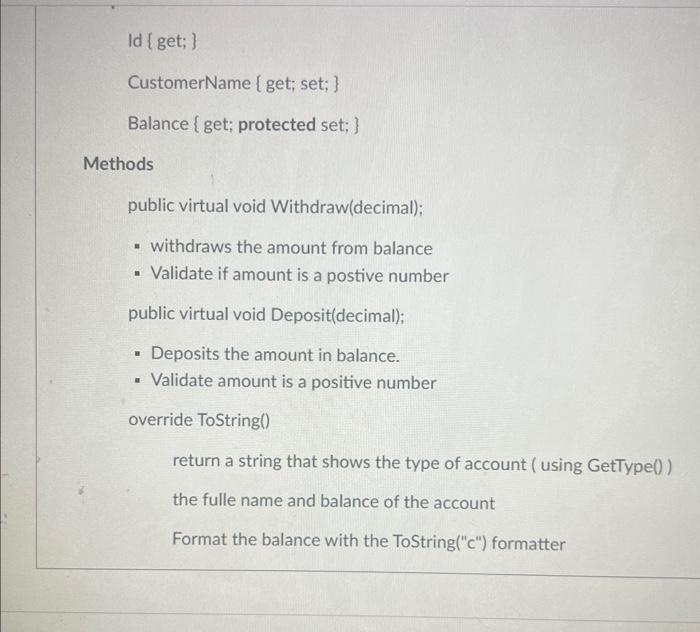
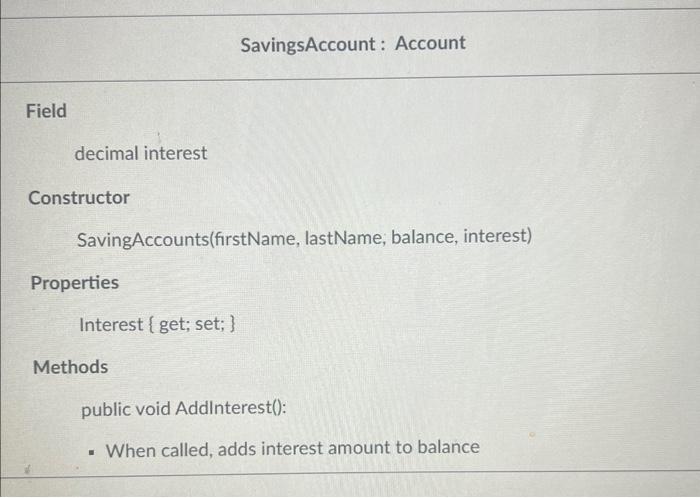
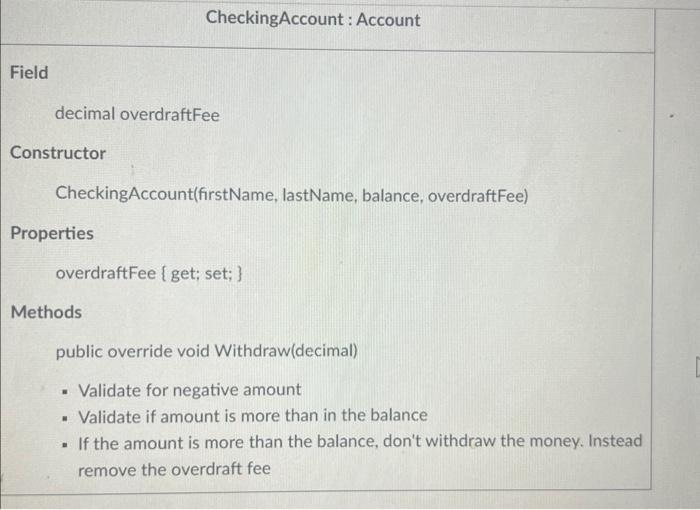
Last Name Starting Balanc Saving Chacking Interest Rate Account Class Fields string id string firstName string lastName decimal balance Constructor Account(firstName, lastName, balance) Use random to generate a unique id between 100000 and 1000000 in the constructor Properties Id { get; } CustomerName \{get; set; } Balance { get; protected set; \} Methods public virtual void Withdraw(decimal); - withdraws the amount from balance - Validate if amount is a postive number public virtual void Deposit(decimal); - Deposits the amount in balance. - Validate amount is a positive number override ToString() return a string that shows the type of account ( using GetType()) the fulle name and balance of the account Format the balance with the ToString("c") formatter Field decimal interest Constructor SavingAccounts(firstName, lastName, balance, interest) Properties Interest { get; set; } Methods public void Addlnterest(): - When called, adds interest amount to balance Field decimal overdraftFee Constructor CheckingAccount(firstName, lastName, balance, overdraftFee) Properties overdraftFee { get; set; } Methods public override void Withdraw(decimal) - Validate for negative amount - Validate if amount is more than in the balance - If the amount is more than the balance, don't withdraw the money. Instead remove the overdraft fee
Step by Step Solution
There are 3 Steps involved in it

Get step-by-step solutions from verified subject matter experts
 Study Help