



Question: d. 5,555.55 Skills Review 1. Format values. a. Start Excel, open the file EX C-2.xlsx from the location where you store your Data Files, then

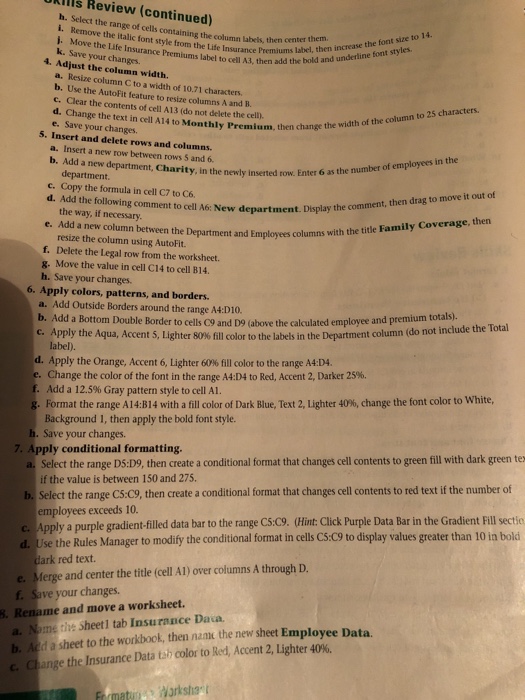
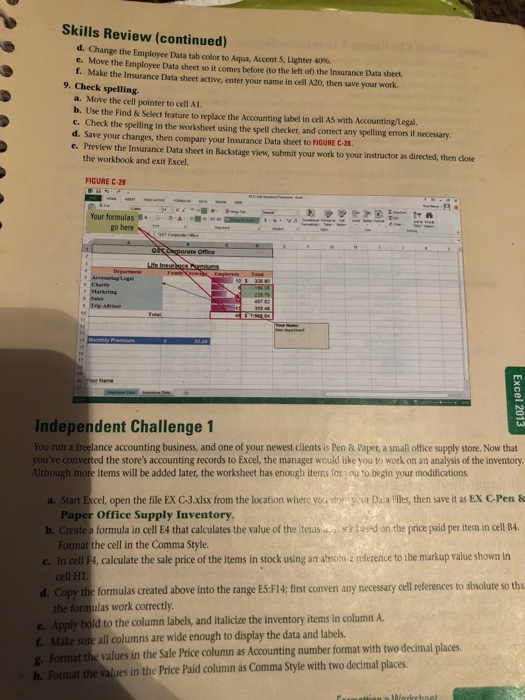
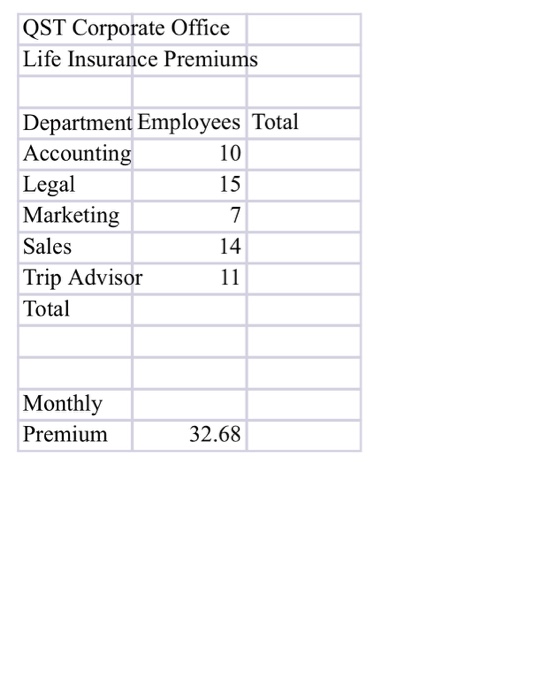
d. 5,555.55 Skills Review 1. Format values. a. Start Excel, open the file EX C-2.xlsx from the location where you store your Data Files, then save it as EX C-Life Insurance Premiums. b. Use the Sum function to enter a formula in cell B10 that totals the number of employees. c. Create a formula in cell C5 that calculates the monthly insurance premium for the accounting department. (Hint: Make sure you use the correct type of cell reference in the formula. To calculate the department's monthl premium, multiply the number of employees by the monthly premium in cell B14.) d. Copy the formula in cell C5 to the range C6:C10. e. Format the range C5:C10 using Accounting number format. f. Change the format of the range C6:C9 to the Comma Style. s. Reduce the number of decimals in cell B14 to 0 using a button in the Number group on the HOME tab. h. Save your work. 2. Change font and font sizes. a. Select the range of cells containing the column labels (in row 4). b. Change the font of the selection to Times New Roman. c. Increase the font size of the selection to 12 points. d. Increase the font size of the label in cell Al to 14 points. e. Save your changes. 3. Change font styles and alignment. a. Apply the bold and italic font styles to the worksheet title in cell A1. b. Use the Merge& Center button to center the Life Insurance Premiums label over columns A through C. c. Apply the italic font style to the Life Insurance Premiums label. d. Add the bold font stvle to the labels in row 4. e. Use the Format Painter to copy the format in cell A4 to the range AS:A10. g. Change the alignment of cell A10 to Align Right using a button in the Alignment group. Formatting a Worksh f. Apply the format in cell C10 to cell B14
Step by Step Solution
There are 3 Steps involved in it

Get step-by-step solutions from verified subject matter experts