







Question: Description, please use python Project portion code to use 1. Turtle Patterns II - Description Expected Duration: 34 hours Problem This project assumes that Turtles
Description, please use python
Project portion
code to use
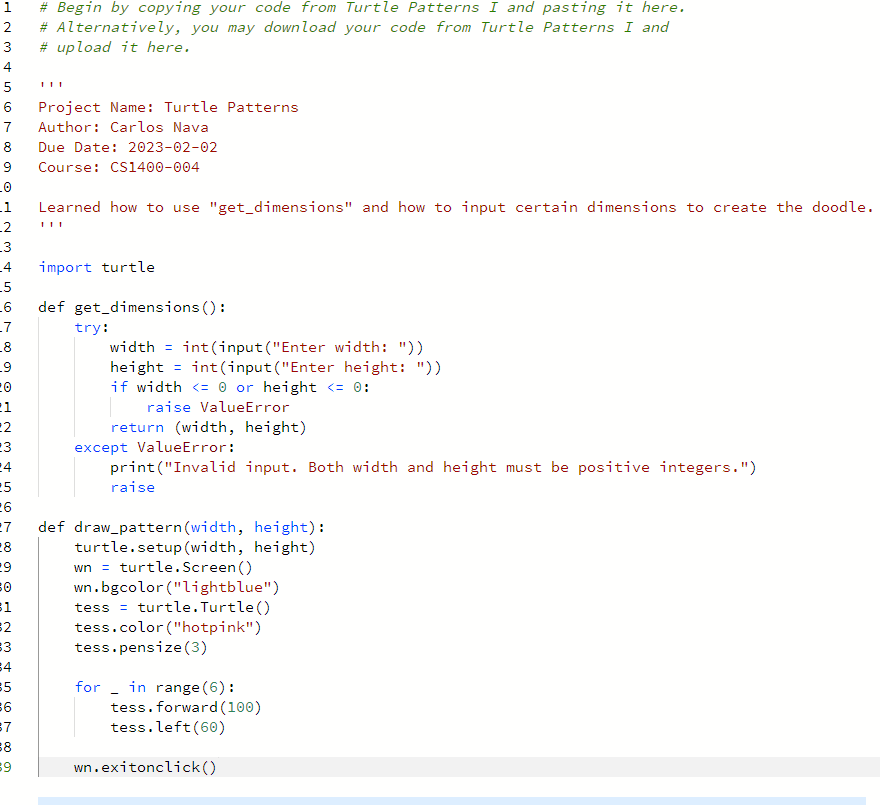
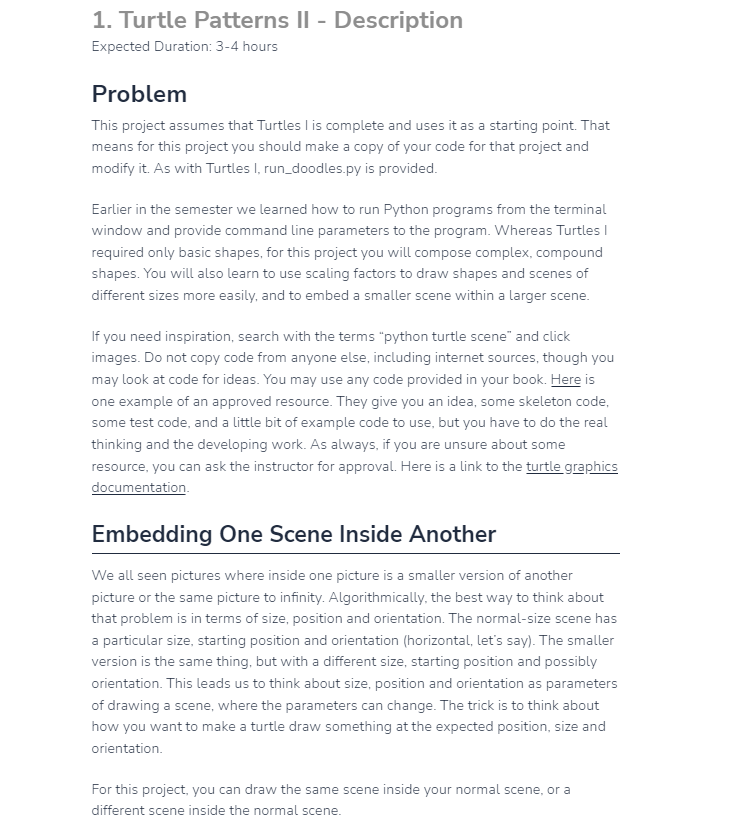
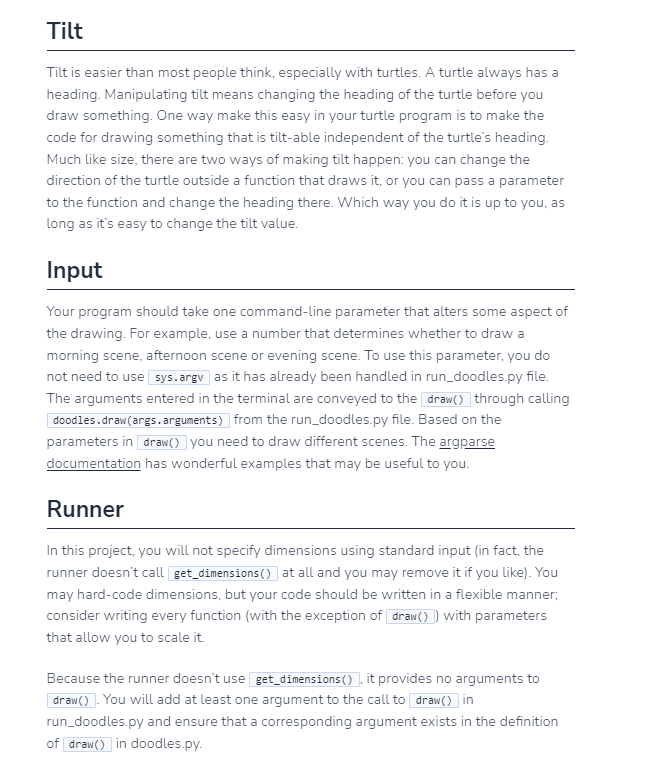
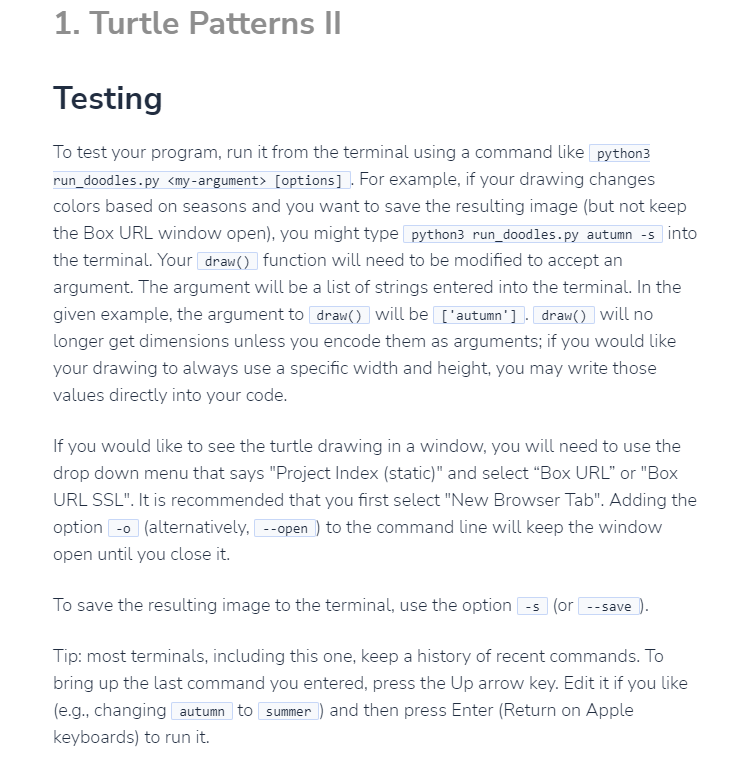
1. Turtle Patterns II - Description Expected Duration: 34 hours Problem This project assumes that Turtles is complete and uses it as a starting point. That means for this project you should make a copy of your code for that project and modify it. As with Turtles I, run_doodles.py is provided. Earlier in the semester we learned how to run Python programs from the terminal. window and provide command line parameters to the program. Whereas Turtles I required only basic shapes, for this project you will compose complex, compound shapes. You will also learn to use scaling factors to draw shapes and scenes of different sizes more easily, and to embed a smaller scene within a larger scene. If you need inspiration, search with the terms "python turtle scene" and click images. Do not copy code from anyone else, including internet sources, though you may look at code for ideas. You may use any code provided in your book. Here is one example of an approved resource. They give you an idea, some skeleton code, some test code, and a little bit of example code to use, but you have to do the real. thinking and the developing work. As always, if you are unsure about some resource, you can ask the instructor for approval. Here is a link to the turtle graphics documentation. Embedding One Scene Inside Another We all seen pictures where inside one picture is a smaller version of another picture or the same picture to infinity. Algorithmically, the best way to think about that problem is in terms of size, position and orientation. The normal-size scene has a particular size, starting position and orientation (horizontal, let's say). The smaller version is the same thing, but with a different size, starting position and possibly orientation. This leads us to think about size, position and orientation as parameters of drawing a scene, where the parameters can change. The trick is to think about how you want to make a turtle draw something at the expected position, size and orientation. For this project, you can draw the same scene inside your normal scene, or a different scene inside the normal scene. Tilt Tilt is easier than most people think, especially with turtles. A turtle always has a heading. Manipulating tilt means changing the heading of the turtle before you draw something. One way make this easy in your turtle program is to make the code for drawing something that is tilt-able independent of the turtle's heading. Much like size, there are two ways of making tilt happen: you can change the direction of the turtle outside a function that draws it, or you can pass a parameter to the function and change the heading there. Which way you do it is up to you, as long as it's easy to change the tilt value. Input Your program should take one command-line parameter that alters some aspect of the drawing. For example, use a number that determines whether to draw a morning scene, afternoon scene or evening scene. To use this parameter, you do not need to use as it has already been handled in run_doodles.py file. The arguments entered in the terminal are conveyed to the through calling from the run_doodles.py file. Based on the parameters in you need to draw different scenes. The argparse documentation has wonderful examples that may be useful to you. Runner In this project, you will not specify dimensions using standard input (in fact, the runner doesn't call at all and you may remove it if you like). You may hard-code dimensions, but your code should be written in a flexible manner; consider writing every function (with the exception of with parameters that allow you to scale it. Because the runner doesn't use it provides no arguments to You will add at least one argument to the call to in run_doodles.py and ensure that a corresponding argument exists in the definition of in doodles.py. To test your program, run it from the terminal using a command like run_doodles.py my-argument> [options]. For example, if your drawing changes colors based on seasons and you want to save the resulting image (but not keep the Box URL window open), you might type into the terminal. Your function will need to be modified to accept an argument. The argument will be a list of strings entered into the terminal. In the given example, the argument to . will be will no longer get dimensions unless you encode them as arguments; if you would like your drawing to always use a specific width and height, you may write those values directly into your code. If you would like to see the turtle drawing in a window, you will need to use the drop down menu that says "Project Index (static)" and select "Box URL" or "Box URL SSL". It is recommended that you first select "New Browser Tab". Adding the option (alternatively, to the command line will keep the window open until you close it. To save the resulting image to the terminal, use the option (or Tip: most terminals, including this one, keep a history of recent commands. To bring up the last command you entered, press the Up arrow key. Edit it if you like (e.g., changing to and then press Enter (Return on Apple keyboards) to run it
Step by Step Solution
There are 3 Steps involved in it

Get step-by-step solutions from verified subject matter experts
 Study Help