







Question: Design an embedded system application using Tinkercad to simulate a traffic light sequence by writing to and reading from digital pins. Instructions: 1. Click on
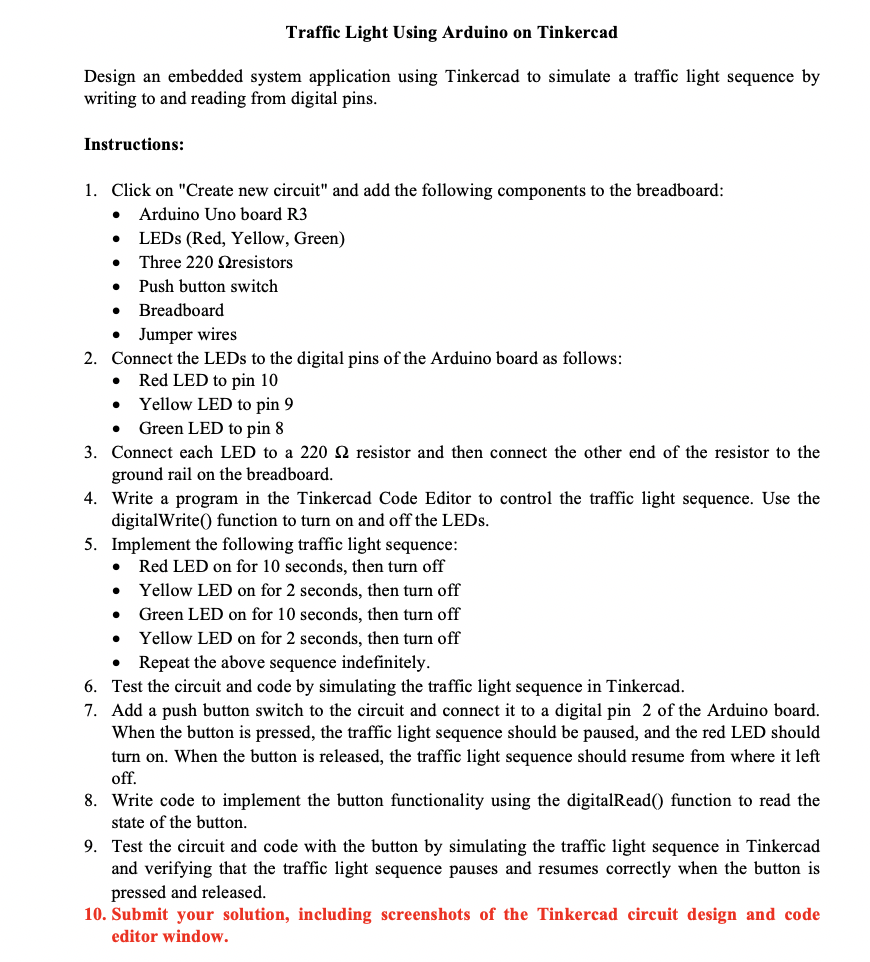
Design an embedded system application using Tinkercad to simulate a traffic light sequence by writing to and reading from digital pins. Instructions: 1. Click on "Create new circuit" and add the following components to the breadboard: - Arduino Uno board R3 - LEDs (Red, Yellow, Green) - Push button switch - Breadboard - Jumper wires 2. Connect the LEDs to the digital pins of the Arduino board as follows: - Red LED to pin 10 - Yellow LED to pin 9 - Green LED to pin 8 3. Connect each LED to a 220 resistor and then connect the other end of the resistor to the ground rail on the breadboard. 4. Write a program in the Tinkercad Code Editor to control the traffic light sequence. Use the digitalWrite( ) function to turn on and off the LEDs. 5. Implement the following traffic light sequence: - Red LED on for 10 seconds, then turn off - Yellow LED on for 2 seconds, then turn off - Green LED on for 10 seconds, then turn off - Yellow LED on for 2 seconds, then turn off - Repeat the above sequence indefinitely. 6. Test the circuit and code by simulating the traffic light sequence in Tinkercad. 7. Add a push button switch to the circuit and connect it to a digital pin 2 of the Arduino board. When the button is pressed, the traffic light sequence should be paused, and the red LED should turn on. When the button is released, the traffic light sequence should resume from where it left off. 8. Write code to implement the button functionality using the digitalRead() function to read the state of the button. 9. Test the circuit and code with the button by simulating the traffic light sequence in Tinkercad and verifying that the traffic light sequence pauses and resumes correctly when the button is pressed and released. 10. Submit your solution, including screenshots of the Tinkercad circuit design and code editor window
Step by Step Solution
There are 3 Steps involved in it

Get step-by-step solutions from verified subject matter experts
 Study Help