







Question: Detecting Locks Objective: Detect locks from the Query Editor in SQL Server Management Studio Open a word document and add appropriate screenshots for each
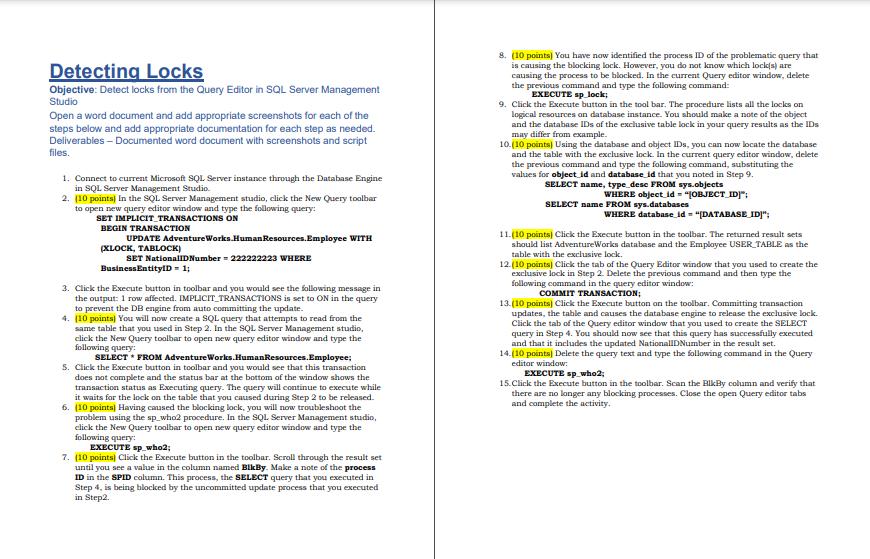
Detecting Locks Objective: Detect locks from the Query Editor in SQL Server Management Studio Open a word document and add appropriate screenshots for each of the steps below and add appropriate documentation for each step as needed. Deliverables - Documented word document with screenshots and script files. 1. Connect to current Microsoft SQL Server instance through the Database Engine in SQL Server Management Studio. 2. (10 points) In the SQL Server Management studio, click the New Query toolbar to open new query editor window and type the following query: SET IMPLICIT TRANSACTIONS ON BEGIN TRANSACTION UPDATE Adventure Works.Human Resources. Employee WITH (XLOCK, TABLOCK) SET NationalID Number = 222222223 WHERE BusinessEntityID = 1; 3. Click the Execute button in toolbar and you would see the following message in the output: 1 row affected. IMPLICIT TRANSACTIONS is set to ON in the query to prevent the DB engine from auto committing the update. 4. (10 points) You will now create a SQL query that attempts to read from the same table that you used in Step 2. In the SQL Server Management studio, click the New Query toolbar to open new query editor window and type the following query: SELECT * FROM AdventureWorks.Human Resources.Employee; 5. Click the Execute button in toolbar and you would see that this transaction does not complete and the status bar at the bottom of the window shows the transaction status as Executing query. The query will continue to execute while it waits for the lock on the table that you caused during Step 2 to be released. 6. (10 points] Having caused the blocking lock, you will now troubleshoot the problem using the sp who2 procedure. In the SQL Server Management studio, click the New Query toolbar to open new query editor window and type the following query: EXECUTE sp who2; 7. (10 points) Click the Execute button in the toolbar. Scroll through the result set until you see a value in the column named BikBy. Make a note of the process ID in the SPID column. This process, the SELECT query that you executed in Step 4, is being blocked by the uncommitted update process that you executed in Step2. 8. (10 points) You have now identified the process ID of the problematic query that is causing the blocking lock. However, you do not know which lock(s) are causing the process to be blocked. In the current Query editor window, delete the previous command and type the following command: EXECUTE sp lock; 9. Click the Execute button in the tool bar. The procedure lists all the locks on logical resources on database instance. You should make a note of the object and the database IDs of the exclusive table lock in your query results as the IDs may differ from example. 10.(10 points) Using the database and object IDs, you can now locate the database and the table with the exclusive lock. In the current query editor window, delete the previous command and type the following command, substituting the values for object id and database_id that you noted in Step 9. SELECT name, type dese FROM sys.objects WHERE object id="JOBJECT_ID]"; SELECT name FROM sys.databases WHERE database_id "[DATABASE_ID]"; 11.(10 points) Click the Execute button in the toolbar. The returned result sets should list AdventureWorks database and the Employee USER TABLE as the table with the exclusive lock. 12. (10 points) Click the tab of the Query Editor window that you used to create the exclusive lock in Step 2. Delete the previous command and then type the following command in the query editor window: COMMIT TRANSACTION; 13. (10 points) Click the Execute button on the toolbar. Committing transaction updates, the table and causes the database engine to release the exclusive lock. Click the tab of the Query editor window that you used to create the SELECT query in Step 4. You should now see that this query has successfully executed and that it includes the updated NationalIDNumber in the result set. 14.(10 points] Delete the query text and type the following command in the Query editor window: EXECUTE sp who2; 15. Click the Execute button in the toolbar. Scan the BlkBy column and verify that there are no longer any blocking processes. Close the open Query editor tabs and complete the activity.
Step by Step Solution
There are 3 Steps involved in it

Get step-by-step solutions from verified subject matter experts
 Study Help