







Question: EXC 1 9 E 1 - Practical Component Instructions Complete the practical component by following these instructions. You will use your completed practical component to
EXCE Practical Component Instructions
Complete the practical component by following these instructions. You will use your completed practical
component to answer questions on the online test, but you will not submit or upload the practical
component in myAOLCC.
Please return these instructions and your completed practical component to your Learning Coach once
you have completed the online test.
Please note that these are general and not stepbystep instructions. In this practical component, you
will use Microsoft Excel to perform the following functions:
formatting
adding and replacing information in the worksheet
creating formulas
adding footers
copying data to another worksheet
Instructions
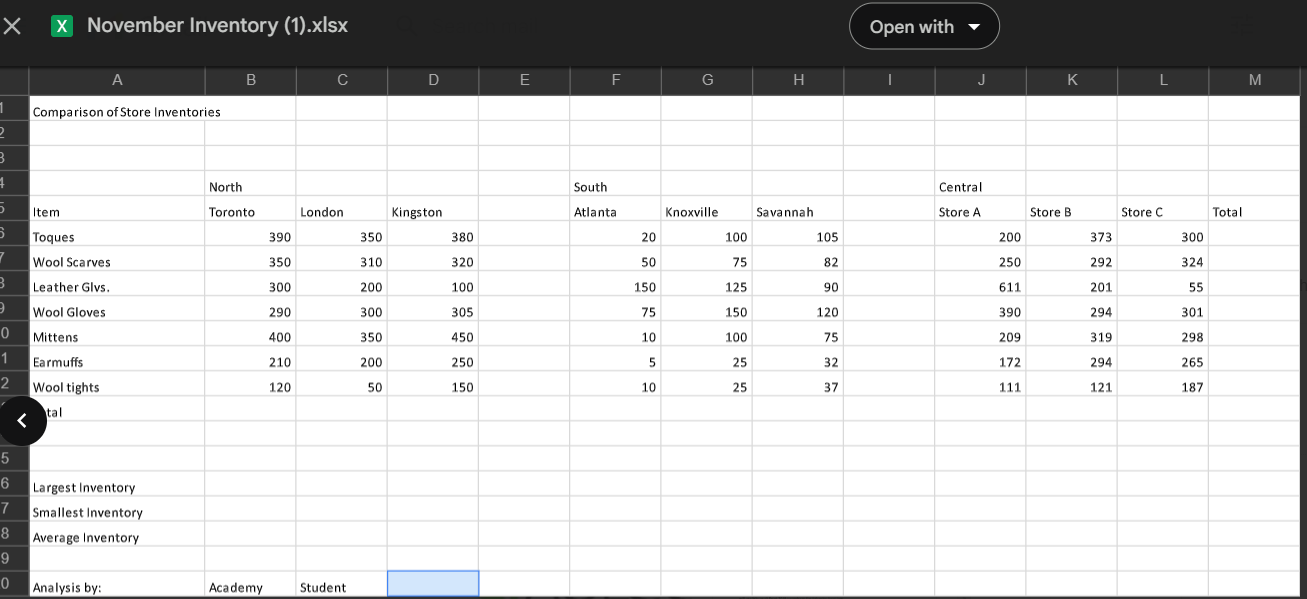
Open the workbook, November Inventory.xlsx which will be provided to you by your Learning
Coach.
Add the text, Week Ending November to the title in cell A
Now apply the Heading style to the title, Comparison of Store Inventories Week Ending
November
In cell A add the subtitle, Cold Weather Wear. Apply the Heading style.
Change the label in cell A from Wool Scarves to Scarves.
Change the label in cell B from North to East.
For the Central area, change the labels Store A Store B and Store C to the labels New York,
Pittsburgh, and Buffalo respectively.
Change the width for columns E and I to
Insert a row below the Toques row. Add the label Dress Hats in the first cell in this new row.
On the Dress Hats row, add the data as shown:
Item Toronto London Kingston Atlanta Knoxville Savannah New York Pittsburgh Buffalo
Dress Hats
Bold all the labels in rows and Note: Bold only the labels, eg East, South,
Central; not all the cells in those rows.
Italicize the names of the products in column A Hats Scarves, etc.
Merge and center cells B C and D Do the same for cells F G H and for cells J K and L
In row use the SUM function to create a formula that totals the figures in columns B C D F G
H J K and L For example, create a formula in cell B that totals cells B:B etc.
In column M use AutoSum to total the figures in rows to For example, in cell M use
AutoSum to total cells B:L etc.
In cell M create a formula without using a function to add up the values in cell B C D
F G H J K and L
In row add a border to the totals with a single line on top and a double line below.
Format all the numbers with a comma and no decimal places.
AutoFit columns B to M
Fill the range M:M with the Dark Blue, Text Lighter color.
Use functions to create formulas in cells C C and C respectively to calculate the Highest,
Lowest, and Average Inventory. These numbers should also have no decimal places.
Use the CONCAT function in cell A to join cell B and cell C Include a space between the first
and last names.
Rename the worksheet tab to November and change the tab color to the standard color Blue.
Copy all of the data on the November worksheet to a new sheet that is placed after the
November worksheet. Rename the new worksheet as November and change the color to
standard color Orange.
On the November worksheet, replace November in the title with November
Replace all instances of on the November worksheet with
Add a footer to both worksheets with the current date on the left side of the footer.
Add a dashed blue border around the ranges, B:D F:H and J:L on the November
worksheet only.
Print preview the worksheets and then fit to one page, if necessary.
Return both worksheets to Normal view.
Save your file as November Inventory Your Name.xlsx November Inventory xlsx
Open with
Comparison of Store Inventories
Largest Inventory
Smallest Inventory
Average Inventory
Analysis by:
Academy
Student
Step by Step Solution
There are 3 Steps involved in it
1 Expert Approved Answer
Step: 1 Unlock

Question Has Been Solved by an Expert!
Get step-by-step solutions from verified subject matter experts
Step: 2 Unlock
Step: 3 Unlock
 Study Help