





Question: Excel Instructions CAUTION: Read Appendix A for specific instructions relating to these templates. 1. Enter the appropriate numbers/ formulas in the shaded (gray) cells. An
Excel Instructions CAUTION: Read Appendix A for
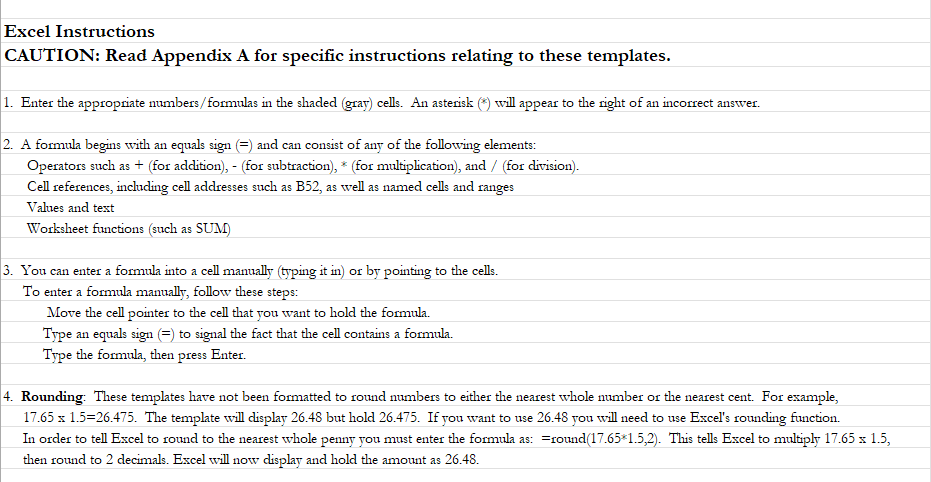
Excel Instructions CAUTION: Read Appendix A for specific instructions relating to these templates. 1. Enter the appropriate numbers/ formulas in the shaded (gray) cells. An asterisk (*) will appear to the right of an incorrect answer. 2. A formula begins with an equals sign (=) and can consist of any of the following elements: Operators such as + (for addition), - (for subtraction), * (for multiplication), and / (for division). Cell references, including cell addresses such as B52, as well as named cells and ranges Values and text Worksheet functions (such as SUM) 3. You can enter a formula into a cell manually (typing it in) or by pointing to the cells. To enter a formula manually, follow these steps: Move the cell pointer to the cell that you want to hold the formula. Type an equals sign (=) to signal the fact that the cell contains a formula. Type the formula, then press Enter. 4. Rounding: These templates have not been formatted to round numbers to either the nearest whole number or the nearest cent. For example, 17.65 x 1.5=26.475. The template will display 26.48 but hold 26.475. If you want to use 26.48 you will need to use Excel's rounding function. In order to tell Excel to round to the nearest whole penny you must enter the formula as: =round(17.65*1.5,2). This tells Excel to multiply 17.65 x 1.5, then round to 2 decimals. Excel will now display and hold the amount as 26.48

Step by Step Solution

There are 3 Steps involved in it

1 Expert Approved Answer
Step: 1 Unlock blur-text-image

Question Has Been Solved by an Expert!

Get step-by-step solutions from verified subject matter experts

Step: 2 Unlock
Step: 3 Unlock

Students Have Also Explored These Related Accounting Questions!