







Question: Excel Module 2 Formatting Workbook Text and Data Case probelm 1 ale Suppliers, a maior comes an inventory those contents, and the orkbook containing the
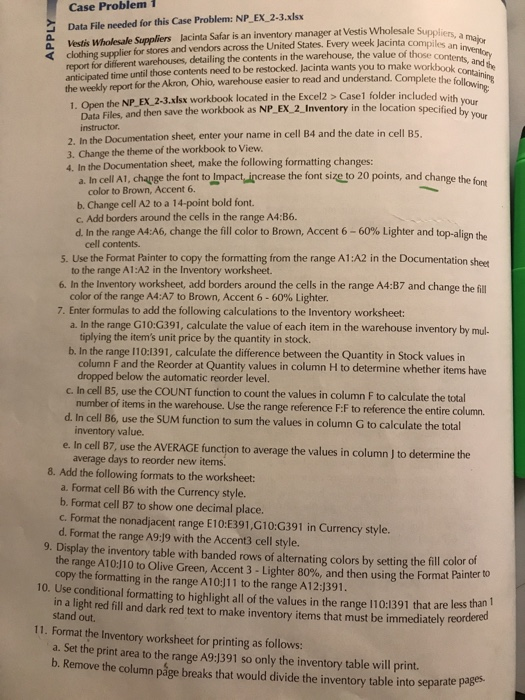
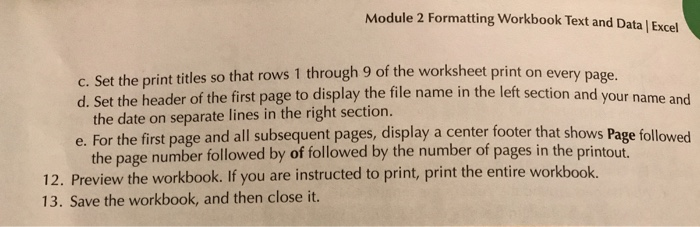
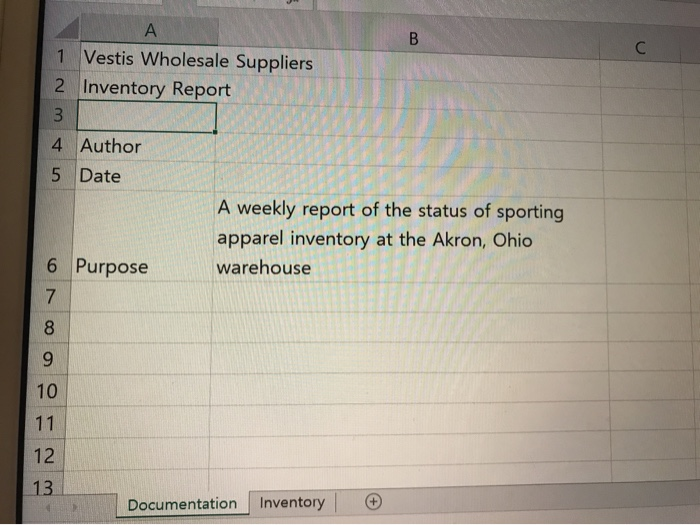
ale Suppliers, a maior comes an inventory those contents, and the orkbook containing the following cluded with your cation specified by your Case Problem Data File needed for this Case Problem: NP_EX_2-3.xlsx Vestis Wholesale Suppliers Jacinta Safar is an inventory manager at Vestis Wholesale Suppli clothing supplier for stores and vendors across the United States. Every week Jacinta come report for different warehouses, detailing the contents in the warehouse, the value of those en anticipated time until those contents need to be restocked. Jacinta wants you to make workbook the weedy report for the Akron, Ohio, warehouse easier to read and understand. Complete 1. Open the NP EX_2-3.xlsx workbook located in the Excel2 > Case1 folder included with Data Files, and then save the workbook as NP_EX_2_Inventory in the location specified instructor 2. In the Documentation sheet, enter your name in cell B4 and the date in cell B5. 3. Change the theme of the workbook to View. 4. In the Documentation sheet, make the following formatting changes: a. In cell Al, change the font to Impact, increase the font size to 20 points, and change the fom color to Brown, Accent 6. b. Change cell A2 to a 14-point bold font. c. Add borders around the cells in the range A4:36. d. In the range A4:46, change the fill color to Brown, Accent 6 -60% Lighter and top-alien the cell contents. 5. Use the Format Painter to copy the formatting from the range A1:A2 in the Documentation she to the range A1:A2 in the Inventory worksheet. 6. In the Inventory worksheet, add borders around the cells in the range A4:B7 and change the fill color of the range A4:A7 to Brown, Accent 6 - 60% Lighter. 7. Enter formulas to add the following calculations to the Inventory worksheet: In the range G10:G391, calculate the value of each item in the warehouse inventory by mul tiplying the item's unit price by the quantity in stock. b. In the range 110:1391, calculate the difference between the Quantity in Stock values in column F and the Reorder at Quantity values in column H to determine whether items have dropped below the automatic reorder level. c. In cell B5, use the COUNT function to count the values in column F to calculate the total number of items in the warehouse. Use the range reference F:F to reference the entire column d. In cell B6, use the SUM function to sum the values in column G to calculate the total inventory value. e. In cell B7, use the AVERAGE function to average the values in column to determine the average days to reorder new items. 8. Add the following formats to the worksheet: a. Format cell B6 with the Currency style. b. Format cell B7 to show one decimal place. c. Format the nonadjacent range E10:E391,610:G391 in Currency style. d. Format the range A9:19 with the Accent3 cell style. 9. Display the inventory table with banded rows of alternating colors by setting the fill coloro the range A10:J10 to Olive Green, Accent 3 - Lighter 80%, and then using the Format Painter copy the formatting in the range A10:J11 to the range A12:391. 10. Use conditional formatting to highlight all of the values in the range 110:1391 that are less in a light red fill and dark red text to make inventory items that must be immediately reorder stand out. 11. Format the Inventory worksheet for printing as follows: a. Set the print area to the range A9:1391 so only the inventory table will print. b. Remove the column page breaks that would divide the inventory table into separate page Module 2 Formatting Workbook Text and Data Excel c. Set the print titles so that rows 1 through 9 of the worksheet print on every pa d. Set the header of the first page to display the file name in the left section and your na the date on separate lines in the right section. e. For the first page and all subsequent pages, display a center footer that shows Page followed the page number followed by of followed by the number of pages in the printout. 12. Preview the workbook. If you are instructed to print, print the entire workbook. 13. Save the workbook, and then close it. 1 Vestis Wholesale Suppliers 2 Inventory Report 4 Author 5 Date A weekly report of the status of sporting apparel inventory at the Akron, Ohio warehouse 6 Purpose Documentation Inventory # ale Suppliers, a maior comes an inventory those contents, and the orkbook containing the following cluded with your cation specified by your Case Problem Data File needed for this Case Problem: NP_EX_2-3.xlsx Vestis Wholesale Suppliers Jacinta Safar is an inventory manager at Vestis Wholesale Suppli clothing supplier for stores and vendors across the United States. Every week Jacinta come report for different warehouses, detailing the contents in the warehouse, the value of those en anticipated time until those contents need to be restocked. Jacinta wants you to make workbook the weedy report for the Akron, Ohio, warehouse easier to read and understand. Complete 1. Open the NP EX_2-3.xlsx workbook located in the Excel2 > Case1 folder included with Data Files, and then save the workbook as NP_EX_2_Inventory in the location specified instructor 2. In the Documentation sheet, enter your name in cell B4 and the date in cell B5. 3. Change the theme of the workbook to View. 4. In the Documentation sheet, make the following formatting changes: a. In cell Al, change the font to Impact, increase the font size to 20 points, and change the fom color to Brown, Accent 6. b. Change cell A2 to a 14-point bold font. c. Add borders around the cells in the range A4:36. d. In the range A4:46, change the fill color to Brown, Accent 6 -60% Lighter and top-alien the cell contents. 5. Use the Format Painter to copy the formatting from the range A1:A2 in the Documentation she to the range A1:A2 in the Inventory worksheet. 6. In the Inventory worksheet, add borders around the cells in the range A4:B7 and change the fill color of the range A4:A7 to Brown, Accent 6 - 60% Lighter. 7. Enter formulas to add the following calculations to the Inventory worksheet: In the range G10:G391, calculate the value of each item in the warehouse inventory by mul tiplying the item's unit price by the quantity in stock. b. In the range 110:1391, calculate the difference between the Quantity in Stock values in column F and the Reorder at Quantity values in column H to determine whether items have dropped below the automatic reorder level. c. In cell B5, use the COUNT function to count the values in column F to calculate the total number of items in the warehouse. Use the range reference F:F to reference the entire column d. In cell B6, use the SUM function to sum the values in column G to calculate the total inventory value. e. In cell B7, use the AVERAGE function to average the values in column to determine the average days to reorder new items. 8. Add the following formats to the worksheet: a. Format cell B6 with the Currency style. b. Format cell B7 to show one decimal place. c. Format the nonadjacent range E10:E391,610:G391 in Currency style. d. Format the range A9:19 with the Accent3 cell style. 9. Display the inventory table with banded rows of alternating colors by setting the fill coloro the range A10:J10 to Olive Green, Accent 3 - Lighter 80%, and then using the Format Painter copy the formatting in the range A10:J11 to the range A12:391. 10. Use conditional formatting to highlight all of the values in the range 110:1391 that are less in a light red fill and dark red text to make inventory items that must be immediately reorder stand out. 11. Format the Inventory worksheet for printing as follows: a. Set the print area to the range A9:1391 so only the inventory table will print. b. Remove the column page breaks that would divide the inventory table into separate page Module 2 Formatting Workbook Text and Data Excel c. Set the print titles so that rows 1 through 9 of the worksheet print on every pa d. Set the header of the first page to display the file name in the left section and your na the date on separate lines in the right section. e. For the first page and all subsequent pages, display a center footer that shows Page followed the page number followed by of followed by the number of pages in the printout. 12. Preview the workbook. If you are instructed to print, print the entire workbook. 13. Save the workbook, and then close it. 1 Vestis Wholesale Suppliers 2 Inventory Report 4 Author 5 Date A weekly report of the status of sporting apparel inventory at the Akron, Ohio warehouse 6 Purpose Documentation Inventory #
Step by Step Solution
There are 3 Steps involved in it

Get step-by-step solutions from verified subject matter experts
 Study Help