



Question: excel problems can you inclue the equations so i can study from them. Steps to Perform: Stop Instructions Points Possible 1 O 2 3 Start
excel problems can you inclue the equations so i can study from them. 
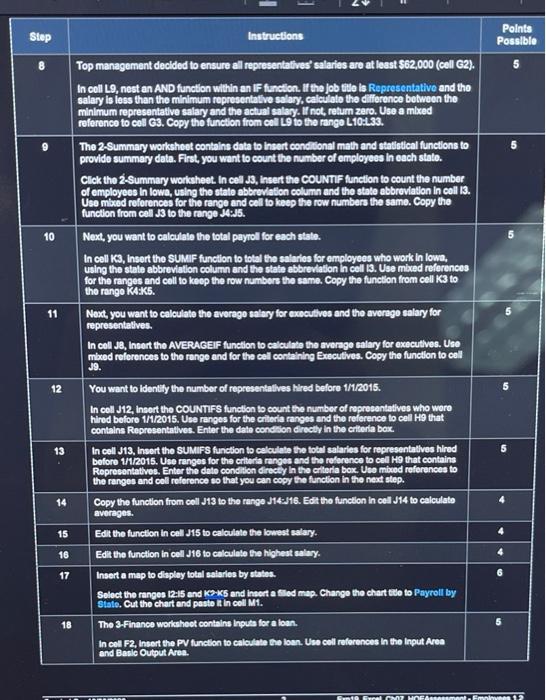

Steps to Perform: Stop Instructions Points Possible 1 O 2 3 Start Excel. Download and open the file named Exp19_Excel_Ch07_HOEAssessment_Employees.xlsx. Grader has automatically added your last name to the beginning of the filename. The 1-Data worksheet contains employee data. You will insert several functions to complete this worksheet. Column C contains the actual hire dates for the employees. You want to extract only the year in column G. In cell G9, insert the appropriate date function to extract the year from the date in cell 09. Copy the function from cell G9 to the range G10:G33. Next, you want to determine how many years each employee has worked for the company. In cell H9, Insert the YEARFRAC function to calculate the years between the hire date and the last day of the year contained in cell G2. Use a mixed reference to cell G2. Copy the function from cell H9 to the range H10:H33. You want to determine what day of the week each employeo was hired. In cell 19, Insert the WEEKDAY function to display the day of the week the first employee was hired. Use 2 as the return type. Copy the function from cell 19 to the range 110:133. The value returned in cell 19 is a whole number. You want to display the weekday equivalent. In cell J9, Insert a VLOOKUP function to look up the value stored in coll 19, compare it to the array in the range H2:16, and return the day of the week. Use mixed references to the table array. Copy the function from cell J9 to the range J10:133. Column D contains the clty each employee works in. You want to display the state. In coll F9, insert the SWITCH function to switch the city stored in cell Do with the respective state contained in the range C2:04. Switch Des Moines for lowa, St. Paul for Minnesota, and Milwaukee for Wisconsin. Use mixed references to cells C2, C3, and C4. Copy the function from cell F9 to the range F10:F33. Your next task is to calculate the bonus for the first employee. If the employee was hired before 1/1/2010, the employee's salary is multiplied by 3%. If the employeo was hired before 1/1/2015, the employee's salary is multiplied by 2%. If the employee was hired before 1/1/2020, the employee's salary is multiplied by 1%. In cell K9, Insert the IFS function to create the three logical tests to calculate the appropriate bonus. Use mixed references to cells within the range K2:14. Copy the function from cell K9 to the range K10:K33. 5 7 Slep Instructions Points Possible 8 Top management decided to ensure all representatives salaries are at least $62,000 (cell G2). In coll L9, nest an AND function within an IF function. If the job title is Representative and the salary is less than the minimum representative salary, calculato the difference between the minimum representative salary and the actual salary. If not, return zero. Uso a mixed reference to col G3. Copy the function from cell L to the range L10-L33. The 2-Summary workshoot contains data to insert conditional math and statistical functions to provide summary data. First, you want to count the number of employees in each stalo. Click the 2-Summary worksheet. In cell J3, Insert the COUNTIF function to count the number of employees in lowa, using the state abbreviation column and the state abbreviation in coll 13. Use mixed references for the range and cell to keep the row numbers the same. Copy the function from cell J3 to the range 34:35. Next, you want to calculate the total payroll for each state. In cell K3, Insert the SUMIF function to total the salaries for employees who work in lowa. using the state abbreviation column and the state abbreviation in cell 3. Use mixed references for the ranges and cell to keep the row numbers the same. Copy the function from cell K3 to the rango KA:K5. Next, you want to calculate the average salary for executives and the average salary for representatives In coll JB, Insert the AVERAGEIF function to calculate the average salary for executives. Use mixed references to the range and for the cell containing Executives. Copy the function to cell J9. 10 11 12 13 You want to identify the number of representatives hired before 1/1/2015. In coll J12, Insert the COUNTIFS function to count the number of representatives who were hired before 1/1/2015. Use ranges for the criteria ranges and the reference to cell H9 that contains Representatives. Enter the date condition directly in the criteria box In cell J13, Insert the SUMIFS function to calculate the total salaries for representatives hired before 1/1/2015. Use ranges for the criteria ranges and the reference to cell H9 that contains Representatives. Enter the date condition direcey in the criteria box. Une mbed references to the ranges and coll reference so that you can copy the function in the next step. Copy the function from coll J13 to the range J14:316. Edit the function in cell J14 to calculate averages. Edit the function in cell J15 to calculate the lowest salary. 14 4 15 16 Edit the function in cell J16 to calculate the highest salary. 17 6 Insert a map to display total saisies by states Select the ranges 12:15 and K-5 and insert a filed map. Change the chart tido to Payroll by State. Cut the chart and paste in coll M1. 18 5 The 3-Finance worksheet contains Inputs for a loan. Incol F2. Insert the PV function to calculate the loan. Use coll references in the Input Area and Basic Output Area GOMMOEAEmni Step Instructions Points Possible 19 20 5 21 22 6 You are ready to Insert formulas and functions in the loan amortization table. In cell C7, enter a reference to the Payment that is stored in cell D2. Use mixed reference so that the row number does not change. Copy the formula from cell C7 to the range C8:C42. The next column is designed to display the Interest portion of each payment. In cell D7, Insert the IPMT function to calculate the Interest for the first payment. Use mixed references for cells in the Basic Output Area and make sure the result is a positive value. Copy tho function from cell D7 to the range D8:042. Next, you are ready to calculate the portion of the monthly payment that goes toward the principal. In cell E7, Insert the PPMT function to calculate the principal portion of the first payment. Use mixed references for cells in the Baslo Output Area and make sure the result is a positive value. Copy the function from cell E7 to the range E8:642. Now you are ready to calculato the balance of the loan after each payment. In cell F7, enter a formula to calculate the ending balance after subtracting the Principal Repayment from the Beginning Balance. Copy tho formula from cell F7 to the range FB:F42. In cell B8, enter a formula that refers to the ending balance for the previous month in cell F7. Copy the rolative formula to the range B9:B42. Now you want to calculate the cumulative Interest after each payment. In cell H7, Insert the CUMIPMT function. Use mixed references for cells in the Basic Output Area and the Start period argument. Make sure the result is a positive value. Copy the function from cell H7 to the range HB:H42. Finally, you want to calculate the cumulativo principal after each payment In cell 17. Insert the CUMPRINC function. Uso mlced references for cells in the Basic Output Area and the Start period argument. Make sure the result is a positive value. Copy the function from cell 17 to the range 18:142. Insert a footor on all three sheets with your name on the left sido, the sheet name code in the middle, and the file name code on the right side. Save and close Exp19_Excol_Ch07_HOEAssossment_Employees.xlsx. Exit Excel. Submit the file as directed. 23 3 24 25 26 o Total Points 100
Step by Step Solution
There are 3 Steps involved in it
1 Expert Approved Answer
Step: 1 Unlock

Question Has Been Solved by an Expert!
Get step-by-step solutions from verified subject matter experts
Step: 2 Unlock
Step: 3 Unlock