







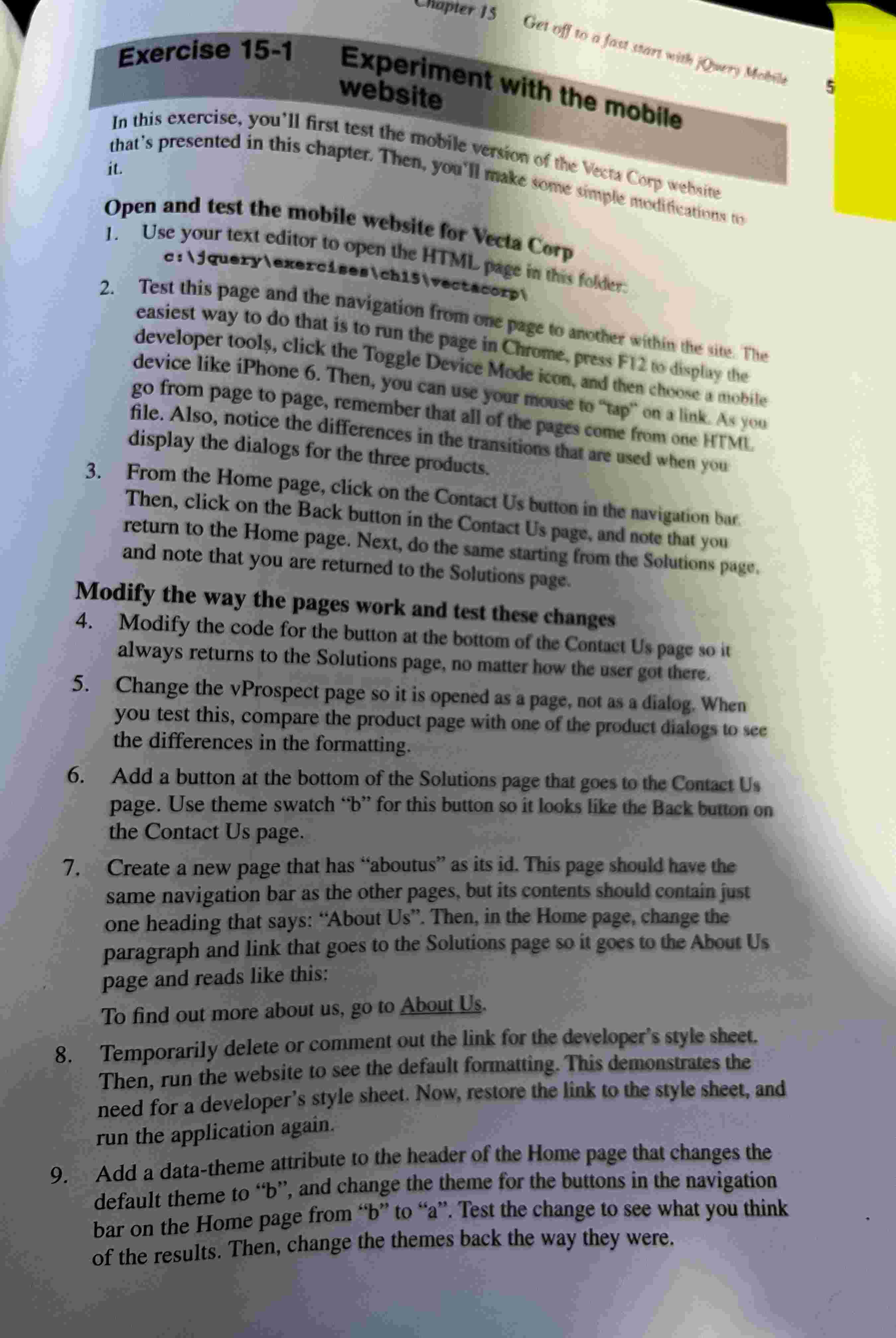
Question: Exercise 1 5 - 1 Experiment with the mobile website in this exercise, you'll first test the mobile version of the Vecta Corp website that's
Exercise Experiment with the mobile website
in this exercise, you'll first test the mobile version of the Vecta Corp website that's presented in this chapter. Then, you'll make some simple modifications to it
Exercise
Experiment with the mobile
website
In this exercise, you'll first test the mobile version of the Vects Conp website
that's presented in this chapter. Then, you'll make some simple modifications to
it
Open and test the mobile website for Vecta Corp
Use your text editor to open the HTML page in this folder:
cillguerylerercisentchisivecticorgl
Test this page and the navigation from one page to another within the site. The
easiest way to do that is to run the page in Chrome, press F to display the
developer tools, click the Toggle Device Mode icon, and then choose a mobile
device like iPhone Then, you can use your mouse to "tap" on a link. As you
go from page to page, remember that all of the pages come from one HTML
file. Also, notice the differences in the transitions that are used when you
display the dialogs for the three products.
From the Home page, click on the Contact Us button in the navigation bar.
Then, click on the Back button in the Contact Us page, and note that you
return to the Home page. Next, do the same starting from the Solutions page.
and note that you are returned to the Solutions page.
Modify the way the pages work and test these changes
Modify the code for the button at the bottom of the Contact Us page so it
always returns to the Solutions page, no matter how the user got there.
Change the vProspect page so it is opened as a page, not as a dialog. When
you test this, compare the product page with one of the product dialogs to see
the differences in the formatting.
Add a button at the bottom of the Solutions page that goes to the Contact Us
page. Use theme swatch b for this button so it looks like the Back button on
the Contact Us page.
Create a new page that has "aboutus" as its id This page should have the
same navigation bar as the other pages, but its contents should contain just
one heading that says: "About Us Then, in the Home page, change the
paragraph and link that goes to the Solutions page so it goes to the About Us
page and reads like this:
To find out more about us go to About Us
Temporarily delete or comment out the link for the developer's style sheet.
Then, run the website to see the default formatting. This demonstrates the
need for a developer's style sheet. Now, restore the link to the style sheet, and
run the application again.
Add a datatheme attribute to the header of the Home page that changes the
default theme to b and change the theme for the buttons in the navigation
bar on the Home page from b to a Test the change to see what you think
of the results. Then, change the themes back the way they were.
Step by Step Solution
There are 3 Steps involved in it
1 Expert Approved Answer
Step: 1 Unlock

Question Has Been Solved by an Expert!
Get step-by-step solutions from verified subject matter experts
Step: 2 Unlock
Step: 3 Unlock
 Study Help