







Question: + Exercise 1: OpenGL Texture Using the functions we learned in our lecture, map myTexturel texture to the 3D teapot object. Now change the
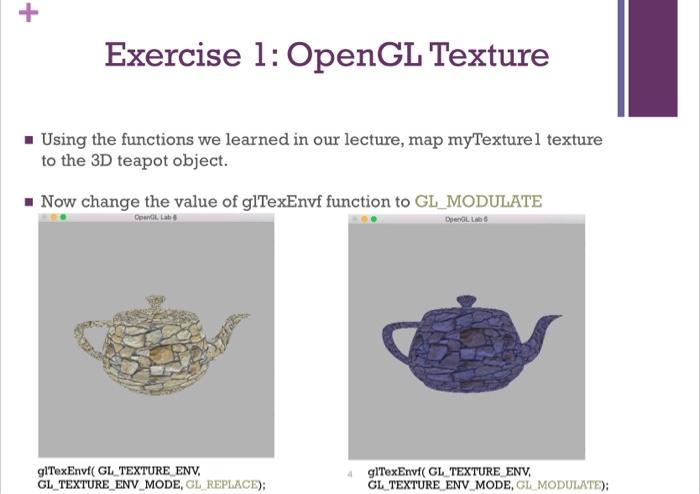
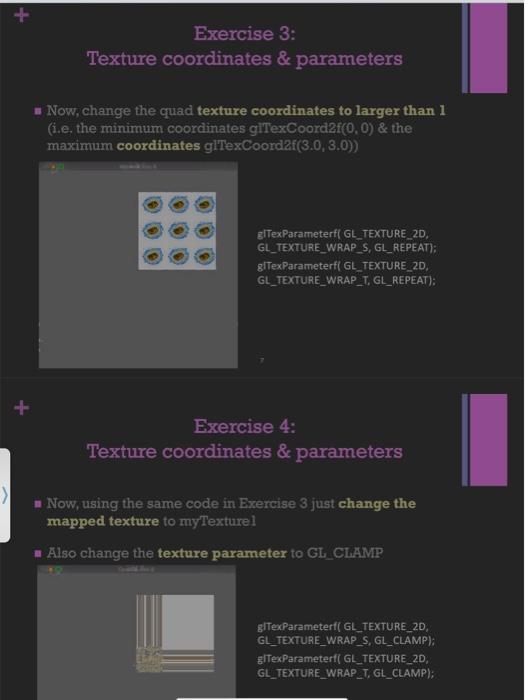
+ Exercise 1: OpenGL Texture Using the functions we learned in our lecture, map myTexturel texture to the 3D teapot object. Now change the value of glTexEnvf function to GL_MODULATE OpenGL Lab OpenGL Lab glTexEnvi( GL TEXTURE_ENV, GL_TEXTURE ENV_MODE, GL REPLACE); 4 glTexEnvi( GL_TEXTURE ENV, GL TEXTURE ENV MODE, GL MODULATE); + Exercise 3: Texture coordinates & parameters Now, change the quad texture coordinates to larger than 1 (i.e. the minimum coordinates giTexCoord2f(0, 0) & the maximum coordinates glTexCoord2f(3.0, 3.0)) 00 gITexParameterf( GL_TEXTURE_2D, GL_TEXTURE_WRAP_S, GL_REPEAT); gITexParameterf( GL_TEXTURE_2D, GL_TEXTURE_WRAP_T. GL_REPEAT); Exercise 4: Texture coordinates & parameters Now, using the same code in Exercise 3 just change the mapped texture to myTexturel Also change the texture parameter to GL_CLAMP giTexParameterf( GL_TEXTURE_2D, GL_TEXTURE_WRAP_S, GL_CLAMP); gITexParameterf( GL_TEXTURE_2D, GL_TEXTURE_WRAP_T, GL_CLAMP);
Step by Step Solution
3.51 Rating (151 Votes )
There are 3 Steps involved in it
The images youve provided show a series of slides detailing exercises related to applying textures in OpenGL Heres a breakdown of the exercises that a... View full answer

Get step-by-step solutions from verified subject matter experts
 Study Help