







Question: Exercise 5-3 Add a seek bar In this exercise, youll modify the Tip Calculator app so that it uses a seek bar instead of two
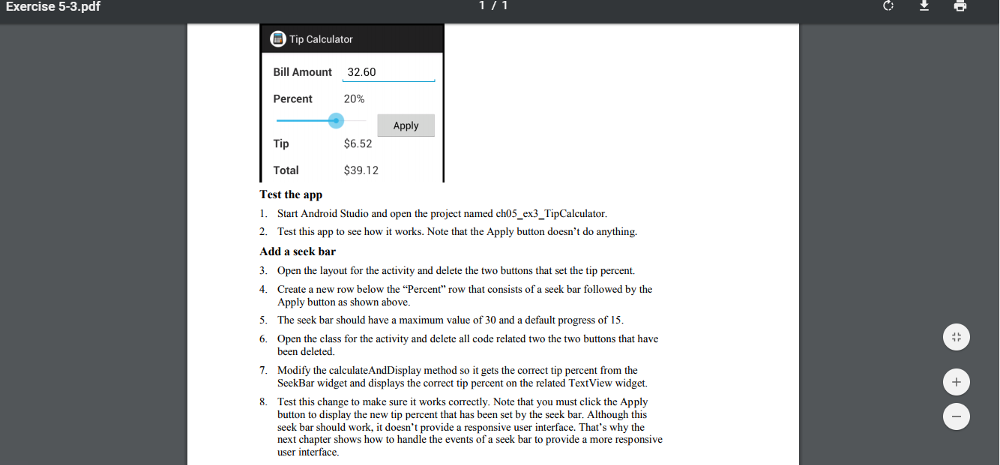
Exercise 5-3 Add a seek bar In this exercise, youll modify the Tip Calculator app so that it uses a seek bar instead of two buttons to set the tip percent. When youre done, a test run should look like this:
Test the app 1. Start Android Studio and open the project named ch05_ex3_TipCalculator. 2. Test this app to see how it works. Note that the Apply button doesnt do anything. Add a seek bar 3. Open the layout for the activity and delete the two buttons that set the tip percent. 4. Create a new row below the Percent row that consists of a seek bar followed by the Apply button as shown above. 5. The seek bar should have a maximum value of 30 and a default progress of 15. 6. Open the class for the activity and delete all code related two the two buttons that have been deleted. 7. Modify the calculateAndDisplay method so it gets the correct tip percent from the SeekBar widget and displays the correct tip percent on the related TextView widget. 8. Test this change to make sure it works correctly. Note that you must click the Apply button to display the new tip percent that has been set by the seek bar. Although this seek bar should work, it doesnt provide a responsive user interface. Thats why the next chapter shows how to handle the events of a seek bar to provide a more responsive user interface.
Where is the mistake in this code:
activity_tip_calculator.xml
ScrollView xmlns:android="http://schemas.android.com/apk/res/android" xmlns:tools="http://schemas.android.com/tools" android:layout_width="match_parent" android:layout_height="match_parent" > RelativeLayout android:layout_width="wrap_content" android:layout_height="wrap_content" android:padding="10dp"> TextView android:id="@+id/billAmountLabel" android:layout_width="wrap_content" android:layout_height="wrap_content" android:padding="10dp" android:text="@string/bill_amount_label" android:textSize="20sp" android:textStyle="bold" /> EditText android:id="@+id/billAmountEditText" android:layout_width="wrap_content" android:layout_height="wrap_content" android:layout_alignBaseline="@+id/billAmountLabel" android:layout_marginLeft="5dp" android:layout_toRightOf="@+id/billAmountLabel" android:ems="8" android:inputType="numberDecimal" android:text="@string/bill_amount" android:textSize="20sp" tools:ignore="RtlHardcoded"> requestFocus /> EditText> TextView android:id="@+id/percentLabel" android:layout_width="wrap_content" android:layout_height="wrap_content" android:layout_alignLeft="@+id/billAmountLabel" android:layout_below="@+id/billAmountLabel" android:padding="10dp" android:text="@string/tip_percent_label" android:textSize="20sp" android:textStyle="bold" tools:ignore="RtlHardcoded" /> TextView android:id="@+id/percentTextView" android:layout_width="50dp" android:layout_height="wrap_content" android:layout_alignBaseline="@+id/percentLabel" android:layout_alignLeft="@+id/billAmountEditText" android:padding="5dp" android:text="@string/tip_percent" android:textSize="20sp" tools:ignore="RtlHardcoded" /> LinearLayout android:layout_width="match_parent" android:layout_height="wrap_content" android:orientation="horizontal" android:layout_below="@+id/percentTextView" android:id="@+id/ll"> SeekBar android:id="@+id/percentSeekBar" android:layout_width="0dp" android:layout_weight="1" android:layout_height="wrap_content" android:max="30" android:padding="10dp" android:progress="15" /> Button android:id="@+id/applyButton" android:layout_width="wrap_content" android:layout_height="wrap_content" android:text="@string/apply" /> LinearLayout> TextView android:id="@+id/tipLabel" android:layout_width="wrap_content" android:layout_height="wrap_content" android:layout_alignLeft="@+id/percentLabel" android:layout_below="@+id/ll" android:padding="10dp" android:text="@string/tip_amount_label" android:textSize="20sp" android:textStyle="bold" tools:ignore="RtlHardcoded" /> TextView android:id="@+id/tipTextView" android:layout_width="wrap_content" android:layout_height="wrap_content" android:layout_alignBaseline="@+id/tipLabel" android:layout_alignLeft="@id/billAmountEditText" android:padding="5dp" android:text="@string/tip_amount" android:textSize="20sp" tools:ignore="RtlHardcoded" /> TextView android:id="@+id/totalLabel" android:layout_width="wrap_content" android:layout_height="wrap_content" android:layout_alignLeft="@+id/tipLabel" android:layout_below="@+id/tipLabel" android:padding="10dp" android:text="@string/total_amount_label" android:textSize="20sp" android:textStyle="bold" tools:ignore="RtlHardcoded" /> TextView android:id="@+id/totalTextView" android:layout_width="wrap_content" android:layout_height="wrap_content" android:layout_alignBaseline="@+id/totalLabel" android:layout_alignLeft="@+id/tipTextView" android:padding="5dp" android:text="@string/total_amount" android:textSize="20sp" tools:ignore="RtlHardcoded" /> RelativeLayout> ScrollView>
TipCalculatorActivity package com.murach.tipcalculator; import java.text.NumberFormat; import android.os.Bundle; import android.view.KeyEvent; import android.view.View; import android.view.View.OnKeyListener; import android.view.inputmethod.EditorInfo; import android.view.inputmethod.InputMethodManager; import android.widget.AdapterView; import android.widget.AdapterView.OnItemSelectedListener; import android.widget.EditText; import android.widget.SeekBar; import android.widget.SeekBar.OnSeekBarChangeListener; import android.widget.TextView; import android.widget.TextView.OnEditorActionListener; import android.app.Activity; import android.content.Context; import android.content.SharedPreferences; import android.content.SharedPreferences.Editor; public class TipCalculatorActivity extends Activity { private EditText et_bill_amount; private TextView tv_tip,tv_total,tv_percent; private SeekBar seekBar; private SeekBar applyButton; @Override protected void onCreate(Bundle savedInstanceState) { super.onCreate(savedInstanceState); setContentView(R.layout.activity_tip_calculator); //Initialize edittext, seekbar, textViews and apply button. et_bill_amount=(EditText)findViewById(R.id.billAmountEditText); tv_total=(TextView)findViewById(R.id.totalTextView); tv_tip=(TextView)findViewById(R.id.tipTextView); tv_percent=(TextView)findViewById(R.id.percentTextView); seekBar=(SeekBar)findViewById(R.id.percentSeekBar); applyButton=(applyButton)findViewById(R.id.applyButton); //Handle apply button click event applyButton.setOnClickListener(new View.OnClickListener() { @Override public void onClick(View v) { //Call calculateAndDisplay method to calculate and display the result. calculateAndDisplay(); } }); } private void calculateAndDisplay(){ //Get seekbar progress value int percent=seekBar.getProgress(); //Set percent value to percentTextView tv_percent.setText(String.valueOf(percent)+"%"); //Extract entered bill amount and store in billAmount. float billAmount=Float.valueOf(et_bill_amount.getText().toString()); //Calculate tip and total. float tip=billAmount*((float)percent/100); float total=billAmount+tip; //Set tip and total values respectively tv_tip.setText("$"+String.valueOf(tip)); tv_total.setText("$"+String.valueOf(total)); } }
AndroidManifest.xml
manifest xmlns:android="http://schemas.android.com/apk/res/android" package="com.murach.tipcalculator" android:versionCode="1" android:versionName="1.0" > application android:icon="@drawable/ic_launcher" android:label="@string/app_name" android:theme="@style/AppTheme" android:allowBackup="true"> activity android:name=".TipCalculatorActivity" android:label="@string/app_name" android:windowSoftInputMode="stateUnchanged" > intent-filter> action android:name="android.intent.action.MAIN" /> category android:name="android.intent.category.LAUNCHER" /> intent-filter> activity> application> manifest>
Exercise 5-3.pdf ip Calculator Bill Amount 32.60 Percent 20% Apply Tip $6.52 Total $39.12 Test the app 1. Start Android Studio and open the project named ch05_ex3_TipCalculator. 2. Test this app to see how it works. Note that the Apply button doesn't do anything. Add a seek bar 3. Open the layout for the activity and delete the two buttons that set the tip percent. 4. Create a new row below the "Percent" row that consists of a seek bar followed by the Apply button as shown above. The seek bar should have a maximum value of 30 and a default progress of 15 5 6. Open the class for the activity and delete all code related two the two buttons that have been deleted. 7. Modify the calculate AndDisplay method so it gets the correct tip percent from the SeekBar widget and displays the correct tip percent on the related TextView widget. 8. Test this change to make sure it works correctly. Note that you must click the Apply button to display the new tip percent that has been set by the seek bar. Although this seek bar should work, it doesn't provide a responsive user interface. That's why the next chapter shows how to handle the events of a seek bar to provide a more responsive user interface
Step by Step Solution
There are 3 Steps involved in it

Get step-by-step solutions from verified subject matter experts
 Study Help