







Question: Extra 24-1 Use the Entity Framework to create an Order Options Maintenance application In this exercise, youll use the Entity Framework to create an application
 Extra 24-1 Use the Entity Framework to create an Order
Options Maintenance application In this exercise, youll use the Entity Framework to create an application that lets you update the data in a table of order options. The OrderOptions table is one of the tables in a database named MMABooksEF. This database is identical to the MMABooks database that was used in the book applications, the book exercises, and these extra exercises except that a primary key has been added to the OrderOptions table so you can update it using EF. Open the project and create the Entity Data Model
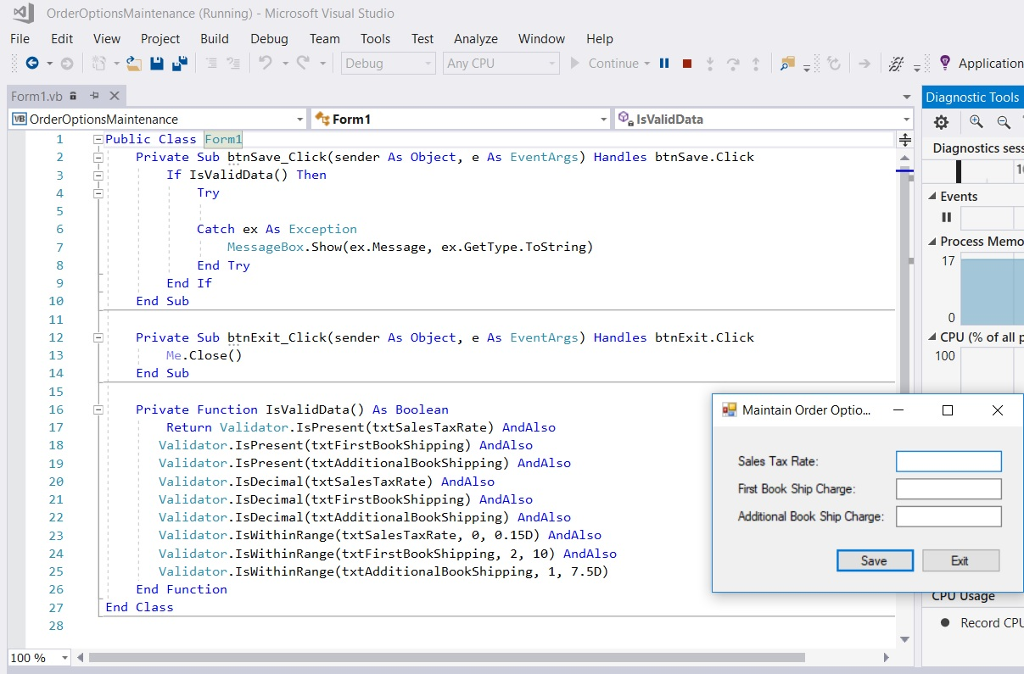
1. Open the OrderOptionsMaintenance project in the OrderOptionsMaintenance directory. This project contains the Order Options Maintenance form, along with the MMABooksEF database that contains the OrderOptions table, a Validator class, and code for validating the data the user enters and catching exceptions.
2. Use the Entity Data Model Wizard to create an Entity Data Model that contains just the OrderOptions table in the MMABooksEF database. Write the code to retrieve and update the options
3. Declare two module-level variables: one that stores an instance of the object context for the Entity Data Model and one for an OrderOption object that will be used to store the results of the query that retrieves the data from the OrderOptions table.
4. In the Load event handler for the form, code a query expression that uses LINQ to Entities to get the data from the OrderOptions table. Because this table contains a single row, you should use the Single method on the query. Assign the result to the OrderOption object that you defined in step 2. Then, assign the properties of the OrderOption object to the text boxes on the form.
5. Within the Try block in the Click event handler for the Save button, assign the current values in the text boxes to the properties of the OrderOption object. Then, save the changes to the database and display a message indicating that the order options have been updated.
6. Test the application to be sure it works.
completed 1 & 2 stuck on thee rest
OrderOptionsMaintenance (Running) Microsoft Visual Studio File Edit View Project Build Debug Team Tools t Analyze Window Help 121 . Debug Any CPU Continue Form 1.vb Diagnostic Tools OrderOptionsMaintenance Form1 IsValidData 1 Public Class Form Diagnostics sess Private Sub btnSave Click(sender As Object, e As EventArgs) Handles btnSave.Click If IsValidData) Then Tr Events Catch ex As Exception Process Memo 17 MessageBox.Show(ex.Message, ex.GetType.ToString) End Try 8 9 10 End If End Sub CPU (% of all p 100 Private Sub btnExit_Click(sender As Object, e As EventArgs) Handles btnExit.Click 12 13 14 15 16 17 18 19 20 21 Me.Close() End Sub Private Function IsValidData As Boolean Maintain Order Optio... - Return Validator.IsPresent(txtSalesTaxRate) AndAlso Validator.IsPresent (txtFirstBookShipping) AndAlso Validator.IsPresent (txtAdditionalBookShipping) AndAlso Validator. IsDecimal(txtSalesTaxRate) AndAlso Validator.IsDecimal(txtFirstBookShipping) AndAlso Validator.IsDecimal(txtAdditionalBookShipping) AndAlso Validator.IshithinRange (txtSalesTaxRate, e, e.15D) AndAlso Validator.IshlithinRange(txtFirstBookShipping, 2, 10) AndAlso Validator.IslithinRange(txtAdditionalBookShipping, 1, 7.5D) Sales Tax Rate First Book Ship Charge Additional Book Ship Charge 23 Save Exit 25 26 27 28 End Function End Class Record CPL 100 %
Step by Step Solution
There are 3 Steps involved in it

Get step-by-step solutions from verified subject matter experts
 Study Help