





Question: F J K A B D E G H Add a New Column to the Table to show the % Quantity Discount. The steps for
F J K A B D E G H Add a New Column to the Table

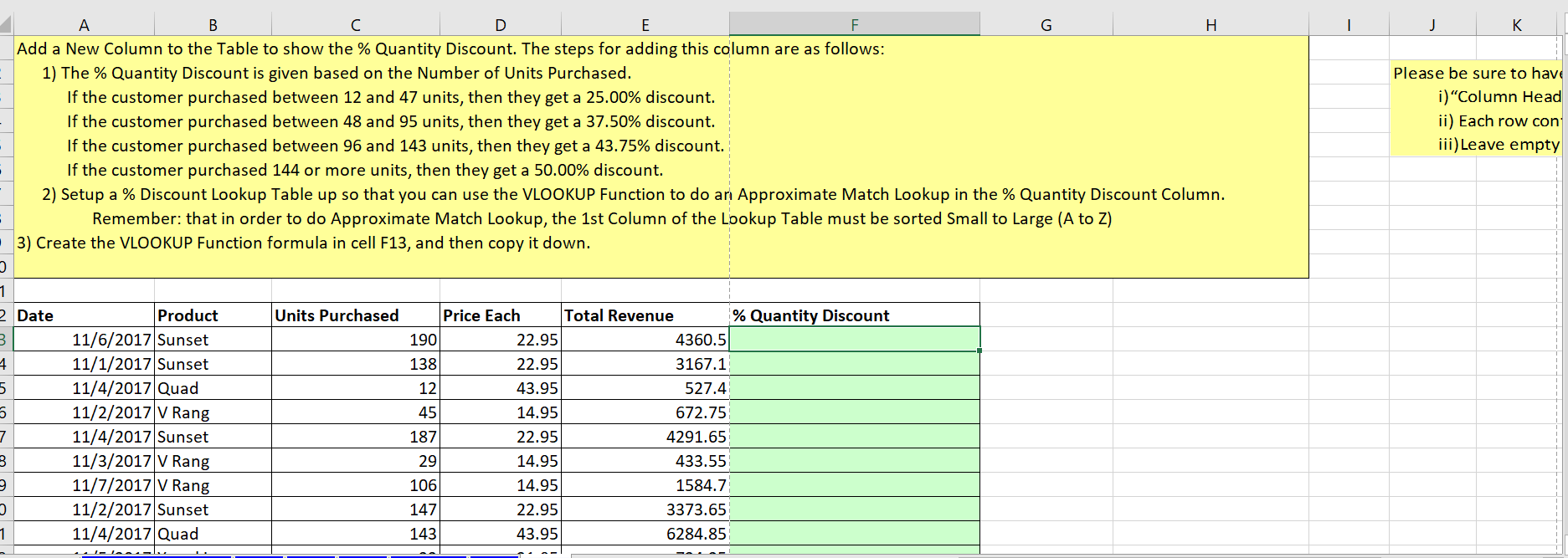
F J K A B D E G H Add a New Column to the Table to show the % Quantity Discount. The steps for adding this column are as follows: 1) The % Quantity Discount is given based on the Number of Units Purchased. If the customer purchased between 12 and 47 units, then they get a 25.00% discount. If the customer purchased between 48 and 95 units, then they get a 37.50% discount. If the customer purchased between 96 and 143 units, then they get a 43.75% discount. If the customer purchased 144 or more units, then they get a 50.00% discount. 2) Setup a % Discount Lookup Table up so that you can use the VLOOKUP Function to do an Approximate Match Lookup in the % Quantity Discount Column. Remember: that in order to do Approximate Match Lookup, the 1st Column of the Lookup Table must be sorted Small to Large (A to Z) 3) Create the VLOOKUP Function formula in cell F13, and then copy it down. Please be sure to have i) "Column Head ii) Each row con iii) Leave empty . 1 2 Date 3 Units Purchased 4 5 5 Product 11/6/2017 Sunset 11/1/2017 Sunset 11/4/2017 Quad 11/2/2017 V Rang 11/4/2017 Sunset 11/3/2017 V Rang 11/7/2017 V Rang 11/2/2017 Sunset 11/4/2017 Quad Price Each Total Revenue % Quantity Discount 190 22.95 4360.5 138 22.95 3167.1 12 43.95 527.4 45 14.95 672.75 187 22.95 4291.65 29 14.95 433.55 106 14.95 1584.7 147 22.95 3373.65 143 43.95 6284.85 7 3 3 1 -

Step by Step Solution

There are 3 Steps involved in it

1 Expert Approved Answer
Step: 1 Unlock blur-text-image

Question Has Been Solved by an Expert!

Get step-by-step solutions from verified subject matter experts

Step: 2 Unlock
Step: 3 Unlock

Students Have Also Explored These Related General Management Questions!