







Question: First, modify store_index.html (see Program Assignment 1) by adding the Review Cart button and Home hyperlink as shown below: Pressing the Home link will return
First, modify store_index.html (see Program Assignment 1) by adding the Review Cart button and Home hyperlink as shown below:
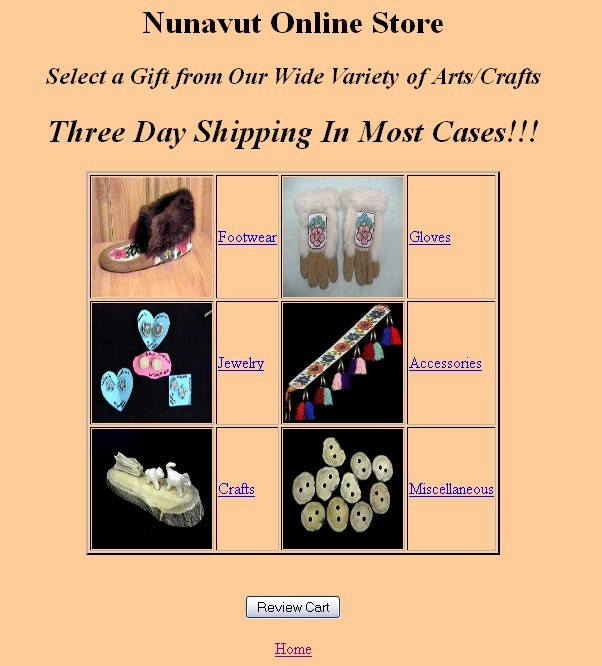
Pressing the Home link will return the user to the homepage (index.html). Pressing the Review Cart button will allow the user to review the items he wants to purchase in the form of a shopping cart. The shopping cart should be implemented using only Javascript client-side technology and cookies or sessionStorage.
Initially pressing the Review Cart button without purchasing anything results in the following alert box displayed:
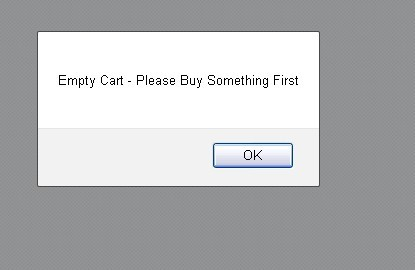
Note: The example above is displayed using Mozilla. Using another browser or Internet Explorer could lead to a similar but slightly different looking alert box.
Pressing OK will result in the store_index.html being redisplayed.
The 3 major categories - Footwear, Jewelry, Crafts - should have links that correspond to the product pages - footwear.html, jewelry.html, and crafts.html as implemented in Programming Assignment 1. Programming Assignment 2 implemented the individual Product Pages for 4 footwear items, 4 jewelry items, and 4 crafts items.
An example of a footwear Product Page - Moose Skin Boots - is shown below:

Note: An additional link - Continue Shopping - should be added to this page originally created in Programming Assignment 2. Pressing the Continue Shopping will result in the store_index.html being displayed.
Pressing the Add To Cart Button will display the following alert box:
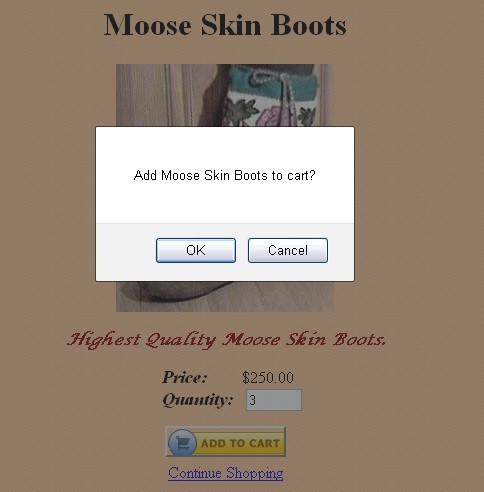
The store_index.html should automatically be displayed if the user presses OK. And will allow the user to purchase other items. Pressing Cancel does nothing and the same page (in this case MooseBoots.html) is displayed as before.
The user can continue purchasing as many products as desired - up to 12 - for our implementation. For this example, suppose the user purchases three additional items besides the Moose Skin Boots. Their name (and quantity) are shown below:
Item Name Quantity
Earrings 4
Dog Sled 2
Whale Teeth 4
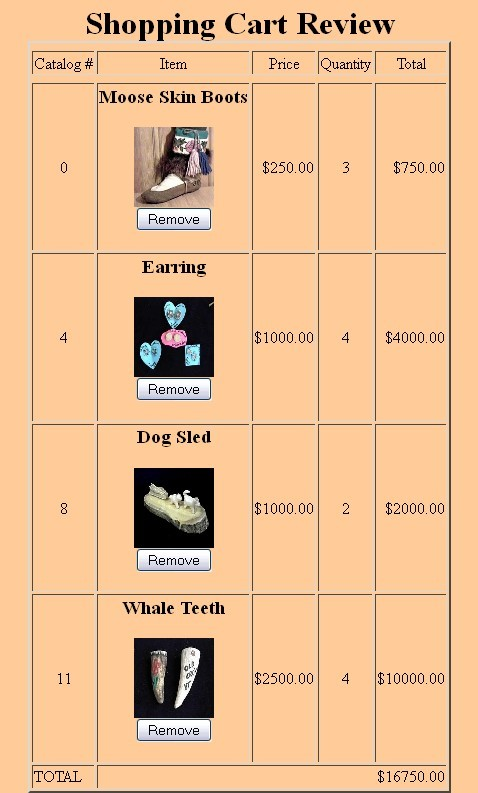
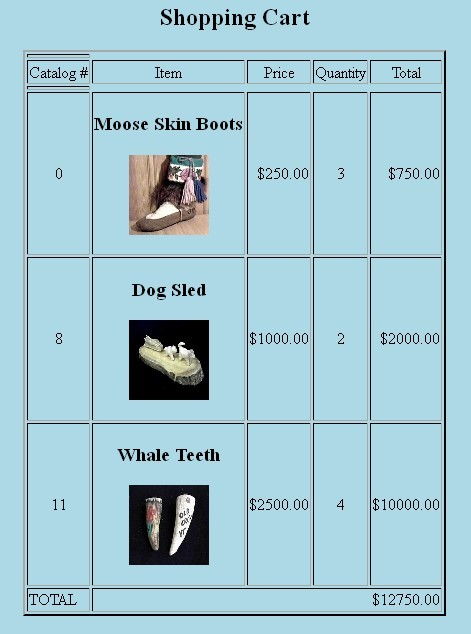
Pressing the Review Cart button should now display the following screen illustrating the details for the purchases the user wants to make.

Pressing the Continue Shopping link returns the user to the store_index.html page and allows the user to purchase more items.
The leftmost column consists of the Catalog # - an arbitrarily number assigned to each product. For this example, the numbers can be assigned from 0 thru 11 for the twelve products. You may assign these numbers anyway you like, but they must be unique for each product.
The column to the right of the Catalog # is the Item column. This column should consist of the following information about each purchased item:
The items name (this should be the name displayed above the image of each product on its respective product page).
The image of the product - displayed as an 80x80 thumbnail image
The Remove button - allowing the user to remove the product from the Shopping Cart. Details for the remove button are given below.
The column to the right of the Item column is the Price column which contains the individual price for a given item.
The column to the right of the Price column is the Quantity column. This is the value entered by the user on the product page and corresponds to the number of a certain product that the user wants to purchase.
The rightmost column is the Total purchase for a given product - This is computed by the price*quantity.
These 5 columns represent the data displayed for one product (e.g., one row) in the shopping cart.
The 5 columns are repeated for each product the user has selected to purchase. In this case, 4 products have been purchased resulting in 4 product rows.
The last row of the shopping cart illustrates the total amount purchased. This is the summation of the rightmost column of the shopping cart and shows the total money owed by the user for all his purchases. You must display all numeric data to 2 decimal places. Hint: you can use the toPrecision(2) method to accomplish this.
Pressing the Remove button for a given product will result in the following actions:
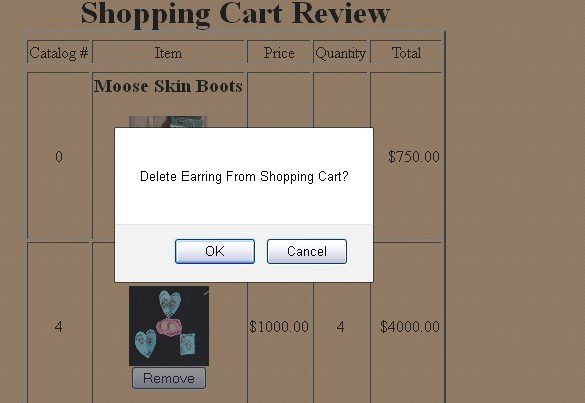
a.The user will be prompted with a confirm box as shown below for removing the Earrings:
Pressing OK will remove the Earrings from the shopping cart. The page must immediately reload and illustrate that the Earring is removed as shown below:
Note how the last row displaying the TOTAL amount purchased is automatically updated. Pressing Cancel redisplays the Shopping Cart as shown previously.
Hint: Selecting the Review Cart could redirect the user to another page named Cart.html (although you can just invoke a JavaScript function from this button if you like). The onload event handler of the
element for Cart.html could reference a Javascript function that builds the Shopping Cart display. The logic for removing an item from the shopping cart can be as simple as removing the corresponding cookie (or sessionStorage_ and then reloading Cart.html. There are many other ways to display the Shopping Cart and you are free to implement this part anyway you like.
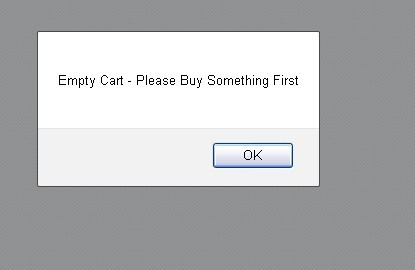
If all items are removed, simply display the following alert box:
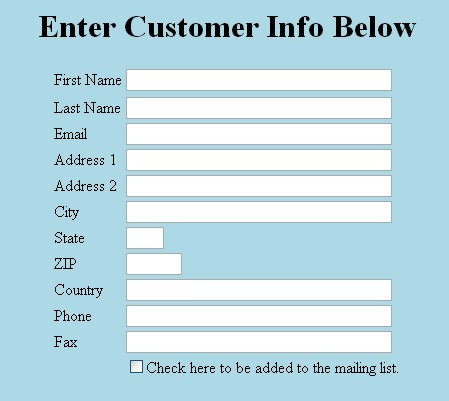
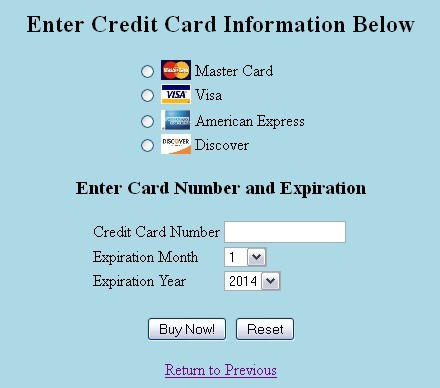
Your shopping cart displays everything as before with the exception of the remove button. Only the shopping cart logic will be checked for this assignment. None of the previous requirements as described in Programming Assignment 1 (e.g., validation) will be checked for this assignment with the exception of the Credit Card Number described below:
Credit Card Number Validation
Once the user completely enters the credit card number - detected by the onchange event - your program needs to perform the following validation:
Implement the following algorithm for validating the Credit Card Number Field:
CC field must be 16 digits in length
Even digits are multiplied by two, odd digits are left alone. Store the results as a string.
Accumulate all the individual digits of the resulting string into one sum.
If the resulting sum is an even multiple of ten (but not zero), the Credit Card Number is good.
Otherwise, it is an invalid CC and display an appropriate error message using an alert box.
Other Considerations
The main objective of this project is to implement a JavaScript shopping cart and Credit Card validation system. You should only use client-side technology (XHTML, CSS, JavaScript) when implementing this project. I will not deduct points if your implemented pages do not look exactly like the ones in this document - but make sure that your pages are neat, readable and meet all functional requirements. Feel free to utilize comments within your HTML it will help you when examining this project in the future.
Nunavut Online Store Select a Gift from Our Wide Variety of Arts Crafts Three Day Shipping In Most Cases!!! Footwear Gloves Jewel Accessories Crafts Miscellaneous 600 Review Cart Home Nunavut Online Store Select a Gift from Our Wide Variety of Arts Crafts Three Day Shipping In Most Cases!!! Footwear Gloves Jewel Accessories Crafts Miscellaneous 600 Review Cart Home
Step by Step Solution
There are 3 Steps involved in it

Get step-by-step solutions from verified subject matter experts
 Study Help