







Question: For this assignment, you will create a macro - enabled Excel workbook that performs matrix multiplication of two randomly generated matrices, where the dimension of
For this assignment, you will create a macroenabled Excel workbook that performs matrix multiplication
of two randomly generated matrices, where the dimension of each matrix is specified by the user. Your
sub must meet the following specifications:
a Your workbook will have one sheet named "matrixMult"
b You will clearly designate an area on this worksheet through appropriate formatting where the
user can input the dimensions of two matrices see snippet below for example For the purpose of
this assignment, we will assume that the user always inputs valid dimensions. Recall that two
matrices can be multiplied if the number of columns of the first matrix are equal to the number
rows in the second matrix. For example:
matrix: rows, cols matrix: rows, cols
when multiplied matrix matrix the results will be a matrix
Note that the number of columns in the first matrix cols must be equal to the number of
rows in the second matrix rows in order to perform matrix multiplication
If this condition is not met, the matrices cannot be multiplied
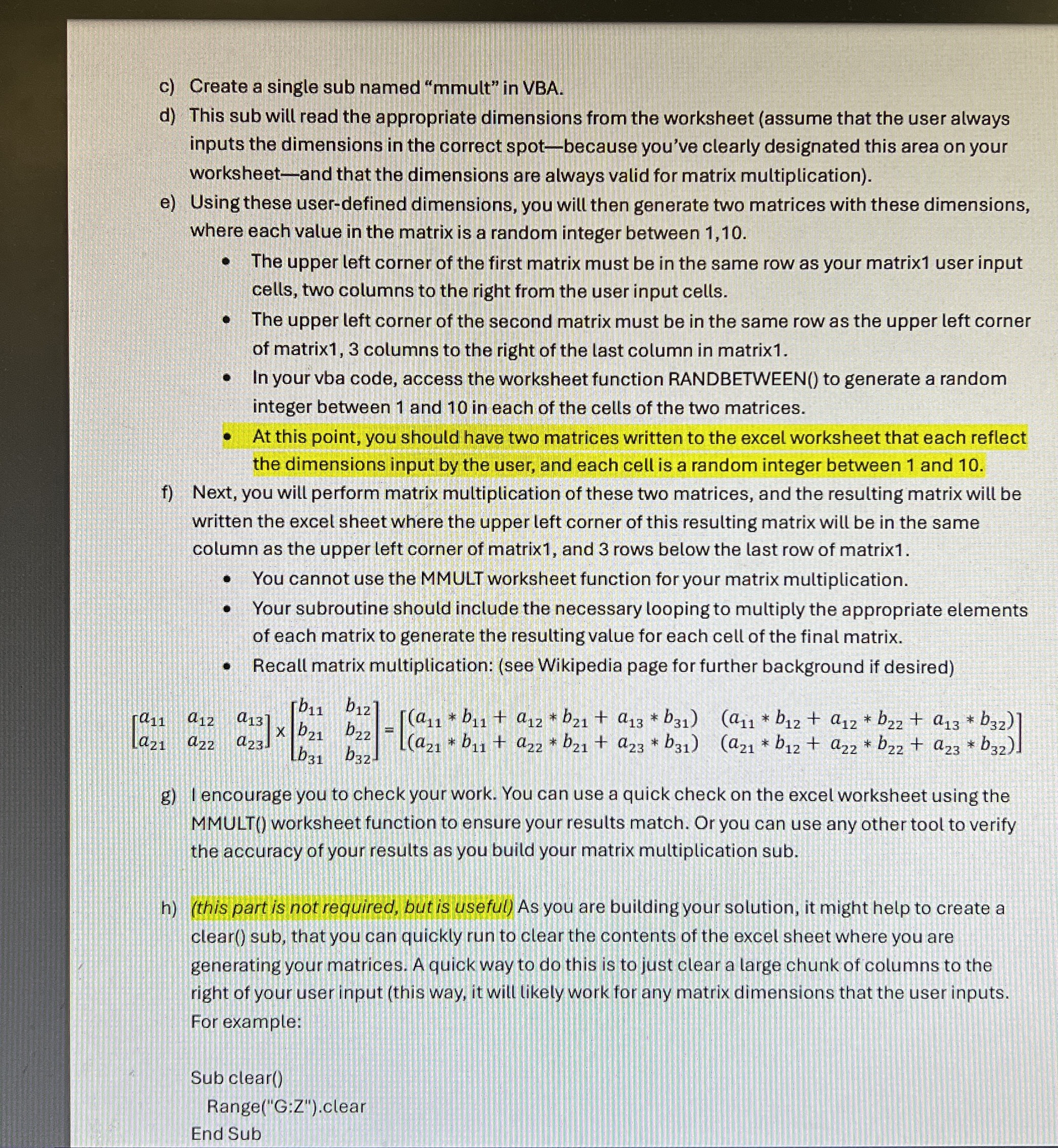
c Create a single sub named "mmult" in VBA.
d This sub will read the appropriate dimensions from the worksheet assume that the user always
inputs the dimensions in the correct spotbecause you've clearly designated this area on your
worksheetand that the dimensions are always valid for matrix multiplication
e Using these userdefined dimensions, you will then generate two matrices with these dimensions,
where each value in the matrix is a random integer between
The upper left corner of the first matrix must be in the same row as your matrix user input
cells, two columns to the right from the user input cells.
The upper left corner of the second matrix must be in the same row as the upper left corner
of matrix columns to the right of the last column in matrix
In your vba code, access the worksheet function RANDBETWEEN to generate a random
c Create a single sub named "mmult" in VBA.
d This sub will read the appropriate dimensions from the worksheet assume that the user always
inputs the dimensions in the correct spotbecause you've clearly designated this area on your
worksheetand that the dimensions are always valid for matrix multiplication
e Using these userdefined dimensions, you will then generate two matrices with these dimensions,
where each value in the matrix is a random integer between
The upper left corner of the first matrix must be in the same row as your matrix user input
cells, two columns to the right from the user input cells.
The upper left corner of the second matrix must be in the same row as the upper left corner
of matrix columns to the right of the last column in matrix
In your vba code, access the worksheet function RANDBETWEEN to generate a random
integer between and in each of the cells of the two matrices.
At this point, you should have two matrices written to the excel worksheet that each reflect
the dimensions input by the user, and each cell is a random integer between and
f Next, you will perform matrix multiplication of these two matrices, and the resulting matrix will be
written the excel sheet where the upper left corner of this resulting matrix will be in the same
column as the upper left corner of matrix and rows below the last row of matrix
You cannot use the MMULT worksheet function for your matrix multiplication.
Your subroutine should include the necessary looping to multiply the appropriate elements
of each matrix to generate the resulting value for each cell of the final matrix.
Recall matrix multiplication: see Wikipedia page for further background if desired
g I encourage you to check your work. You can use a quick check on the excel worksheet using the
MMULT worksheet function to ensure your results match. Or you can use any other tool to verify
the accuracy of your results as you build your matrix multiplication sub.
hthis part is not required, but is useful As you are building your solution, it might help to create a
clear sub, that you can quickly run to clear the contents of the excel sheet where you are
generating your matrices. A quick way to do this is to just clear a large chunk of columns to the
right of your user input this way, it will likely work for any matrix dimensions that the user inputs.
For example:
Sub clear
RangeG:Zclear
End Sub
Step by Step Solution
There are 3 Steps involved in it
1 Expert Approved Answer
Step: 1 Unlock

Question Has Been Solved by an Expert!
Get step-by-step solutions from verified subject matter experts
Step: 2 Unlock
Step: 3 Unlock
 Study Help