







Question: GIVE STEP-BY-STEP INSTRUCTIONS ON HOW TO SOLVE EACH QUESTION ON ACCESS. Thanks. Each client has one representative in our company. Some of our employees are
GIVE STEP-BY-STEP INSTRUCTIONS ON HOW TO SOLVE EACH QUESTION ON ACCESS. Thanks.
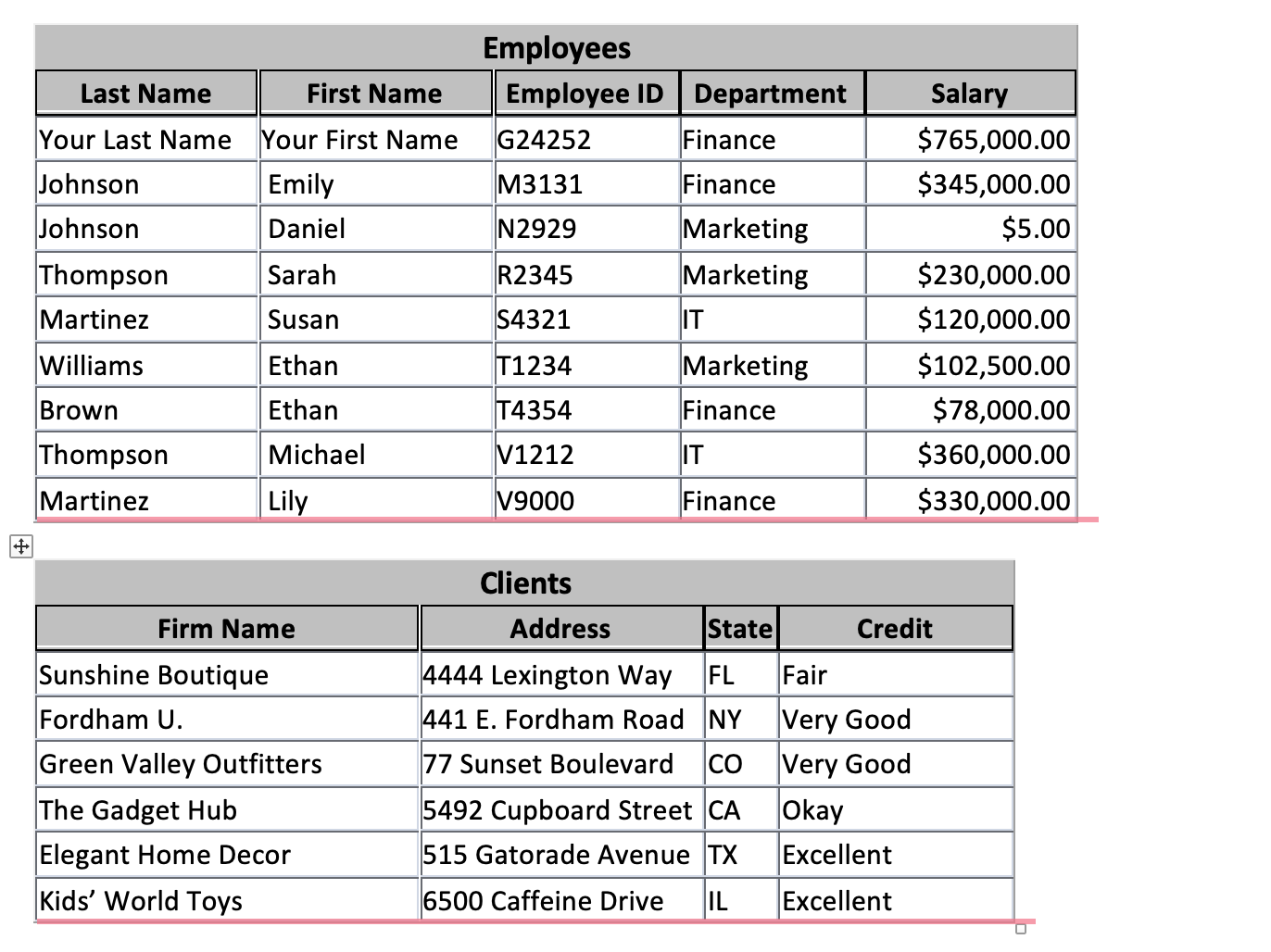
Each client has one representative in our company. Some of our employees are client representatives, while others are not.
Currently, Daniel Johnson has been assigned three clients: Elegant Home Decor, Kids World Toys, and Green Valley Outfitters. Susan Martinez has been assigned Sunshine Boutique and The Gadget Hub, and Emily Johnson has been assigned Fordham U.
Your boss has given you the following assignment. Read the whole assignment before you begin.
- For Employee G24252 replace the first and last names with YOUR first and last name.
- Create (that is, define the structure of) the necessary tables to define this database in Access. Give the entire database this name: DB.yourfirstname.yourlastname
Be sure to designate appropriate primary keys and to set appropriate field types and sizes. For Annual Salary, use field type currency.
IMPORTANT HINTS:
- Planning the structure of your database--e.g., sketching it out on paper--would be a good way to start before defining it in Access.
- Ask yourself what type of relationship it is (1-1, 1-many, many-to-many?)
- Make sure that if you use a foreign key, it is of the same data type as the field to which you are linking.
- Create any relationships that are needed for this database. Be sure to enforce referential integrity.
- Enter the data for employees and client firms into the database if you have not done so already.
- Use the Query-by-Examples capability to answer the following questions. For each question, include only the information requested and show fields in the order they are listed in the question. Save your query in the database. (Name your queries by the question--e.g., 5a, 5b, and so forth.).
(Hint: Do not worry about the format of the results, but do make sure that all the data show--i.e., nothing is chopped off. You can just drag the boundary line that divides the columns in the datasheet view to change the width of columns in a datasheet.)
IMPORTANT: Your queries should be general enough to answer these questions correctly no matter what data are in the database. For example, even if your data already happen to be in the order requested by a particular question, still perform the sort command. (If this were a large database, you would have no way of knowing that the data were already in the correct order.) Also, the results of your queries should show exactly what is asked for, not more or less.
- Display, in alphabetical order, the full names and salaries of all employees earning more than $110,000 per year. (Hint: Pay attention to first and last names. Another Hint: Enter it as 110000 without $ or ,)
- Display the full names and annual salaries of all employees, listing them in order of decreasing salary (i.e., the highest paid person goes first and so on down the line).
(more on next page)
- Display the full names and MONTHLY salaries of all employees, listing them in order of decreasing salary (i.e., the highest paid person goes first and so on down the line). (Hint: See pages AC 3-13 on MINDTAP for calculated fields.)
Do not worry if your display for the monthly salary column is not very nice, with many decimal places. But if you want to clean this up, right-click in this column in Design View and then choose "Properties." You will get a "Property Sheet" pane on the right side of your screen. Select "Currency" as the "Format" and 0 for "Decimal Places."
- Display the full names and the annual salaries of all employees in Marketing.
- Display a list of departments, showing for each department how many employees it has (that is, the count of employees) and their average annual salary. (Hint: You will need to use the Total feature on the ribbon.)
- For the Finance department, display (only) the count of employees and their average annual salary only.
- Display a list of client firms matched with their representatives. (Make sure to display all the fields pertaining to these clients and employees, but do not display any field twice.)
- Display a list of client firms matched with their representatives and sorted by the representatives' employee IDs. Show only the firm name, the representatives first and last names, and the representatives employee ID.
- For those employees who are client representatives, list (in alphabetical order) their full names and how many firms they are assigned.
\begin{tabular}{|l|l|l|l|r|} \hline \multicolumn{5}{c|}{ Employees } \\ \hline \multicolumn{1}{|c|}{ Last Name } & \multicolumn{1}{c|}{ First Name } & Employee ID & Department & \multicolumn{1}{c|}{ Salary } \\ \hline Your Last Name & Your First Name & G24252 & Finance & $765,000.00 \\ \hline Johnson & Emily & M3131 & Finance & $345,000.00 \\ \hline Johnson & Daniel & N2929 & Marketing & $5.00 \\ \hline Thompson & Sarah & R2345 & Marketing & $230,000.00 \\ \hline Martinez & Susan & S4321 & IT & $120,000.00 \\ \hline Williams & Ethan & T1234 & Marketing & $102,500.00 \\ \hline Brown & Ethan & T4354 & Finance & $78,000.00 \\ \hline Thompson & Michael & V1212 & IT & $360,000.00 \\ \hline Martinez & Lily & V9000 & Finance & $330,000.00 \\ \hline \end{tabular} Clients \begin{tabular}{|l|l|l|l|} \hline \multicolumn{1}{|c|}{ Firm Name } & \multicolumn{1}{c|}{ Address } & State & \multicolumn{1}{c|}{ Credit } \\ \hline Sunshine Boutique & 4444 Lexington Way & FL & Fair \\ \hline Fordham U. & 441 E. Fordham Road & NY & Very Good \\ \hline Green Valley Outfitters & 77 Sunset Boulevard & CO & Very Good \\ \hline The Gadget Hub & 5492 Cupboard Street & CA & Okay \\ \hline Elegant Home Decor & 515 Gatorade Avenue & TX & Excellent \\ \hline Kids' World Toys & 6500 Caffeine Drive & IL & Excellent \\ \hline \hline \end{tabular}
Step by Step Solution
There are 3 Steps involved in it

Get step-by-step solutions from verified subject matter experts
 Study Help