


Question: Grader - Instructions Excel 2019 Project Exp19_Excel_Ch03_Cap_Gym Project Description: You and a business partner opened a fitness gym three years ago. Your partner oversees managing
Grader - Instructions Excel 2019 Project
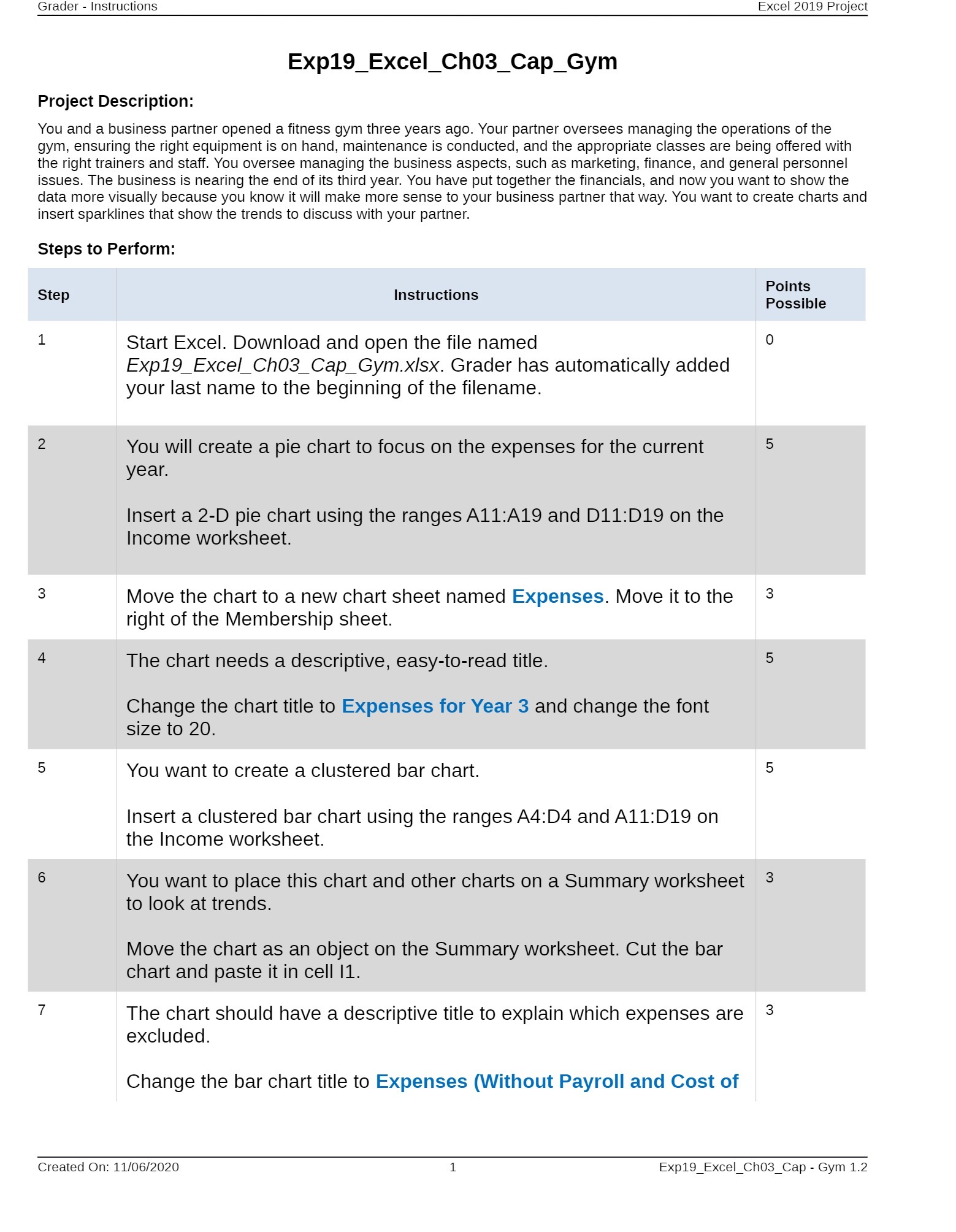
Grader - Instructions Excel 2019 Project Exp19_Excel_Ch03_Cap_Gym Project Description: You and a business partner opened a fitness gym three years ago. Your partner oversees managing the operations of the gym, ensuring the right equipment is on hand, maintenance is conducted, and the appropriate classes are being offered with the right trainers and staff. You oversee managing the business aspects, such as marketing, finance, and general personnel issues. The business is nearing the end of its third year. You have put together the financials, and now you want to show the data more visually because you know it will make more sense to your business partner that way. You want to create charts and insert sparklines that show the trends to discuss with your partner. Steps to Perform: Step Instructions Points Possible Start Excel. Download and open the file named 0 Exp19_Excel_Ch03_Cap_Gym.xIsx. Grader has automatically added your last name to the beginning of the filename. 2 You will create a pie chart to focus on the expenses for the current 5 year. Insert a 2-D pie chart using the ranges All:A19 and D11:D19 on the Income worksheet. 3 Move the chart to a new chart sheet named Expenses. Move it to the 3 right of the Membership sheet. 4 The chart needs a descriptive, easy-to-read title. 5 Change the chart title to Expenses for Year 3 and change the font size to 20. 5 You want to create a clustered bar chart. 5 Insert a clustered bar chart using the ranges A4:D4 and A11:D19 on the Income worksheet. 6 You want to place this chart and other charts on a Summary worksheet 3 to look at trends. Move the chart as an object on the Summary worksheet. Cut the bar chart and paste it in cell I1. 7 The chart should have a descriptive title to explain which expenses are 3 excluded. Change the bar chart title to Expenses (Without Payroll and Cost of Created On: 11/06/2020 Exp19_Excel_Ch03_Cap - Gym 1.2

Step by Step Solution

There are 3 Steps involved in it

1 Expert Approved Answer
Step: 1 Unlock blur-text-image

Question Has Been Solved by an Expert!

Get step-by-step solutions from verified subject matter experts

Step: 2 Unlock
Step: 3 Unlock

Students Have Also Explored These Related Accounting Questions!