







Question: HANDS-ON ACTIVITY 5A Using TCP/IP You should see a screen like that shown in Figure 5-19. In this chapter, we've discussed the basic components of
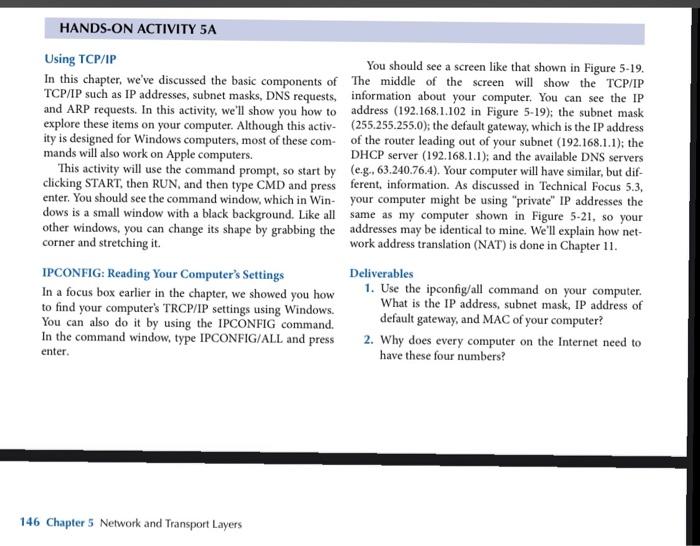
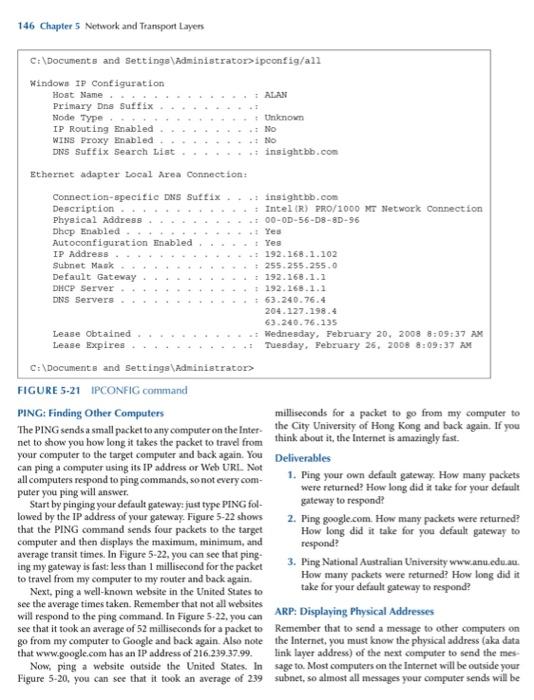
HANDS-ON ACTIVITY 5A Using TCP/IP You should see a screen like that shown in Figure 5-19. In this chapter, we've discussed the basic components of the middle of the screen will show the TCP/IP TCP/IP such as IP addresses, subnet masks, DNS requests, information about your computer. You can see the IP and ARP requests. In this activity, we'll show you how to address (192.168.1.102 in Figure 5-19); the subnet mask explore these items on your computer . Although this activ (255.255.255.0); the default gateway, which is the IP address ity is designed for Windows computers, most of these com- of the router leading out of your subnet (192.168.1.1); the mands will also work on Apple computers. DHCP server (192.168.1.1); and the available DNS servers This activity will use the command prompt, so start by (e.g., 63.240.76.4). Your computer will have similar, but dif- clicking START, then RUN, and then type CMD and press ferent, information. As discussed in Technical Focus 5.3. enter. You should see the command window, which in Win- your computer might be using "private" IP addresses the dows is a small window with a black background. Like all same as my computer shown in Figure 5-21, so your other windows, you can change its shape by grabbing the addresses may be identical to mine. We'll explain how net- corner and stretching it work address translation (NAT) is done in Chapter 11. IPCONFIG: Reading Your Computer's Settings Deliverables In a focus box earlier in the chapter, we showed you how 1. Use the ipconfig/all command on your computer. to find your computer's TRCP/IP settings using Windows. What is the IP address, subnet mask. IP address of You can also do it by using the IPCONFIG command. default gateway, and MAC of your computer? In the command window, type IPCONFIG/ALL and press 2. Why does every computer on the Internet need to enter. have these four numbers? 146 Chapter 5 Network and Transport Layers 146 Chapter 5 Network and Transport Layers ALAN C:\Documents and Settings\Administrator>ipconfig/all Windows IP Configuration Host Name Primary Dns Suffix Node Type 4 - Unknown IP Routing Enabled WINS Proxy enabled DNS Suffix Search List .. insightbb.com Ethernet adapter Local Area Connection: NO Connection-specific DNS Suffix .. insightbb.com Description Intel(R) PRO/1000 MT Network connection Physical Address 100-OD-56-08-8D-96 Dhep led Yes Autoconfiguration Enabled Yes IP Address 192.168.1.102 Subnet Mask 255.255.255.0 Default Gateway 192.168.1.1 DHCP Server 192.168.1.1 DNS Servers 63.240.76.4 204.127.198.4 63.240.76.135 Lease Obtained Wednesday, February 20, 2008 8:09:37 AM Lease Expires Tuesday, February 25, 2008 8:09:37 AM C:\Documents and Settings\Administrator FIGURE 5-21 IPCONFIG command PING: Finding Other Computers milliseconds for a packet to go from my computer to The PING sends a small packet to any computer on the Inter the City University of Hong Kong and back again. If you net to show you how long it takes the packet to travel from think about it, the Internet is amazingly fast. your computer to the target computer and back again. You Deliverables can ping a computer using its IP address or Web URL Not all computers respond to ping commands, so not every com- 1. Ping your own default gateway. How many packets puter you ping will answer were returned? How long did take for your default Start by pinging your default gateway: just type PING fol- gateway to respond? lowed by the IP address of your gateway. Figure 5-22 shows 2. Ping google.com. How many packets were returned? that the PING command sends four packets to the target How long did it take for you default gateway to computer and then displays the maximum, minimum, and respond? average transit times. In Figure 5-22. you can see that ping- ing my gateway is fast: less than 1 millisecond for the packet 3. Ping National Australian University www.anu.edu.au. to travel from my computer to my router and back again. How many packets were returned? How long did it Next, ping a well-known website in the United States to take for your default gateway to respond? see the average times taken. Remember that not all websites will respond to the ping command. In Figure 5-22, you can ARP: Displaying Physical Addresses see that it took an average of 52 milliseconds for a packet to Remember that to send a message to other computers on go from my computer to Google and back again. Also note the Internet, you must know the physical address (aka data that www.google.com has an IP address of 216.239.37.99. link layer address) of the next computer to send the mes Now, ping a website outside the United States. In sage to. Most computers on the Internet will be outside your Figure 5-20, you can see that it took an average of 239 subnet, so almost all messages your computer sends will be
Step by Step Solution
There are 3 Steps involved in it

Get step-by-step solutions from verified subject matter experts
 Study Help