



Question: Hands-On Practice 4.9 In this Hands-On Practice, you will rework the example in Hands-on Practice 4.80 to display a cinemagraph as one of three background
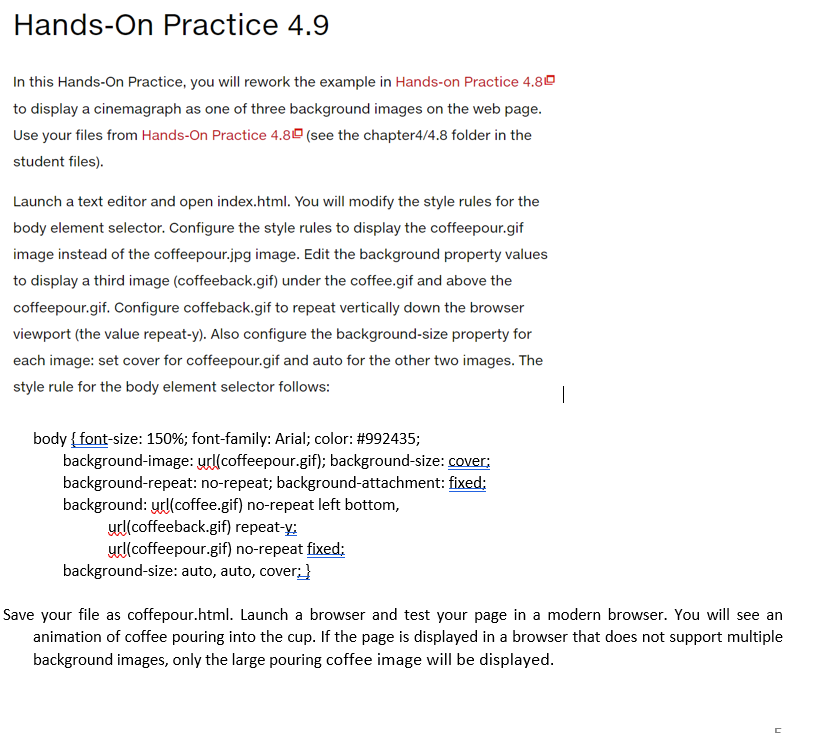
Hands-On Practice 4.9 In this Hands-On Practice, you will rework the example in Hands-on Practice 4.80 to display a cinemagraph as one of three background images on the web page. Use your files from Hands-On Practice 4.80 (see the chapter4/4.8 folder in the student files). Launch a text editor and open index.html. You will modify the style rules for the body element selector. Configure the style rules to display the coffeepour.gif image instead of the coffeepour.jpg image. Edit the background property values to display a third image (coffeeback.gif) under the coffee.gif and above the coffeepour.gif. Configure coffeback.gif to repeat vertically down the browser viewport (the value repeat-y). Also configure the background-size property for each image: set cover for coffeepour.gif and auto for the other two images. The style rule for the body element selector follows: 1 body { font-size: 150%; font-family: Arial; color: #992435; background-image: url(coffeepour.gif); background-size: cover: background-repeat: no-repeat; background-attachment: fixed; background: url(coffee.gif) no-repeat left bottom, url(coffeeback.gif) repeat-x: url(coffeepour.gif) no-repeat fixed; background-size: auto, auto, cover:} Save your file as coffepour.html. Launch a browser and test your page in a modern browser. You will see an animation of coffee pouring into the cup. If the page is displayed in a browser that does not support multiple background images, only the large pouring coffee image will be displayed. Hands-On Practice 4.9 In this Hands-On Practice, you will rework the example in Hands-on Practice 4.80 to display a cinemagraph as one of three background images on the web page. Use your files from Hands-On Practice 4.80 (see the chapter4/4.8 folder in the student files). Launch a text editor and open index.html. You will modify the style rules for the body element selector. Configure the style rules to display the coffeepour.gif image instead of the coffeepour.jpg image. Edit the background property values to display a third image (coffeeback.gif) under the coffee.gif and above the coffeepour.gif. Configure coffeback.gif to repeat vertically down the browser viewport (the value repeat-y). Also configure the background-size property for each image: set cover for coffeepour.gif and auto for the other two images. The style rule for the body element selector follows: 1 body { font-size: 150%; font-family: Arial; color: #992435; background-image: url(coffeepour.gif); background-size: cover: background-repeat: no-repeat; background-attachment: fixed; background: url(coffee.gif) no-repeat left bottom, url(coffeeback.gif) repeat-x: url(coffeepour.gif) no-repeat fixed; background-size: auto, auto, cover:} Save your file as coffepour.html. Launch a browser and test your page in a modern browser. You will see an animation of coffee pouring into the cup. If the page is displayed in a browser that does not support multiple background images, only the large pouring coffee image will be displayed
Step by Step Solution
There are 3 Steps involved in it

Get step-by-step solutions from verified subject matter experts