







Question: help fixing this code. I'm supposed to be getting this (the nice and neat output separated by commas) but instead I'm getting this output (the
help fixing this code. I'm supposed to be getting this (the nice and neat output separated by commas) but instead I'm getting this output (the not so nice hot mess that doesn't look good nor has all of the information)
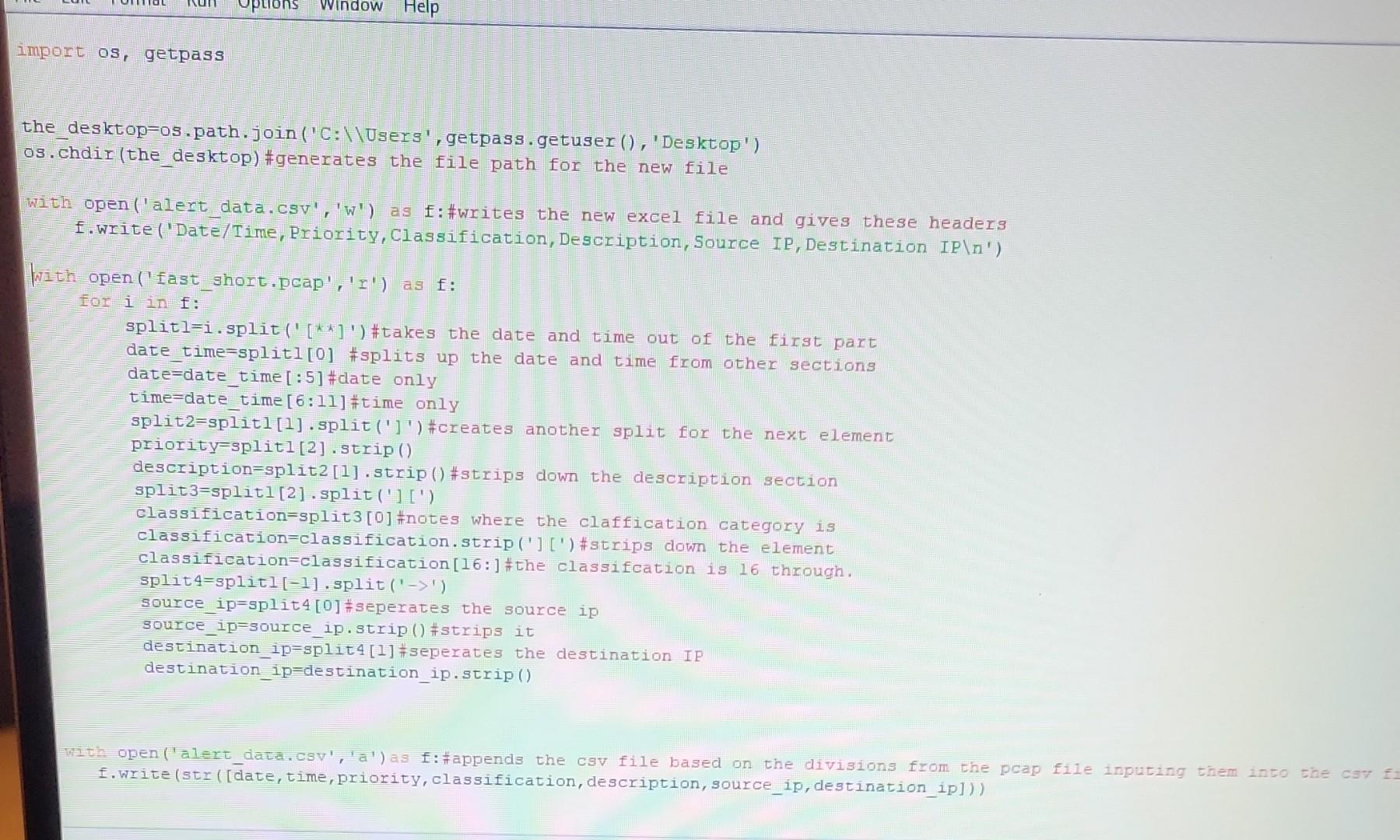

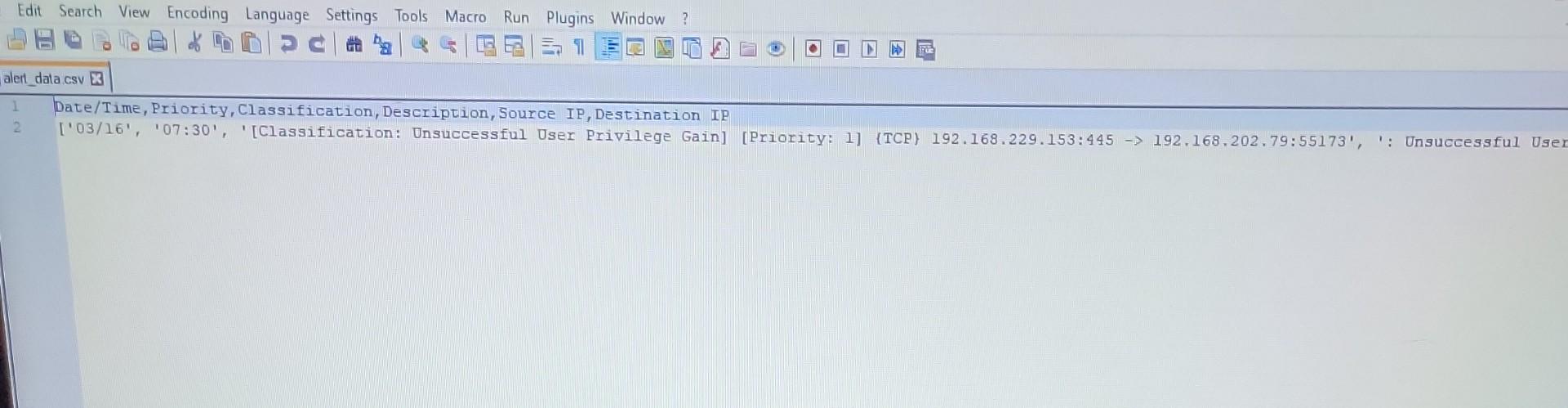
03. Chdir(the desktop)\#generates the file path for the new file With open ('alert data.csv','w') as f:#writes the new excel file and gives these headers f. Write ('Date/Time, Priority, Classification, Description, Source IP, Destination IP ') With open( fast_short.pcap', 'I') as f : for i in f : date timesplitl[0] \#splits up the date and time from other sections date=date_time [:5] \#date on 1y time=date_time [6:11]# time only split2=splitl[1].split(']') \#creates another split for the next element priority=splitl [2] . strip () description=split2[1].strip()\#strips down the description section split 3=split1[2]. split ('] [') classification=split3[0] \#notes where the claffication category is classification=classification.strip('] [') \#strips down the element classification=classification [16:] \#the classifcation is 16 through. split 4= split 1[1].split (1> ') source ip=split4 [0]\#seperates the source ip source_ip=source_ip.strip()\#strips it destination_ip=split4[1]\#seperates the destination IP destination_ip=destination_ip.strip() With open('alert_data.csv','a') as f : \#appends the csv file based on the divisions from the pcap file inputing them into the cs7 f. f. Write(str ([date, time, priority, classification, description, source_ip, destination_ip])) Edit Search View Encoding Language Settings Tools Macro Run Plugins Window alert_data.csv x Date/Time, Priority, Classification, Description, Source IP, Destination IP
Step by Step Solution
There are 3 Steps involved in it

Get step-by-step solutions from verified subject matter experts
 Study Help