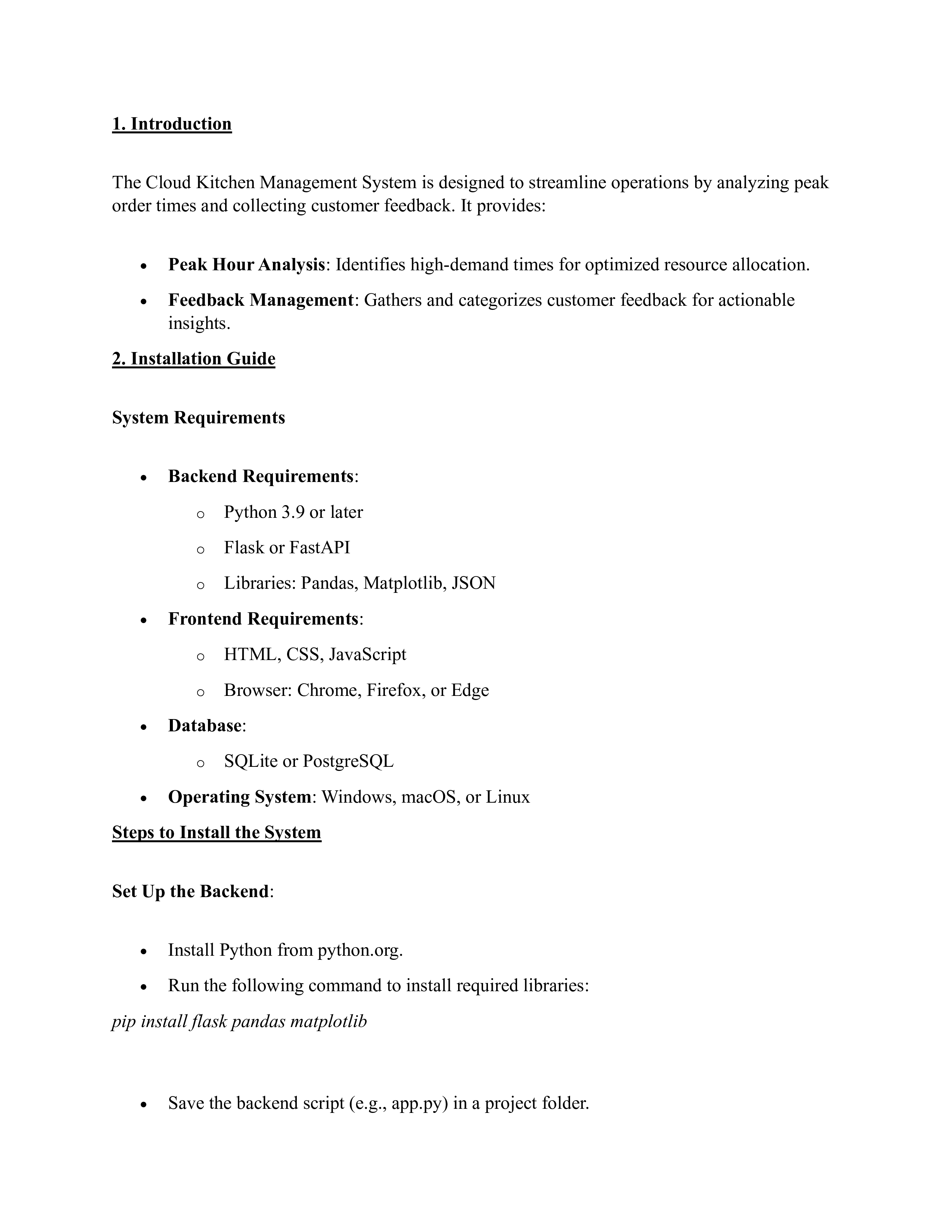
Question: HELP!! How do I get everything to work? Like how do I set all these up? 1. Introduction The Cloud Kitchen Management System is designed
HELP!! How do I get everything to work? Like how do I set all these up?
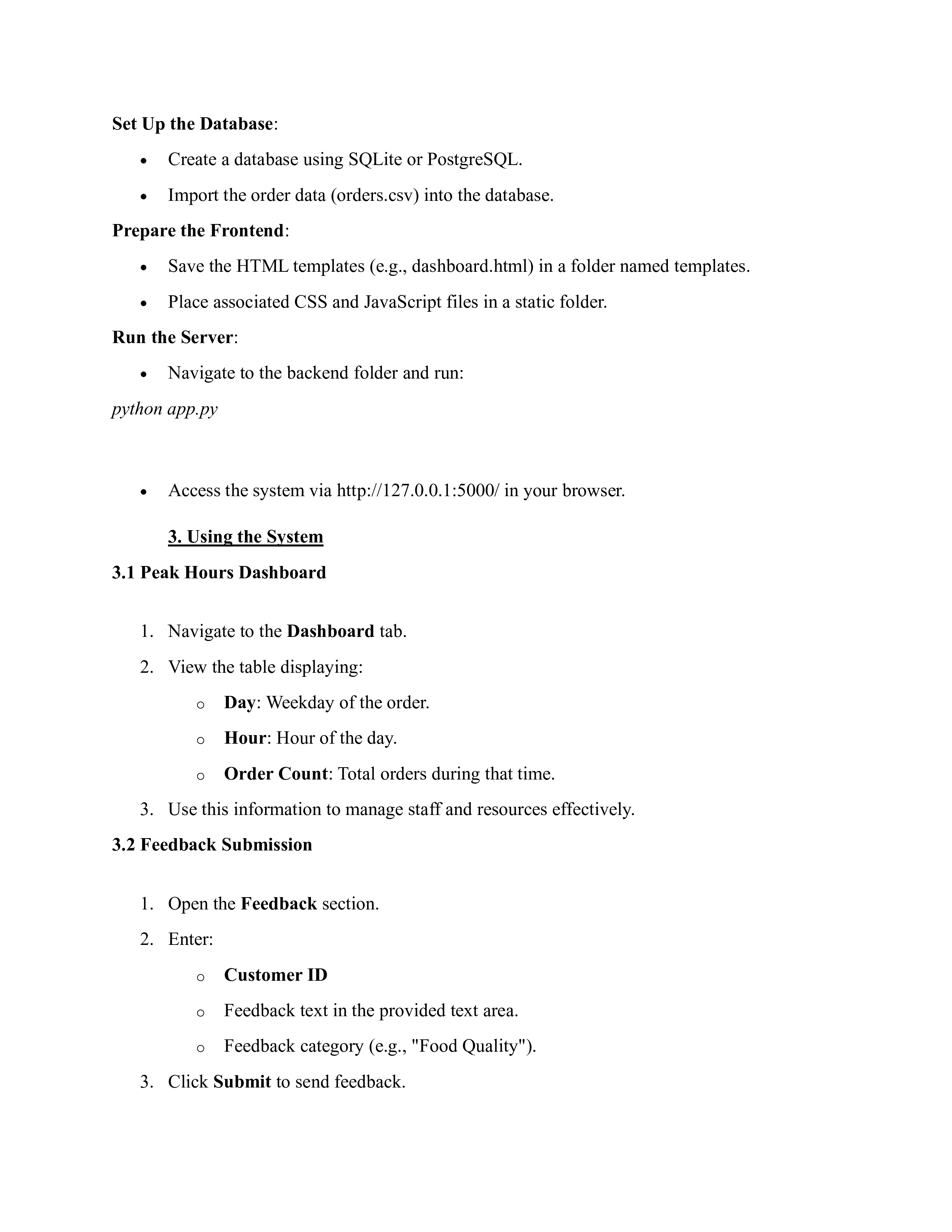
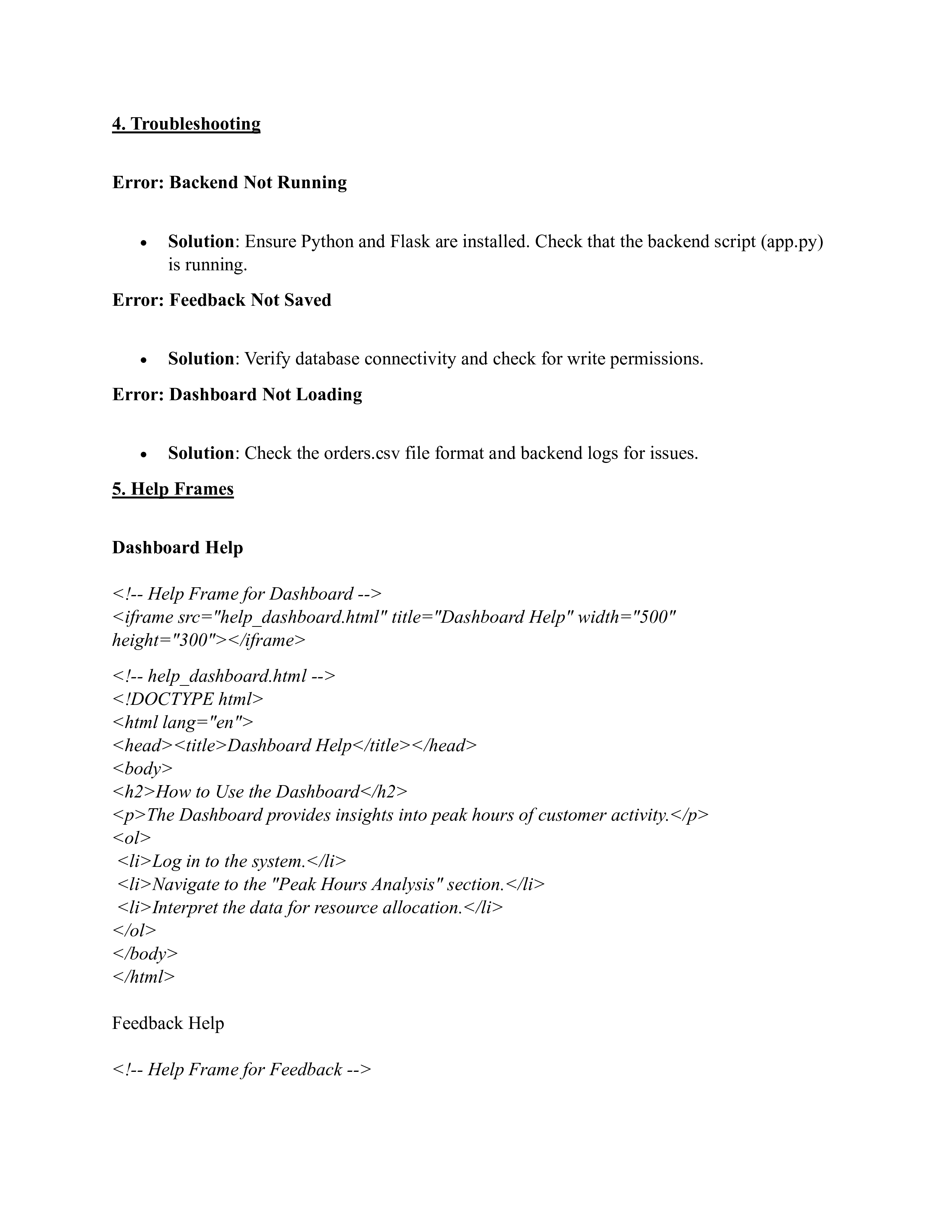
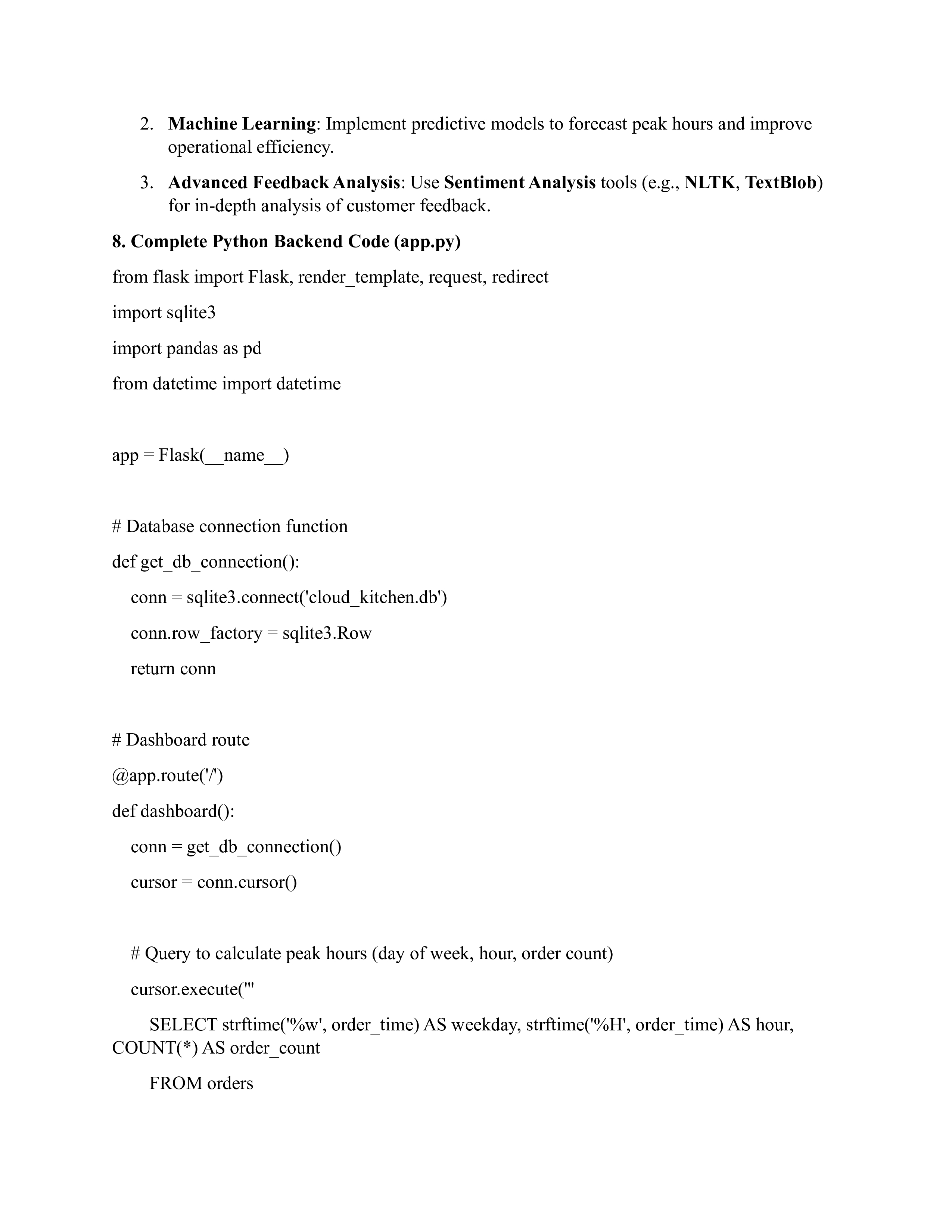
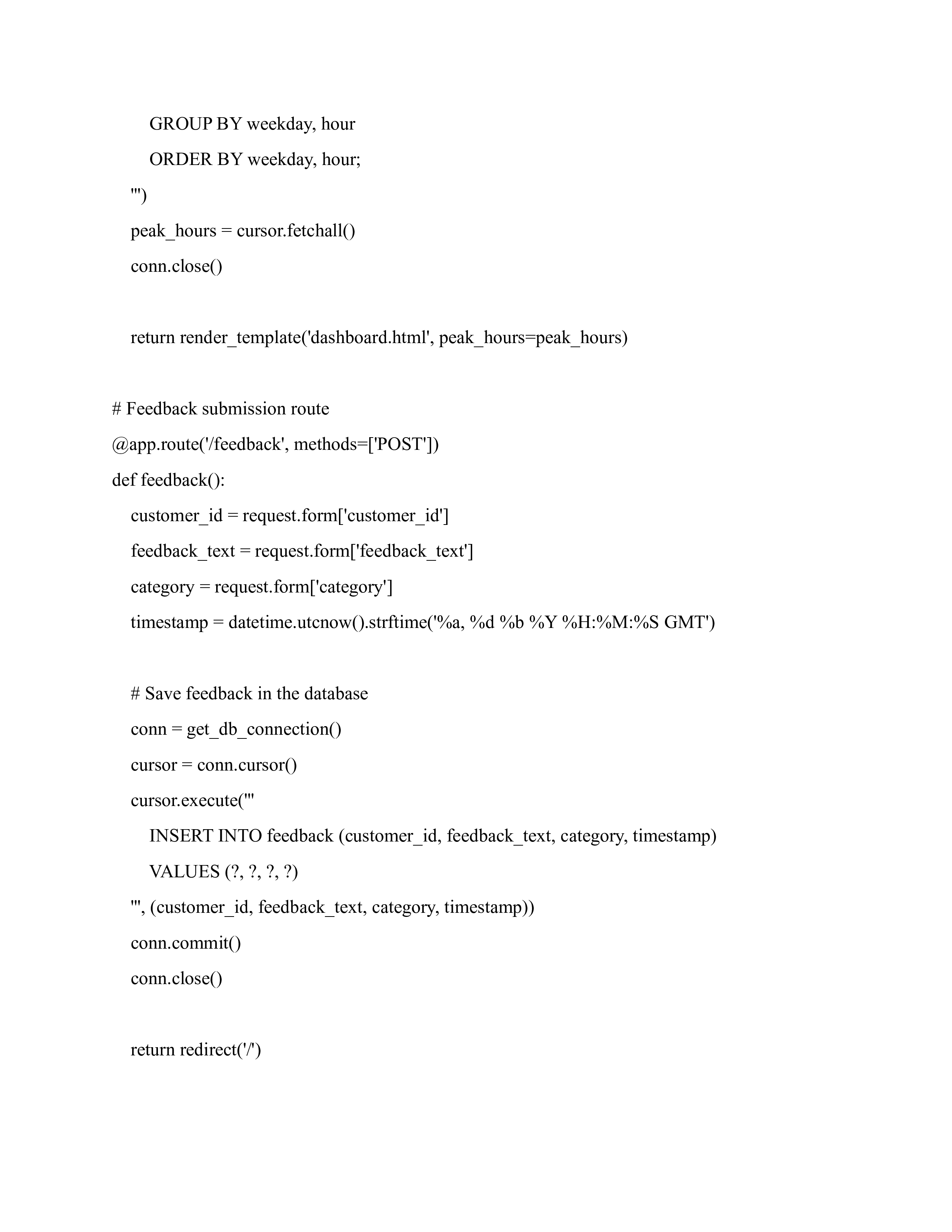
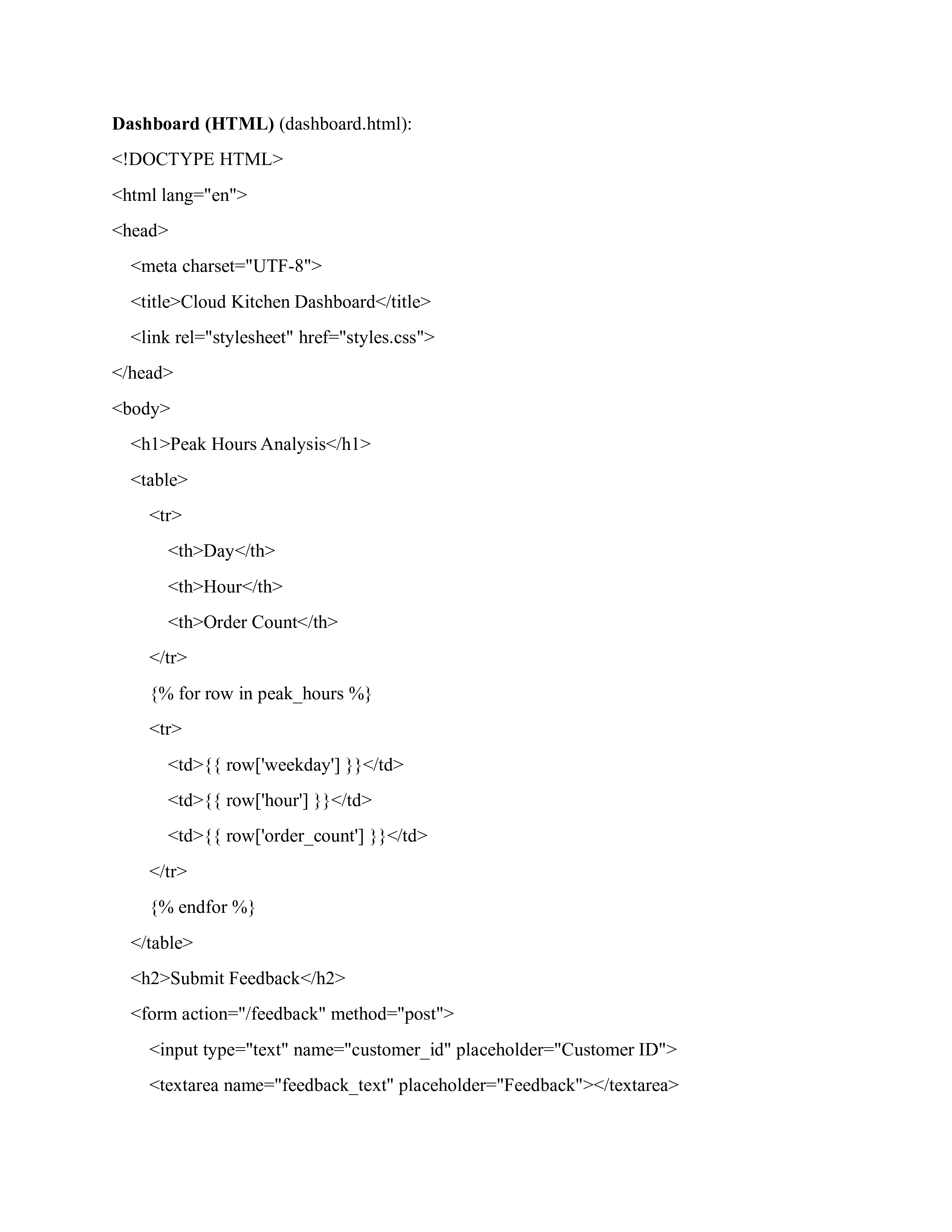
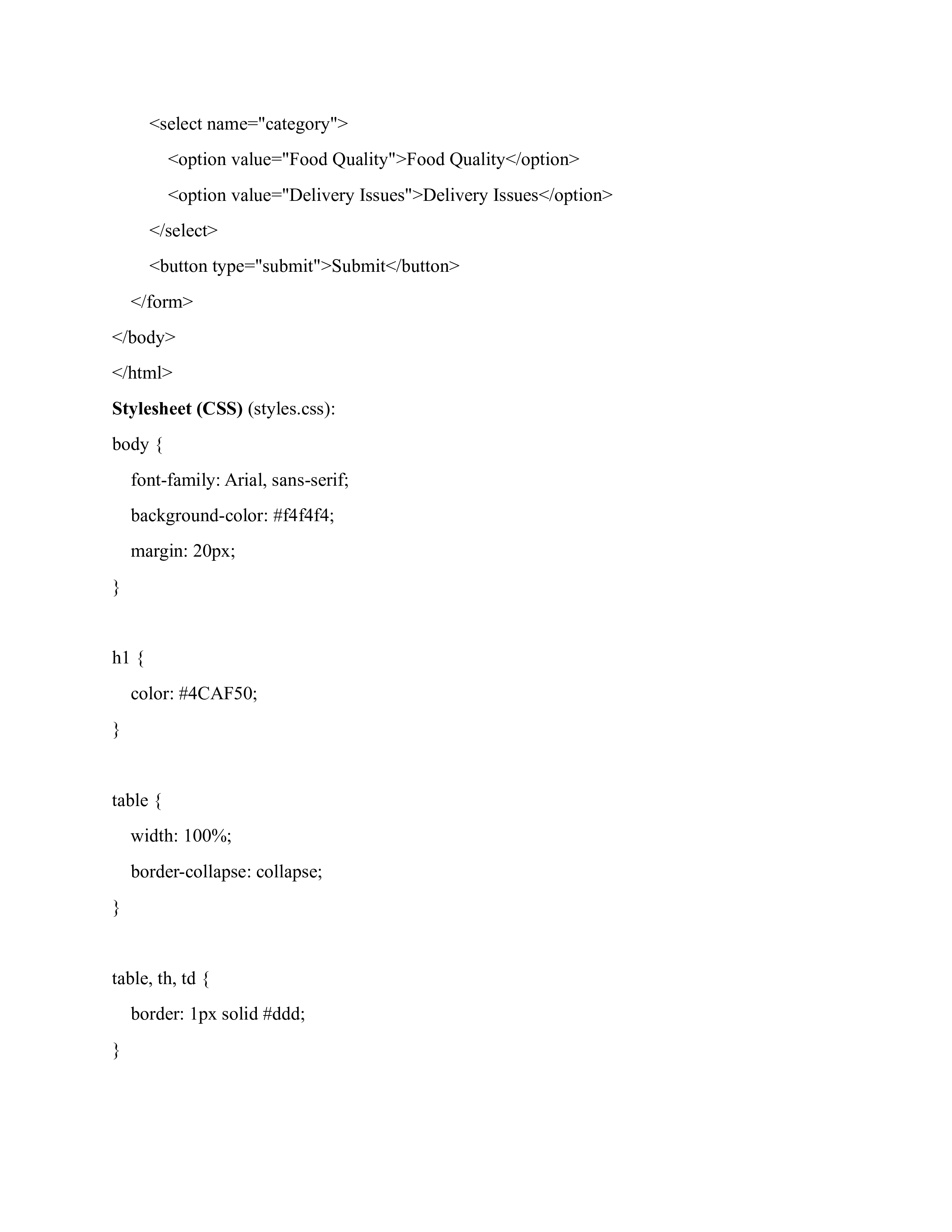
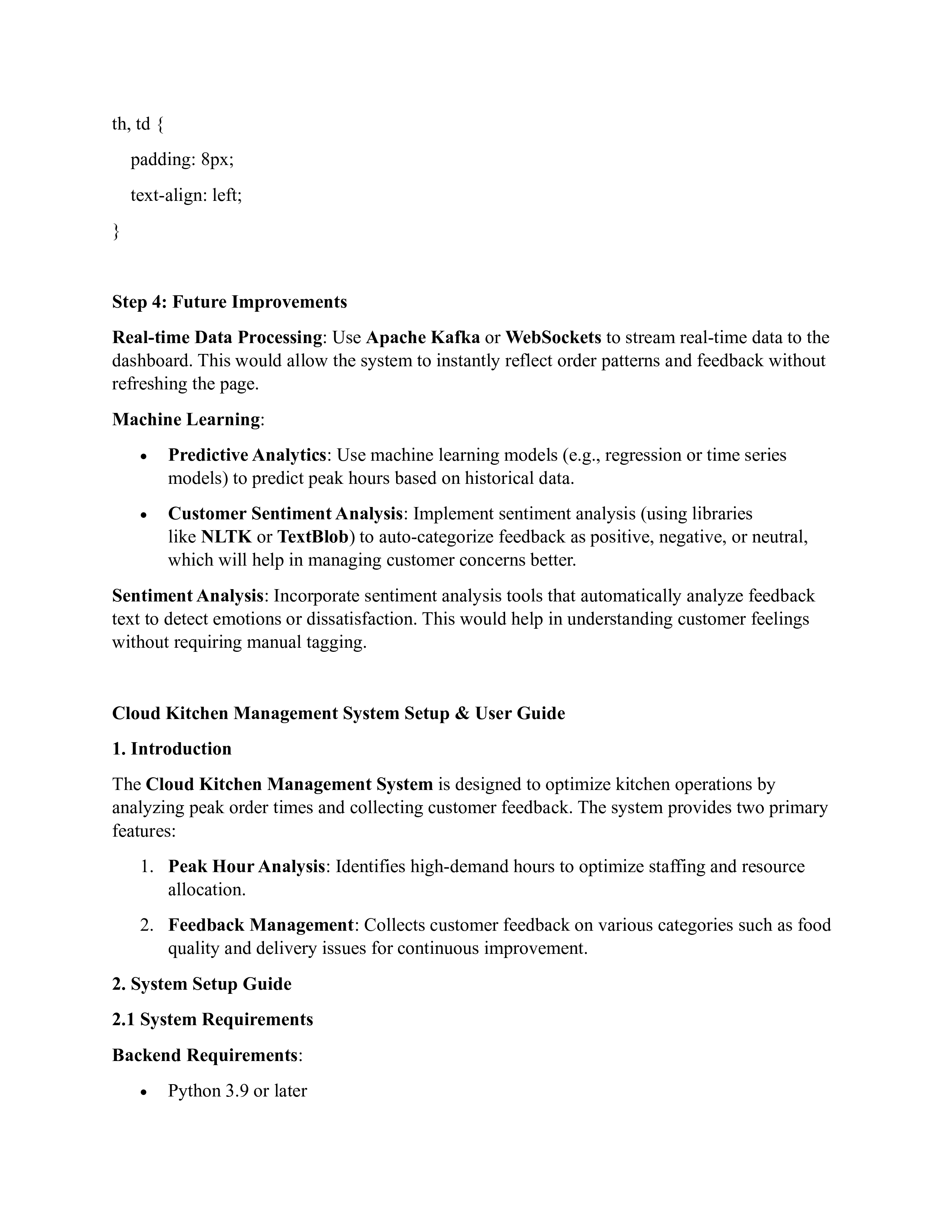
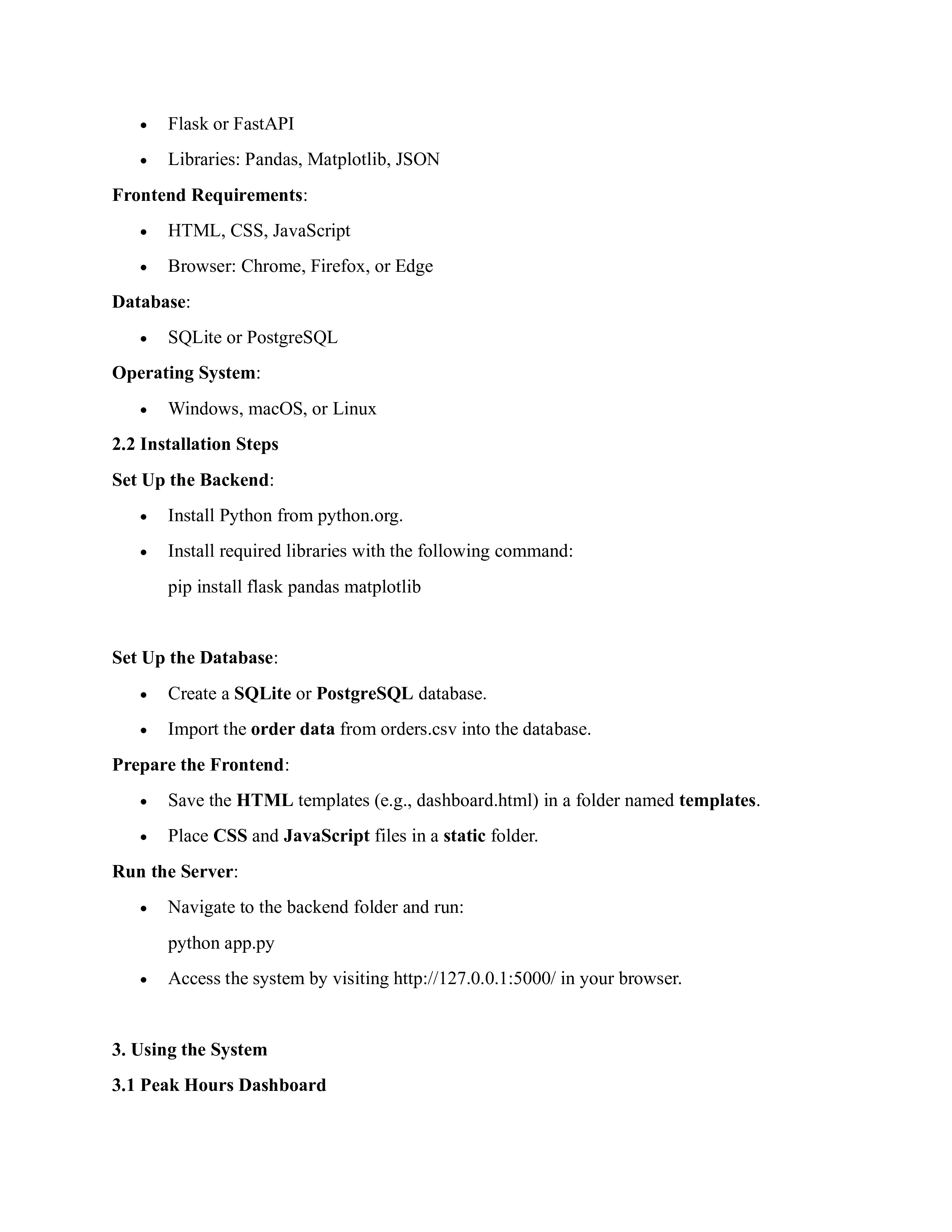
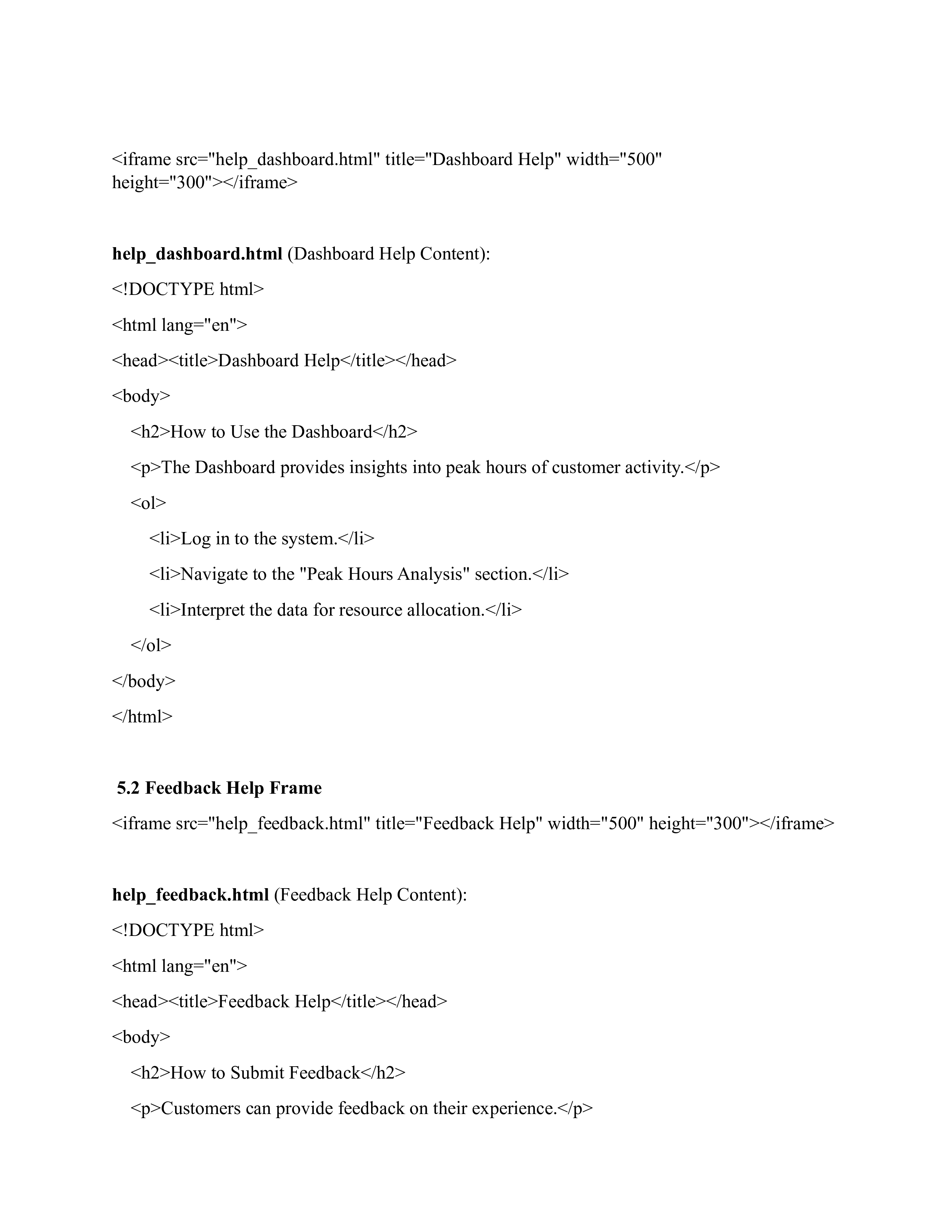
1. Introduction The Cloud Kitchen Management System is designed to streamline operations by analyzing peak order times and collecting customer feedback. It provides: Peak Hour Analysis: Identifies high-demand times for optimized resource allocation. Feedback Management: Gathers and categorizes customer feedback for actionable insights. 2. Installation Guide System Requirements Backend Requirements: o Python 3.9 or later o Flask or FastAPI o Libraries: Pandas, Matplotlib, JSON Frontend Requirements: HTML, CSS, JavaScript o Browser: Chrome, Firefox, or Edge Database: o SQLite or PostgresQL Operating System: Windows, macOS, or Linux Steps to Install the System Set Up the Backend: Install Python from python.org. Run the following command to install required libraries: pip install flask pandas matplotlib Save the backend script (e.g., app.py) in a project folder.Set Up the Database: o Create a database using SQLite or PostgreSQL. e Import the order data (orders.csv) into the database. Prepare the Frontend: o Save the HTML templates (e.g., dashboard.html) in a folder named templates. o Place associated CSS and JavaScript files in a static folder. Run the Server: e Navigate to the backend folder and run: python app.py e Access the system via http://127.0.0.1:5000/ in your browser. 3. Using the System 3.1 Peak Hours Dashboard 1. Navigate to the Dashboard tab. 2. View the table displaying: o Day: Weekday of the order. o Hour: Hour of the day. o Order Count: Total orders during that time. 3. Use this information to manage staff and resources effectively. 3.2 Feedback Submission 1. Open the Feedback section. 2. Enter: o Customer ID o Feedback text in the provided text area. o Feedback category (e.g., "Food Quality"). 3. Click Submit to send feedback. 4. Troubleshooting Error: Backend Not Running Solution: Ensure Python and Flask are installed. Check that the backend script (app.py) is running. Error: Feedback Not Saved Solution: Verify database connectivity and check for write permissions. Error: Dashboard Not Loading . Solution: Check the orders.csv file format and backend logs for issues. 5. Help Frames Dashboard Help Dashboard Help
How to Use the Dashboard
The Dashboard provides insights into peak hours of customer activity.
Log in to the system.
Navigate to the "Peak Hours Analysis" section.
Interpret the data for resource allocation.
Feedback Help Kiframe src="help_feedback.html" title="Feedback Help" width="500" height="300"> Feedback Help
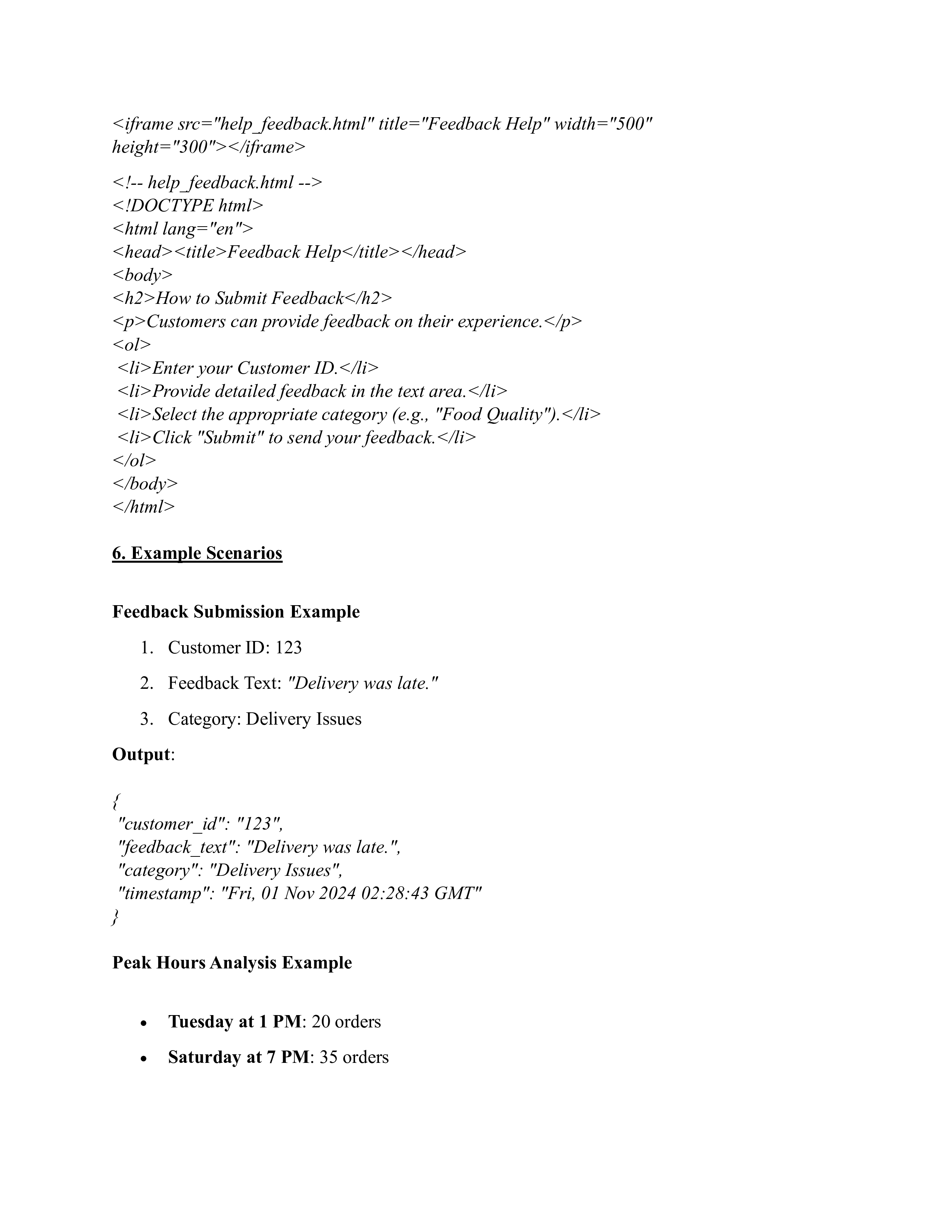
How to Submit Feedback
Customers can provide feedback on their experience.
Enter your Customer ID.
Provide detailed feedback in the text area.
Select the appropriate category (e.g., "Food Quality").
Click "Submit" to send your feedback.
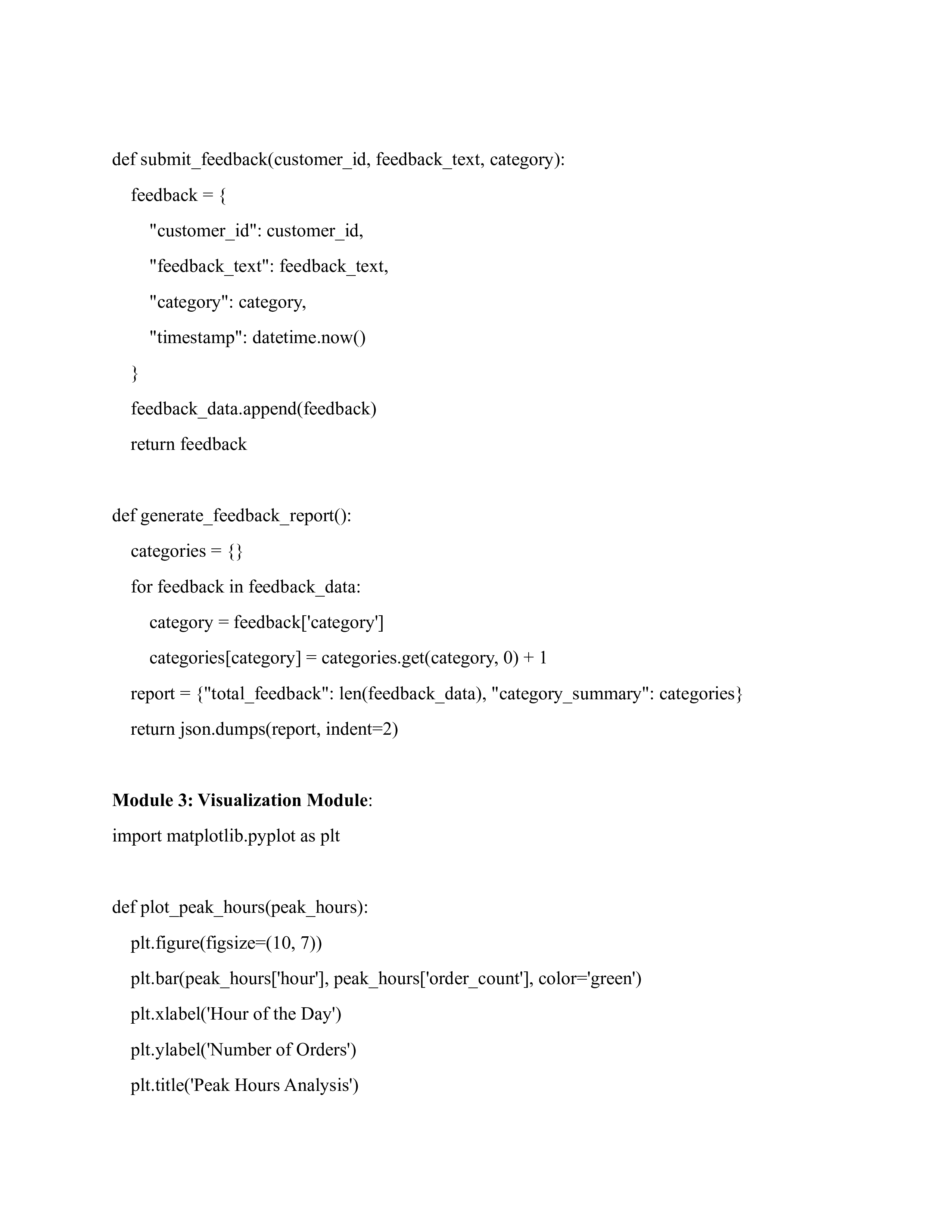
6. Example Scenarios Feedback Submission Example 1. Customer ID: 123 2. Feedback Text: "Delivery was late." 3. Category: Delivery Issues Output: "customer_id": "123", "feedback text": "Delivery was late.", "category": "Delivery Issues", "timestamp": "Fri, 01 Nov 2024 02:28:43 GMT" Peak Hours Analysis Example Tuesday at 1 PM: 20 orders . Saturday at 7 PM: 35 orders7. Future Enhancements 1. Real-time Analytics: Integrate real-time dashboards for instant updates. 2. Machine Learning: Implement predictive models to forecast peak hours. 3. Advanced Feedback Analysis: Use sentiment analysis tools for in-depth feedback categorization. This manual ensures seamless setup and usage of the Cloud Kitchen Management System. Demo of Cloud Kitchen The Cloud Kitchen Management System is designed to handle multiple tasks such as analyzing peak order times and collecting customer feedback. Here's the breakdown of the architecture and its modules: 1. System Architecture Overview: The architecture of the system can be divided into four main modules: Data Processing Module: e Reads past order data (usually in CSV format), cleans it, and processes the data to calculate peak hours. e Analyzes order times to find patterns like which hours have the highest number of orders. Customer Feedback Management Module: e Collects customer feedback, categorizes it, and stores it for further analysis. o Allows customers to submit feedback about food quality, delivery, and other aspects of the service. Visualization Module: e Creates visual charts and graphs, such as bar charts or trend lines, to display peak hours and customer feedback trends. o Uses libraries like Matplotlib to visualize data. User Interface Module: e Provides the dashboard interface for both kitchen managers to view peak hours and customers to submit feedback. e Built using HTML, CSS, JavaScript, and Flask for web functionality. Step 2: Detailed Architecture and Code Implementation 2.1 Technology Stack: Backend: o Python with Flask (or FastAPI) for creating API endpoints and handling server-side logic. Frontend: e HTML, CSS, and JavaScript for creating the Ul and interactions. e React or Vue.js could be used for dynamic interfaces if needed. Database: SQLite or PostgreSQL to store orders and feedback. Data Analysis: Pandas for data cleaning and analysis. Matplotlib for creating visualizations. 2.2 Code Implementation: Here's the breakdown of the key modules and their code: Module 1: Data Processing (Peak Hour Analysis): import pandas as pd from datetime import datetime def load_order_data(file_path): data = pd.read_csv(file_path) return data def calculate_peak_hours(data): data['order_time'] = pd.to_datetime(data['order_time']) data['hour'] = data['order_time'].dt.hour data['weekday'] = data['order_time'].dt.weekday peak_hours = data.groupby(['weekday', 'hour']).size().reset_index(name='order_count') peak_hours = peak_hours.sort_values(by='order_count', ascending=False) return peak hours Module 2: Managing Feedback: from datetime import datetime import json feedback_data =
Enter your Customer ID.
Provide detailed feedback in the text area.
Select the appropriate category (e.g., "Food Quality").
Click "Submit" to send your feedback.
Step by Step Solution
There are 3 Steps involved in it
1 Expert Approved Answer
Step: 1 Unlock
Question Has Been Solved by an Expert!
Get step-by-step solutions from verified subject matter experts
Step: 2 Unlock
Step: 3 Unlock
Students Have Also Explored These Related Law Questions!












 Study Help