







Question: ***THE CODE SHOULD MAKE THE WEBSITE LOOK LIKE SHOWN IN THE PICTURE!!*** ***PLEASE COMPLETE THE CODE!!*** ***THE PROVIDED IMAGES ARE TO BE USED ON THE
***THE CODE SHOULD MAKE THE WEBSITE LOOK LIKE SHOWN IN THE PICTURE!!***
***PLEASE COMPLETE THE CODE!!***
***THE PROVIDED IMAGES ARE TO BE USED ON THE WEBSITE***
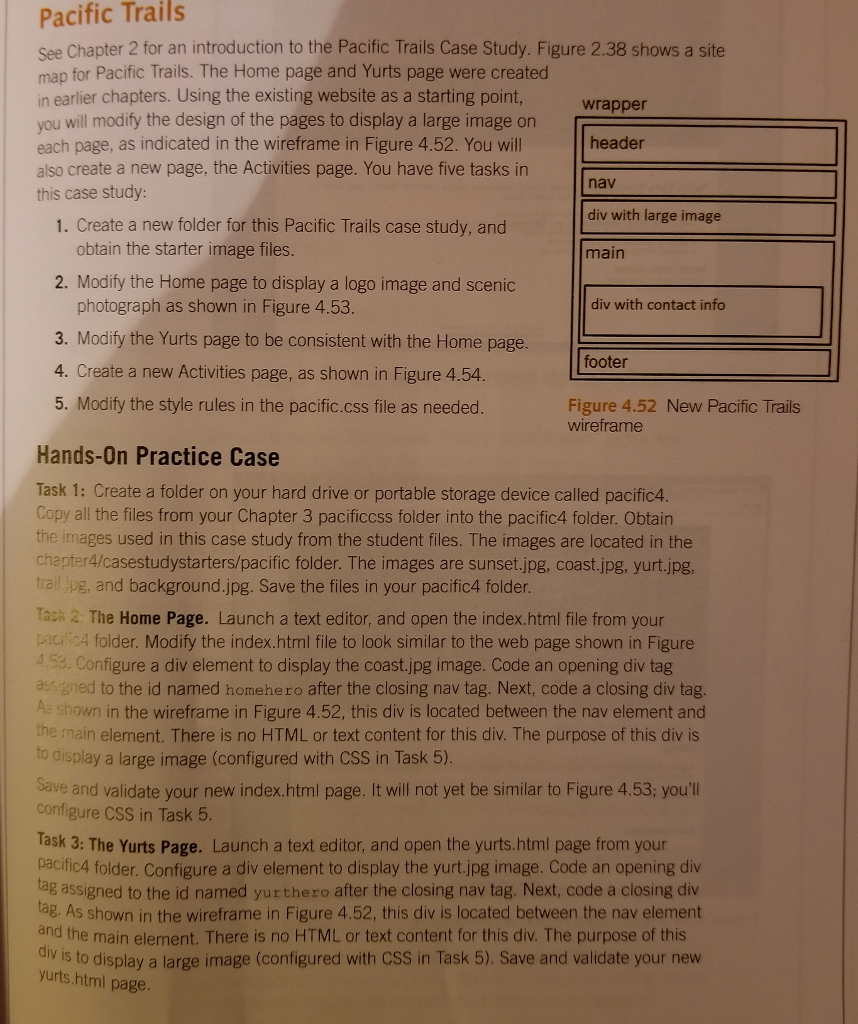
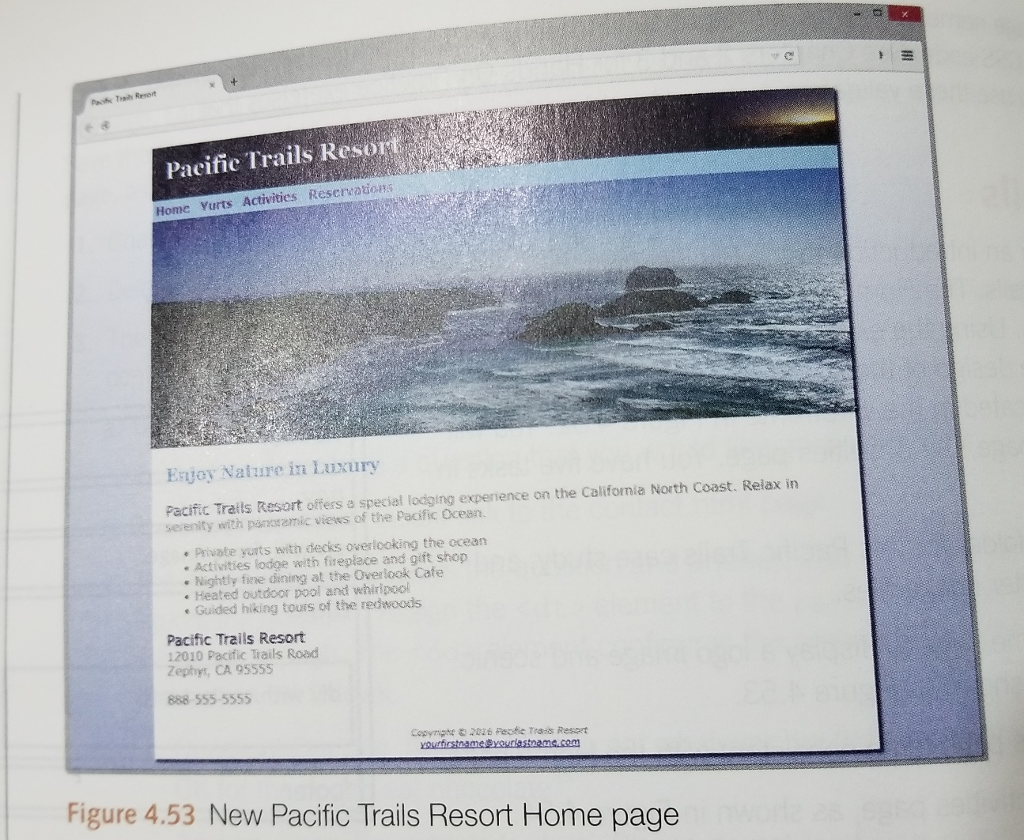
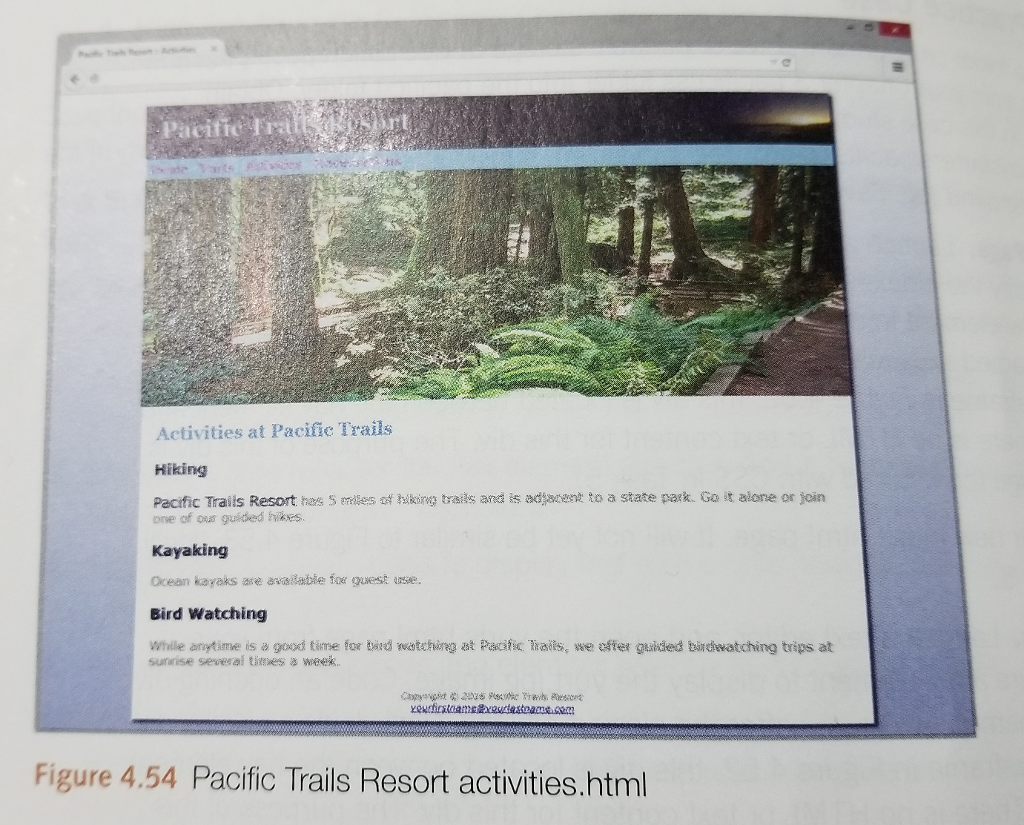
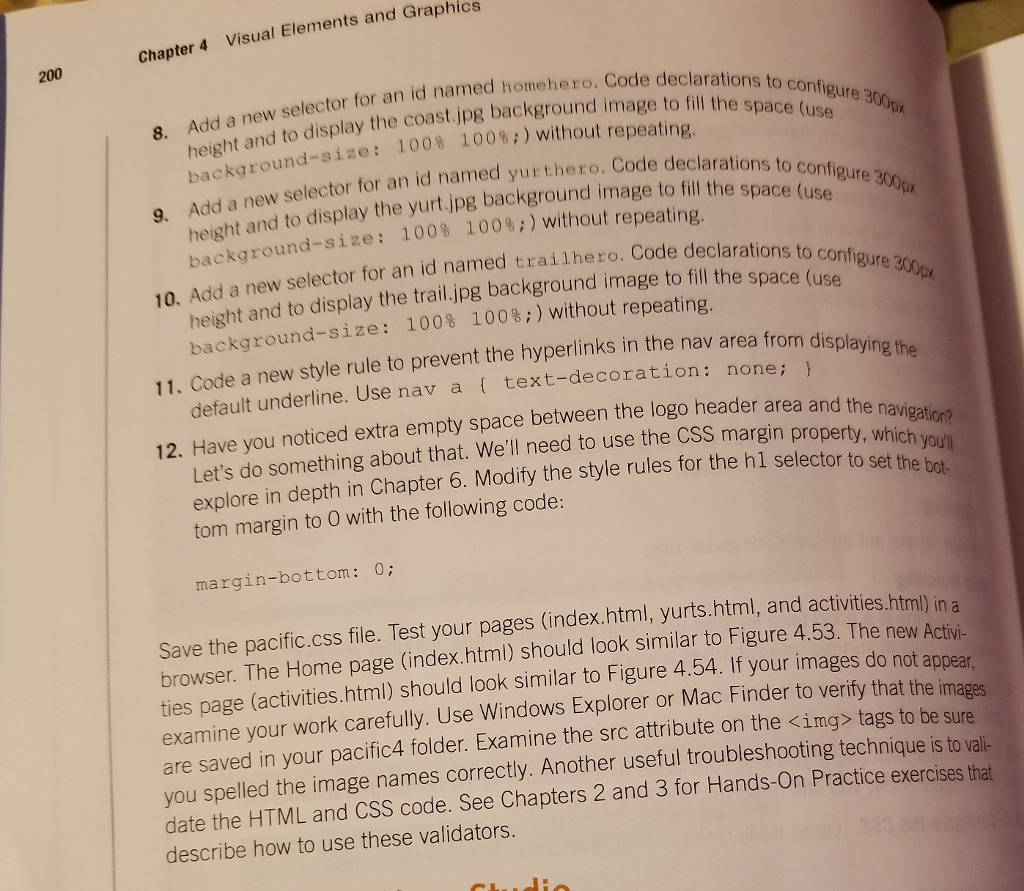

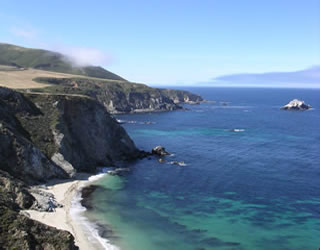

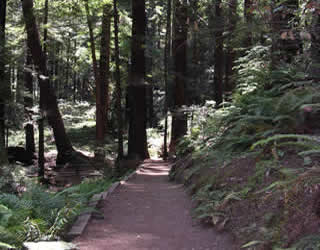
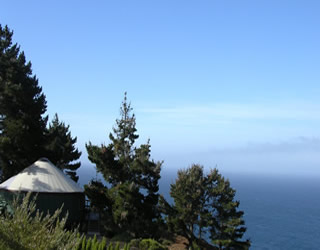
Pacific Trails See Chapter 2 for an introduction to the Pacific Trails Case Study. Figure 2.38 shows a site map for Pacific Trails. The Home page and Yurts page were created in earlier chapters. Using the existing website as a starting point you will modify the design of the pages to display a large image on each page, as indicated in the wireframe in Figure 4.52. You will also create a new page, the Activities page. You have five tasks in this case study wrapper header nav div with large image main 1. Create a new folder for this Pacific Trails case study, and obtain the starter image files 2. Modify the Home page to display a logo image and scenic photograph as shown in Figure 4.53 div with contact info 3. Modify the Yurts page to be consistent with the Home page footer 4. Create a new Activities page, as shown in Figure 4.54 5. Modify the style rules in the pacific.css file as needed. Figure 4.52 New Pacific Trails wireframe Hands-On Practice Case Task 1: Create a folder on your hard drive or portable storage device called pacific4 Copy all the files from your Chapter 3 pacificcss folder into the pacific4 folder. Obtain the images used in this case study from the student files. The images are located in the chapter4/casestudystarters/pacific folder. The images are sunset.jpg, coast.jpg, yurt.jpg, trail jpg, and background.jpg. Save the files in your pacific4 folder Task 2 The Home Page. Launch a text editor, and open the index.html file from your pa 4 folder. Modify the index.html file to look similar to the web page shown in Figure nfigure a div element to display the coast.jpg image. Code an opening div tag ass gned to the id named homehero after the closing nav tag. Next, code a closing div tag in the wireframe in Figure 4.52, this div is located between the nav element and the main element. There is no HTML or text content for this div. The purpose of this div is to display a large image (configured with CSS in Task 5) and validate your new index.html page. It will not yet be similar to Figure 4.53; you'll configure CSS in Task b Task 3: The Yurts Page. Launch a text editor, and open the yurts.html page from your cific4 folder. Configure a div element to display the yurt.jpg image. Code an opening di lag assigned to the id named yurthero after the closing nav tag. Next, code a closing div ag. As shown in the wireframe in Figure 4.52, this div is located between the nav element and the main element. There is no HTML or text content for this div. The purpose of this dlv is to display a large image (configured with CSS in Task 5). Save and validate your new yurts.html page
Step by Step Solution
There are 3 Steps involved in it

Get step-by-step solutions from verified subject matter experts
 Study Help