







Question: Here is the code snippet Process . Download the base code _pic.java D Change the names of the file and class to Your NameEx7.java .
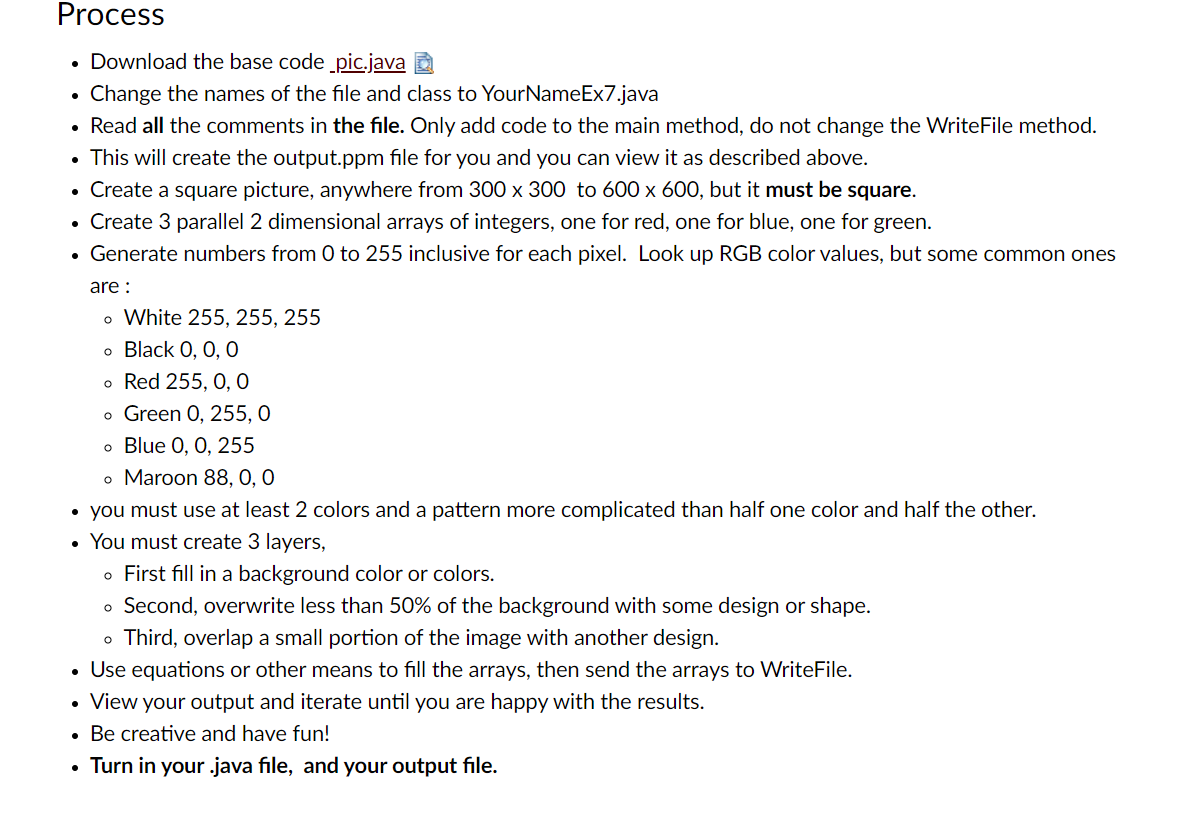
Here is the code snippet
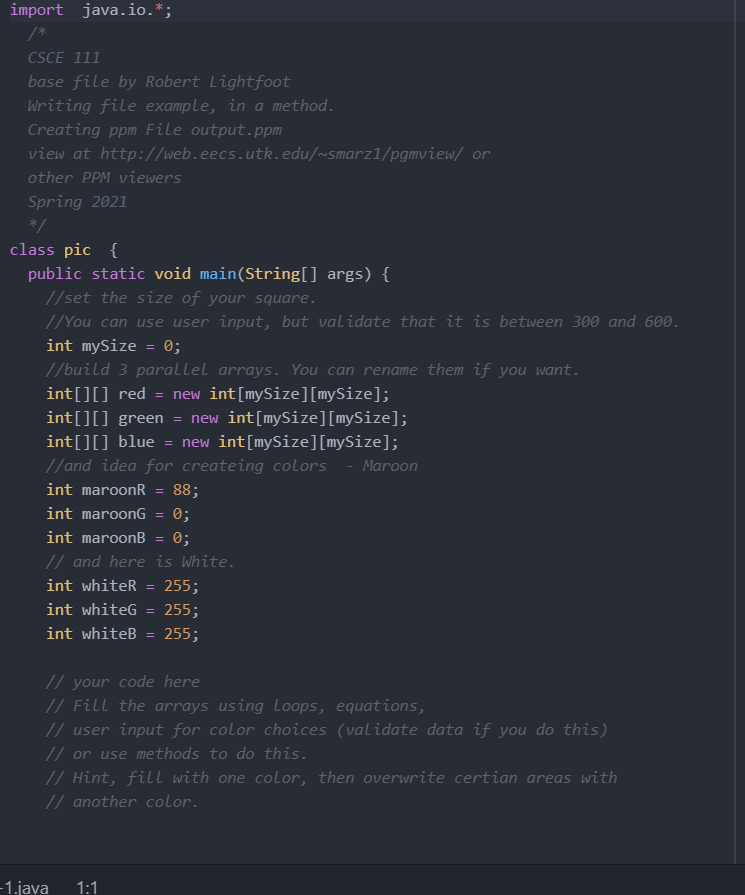
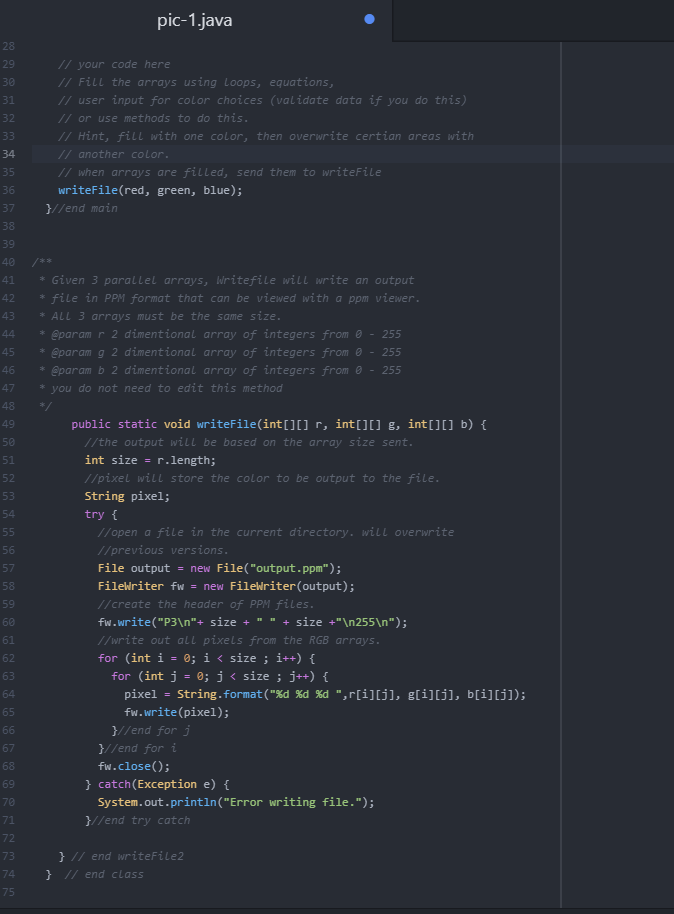
Process . Download the base code _pic.java D Change the names of the file and class to Your NameEx7.java . Read all the comments in the file. Only add code to the main method, do not change the Write File method. . This will create the output.ppm file for you and you can view it as described above. Create a square picture, anywhere from 300 x 300 to 600 x 600, but it must be square. Create 3 parallel 2 dimensional arrays of integers, one for red, one for blue, one for green. Generate numbers from 0 to 255 inclusive for each pixel. Look up RGB color values, but some common ones are: o White 255, 255, 255 o Black O, O, O o Red 255, 0, 0 o Green 0, 255, O o Blue 0, 0, 255 o Maroon 88, 0, 0 you must use at least 2 colors and a pattern more complicated than half one color and half the other. . You must create 3 layers, o First fill in a background color or colors. o Second, overwrite less than 50% of the background with some design or shape. o Third, overlap a small portion of the image with another design. Use equations or other means to fill the arrays, then send the arrays to Write File. View your output and iterate until you are happy with the results. . Be creative and have fun! Turn in your.java file, and your output file. . import java.io.*; * CSCE 111 base file by Robert Lightfoot Writing file example, in a method. Creating ppm File output.ppm view at http://web.eecs.utk.edu/~marz1/pgmview/ or other PPM viewers Spring 2021 */ class pic { public static void main(String[] args) { //set the size of your square. //You can use user input, but validate that it is between 300 and 600. int mySize = 0; //build 3 parallel arrays. You can rename them if you want. int[][] red = new int[mySize][mySize]; int[][] green = new int[mySize][mySize]; int[][] blue = new int[mySize][mySize]; //and idea for createing colors Maroon int maroon 88; int maroonG 0; int maroonB = 0; // and here is White. int whiteR = 255; int whiteG = 255; int whiteB = 255; // your code here // Fill the arrays using Loops, equations, // user input for color choices (validate data if you do this) // or use methods to do this. // Hint, fill with one color, then overwrite certian areas with // another color. -1.java 1:1 pic-1.java 28 29 30 31 32 33 34 // your code here // Fill the arrays using Loops, equations, // user input for color choices (validate data if you do this) // or use methods to do this. // Hint, fill with one color, then overwrite certian areas with // another color. // when arrays are filled, send them to writeFile writeFile(red, green, blue); }//end main 35 36 37 38 39 40 41 42 43 * Given 3 parallel arrays, Writefile will write an output file in PPM format that can be viewed with a ppm viewer. * ALL 3 arrays must be the same size. * @param r 2 dimentional array of integers from 9 - 255 @param g 2 dimentional array of integers from @ - 255 * @param b 2 dimentional array of integers from - 255 * you do not need to edit this method 45 46 47 48 49 50 51 52 53 54 55 56 57 58 59 60 61 62 63 public static void writeFile(int[][] r, int[][] g, int[][] b) { //the output will be based on the array size sent. int size = r.length; //pixel will store the color to be output to the file. String pixel; try { //open a file in the current directory. will overwrite //previous versions. File output = new File("output.ppm"); FileWriter fw = new FileWriter(output); //create the header of PPM files. fw.write("P3 "+ size + " " + size +" 255 "); //write out all pixels from the RGB arrays. for (int i = 0; i
Step by Step Solution
There are 3 Steps involved in it

Get step-by-step solutions from verified subject matter experts
 Study Help