







Question: Here is what the modified version should look like (input/output). As you can see, we are asking for the command first, before getting into the
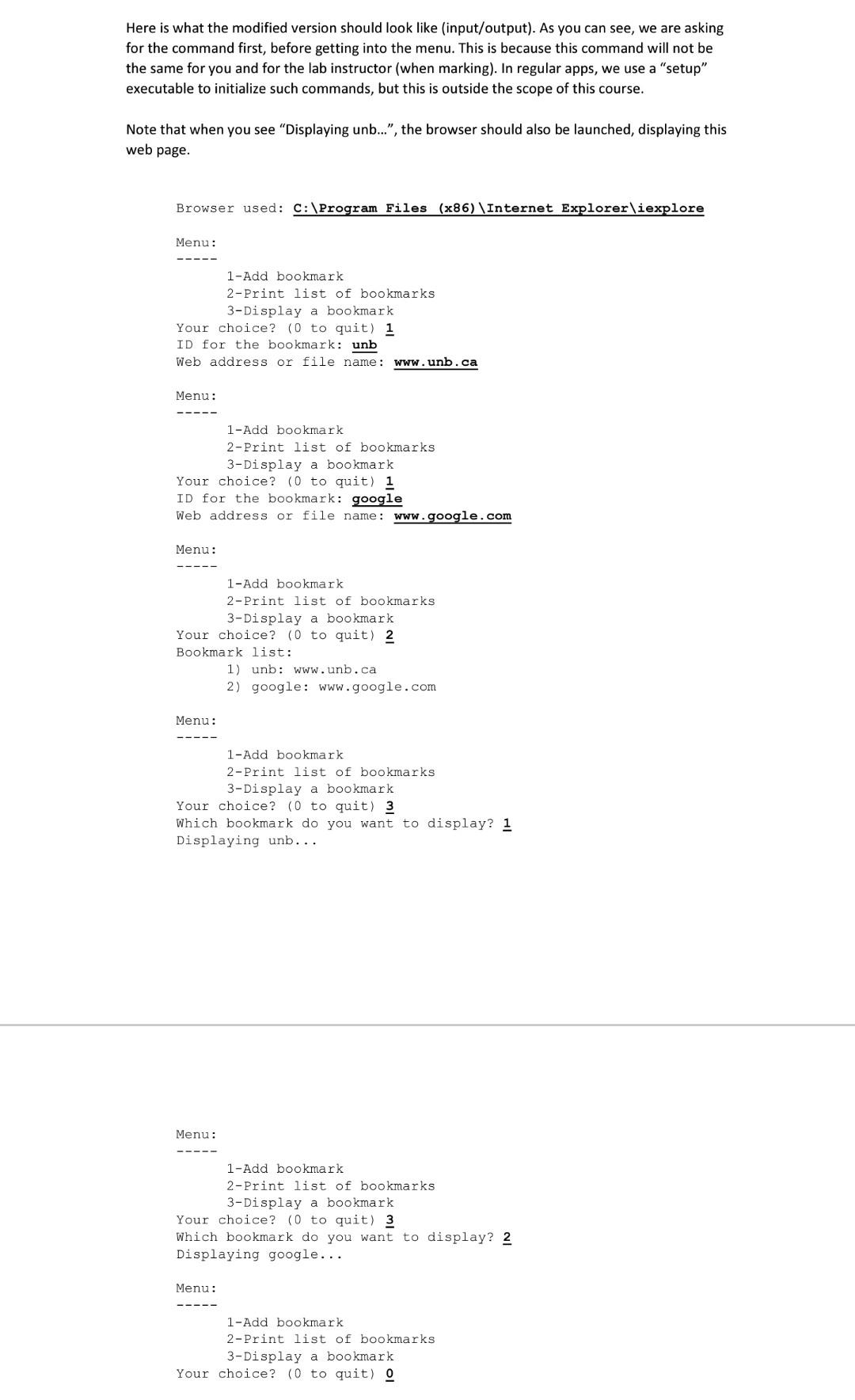
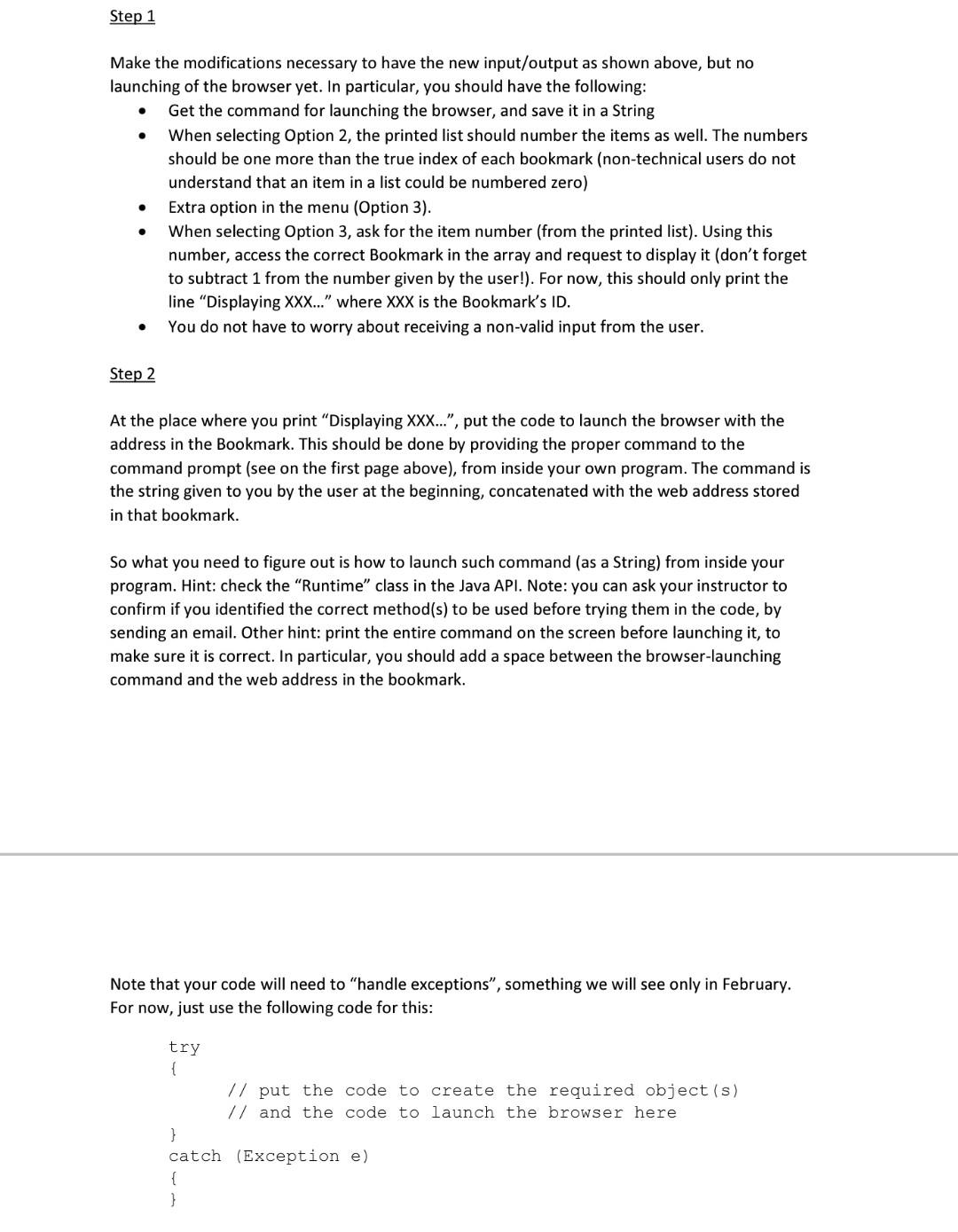
Here is what the modified version should look like (input/output). As you can see, we are asking for the command first, before getting into the menu. This is because this command will not be the same for you and for the lab instructor (when marking). In regular apps, we use a "setup" executable to initialize such commands, but this is outside the scope of this course. Note that when you see "Displaying unb...", the browser should also be launched, displaying this web page. Browser used: C:\Program Files (x86)\Internet Explorer\iexplore Menu: 1-Add bookmark 2-Print list of bookmarks 3-Display a bookmark Your choice? (0 to quit) 1 ID for the bookmark: unb Web address or file name: www.unb.ca Menu: 1-Add bookmark 2-Print list of bookmarks 3-Display a bookmark Your choice? (0 to quit) 1 ID for the bookmark: google Web address or file name: www.google.com Menu: 1-Add bookmark 2-Print list of bookmarks 3-Display a bookmark Your choice? (0 to quit) 2 Bookmark list: 1) unb: www.unb.ca 2) google: www.google.com Menu: 1- Add bookmark 2-Print list of bookmarks 3-Display a bookmark Your choice? (0 to quit) 3 Which bookmark do you want to display? 1 Displaying unb... Menu: 1-Add bookmark 2-Print list of bookmarks 3-Display a bookmark Your choice? (0 to quit) 3 Which bookmark do you want to display? 2 Displaying google... Menu: 1-Add bookmark 2-Print list of bookmarks 3-Display a bookmark Your choice? (0 to quit) o Step 1 Make the modifications necessary to have the new input/output as shown above, but no launching of the browser yet. In particular, you should have the following: Get the command for launching the browser, and save it in a String When selecting Option 2, the printed list should number the items as well. The numbers should be one more than the true index of each bookmark (non-technical users do not understand that an item in a list could be numbered zero) Extra option in the menu (Option 3). When selecting Option 3, ask for the item number (from the printed list). Using this number, access the correct Bookmark in the array and request to display it (don't forget to subtract 1 from the number given by the user!). For now, this should only print the line "Displaying XXX..." where XXX is the Bookmark's ID. You do not have to worry about receiving a non-valid input from the user. Step 2 At the place where you print "Displaying XXX..., put the code to launch the browser with the address in the Bookmark. This should be done by providing the proper command to the command prompt (see on the first page above), from inside your own program. The command is the string given to you by the user at the beginning, concatenated with the web address stored in that bookmark. So what you need to figure out is how to launch such command (as a String) from inside your program. Hint: check the "Runtime" class in the Java API. Note: you can ask your instructor to confirm if you identified the correct method(s) to be used before trying them in the code, by sending an email. Other hint: print the entire command on the screen before launching it, to make sure it is correct. In particular, you should add a space between the browser-launching command and the web address in the bookmark. Note that your code will need to "handle exceptions", something we will see only in February. For now, just use the following code for this: try { // put the code to create the required object(s) // and the code to launch the browser here } catch (Exception e) { }
Step by Step Solution
There are 3 Steps involved in it

Get step-by-step solutions from verified subject matter experts
 Study Help