







Question: Homework 1 Creating an Android App using Ul Objectives: 1. 2. 3. Learn to use Android Studio to create the app in Tutorial 1: Hello
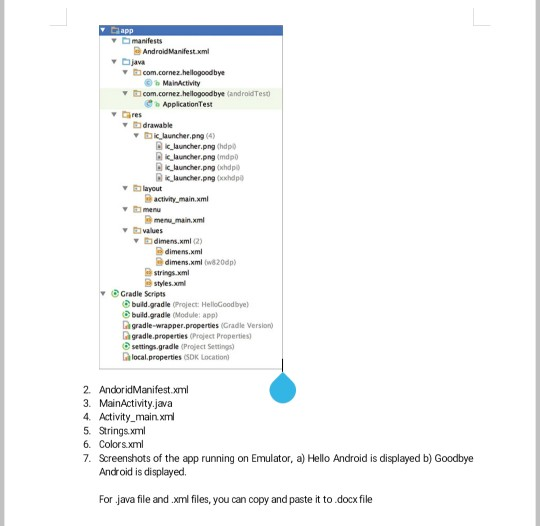
Homework 1 Creating an Android App using Ul Objectives: 1. 2. 3. Learn to use Android Studio to create the app in Tutorial 1: Hello and Goodbye Get familiar with the usage of resource files, such as drawable, color and string Create an AVD, and Run the app in Android Emulator Activity 1. 2. Create the Hello and Goodbye project Change the text "Hello" to "Hello Android", "Goodbye" to "Goodbye Android" in strings.xml file Create a new color using value #532EE4 in color.xml, give it a name, and apply the color to string Hello/Goodbye at Ul 3. Results: Submit a.docx file. It should include the following section: 1. Ascreenshots of the project structure for the project, which is similar to manifests bMainActivity Cares drawable Kauncher.png (4) D ic launcher.png (hdp0 Q ic launcher.png (mdpi D ik launcher.png (xhdp D ik launcher.png (xxhdp Y Eayout y values dimens.xml (2) dimens.xml (w820dp) styles.xml Gradle Scripts buld.gradle (Module: app} Ga gradle.properties (Project Properties Ga local.properties (SDK Location) build.gradle (Project: HelloGoodbyel gradie-wrapper.properties (Gradle Version settingsgradle (Project Settings) 2. AndoridManifest.xml 3. MainActivity java 4. Activity_main xml 5. Strings.xml 6. Colorsxml 7. Screenshots of the app running on Emulator, a) Hello Android is displayed b) Goodbye Android is displayed. For java file and xml files, you can copy and paste it to .docx file
Step by Step Solution
There are 3 Steps involved in it

Get step-by-step solutions from verified subject matter experts
 Study Help