







Question: How can I write this program on notepad++? The instructions are below: 1.Open the ski04.html file from the Data Files for Students in your text
How can I write this program on notepad++? The instructions are below:
1.Open the ski04.html file from the Data Files for Students in your text editor and then modify the comment at the top of the page to include your name and todays date.
2.In theheadsection of the ski04.html file, enter a link tag to connect the page to the external style sheet:Save ski04.html and then preview it in a browser to make sure that the style sheet is correctly connected to the HTML file.
3.Open the skistyles04.css file from the Data Files for Students in your text editor and then modify the comment in the first line to include your name and todays date.
4.Document the existing style sheet before enhancing it. In the skistyles04.css le, add comments to the end of each declaration to document the existing styles as follows:body { color: #FFFFFF; /*set text color to white*/ background-color: #C9E4FF; /*set background color to light blue*/ font-family: Calibri, sans-serif; /*set font to Calibri, or the generic sans-serif font*/ }#outer-wrapper { width: 90%; /*set width of id="outer-wrapper" to 90%*/ margin: 0 auto 0 auto; /*center content within id="outer-wrapper"*/ }header, nav, #content, footer { background-color: #4CA6FF; /*set background color to bright blue*/ padding: 10px; /*add 10px of padding on all four sides of the wireframe containers*/}footer { font-size: 0.75em; /*reduce the font size in the footer*/ text-align: center; /*center the text in the footer*/ }img { float: left; /*float the image to the left*/ }.rightmargin { margin-right: 2%; /*add 2% right margin to class="rightmargin"*/ }
5.Format the headings with
, , or tags with a Verdana font face and a little padding between the content and top border of the block by adding the following styles to the end of the external style sheet:h1, h2, h3 { font-family: Verdana, sans-serif; padding-top: 1%;}
tags with a Verdana font face and a little padding between the content and top border of the block by adding the following styles to the end of the external style sheet:h1, h2, h3 { font-family: Verdana, sans-serif; padding-top: 1%;}
6.Save the style sheet, and then refresh the ski04.html file in the browser to observe the changes. Refresh the webpage in a browser after each new style you apply to double check your work.
7.Modify thelicontent within thenavsection so that the unordered list appears without bullets by adding the following style to the end of the external style sheet:li { list-style-type: none; }
8.Modify thelicontent within thenavsection so that the items appear on the same line instead of as new blocks of content by inserting the following declaration for theliselector. (Hint(Hint(: Make sure you insert the declaration before the } closing brace.)display: inline;
9.Save the stylesheet and refresh the ski04.html file in the browser to observe the changes.
10.Modify thenavsection to have a light-blue background by inserting the following style at the end of the external style sheet:nav { background-color: #C9E4FF; }
11.Make sure that the heading that starts with Childrens Lessons does not oat to the right of the image by clearing the oat at that element. In the ski04.html file, add the following attribute/value pair to the opening
tag that marks the Childrens Lessons heading: class="clearfloat"
12.In the skistyles04.css external style sheet, add a style to the end of the style sheet to clear the float for content marked class="clearoat" as follows:.clearfloat { clear: both; }
13.Add padding to theheadersection that contains the image, headings, and nav by styling theheadersection separately from the rest of the wireframe elements as follows:a.Deleteheaderin theheader, nav, #content, footerselector.b.Immediately below thenav, #content, footerselector, create a style for theheadersection to apply the desired background color and to change the padding on the headersection to 0 top, 2% right, 2% bottom, and 0 left.header { background-color: #4CA6FF; padding: 0 2% 2% 0; }
14.Add tabs, spaces, and extra lines to your external style sheet to make it easy to read.
15.Add comments at the end of the new styles to document their application.
16.Validate your CSS file using the W3C validator at http://jigsaw.w3.org/css-validator/ and fix any errors that are identied. Validation is complete when the validator returns the message Congratulations! No Error Found.
17.Validate your HTML webpage using the W3C validator at validator.w3.org and fix any errors that are identified. Validation is complete when the validator returns the message This document was successfully checked as HTML5! in a green bar near the top of the webpage
.18.Submit theski04.htmlandskistyles04.css files in a format specified by your instructor. Your instructor may also ask you to submit the ski.jpg and legal.pdf files that are referenced by the webpage.
19.In step 10 you modified the rules for the header as follows:nav, #content, footer { background-color: #4CA6FF; padding: 10px; }header { background-color: #4CA6FF; padding: 0 2% 2% 0; }Given that the same background-color rule is found in two areas, rewrite these rules so that the background-color property is referenced only once. (Hintthe background-color property is referenced only once. (Hintthe background-color property is referenced only once. (: You will need to create three selectors to do this.) What is the benefit of listing the same declaration only once?
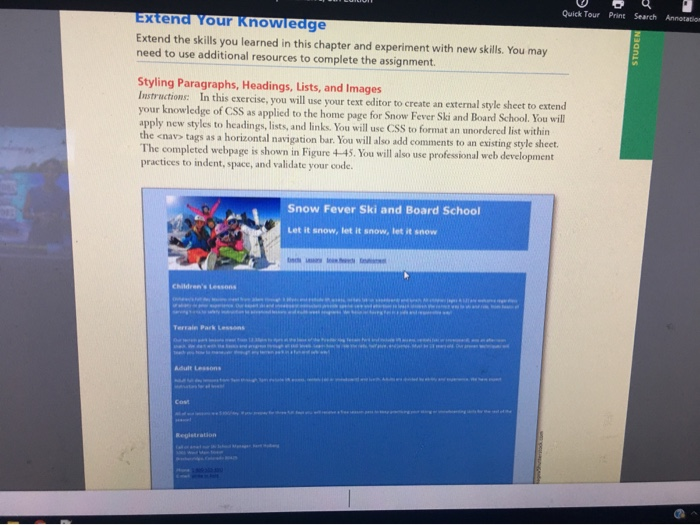
V D Quick Tour Print Search Annotation Extend your knowledge Extend the skills you learned in this chapter and experiment with new skills. You may need to use additional resources to complete the assignment. Styling Paragraphs, Headings, Lists, and Images Instructions. In this exercise, you will use your text editor to create an external style sheet to extend your knowledge of CSS as applied to the home page for Snow Fever Ski and Board School. You will apply new styles to headings, lists, and links. You will use CSS to format an unordered list within the
Step by Step Solution
There are 3 Steps involved in it

Get step-by-step solutions from verified subject matter experts
 Study Help