







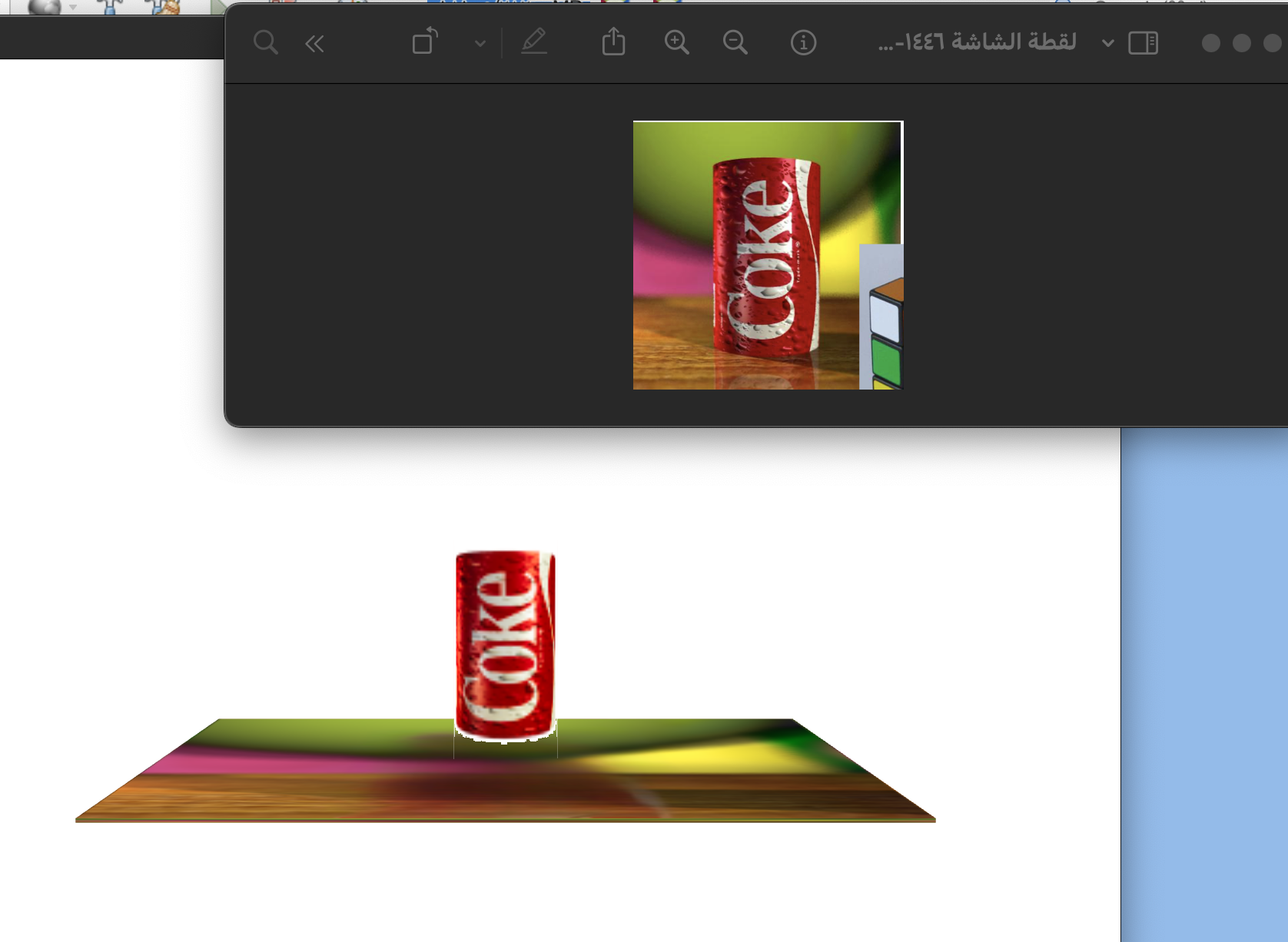
Question: How do I make this autobot the same as the image above in this code? import javafx.application.Application; import static javafx.application.Application.launch; import javafx.scene. * ; import
How do I make this autobot the same as the image above in this code?
import javafx.application.Application; import static javafx.application.Application.launch; import javafx.scene.; import javafx.scene.image.Image; import static javafx.scene.input.KeyCode.DOWN; import static javafx.scene.input.KeyCode.LEFT; import static javafx.scene.input.KeyCode.RIGHT; import static javafx.scene.input.KeyCode.UP; import javafx.scene.paint.Color; import javafx.scene.paint.PhongMaterial; import javafx.scene.shape.Box; import javafx.scene.shape.Cylinder; import javafx.stage.Stage; import javafx.scene.input.KeyEvent; import javafx.scene.input.ScrollEvent; import javafx.scene.transform.Rotate; public class HelloD extends Application private double mouseX, mouseY; private double angleX ; private double angleY ; @Override public void startStage primaryStage Create the soda can with texture PhongMaterial sodaMaterial new PhongMaterial; sodaMaterial.setDiffuseMapnew ImagegetClassgetResourceAsStreamimgcokpng; Cylinder sodaCan new Cylinder; Adjust radius and height as needed sodaCan.setMaterialsodaMaterial; sodaCan.setTranslateX; sodaCan.setTranslateY; Position it above the floor Create the floor with a texture PhongMaterial floorMaterial new PhongMaterial; floorMaterial.setDiffuseMapnew ImagegetClassgetResourceAsStreamimgbggpng; Box floor new Box; Large, flat box to act as a floor floor.setMaterialfloorMaterial; floor.setTranslateY; Position it below the can Add lighting to the scene AmbientLight ambientLight new AmbientLightColorWHITE; Root node and scene setup Group root new Group; root.getChildrenaddAllsodaCan floor, ambientLight; Set up the camera Camera camera new PerspectiveCameratrue; camera.setTranslateZ; Position camera camera.setNearClip; camera.setFarClip; Create the scene Scene scene new Sceneroot true, SceneAntialiasing.BALANCED; scene.setFillColorWHITE; Set background color scene.setCameracamera; Add controls for interactivity addArrowKeyControlsscene camera; addScrollZoomscene camera; addMouseRotationscene root; Set up stage primaryStage.setTitleD Texture Mapping Scene"; primaryStage.setScenescene; primaryStage.show; Method to add arrow key controls move camera along x and y axes private void addArrowKeyControlsScene scene, Camera camera scene.setOnKeyPressedKeyEvent event switch eventgetCode case UP: Move camera up camera.setTranslateYcameragetTranslateY; break; case DOWN: Move camera down camera.setTranslateYcameragetTranslateY; break; case LEFT: Move camera left camera.setTranslateXcameragetTranslateX; break; case RIGHT: Move camera right camera.setTranslateXcameragetTranslateX; break; default: break; ; Method to add scroll zoom control move camera along z axis private void addScrollZoomScene scene, Camera camera Add scroll event handler to the scene scene.setOnScrollScrollEvent event Get scroll amount up or down double delta event.getDeltaY; Calculate a new Zposition scale scroll by for smoother zoom double newZ camera.getTranslateZ delta ; Set cameras Z translation to newZ camera.setTranslateZnewZ; ; Method to add mouse rotation controls rotate scene along x and y axes private void addMouseRotationScene scene, Node node Add Mouse event handlers to the scene scene.setOnMousePressedevent On mouse press, get mouse coordinates mouseX event.getSceneX; mouseY event.getSceneY; ; scene.setOnMouseDraggedevent On mouse drag, update the rotation angles based on mouse movement angleX eventgetSceneY mouseY; Rotate along Xaxis updown movement angleY eventgetSceneX mouseX; Rotate along Yaxis leftright movement Setapply the rotation transforms node.getTransformssetAll new RotateangleX Rotate.XAXIS new Rotatean
Step by Step Solution
There are 3 Steps involved in it
1 Expert Approved Answer
Step: 1 Unlock

Question Has Been Solved by an Expert!
Get step-by-step solutions from verified subject matter experts
Step: 2 Unlock
Step: 3 Unlock
 Study Help