







Question: How do you view data from sql in windows forms listview in using System.Data.Sqlclient in C#? I have the following code that runs but does
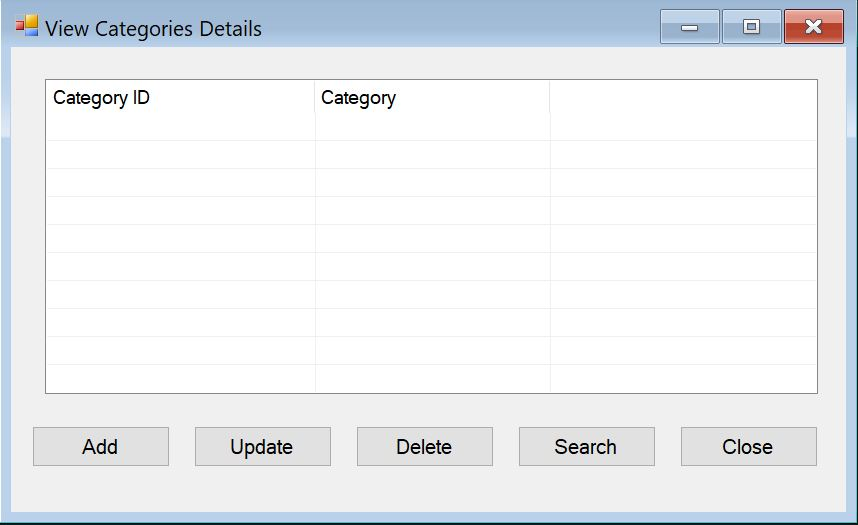
How do you view data from sql in windows forms listview in using System.Data.Sqlclient in C#? I have the following code that runs but does not display any data or allow me to select or use any other of the events (click events). It also does not give me an error message. I have also included the form (including listview) below. Any help would be greatly appreciated:
sing System; using System.Collections.Generic; using System.ComponentModel; using System.Data; using System.Drawing; using System.Linq; using System.Text; using System.Threading.Tasks; using System.Windows.Forms; using System.Data.SqlClient; using Acme.Data_Access_Layer; using Acme.Business_Layer;
namespace Acme { public partial class frmCategoriesView : Form { public frmCategoriesView() { InitializeComponent(); } private void DisplayCategories() { string selectQuery;
selectQuery = "SELECT Categories.CategoryID, "; selectQuery = selectQuery + "Categories.Category"; selectQuery = selectQuery + "FROM Categories "; selectQuery = selectQuery + " " + GlobalVariables.categoriesSearchCriteria;
SqlConnection conn = ConnectionManager.DatabaseConnection(); SqlDataReader rdr = null;
try { conn.Open(); SqlCommand cmd = new SqlCommand(selectQuery, conn); rdr = cmd.ExecuteReader(); while (rdr.Read()) { //Define the list items
Categories categories = new Categories(int.Parse(rdr["CategoryID"].ToString()), rdr["Category"].ToString());
ListViewItem lvi = new ListViewItem(categories.CategoryID.ToString()); lvi.SubItems.Add(categories.Category); lvCategory.Items.Add(lvi); } if (rdr != null) rdr.Close(); conn.Close(); } catch (Exception ex) { MessageBox.Show("Unsuccessful" + ex); } }
private void frmCategoriesView_FormClosing(object sender, FormClosingEventArgs e) { frmMainForm mainForm = new frmMainForm(); mainForm.Show(); this.Hide(); }
private void btnClose_Click(object sender, EventArgs e) { this.Close(); }
private void frmCategoriesView_Load(object sender, EventArgs e) { DisplayCategories(); } private void btnAdd_Click(object sender, EventArgs e) { GlobalVariables.selectedCategoryID = 0; frmCategoriesAdd editForm = new frmCategoriesAdd(); editForm.ShowDialog(); lvCategory.Items.Clear(); DisplayCategories(); }
private void btnUpdate_Click(object sender, EventArgs e) { if (lvCategory.SelectedItems.Count == 0) { MessageBox.Show("Please select a Category to update."); return; } GlobalVariables.selectedCategoryID = int.Parse(lvCategory.SelectedItems[0].Text); frmCustomersEdit editForm = new frmCustomersEdit(); editForm.ShowDialog(); lvCategory.Items.Clear(); DisplayCategories(); }
private void btnDelete_Click(object sender, EventArgs e) { if (lvCategory.SelectedItems.Count == 0) { MessageBox.Show("Please select a Category to Delete."); return; }
DialogResult dialogResult = MessageBox.Show("Are you sure you wish to delete this record?", "Category Delete", MessageBoxButtons.YesNo); if (dialogResult == DialogResult.No) { return; }
int selectedCategoryID = int.Parse(lvCategory.SelectedItems[0].Text);
string deleteQuery = "sp_Categories_DeleteCategory";
SqlConnection conn = ConnectionManager.DatabaseConnection(); conn.Open(); SqlCommand cmd = new SqlCommand(deleteQuery, conn);
cmd.CommandType = CommandType.StoredProcedure; cmd.Parameters.AddWithValue("@CategoryID", selectedCategoryID); cmd.Transaction = conn.BeginTransaction(); cmd.ExecuteNonQuery(); cmd.Transaction.Commit();
conn.Close();
lvCategory.Items.Clear(); DisplayCategories(); }
private void btnSearch_Click(object sender, EventArgs e) { GlobalVariables.categoriesSearchCriteria = ""; frmCategoriesSearch searchForm = new frmCategoriesSearch(); searchForm.ShowDialog(); lvCategory.Items.Clear(); DisplayCategories(); }
} }
View Categories Details Category ID Category Add Update Delete Search Close
Step by Step Solution
There are 3 Steps involved in it

Get step-by-step solutions from verified subject matter experts
 Study Help