







Question: How to create on Android Studio using JAVA language in MainActivity? Part 1: Change operator (20%) In this exam, you will be asked to write
How to create on Android Studio using JAVA language in MainActivity?
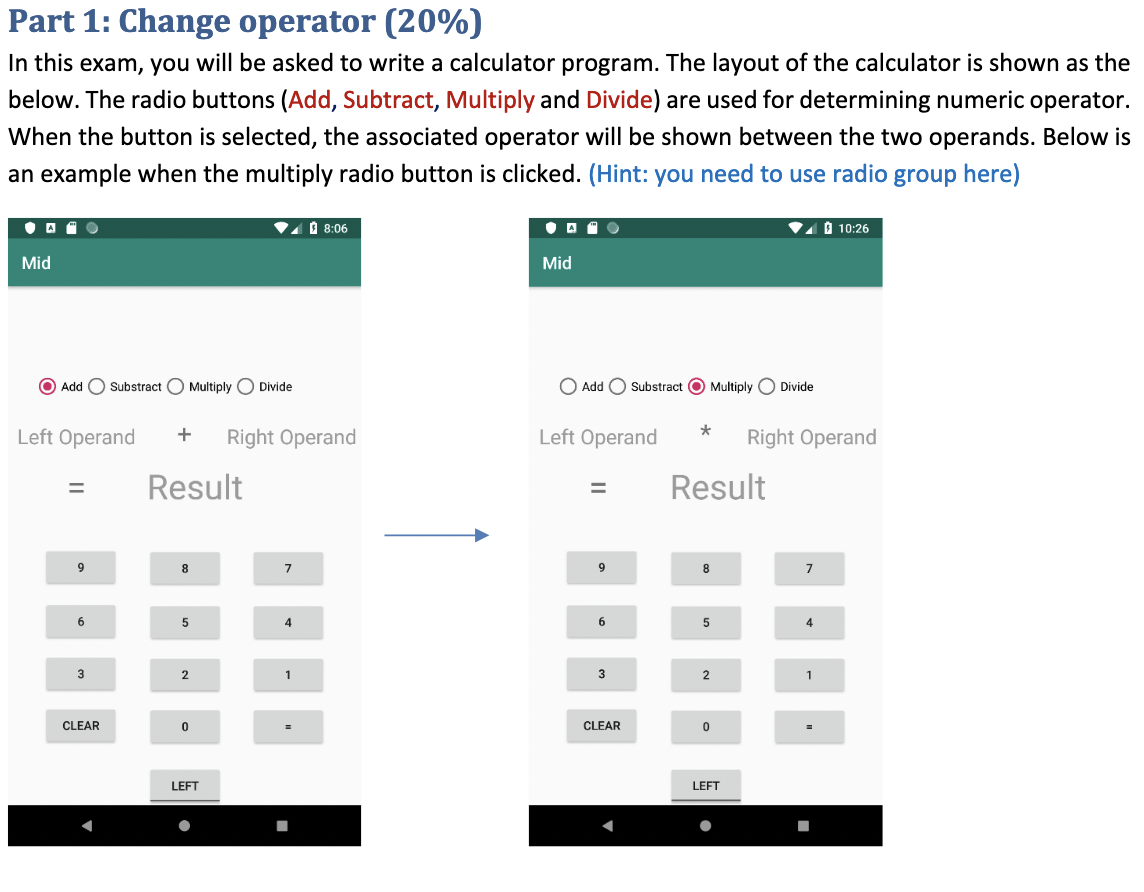
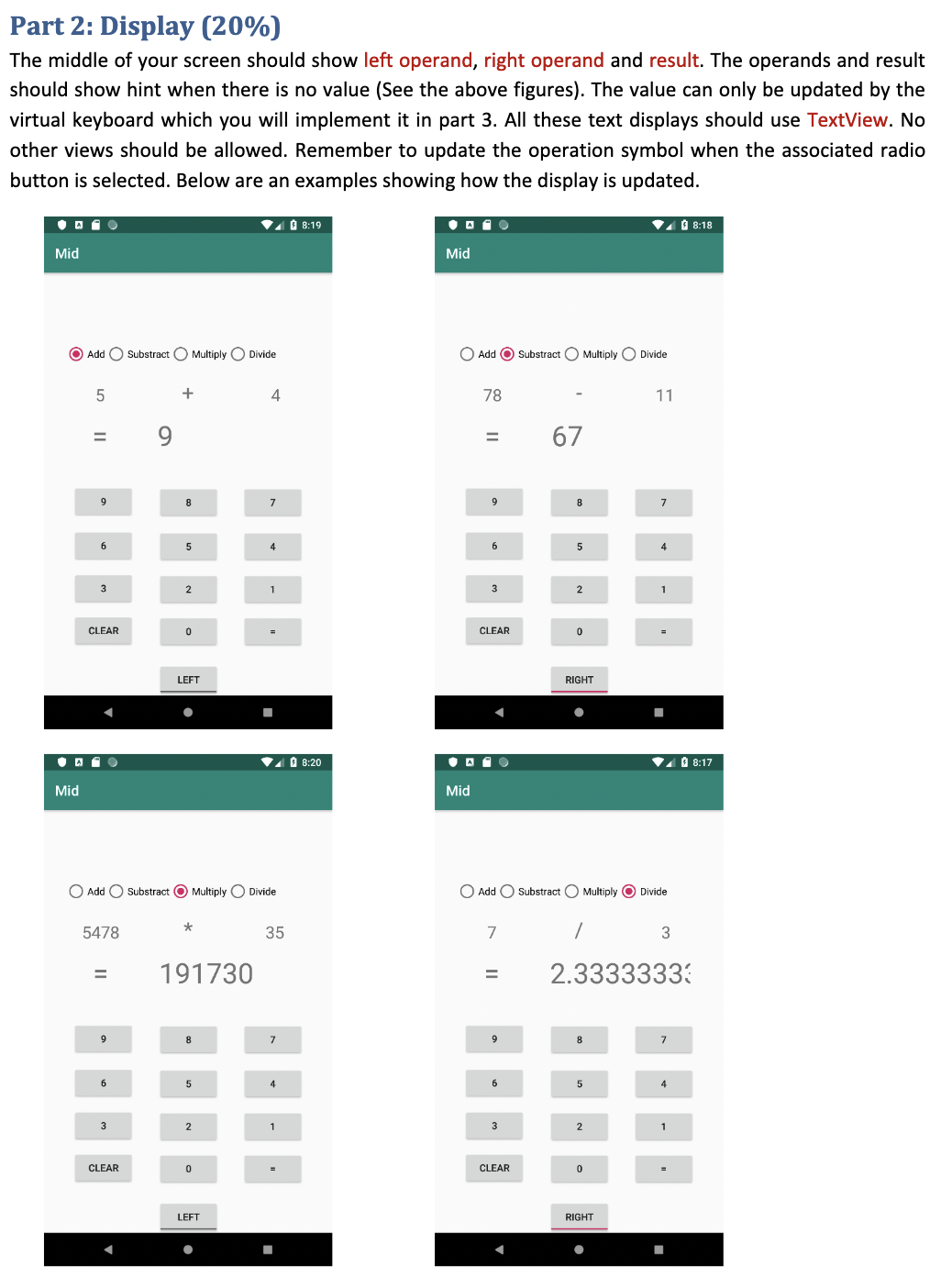
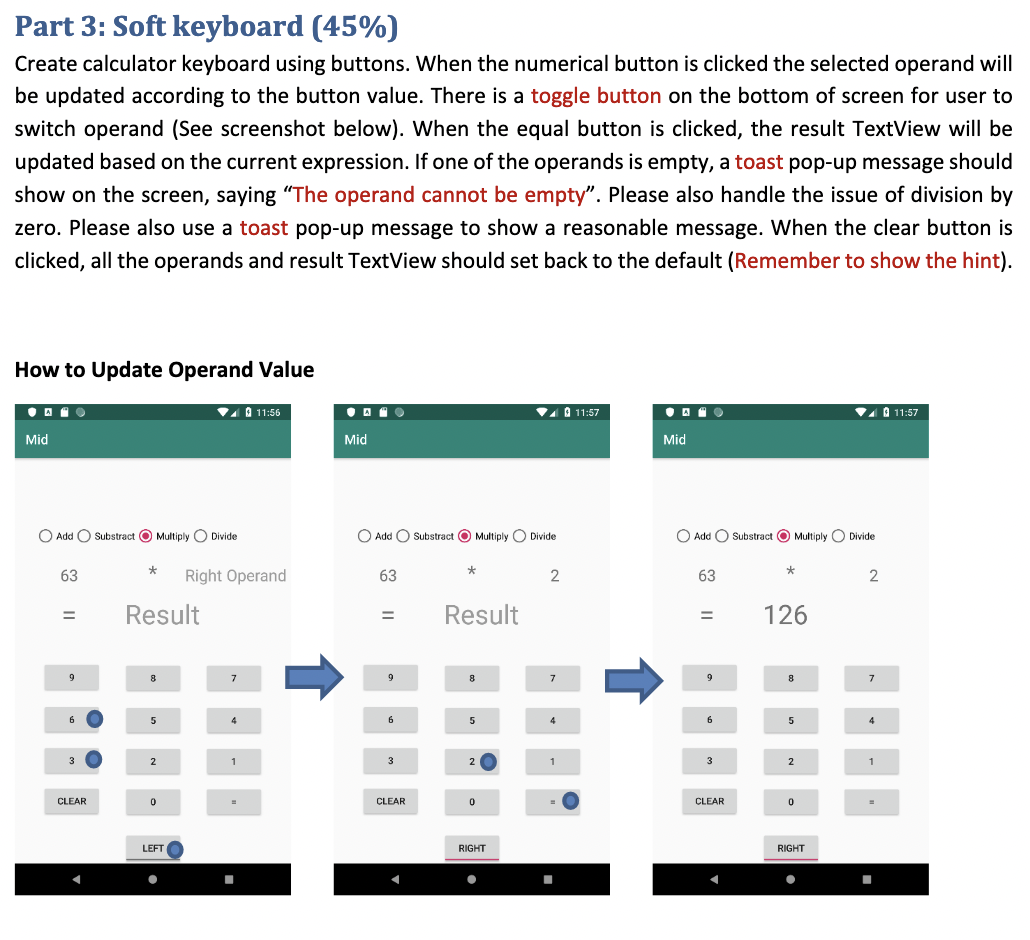
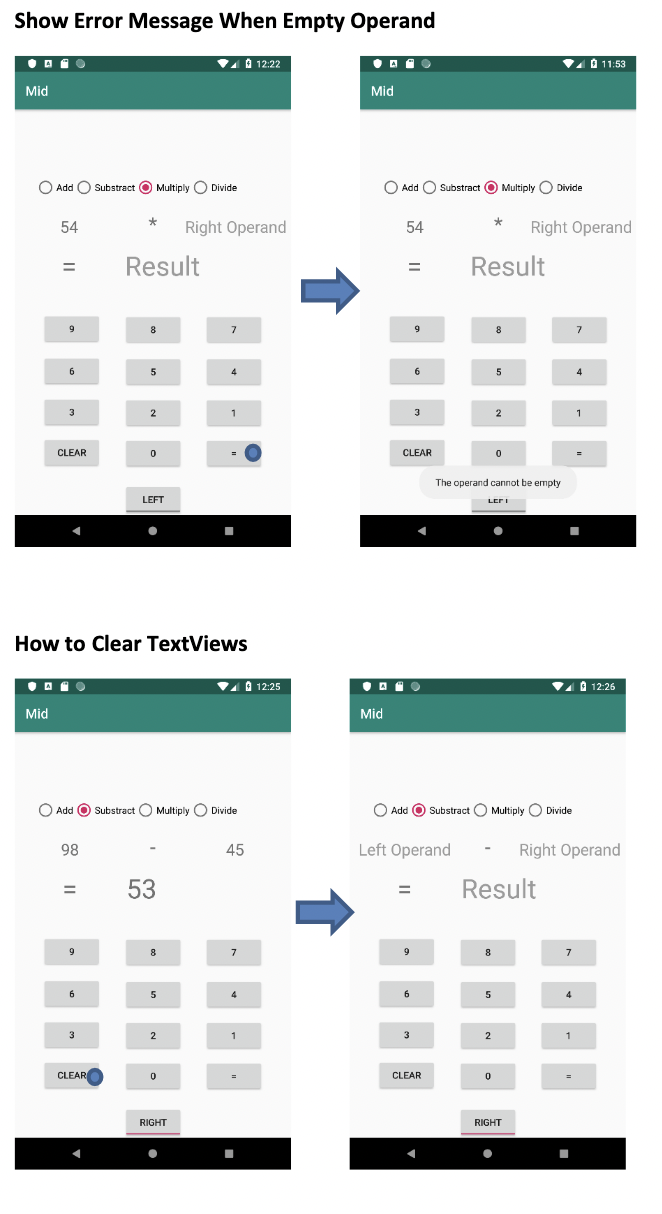
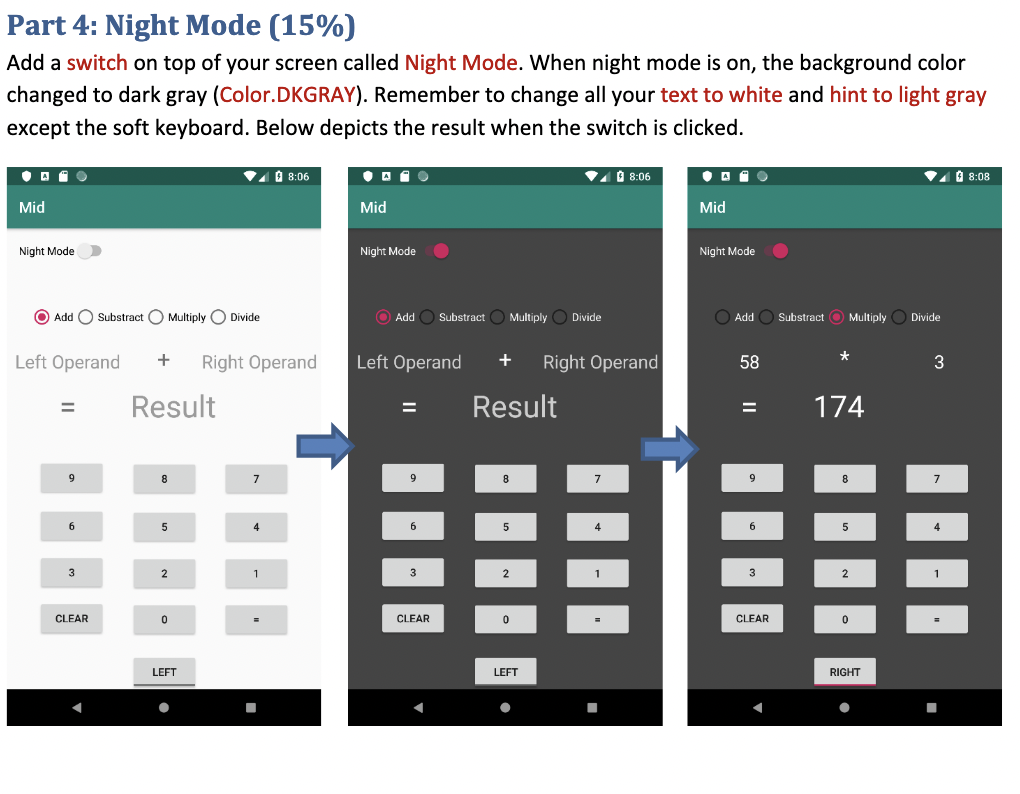
Part 1: Change operator (20%) In this exam, you will be asked to write a calculator program. The layout of the calculator is shown as the below. The radio buttons (Add, Subtract, Multiply and Divide) are used for determining numeric operator. When the button is selected, the associated operator will be shown between the two operands. Below is an example when the multiply radio button is clicked. (Hint: you need to use radio group here) G) Add 0 Substraol 0 Multiply 0 Divide 0 Add 0 Substract (9') Multiply 0 Divide Left Operand + Right Operand Left Operand * Right Operand = Result = Result > a a 7 9 a r E 5 4 5 5 4 3 2 I 3 2 1 CLEAR 0 - CLEAR 9 ' LEFI' LEFI' Part 2: Display [2 0%) The middle of your screen should show left operand, right operand and result. The operands and result should show hint when there is no value (See the above gures). The value can only be updated by the virtual keyboard which you will implement it in part 3. All these text displays should use TextView. No other views should be allowed. Remember to update the operation symbol when the associated radio button is selected. Below are an examples showing how the display is updated. Add 0 Substraet 0 Multiply 0 Divide 0 Add Suhslract O Mummy 0 Divide 5 + 4 78 ' 'l 1 = 9 = 67 D a r 9 s it a s 4 b a 4 3 2 1 3 2 1 CLEAR 0 . (1m 0 . 0 Add 0 Subatracl: Multiply 0 Divide 0 Add 0 Substmct 0 Multiply Divide 5473 * 35 7 f 3 = 191730 = 233333332 Part 3: Soft keyboard (45%) Create calculator keyboard using buttons. When the numerical button is clicked the selected operand will be updated according to the button value. There is a toggle button on the bottom of screen for user to switch operand (See screenshot below). When the equal button is clicked, the result TextView will be updated based on the current expression. If one of the operands is empty, a toast pop-up message shOuId show on the screen, saying \"T he operand cannot be empty\". Please also handle the issue of division by zero. Please also use a toast pop-up message to show a reasonable message. When the clear button is clicked, all the operands and result TextView should set back to the default (Remember to show the hint). How to Update Operand Value 0 Add 0 5mm @J Mme O Dlvldo 0 Add 0 suhmu Mummy 0 Dlvldo 0 Ma 0 Suhsvw Multiply 0 WHO 63 * Right Operand 63 * 2 63 * 2 = Result = Result = 126 g s 1 # s a 7 s s 'r a . 5 4 a 5 4 a 5 a a . 2 1 s 2 . 1 a 2 1 mu 0 . man 0 . . man 0 . 30 w w Show Error Message When Empty Operand / 0 12:22 7 0 11:53 Mid Mid O Add O Substract O Multiply O Divide O Add O Substract O Multiply ( Divide 54 * Right Operand 54 * Right Operand = Result Result 7 g 7 5 5 3 CLEAR CLEAR The operand cannot be empty LEFT LEF I How to Clear TextViews 012:25 7 012:26 Mid Mid O Add O Substract O Multiply O Divide O Add O Substract O Multiply O Divide 98 45 Left Operand Right Operand 53 Result 9 8 7 9 8 7 6 3 2 3 2 CLEAR CLEAR RIGHT RIGHTPart 4: Night Mode (15%) Add a switch on top of your screen called Night Mode. When night mode is on, the background color changed to dark gray (Color.DKGRAY). Remember to change all your text to white and hint to light gray except the soft keyboard. Below depicts the result when the switch is clicked. 7 0 8:06 7 9 8:06 7 9 8:08 Mid Mid Mid Night Mode Night Mode Night Mode Add O Substract O Multiply O Divide O Add O Substract O Multiply O Divide Add O Substract O Multiply O Divide Left Operand + Right Operand Left Operand + Right Operand 58 3 Result E Result 174 8 7 9 B 7 9 8 h 5 5 3 2 3 3 2 CLEAR CLEAR 0 CLEAR LEFT LEFT RIGHT
Step by Step Solution
There are 3 Steps involved in it

Get step-by-step solutions from verified subject matter experts
 Study Help