







Question: How to solve these problems? In cell C2, edit the function to round the result to the nearest penny. 13 3.000 In cell Ci, use
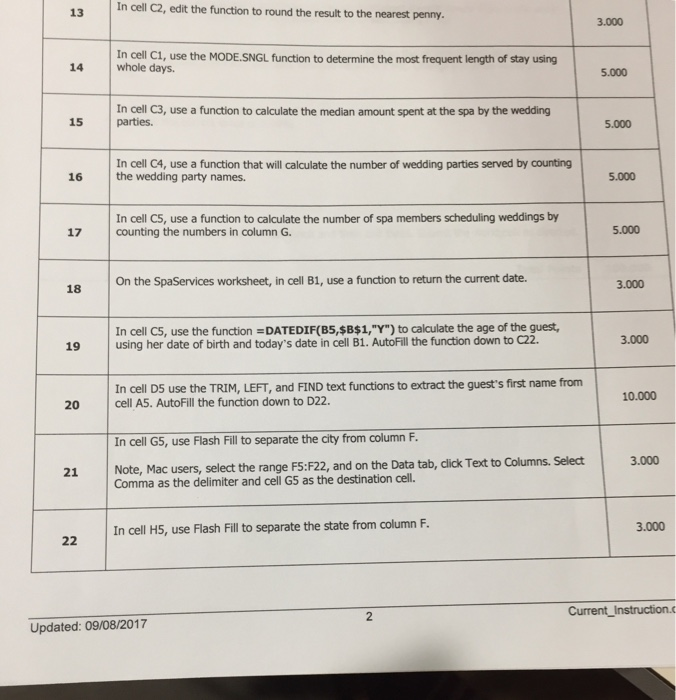
In cell C2, edit the function to round the result to the nearest penny. 13 3.000 In cell Ci, use the MODE.SNGL function to determine the most frequent length of stay using whole days. 14 5.000 In cell C3, use a function to calculate the median amount spent at the spa by the wedding 15 parties. 5.000 In cell C4, use a function that will calculate the number of wedding parties served by counting 16 the wedding party names. 5.000 In cell C5, use a function to calculate the number of spa members scheduling weddings by 17 counting the numbers in column G. 5.000 On the SpaServices worksheet, in cell B1, use a function to return the current date. 3.000 In cell C5, use the function DATEDIF(B5,$B$1,"Y") to calculate the age of the guest, using her date of birth and today's date in cell B1. AutoFill the function down to C22 3.000 19 In cell D5 use the TRIM, LEFT, and FIND text functions to extract the guest's first name from 10.000 20 cell A5. AutoFill the function down to D22 In cell G5, use Flash Fill to separate the city from column F. FS:F22, and on the Data tab, dlick Text to Columns. Select 3.000 21 Note, Mac users, select the range Comma as the delimiter and cell G5 as the destination cell. In cell H5, use Flash Fill to separate the state from column F. 3.000 Current_Instruction.c Updated: 09/08/2017 In cell C2, edit the function to round the result to the nearest penny. 13 3.000 In cell Ci, use the MODE.SNGL function to determine the most frequent length of stay using whole days. 14 5.000 In cell C3, use a function to calculate the median amount spent at the spa by the wedding 15 parties. 5.000 In cell C4, use a function that will calculate the number of wedding parties served by counting 16 the wedding party names. 5.000 In cell C5, use a function to calculate the number of spa members scheduling weddings by 17 counting the numbers in column G. 5.000 On the SpaServices worksheet, in cell B1, use a function to return the current date. 3.000 In cell C5, use the function DATEDIF(B5,$B$1,"Y") to calculate the age of the guest, using her date of birth and today's date in cell B1. AutoFill the function down to C22 3.000 19 In cell D5 use the TRIM, LEFT, and FIND text functions to extract the guest's first name from 10.000 20 cell A5. AutoFill the function down to D22 In cell G5, use Flash Fill to separate the city from column F. FS:F22, and on the Data tab, dlick Text to Columns. Select 3.000 21 Note, Mac users, select the range Comma as the delimiter and cell G5 as the destination cell. In cell H5, use Flash Fill to separate the state from column F. 3.000 Current_Instruction.c Updated: 09/08/2017
Step by Step Solution
There are 3 Steps involved in it

Get step-by-step solutions from verified subject matter experts
 Study Help