Question: How to write a PYTHON code for the following: Here are some codes that can be used: Any help much appreciated! O . . .
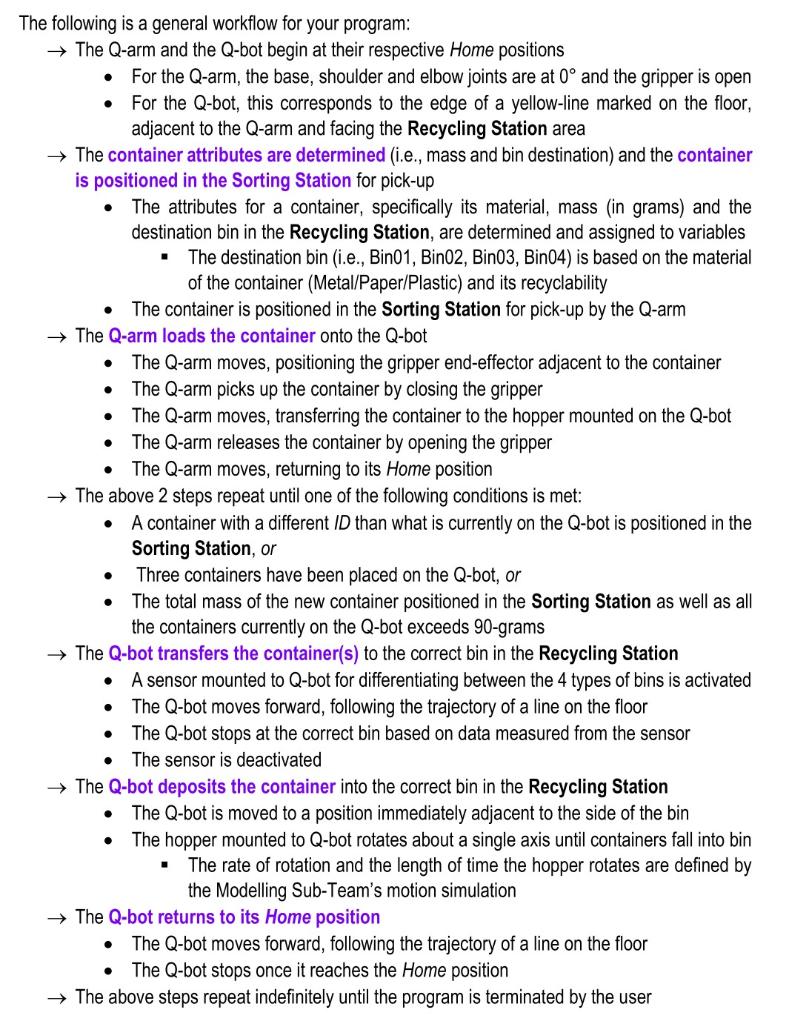
How to write a PYTHON code for the following:
Here are some codes that can be used:
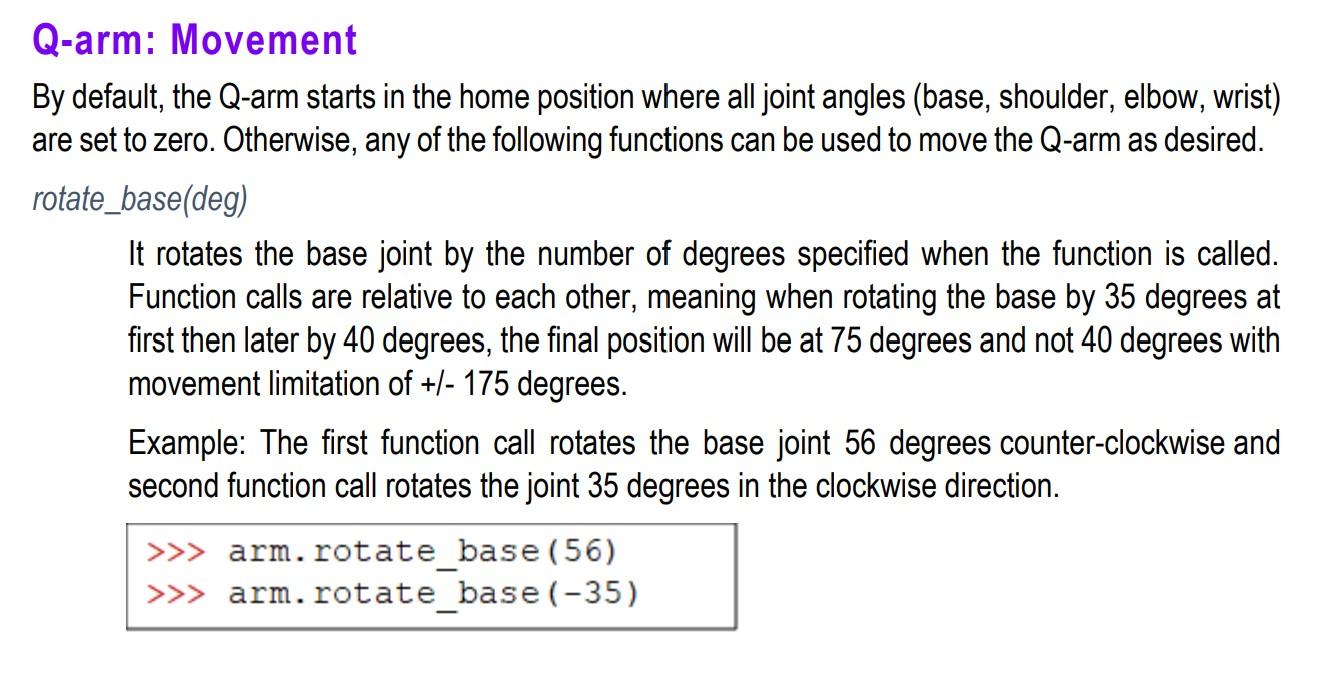
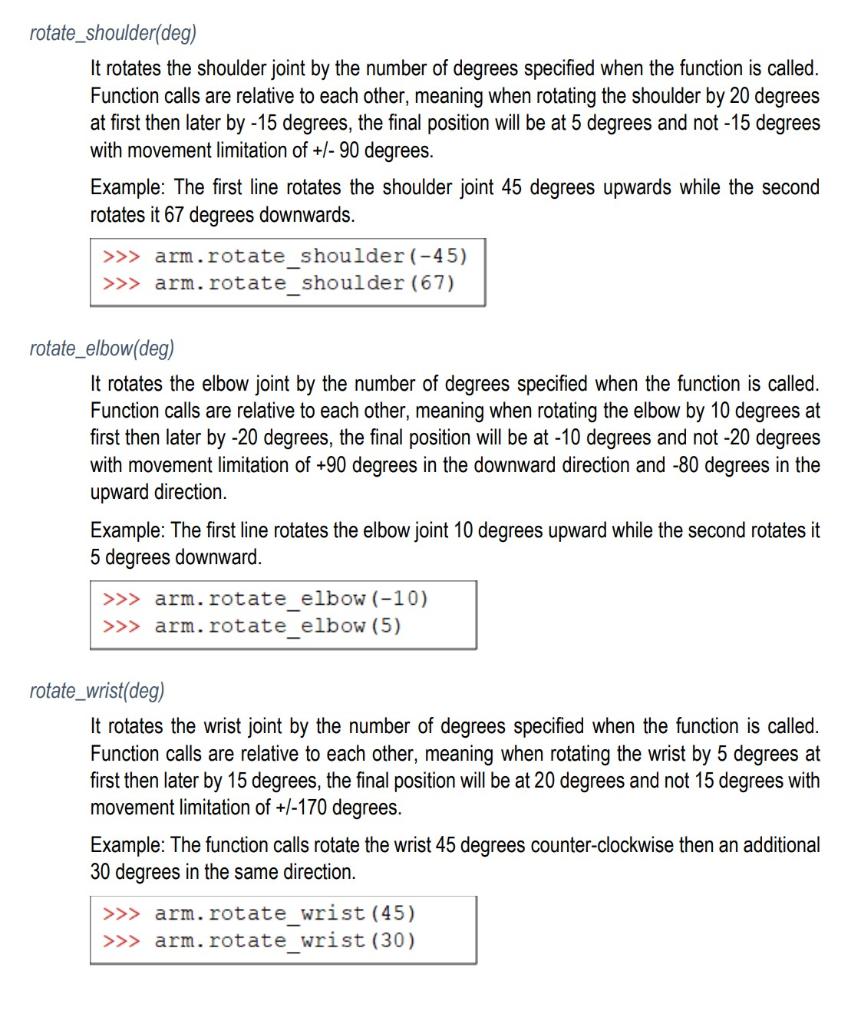
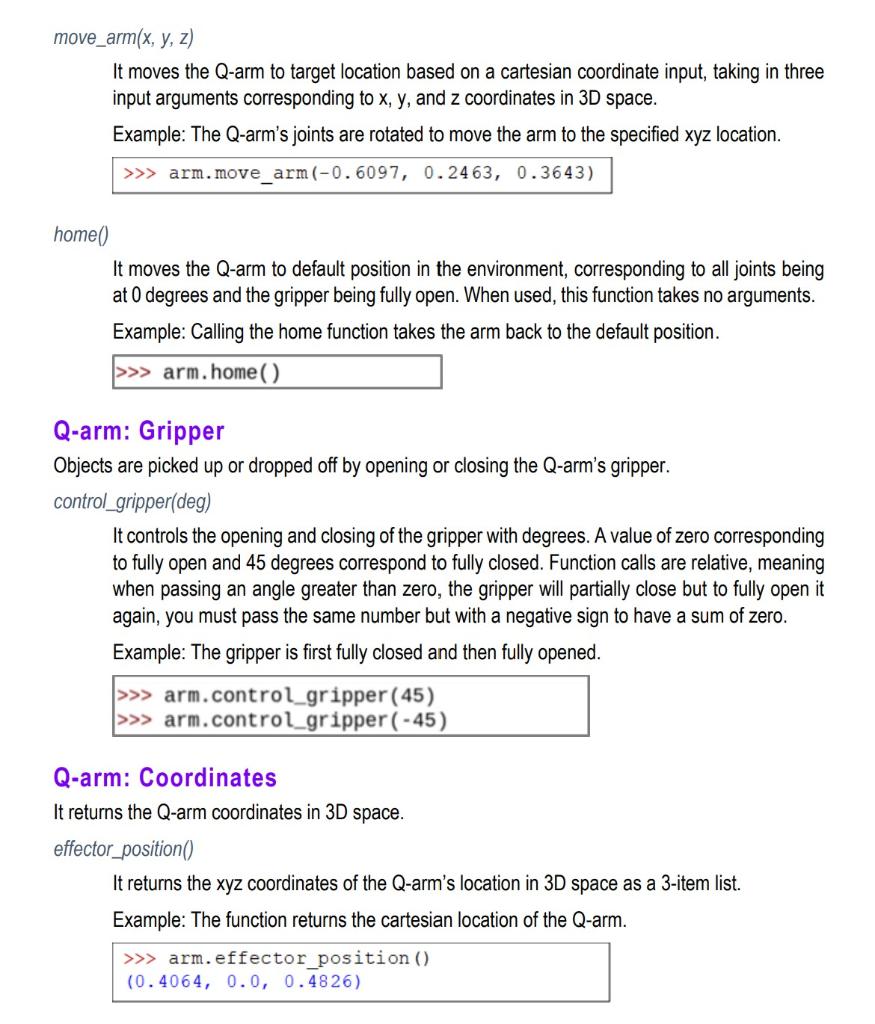
Any help much appreciated!
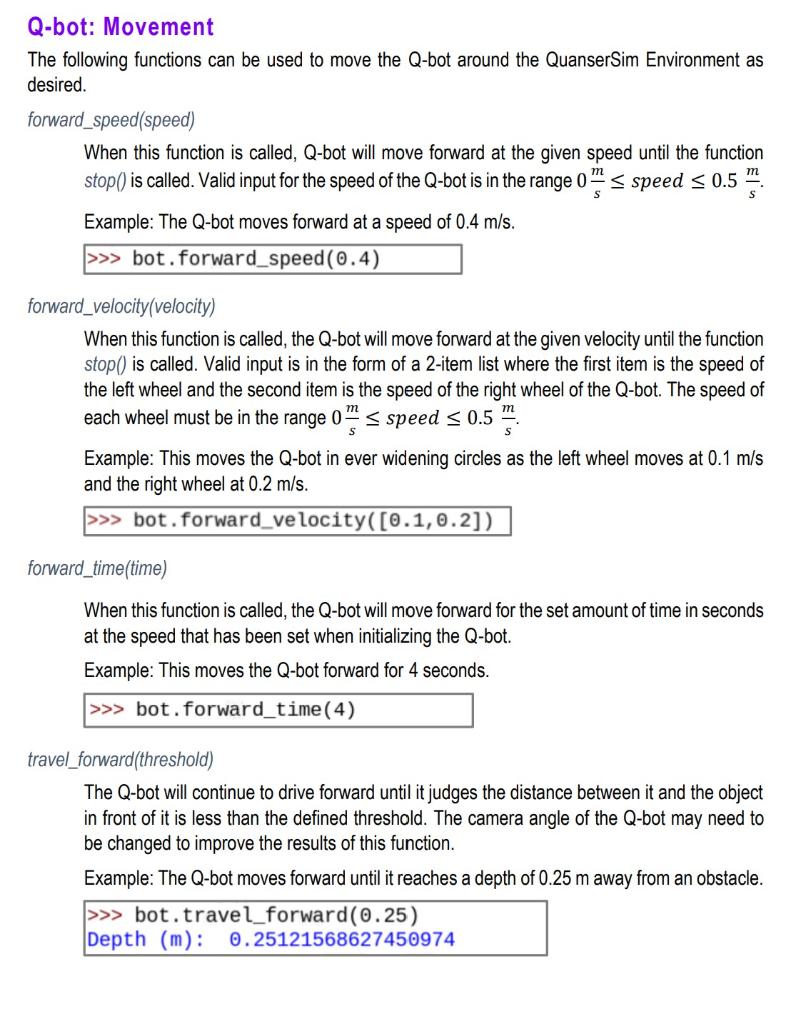
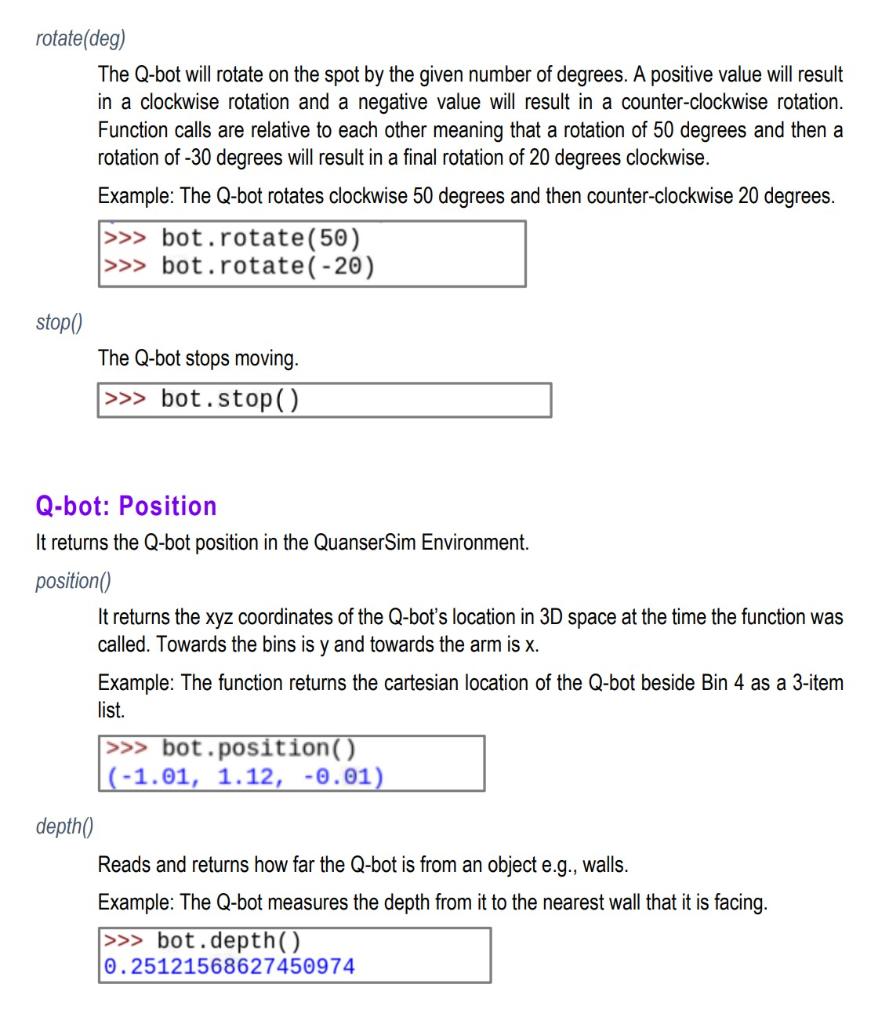
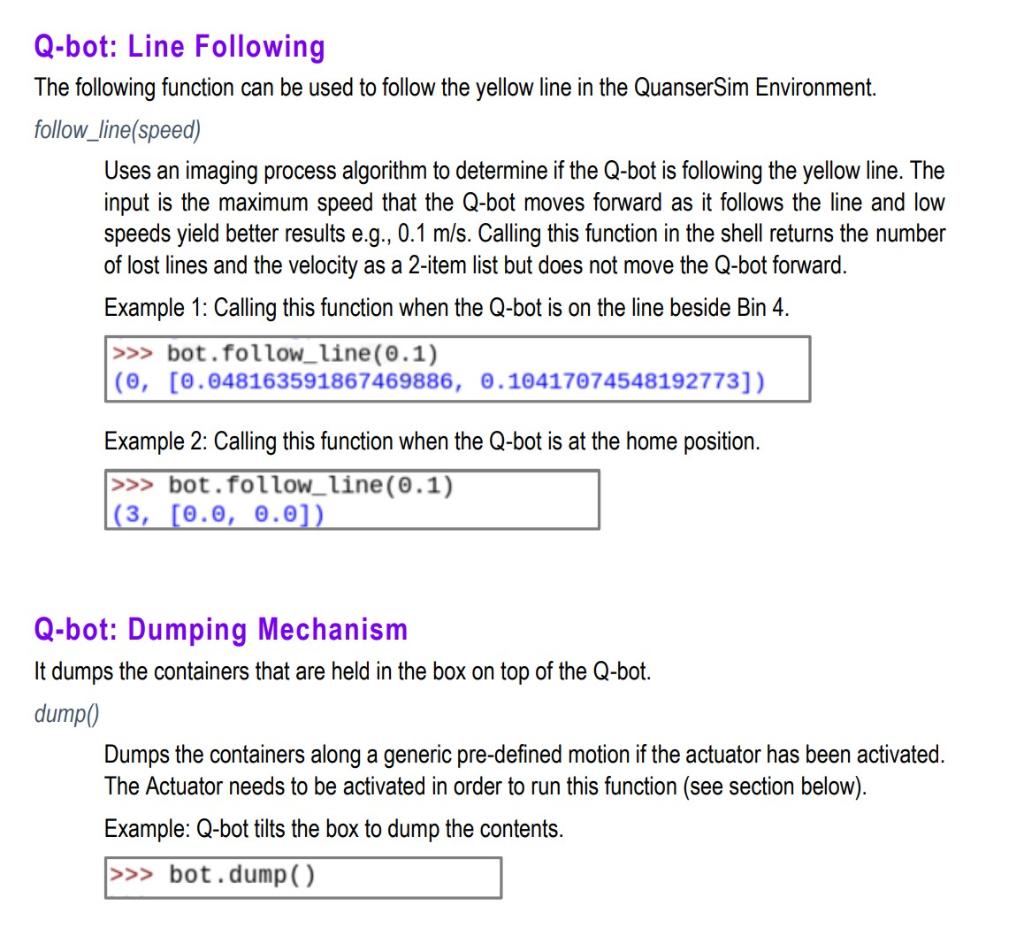
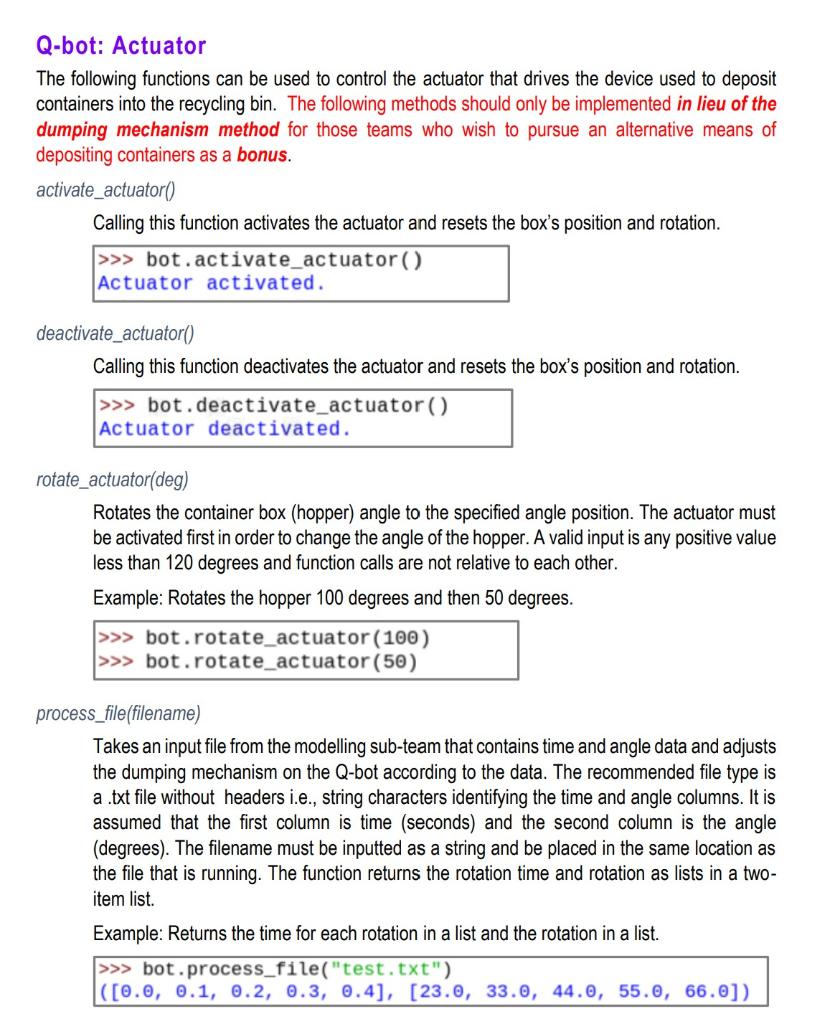
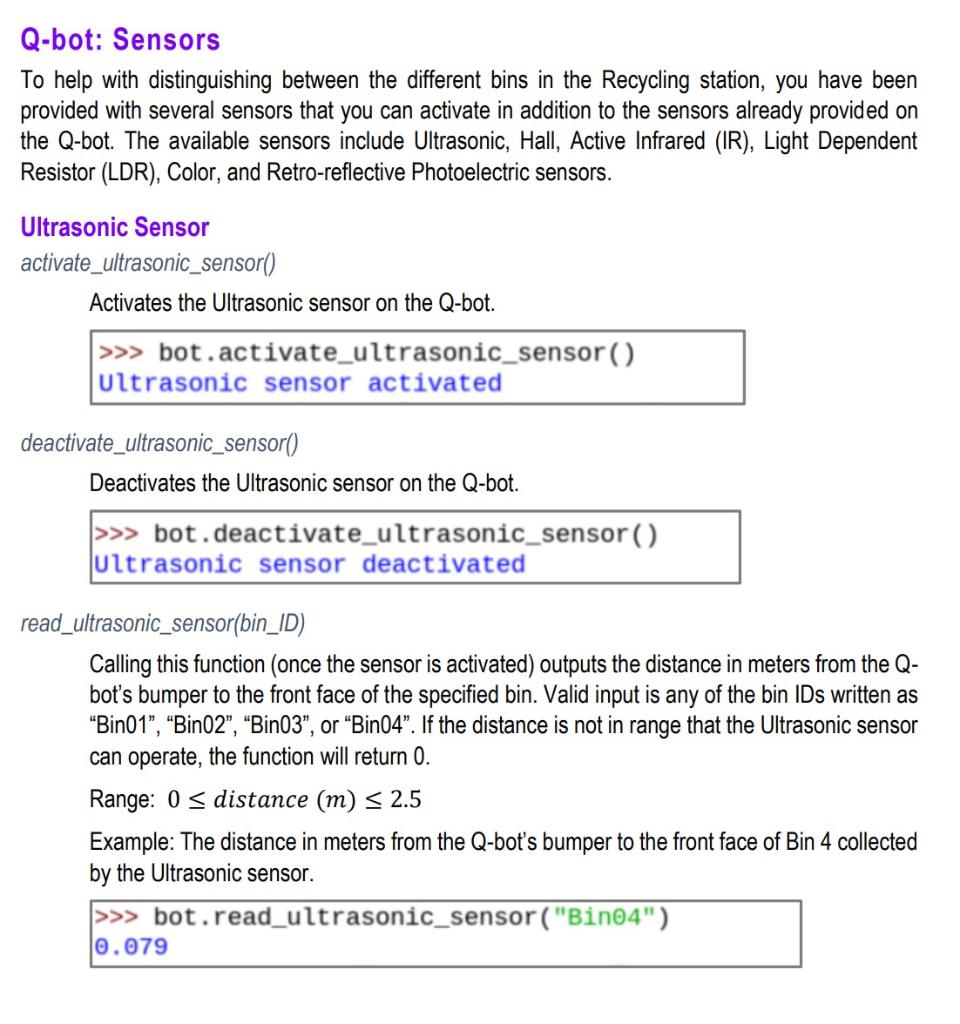
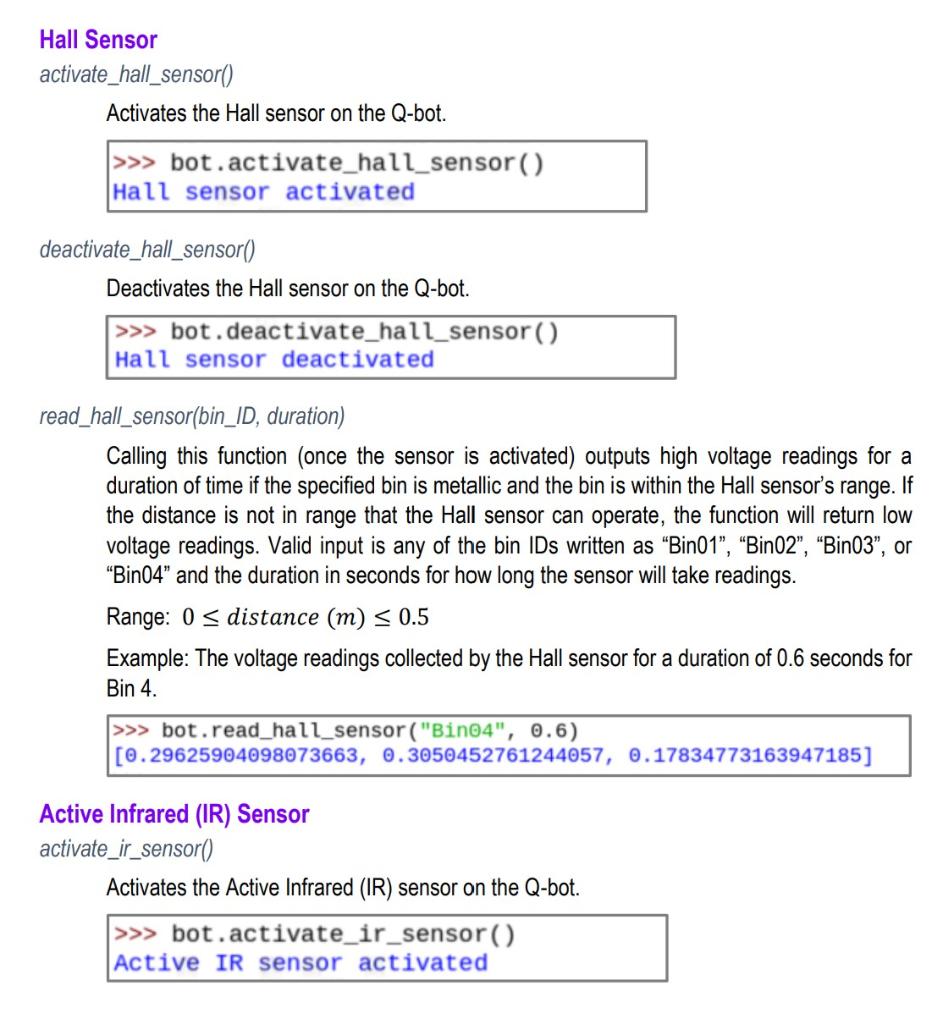
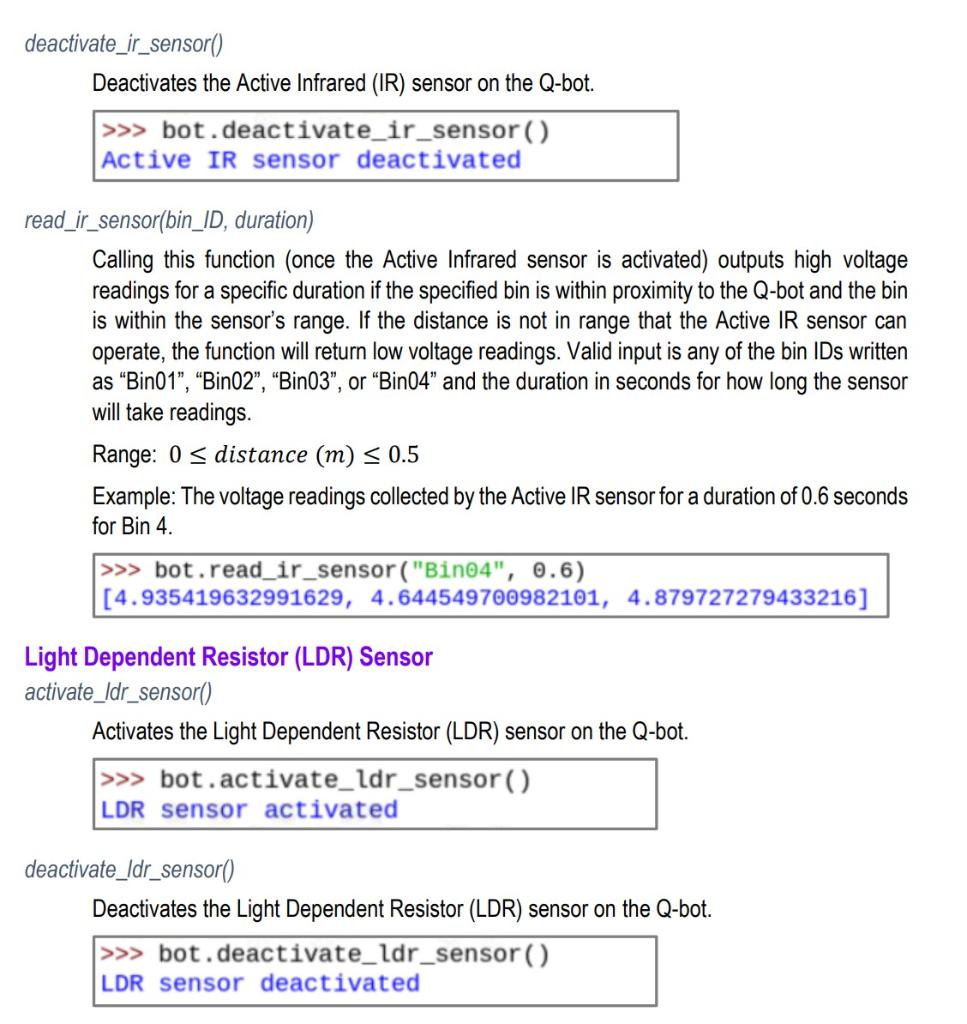
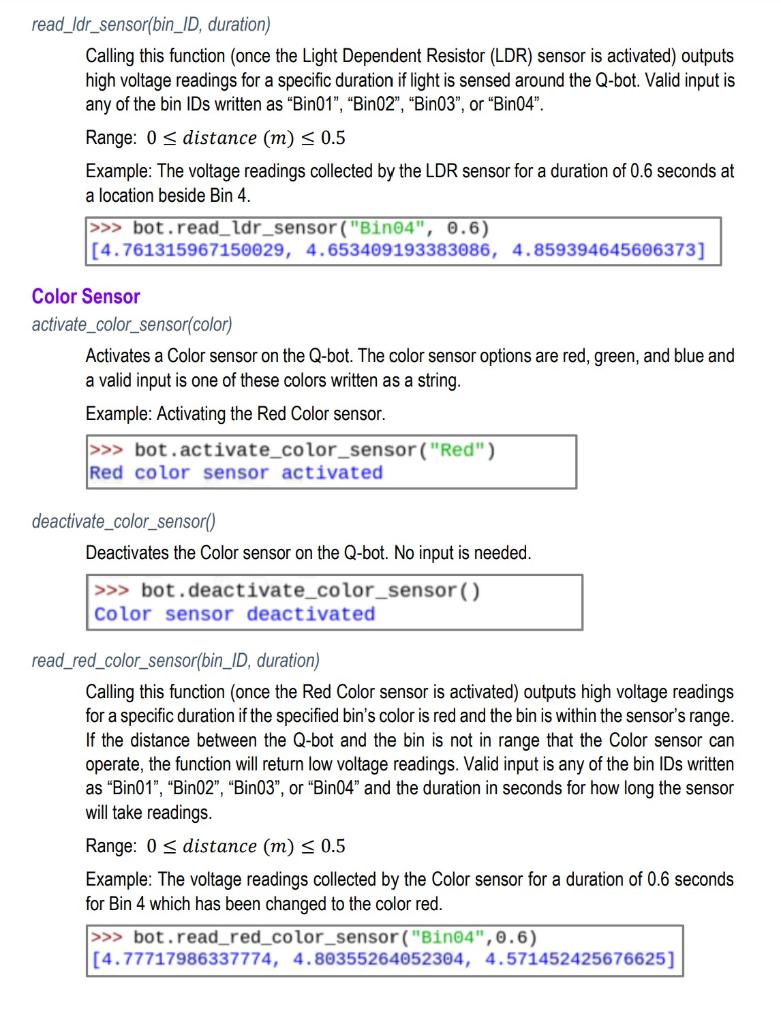
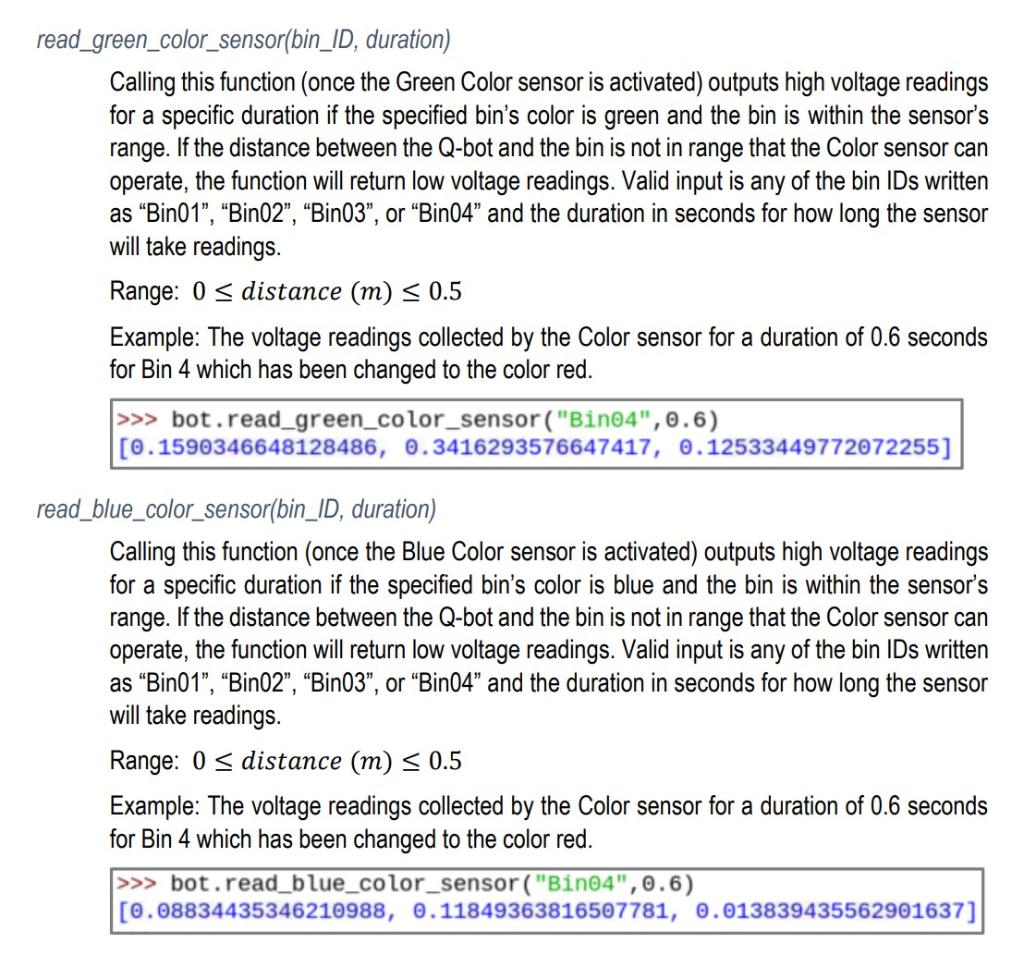
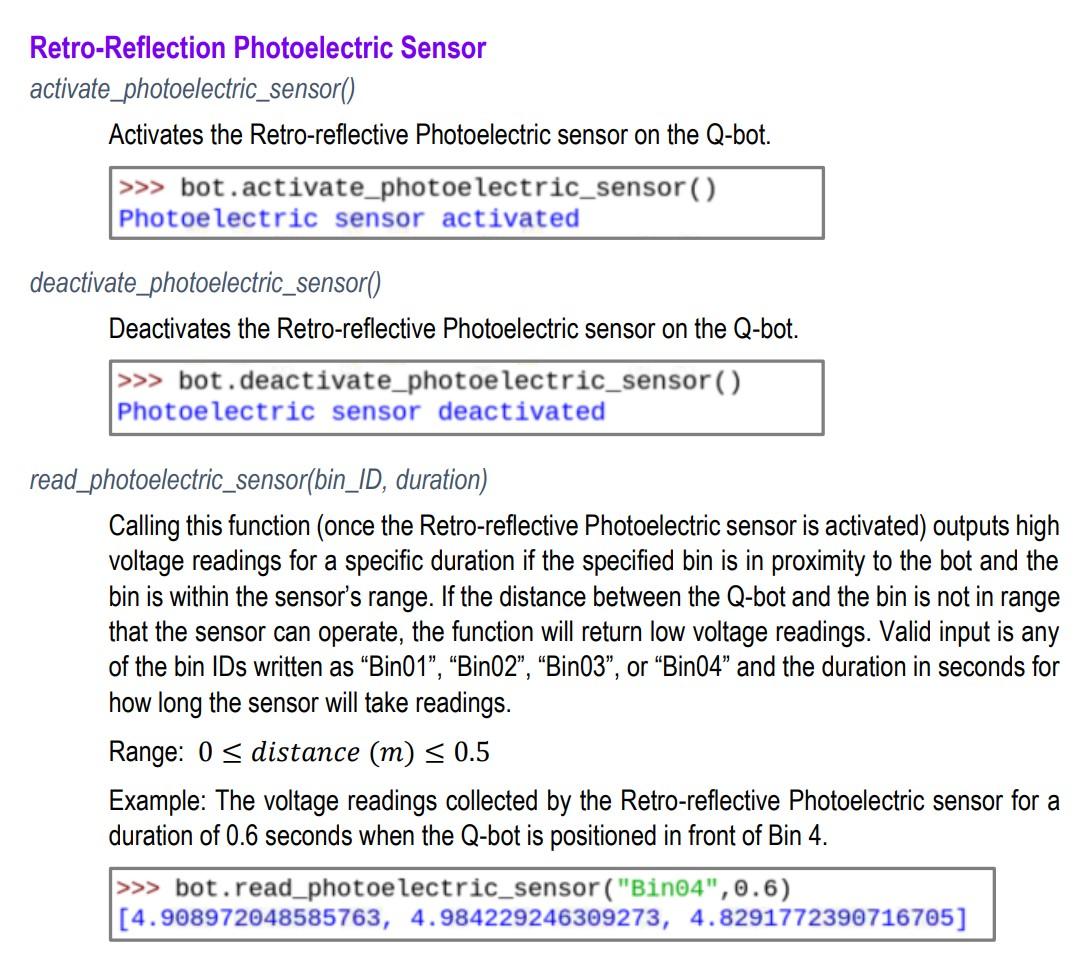
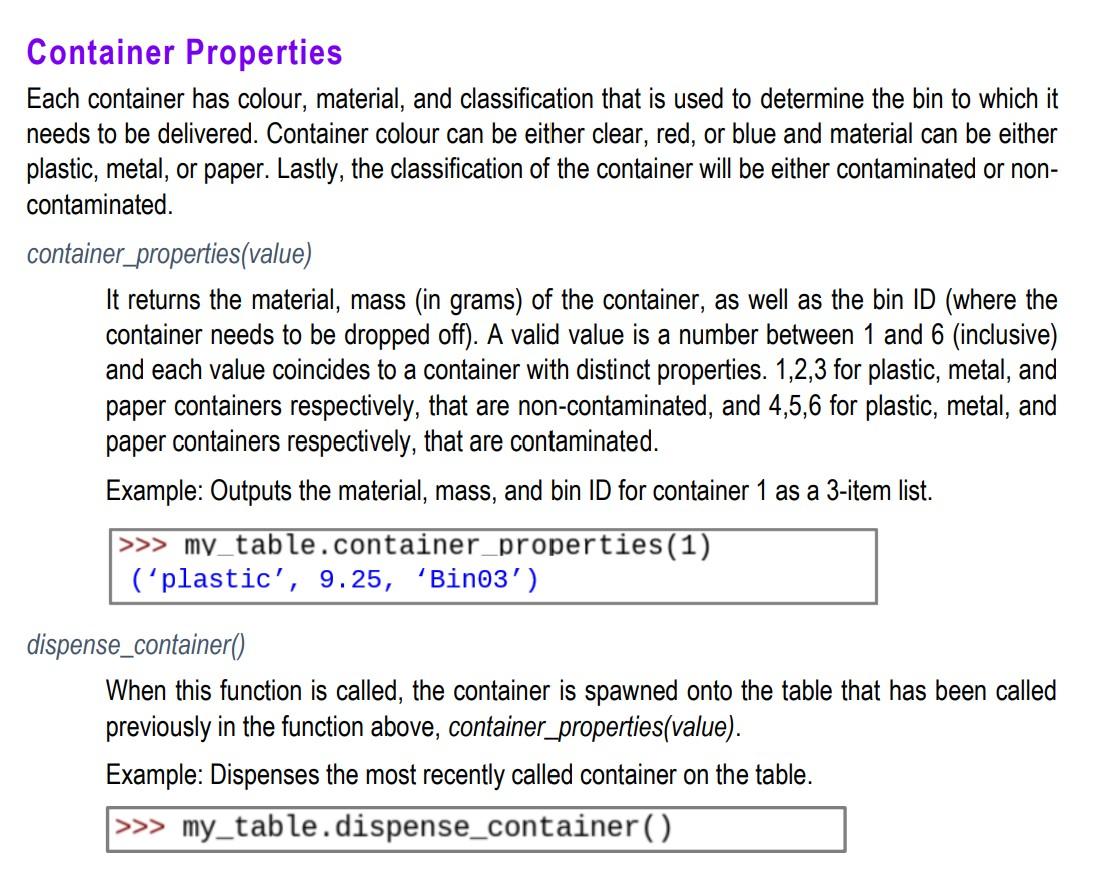
O . . . . . . . . . The following is a general workflow for your program: The Q-arm and the Q-bot begin at their respective Home positions For the Q-arm, the base, shoulder and elbow joints are at 0 and the gripper is open For the Q-bot, this corresponds to the edge of a yellow-line marked on the floor, adjacent to the Q-arm and facing the Recycling Station area The container attributes are determined (i.e., mass and bin destination) and the container is positioned in the Sorting Station for pick-up The attributes for a container, specifically its material, mass (in grams) and the destination bin in the Recycling Station, are determined and assigned to variables The destination bin (i.e., Bin01, Bin02, Bin03, Bin04) is based on the material of the container (Metal/Paper/Plastic) and its recyclability The container is positioned in the Sorting Station for pick-up by the Q-arm The Q-arm loads the container onto the Q-bot The Q-arm moves, positioning the gripper end-effector adjacent to the container The Q-arm picks up the container by closing the gripper The Q-arm moves, transferring the container to the hopper mounted on the Q-bot The Q-arm releases the container by opening the gripper The Q-arm moves, returning to its Home position The above 2 steps repeat until one of the following conditions is met: A container with a different ID than what is currently on the Q-bot is positioned in the Sorting Station, or Three containers have been placed on the Q-bot, or The total mass of the new container positioned in the Sorting Station as well as all the containers currently on the Q-bot exceeds 90-grams The Q-bot transfers the container(s) to the correct bin in the Recycling Station A sensor mounted to Q-bot for differentiating between the 4 types of bins is activated The Q-bot moves forward, following the trajectory of a line on the floor The Q-bot stops at the correct bin based on data measured from the sensor The sensor is deactivated The Q-bot deposits the container into the correct bin in the Recycling Station The Q-bot is moved to a position immediately adjacent to the side of the bin The hopper mounted to Q-bot rotates about a single axis until containers fall into bin The rate of rotation and the length of time the hopper rotates are defined by the Modelling Sub-Team's motion simulation The Q-bot returns to its Home position The Q-bot moves forward, following the trajectory of a line on the floor The Q-bot stops once it reaches the Home position The above steps repeat indefinitely until the program is terminated by the user . . . 0 . . . . . Q-arm: Movement By default, the Q-arm starts in the home position where all joint angles (base, shoulder, elbow, wrist) are set to zero. Otherwise, any of the following functions can be used to move the Q-arm as desired. rotate_base(deg) It rotates the base joint by the number of degrees specified when the function is called. Function calls are relative to each other, meaning when rotating the base by 35 degrees at first then later by 40 degrees, the final position will be at 75 degrees and not 40 degrees with movement limitation of +/- 175 degrees. Example: The first function call rotates the base joint 56 degrees counter-clockwise and second function call rotates the joint 35 degrees in the clockwise direction. >>> arm.rotate base (56) >>> arm.rotate base (-35) rotate_shoulder(deg) It rotates the shoulder joint by the number of degrees specified when the function is called. Function calls are relative to each other, meaning when rotating the shoulder by 20 degrees at first then later by -15 degrees, the final position will be at 5 degrees and not -15 degrees with movement limitation of +/- 90 degrees. Example: The first line rotates the shoulder joint 45 degrees upwards while the second rotates it 67 degrees downwards. >>> arm.rotate shoulder (-45) >>> arm.rotate_shoulder (67) rotate_elbow(deg) It rotates the elbow joint by the number of degrees specified when the function is called. Function calls are relative to each other, meaning when rotating the elbow by 10 degrees at first then later by -20 degrees, the final position will be at - 10 degrees and not -20 degrees with movement limitation of +90 degrees in the downward direction and -80 degrees in the upward direction. Example: The first line rotates the elbow joint 10 degrees upward while the second rotates it 5 degrees downward. >>> arm. rotate_elbow (-10) >>> arm.rotate elbow (5) rotate_wrist(deg) It rotates the wrist joint by the number of degrees specified when the function is called. Function calls are relative to each other, meaning when rotating the wrist by 5 degrees at first then later by 15 degrees, the final position will be at 20 degrees and not 15 degrees with movement limitation of +/-170 degrees. Example: The function calls rotate the wrist 45 degrees counter-clockwise then an additional 30 degrees in the same direction. >>> arm.rotate_wrist (45) >>> arm. rotate_wrist (30) move_arm(x, y, z) It moves the Q-arm to target location based on a cartesian coordinate input, taking in three input arguments corresponding to x, y, and z coordinates in 3D space. Example: The Q-arm's joints are rotated to move the arm to the specified xyz location. >>> arm.move arm (-0.6097, 0.2463, 0.3643) home) It moves the Q-arm to default position in the environment, corresponding to all joints being at 0 degrees and the gripper being fully open. When used, this function takes no arguments. Example: Calling the home function takes the arm back to the default position. >>> arm. home() Q-arm: Gripper Objects are picked up or dropped off by opening or closing the Q-arm's gripper. control_gripper(deg) It controls the opening and closing of the gripper with degrees. A value of zero corresponding to fully open and 45 degrees correspond to fully closed. Function calls are relative, meaning when passing an angle greater than zero, the gripper will partially close but to fully open it again, you must pass the same number but with a negative sign to have a sum of zero. Example: The gripper is first fully closed and then fully opened. >>> arm.control gripper (45) >>> arm.control_gripper (-45) Q-arm: Coordinates It returns the Q-arm coordinates in 3D space. effector_position() It returns the xyz coordinates of the Q-arm's location in 3D space as a 3-item list. Example: The function returns the cartesian location of the Q-arm. >>> arm.effector_position () (0.4064, 0.0, 0.4826) Q-bot: Movement The following functions can be used to move the Q-bot around the QuanserSim Environment as desired. forward_speed(speed) When this function is called, Q-bot will move forward at the given speed until the function stop() is called. Valid input for the speed of the Q-bot is in the range 0 s speed s 0.5 Example: The Q-bot moves forward at a speed of 0.4 m/s. >>> bot.forward_speed(0.4) forward_velocity(velocity) When this function is called the Q-bot will move forward at the given velocity until the function stop() is called. Valid input is in the form of a 2-item list where the first item is the speed of the left wheel and the second item is the speed of the right wheel of the Q-bot. The speed of each wheel must be in the range 0 >> bot. forward_velocity([0.1, 0.2]) forward_time(time) When this function is called the Q-bot will move forward for the set amount of time in seconds at the speed that has been set when initializing the Q-bot. Example: This moves the Q-bot forward for 4 seconds. >>> bot. forward_time(4) travel_forward(threshold) The Q-bot will continue to drive forward until it judges the distance between it and the object in front of it is less than the defined threshold. The camera angle of the Q-bot may need to be changed to improve the results of this function. Example: The Q-bot moves forward until it reaches a depth of 0.25 m away from an obstacle. >>> bot.travel_forward(0.25) Depth (m): 0.25121568627450974 rotate(deg) The Q-bot will rotate on the spot by the given number of degrees. A positive value will result in a clockwise rotation and a negative value will result in a counter-clockwise rotation. Function calls are relative to each other meaning that a rotation of 50 degrees and then a rotation of -30 degrees will result in a final rotation of 20 degrees clockwise. Example: The Q-bot rotates clockwise 50 degrees and then counter-clockwise 20 degrees. >>> bot.rotate(50) >>> bot.rotate(-20) stop() The Q-bot stops moving. >>> bot.stop() Q-bot: Position It returns the Q-bot position in the Quanser Sim Environment. position() It returns the xyz coordinates of the Q-bot's location in 3D space at the time the function was called. Towards the bins is y and towards the arm is x. Example: The function returns the cartesian location of the Q-bot beside Bin 4 as a 3-item list. >>> bot.position() (-1.01, 1.12, -0.01) depth() Reads and returns how far the Q-bot is from an object e.g., walls. Example: The Q-bot measures the depth from it to the nearest wall that it is facing. >>> bot. depth() 0.25121568627450974 Q-bot: Line Following The following function can be used to follow the yellow line in the QuanserSim Environment. follow_line(speed) Uses an imaging process algorithm to determine if the Q-bot is following the yellow line. The input is the maximum speed that the Q-bot moves forward as it follows the line and low speeds yield better results e.g., 0.1 m/s. Calling this function in the shell returns the number of lost lines and the velocity as a 2-item list but does not move the Q-bot forward. Example 1: Calling this function when the Q-bot is on the line beside Bin 4. >>> bot.follow_line(0.1) (0, [0.048163591867469886, 0.10417074548192773]) Example 2: Calling this function when the Q-bot is at the home position. >>> bot.follow_line (0.1) (3, [0.0, 0.0]) Q-bot: Dumping Mechanism It dumps the containers that are held in the box on top of the Q-bot. dump() Dumps the containers along a generic pre-defined motion if the actuator has been activated. The Actuator needs to be activated in order to run this function (see section below). Example: Q-bot tilts the box to dump the contents. >>> bot. dump() Q-bot: Actuator The following functions can be used to control the actuator that drives the device used to deposit containers into the recycling bin. The following methods should only be implemented in lieu of the dumping mechanism method for those teams who wish to pursue an alternative means of depositing containers as a bonus. activate_actuator() Calling this function activates the actuator and resets the box's position and rotation. >>> bot. activate_actuator() Actuator activated. deactivate_actuator() Calling this function deactivates the actuator and resets the box's position and rotation. >>> bot.deactivate_actuator() Actuator deactivated. rotate_actuator(deg) Rotates the container box (hopper) angle to the specified angle position. The actuator must be activated first in order to change the angle of the hopper. A valid input is any positive value less than 120 degrees and function calls are not relative to each other. Example: Rotates the hopper 100 degrees and then 50 degrees. >>> bot. rotate_actuator (100) >>> bot.rotate_actuator (50) process_file(filename) Takes an input file from the modelling sub-team that contains time and angle data and adjusts the dumping mechanism on the Q-bot according to the data. The recommended file type is a .txt file without headers i.e., string characters identifying the time and angle columns. It is assumed that the first column is time (seconds) and the second column is the angle (degrees). The filename must be inputted as a string and be placed in the same location as the file that is running. The function returns the rotation time and rotation as lists in a two- item list. Example: Returns the time for each rotation in a list and the rotation in a list. >>> bot. process_file("test.txt") ([0.0, 0.1, 0.2, 0.3, 0.4], [23.0, 33.0, 44.0, 55.0, 66.0]) Q-bot: Sensors To help with distinguishing between the different bins in the Recycling station, you have been provided with several sensors that you can activate in addition to the sensors already provided on the Q-bot. The available sensors include Ultrasonic, Hall, Active Infrared (IR), Light Dependent Resistor (LDR), Color, and Retro-reflective Photoelectric sensors. Ultrasonic Sensor activate_ultrasonic_sensor() Activates the Ultrasonic sensor on the Q-bot. >>> bot.activate_ultrasonic_sensor() Ultrasonic sensor activated deactivate_ultrasonic_sensor() Deactivates the Ultrasonic sensor on the Q-bot. >>> bot.deactivate_ultrasonic_sensor() ultrasonic sensor deactivated read_ultrasonic_sensor(bin_ID) Calling this function (once the sensor is activated) outputs the distance in meters from the Q- bot's bumper to the front face of the specified bin. Valid input is any of the bin IDs written as Bin01", "Bin02, Bin03", or "Bin04". If the distance is not in range that the Ultrasonic sensor can operate, the function will return 0. Range: 0 >> bot.read_ultrasonic_sensor ("Bino4") 0.079 Hall Sensor activate_hall_sensor() Activates the Hall sensor on the Q-bot. >>> bot.activate_hall_sensor() Hall sensor activated deactivate_hall_sensor() Deactivates the Hall sensor on the Q-bot. >>> bot. deactivate_hall_sensor() Hall sensor deactivated read_hall_sensor(bin_ID, duration) Calling this function (once the sensor is activated) outputs high voltage readings for a duration of time if the specified bin is metallic and the bin is within the Hall sensor's range. If the distance is not in range that the Hall sensor can operate, the function will return low voltage readings. Valid input is any of the bin IDs written as "Bin01, Bin02", "Bin03", or Bin04" and the duration in seconds for how long the sensor will take readings. Range: 0 >> bot.read_hall_sensor ("Bino4", 0.6) [0.29625904098073663, 0.3050452761244057, 0.17834773163947185] Active Infrared (IR) Sensor activate_ir_sensor() Activates the Active Infrared (IR) sensor on the Q-bot. >>> bot.activate_ir_sensor() Active IR sensor activated deactivate_ir_sensor() Deactivates the Active Infrared (IR) sensor on the Q-bot. >>> bot. deactivate_ir_sensor() Active IR sensor deactivated read_ir_sensor(bin_ID, duration) Calling this function (once the Active Infrared sensor is activated) outputs high voltage readings for a specific duration if the specified bin is within proximity to the Q-bot and the bin is within the sensor's range. If the distance is not in range that the Active IR sensor can operate, the function will return low voltage readings. Valid input is any of the bin IDs written as Bin01, Bin02", "Bin03", or "Bin04" and the duration in seconds for how long the sensor will take readings. Range: 0 >> bot.read_ir_sensor ("Bino4", 0.6) [4.935419632991629, 4.644549700982101, 4.879727279433216] Light Dependent Resistor (LDR) Sensor activate_ldr_sensor() Activates the Light Dependent Resistor (LDR) sensor on the Q-bot. >>> bot. activate_ldr_sensor() LDR sensor activated deactivate_ldr_sensor() Deactivates the Light Dependent Resistor (LDR) sensor on the Q-bot. >>> bot.deactivate_ldr_sensor() LDR sensor deactivated read_Idr_sensor(bin_ID, duration) Calling this function (once the Light Dependent Resistor (LDR) sensor is activated) outputs high voltage readings for a specific duration if light is sensed around the Q-bot. Valid input is any of the bin IDs written as Bin01", "Bin02", "Bin03", or "Bin04". Range: 0 >> bot.read_ldr_sensor ("Bino4", 0.6) [4.761315967150029, 4.653409193383086, 4.859394645606373] Color Sensor activate_color_sensor(color) Activates a Color sensor on the Q-bot. The color sensor options are red, green, and blue and a valid input is one of these colors written as a string. Example: Activating the Red Color sensor. >>> bot. activate_color_sensor ("Red") Red color sensor activated deactivate_color_sensor() Deactivates the Color sensor on the Q-bot. No input is needed. >>> bot. deactivate_color_sensor() Color sensor deactivated read_red_color_sensor(bin_ID, duration) Calling this function (once the Red Color sensor is activated) outputs high voltage readings for a specific duration if the specified bin's color is red and the bin is within the sensor's range. If the distance between the Q-bot and the bin is not in range that the Color sensor can operate, the function will return low voltage readings. Valid input is any of the bin IDs written as Bin01", "Bin02", "Bin03", or "Bin04" and the duration in seconds for how long the sensor will take readings. Range: 0 s distance (m) S 0.5 Example: The voltage readings collected by the Color sensor for a duration of 0.6 seconds for Bin 4 which has been changed to the color red. >>> bot.read_red_color_sensor ("Bin04",0.6) [4.77717986337774, 4.80355264052304, 4.571452425676625] read_green_color_sensor(bin_ID, duration) Calling this function (once the Green Color sensor is activated) outputs high voltage readings for a specific duration if the specified bin's color is green and the bin is within the sensor's range. If the distance between the Q-bot and the bin is not in range that the Color sensor can operate, the function will return low voltage readings. Valid input is any of the bin IDs written as Bin01, Bin02, Bin03", or Bin04 and the duration in seconds for how long the sensor will take readings. Range: 0 >> bot.read_green_color_sensor ("Bino4",0.6) [0.1590346648128486, 0.3416293576647417, 0.12533449772072255] read_blue_color_sensor(bin_ID, duration) Calling this function (once the Blue Color sensor is activated) outputs high voltage readings for a specific duration if the specified bin's color is blue and the bin is within the sensor's range. If the distance between the Q-bot and the bin is not in range that the Color sensor can operate, the function will return low voltage readings. Valid input is any of the bin IDs written as Bin01", "Bin02, Bin03", or "Bin04" and the duration in seconds for how long the sensor will take readings. Range: 0 >> bot.read_blue_color_sensor ("Bin04",0.6) [0.08834435346210988, 0.11849363816507781, 0.013839435562901637] Retro-Reflection Photoelectric Sensor activate_photoelectric_sensor() Activates the Retro-reflective Photoelectric sensor on the Q-bot. >>> bot.activate_photoelectric_sensor() Photoelectric sensor activated deactivate_photoelectric_sensor() Deactivates the Retro-reflective Photoelectric sensor on the Q-bot. >>> bot.deactivate_photoelectric_sensor() Photoelectric sensor deactivated read_photoelectric_sensor(bin_ID, duration) Calling this function (once the Retro-reflective Photoelectric sensor is activated) outputs high voltage readings for a specific duration if the specified bin is in proximity to the bot and the bin is within the sensor's range. If the distance between the Q-bot and the bin is not in range that the sensor can operate, the function will return low voltage readings. Valid input is any of the bin IDs written as Bin01, Bin02, Bin03", or Bin04 and the duration in seconds for how long the sensor will take readings. Range: 0 s distance (m) >> bot.read_photoelectric_sensor("Bino4",0.6) [4.908972048585763, 4.984229246309273, 4.8291772390716705] Container Properties Each container has colour, material, and classification that is used to determine the bin to which it needs to be delivered. Container colour can be either clear, red, or blue and material can be either plastic, metal, or paper. Lastly, the classification of the container will be either contaminated or non- contaminated. container_properties(value) It returns the material, mass (in grams) of the container, as well as the bin ID (where the container needs to be dropped off). A valid value is a number between 1 and 6 (inclusive) and each value coincides to a container with distinct properties. 1,2,3 for plastic, metal, and paper containers respectively, that are non-contaminated, and 4,5,6 for plastic, metal, and paper containers respectively, that are contaminated. Example: Outputs the material, mass, and bin ID for container 1 as a 3-item list. >>> my_table.container_properties(1) (plastic', 9.25, Bino3') dispense_container() When this function is called, the container is spawned onto the table that has been called previously in the function above, container_properties(value). Example: Dispenses the most recently called container on the table. >>> my_table.dispense_container()









 Study Help