







Question: html/css complete the below code with the instructions given add on to the code below Use the sample code I gave you in the last

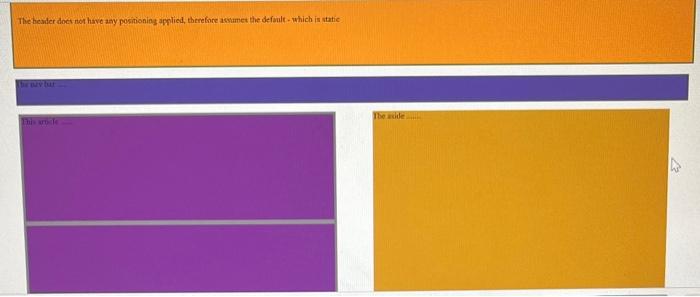
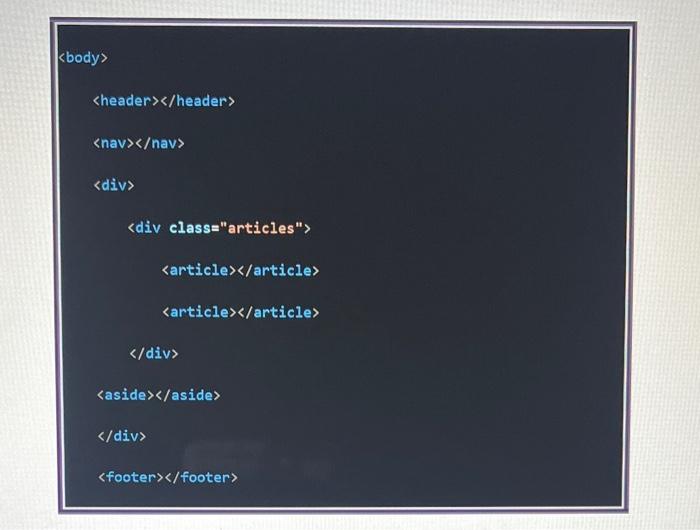
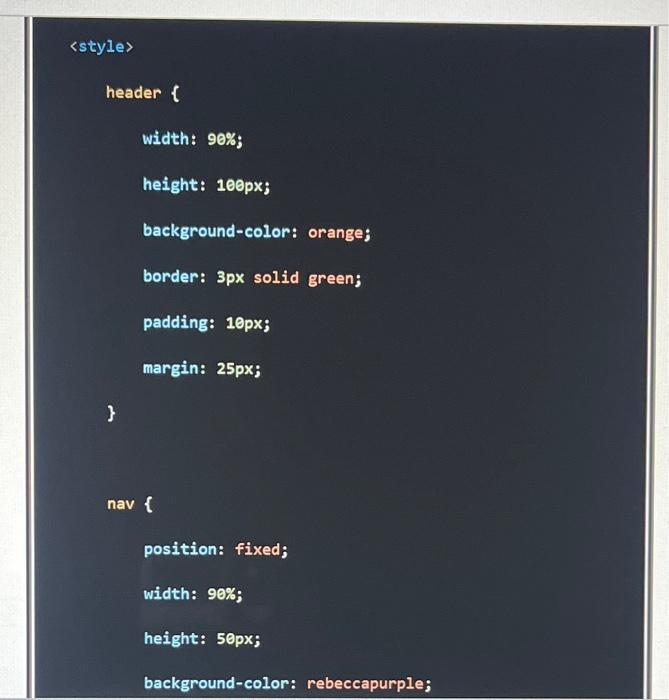
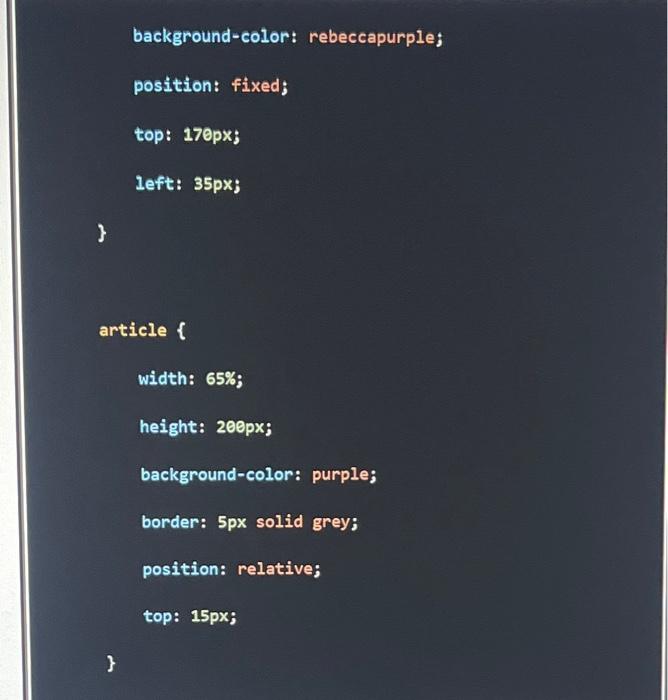
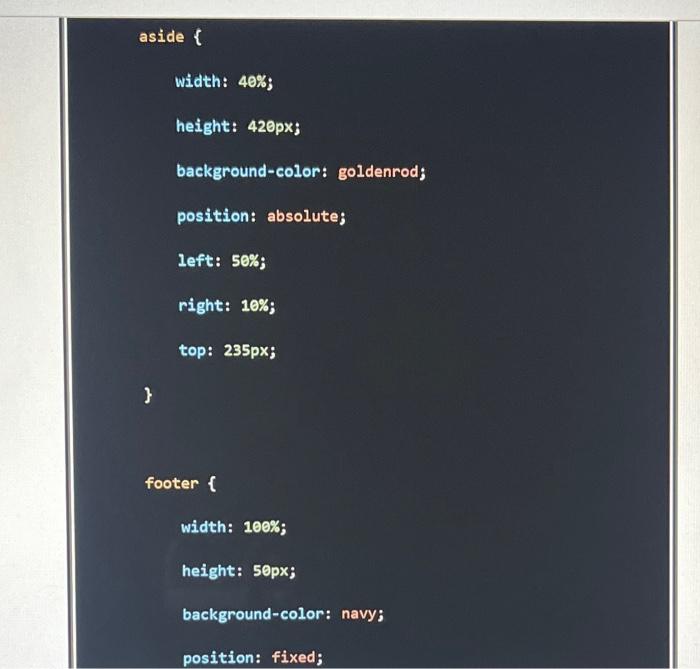
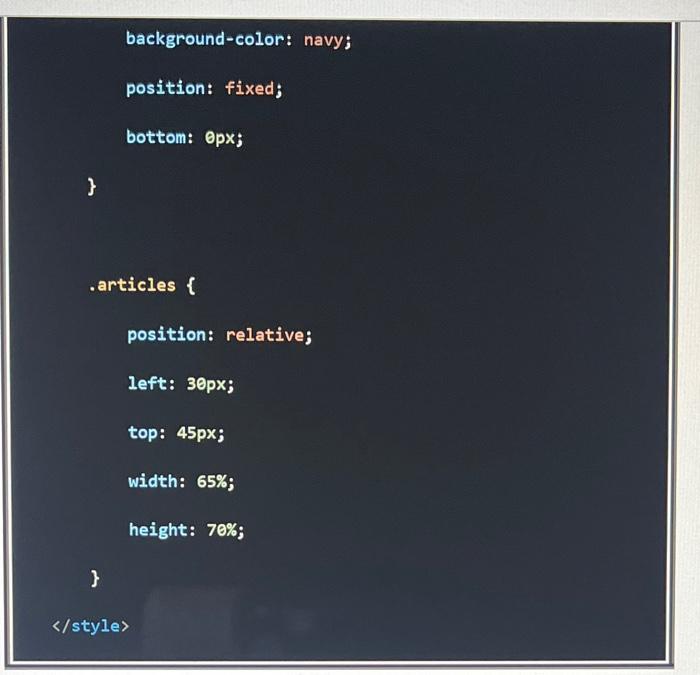
Use the sample code I gave you in the last section. In each element, you will add a paragraph that describes the position property and why this works with any other property, such as top, right, bottom, left, to position the element exactly where it shows up. Make sure to change the colours using the Adobe Wheel. Make sure to state what type of positioning has been used and how displacements, if used, changed the position of the element. If you just state, for instance, that the element has position relative, you don't get the points - you have to explain how and why the item is where it is. Here is an example to get you started, but change those colours and add more detail! The header does not have asy positionios aphlied, therefore asvamet the default - which is static body header / header nav / nav div background-color: rebeccapurple; position: fixed; top: 170px; left: 35px; article \{ width: 65%; height: 200px; background-color: purple; border: 5px solid grey; top: 15px; belative; bion: bis bis aside \{ width: 40%; height: 420px; background-color: goldenrod; position: absolute; left: 50\%; right: 10\%; top: 235px; borision: height: 50px; footer \{ background-color: navy; position: fixed; bottom: opx; articles \{ position: relative; left: 30px; top: 45px; width: 65%; height: 70%
Step by Step Solution
There are 3 Steps involved in it

Get step-by-step solutions from verified subject matter experts
 Study Help