







Question: https://youtu.be/9SWEeNfls8E A06 Red Counter Due: Feb 19, 2019 at 11:59 PM Learning Objectives: o Use labels and buttons to create a GUI . Adjust colors,
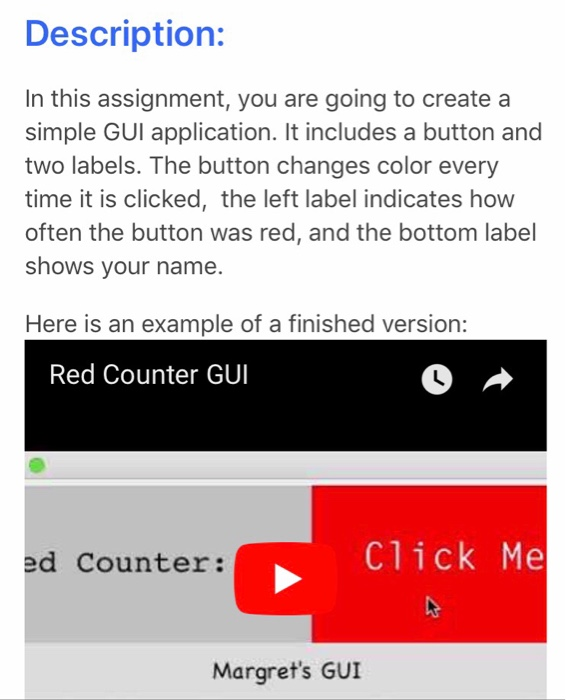
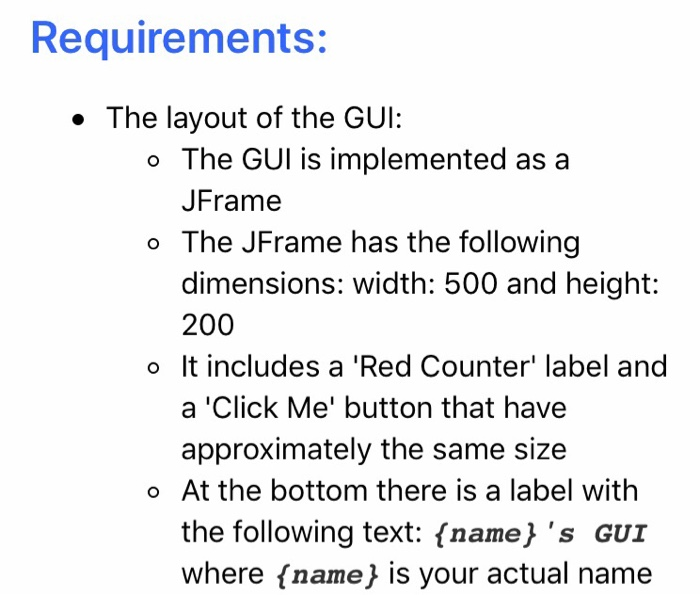
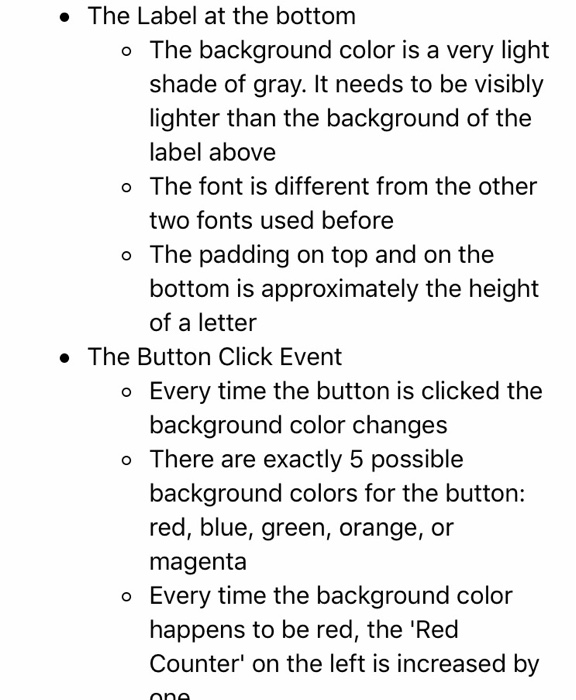
A06 Red Counter Due: Feb 19, 2019 at 11:59 PM Learning Objectives: o Use labels and buttons to create a GUI . Adjust colors, fonts, and padding to match the desired look . Use an event handler to implement the specified behavior Extract methods to make the code more clear and easier to maintain Description: In this assignment, you are going to create a simple GUI application. It includes a button and two labels. The button changes color every time it is clicked, the left label indicates how often the button was red, and the bottom label shows your name. Here is an example of a finished version: Red Counter GUI ed Counter: Click Me Margret's GUI . The 'Click Me' Button o When the GUI opens the button background is blue, and the text is white o The font is monospaced and fairly large but leaves padding on the sides o The text is 'Click Me' and it is centered The 'Red Counter' Label o When the GUI opens, the counter displays Red Counter o0 o The background is light gray o The font monospaced and the font- size is larger than the default but small enough to comfortably fit in the label without touching the sides The Label at the bottom o The background color is a very light shade of gray. It needs to be visibly lighter than the background of the label above o The font is different from the other two fonts used before o The padding on top and on the bottom is approximately the height of a letter . The Button Click Event o Every time the button is clicked the background color changes o There are exactly 5 possible background colors for the button: red, blue, green, orange, or magenta o Every time the background color happens to be red, the 'Red Counter' on the left is increased by
Step by Step Solution
There are 3 Steps involved in it

Get step-by-step solutions from verified subject matter experts
 Study Help