







Question: I have completed every step in the instructions except number 5. Please tell me how to modify the formula to use structured cells, please show
I have completed every step in the instructions except number 5. Please tell me how to modify the formula to use structured cells, please show how it should appear in excel and explain your work.
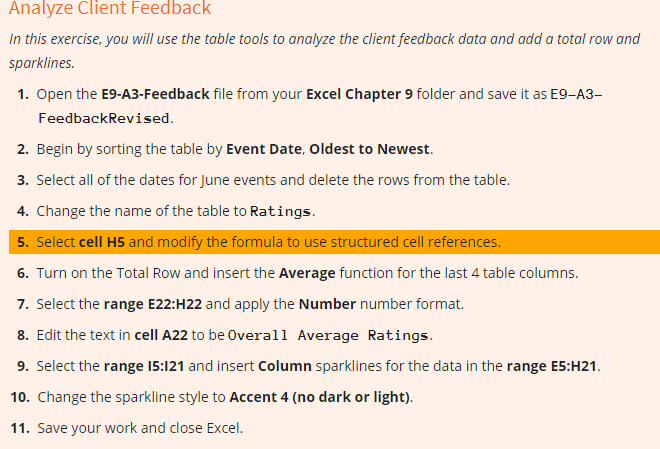
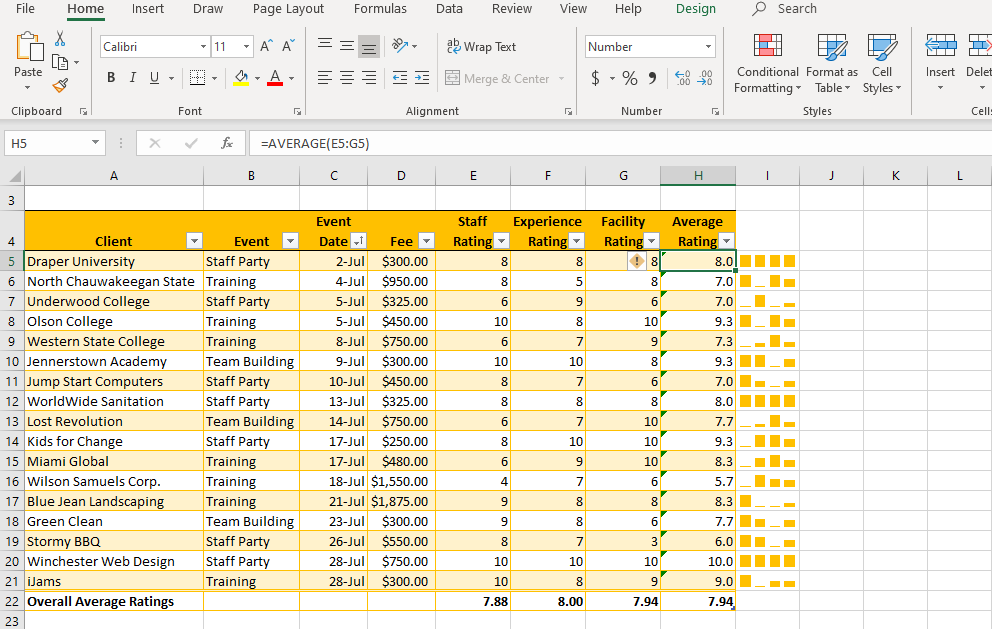
Analyze Client Feedback In this exercise, you will use the table tools to analyze the client feedback data and add a total row and sparklines. 1. Open the E9-A3-Feedback file from your Excel Chapter 9 folder and save it as E9-A3- FeedbackRevised. 2. Begin by sorting the table by Event Date, Oldest to Newest. 3. Select all of the dates for June events and delete the rows from the table. 4. Change the name of the table to Ratings 5. Select cell H5 and modify the formula to use structured cell references. 6. Turn on the Total Row and insert the Average function for the last 4 table columns. 7. Select the range E22:H22 and apply the Number number format. 8. Edit the text in cell A22 to be Overall Average Ratings 9. Select the range 15:121 and insert Column sparklines for the data in the range E5:H21. 10. Change the sparkline style to Accent 4 (no dark or light). 11. Save your work and close Excel. Home Insert Draw Page Layout Formulas Data Review View Help Design Calibri 11 - A A = = 20 4 5 - = E Paste Wrap Text 3 Merge & Center - Search 1 2 3 Conditional Format as Cell Formatting Table Styles Styles Number $ % BIU- - -A- S , 4-99 Insert Delet Clipboard Font Alignment Number Celle H5 X for AVERAGE(E5:55) B C D E F G H I J K L Staff Rating Experience Rating Facility Rating 8 Average Rating 8.00 III 7.0 7.0 9.3 7.3 9.3 7.0 8.0 10 10 Client - Event - 5 Draper University Staff Party 6 North Chauwakeegan State Training 7 Underwood College Staff Party 8 Olson College Training 9 Western State College Training 10 Jennerstown Academy Team Building 11 Jump Start Computers Staff Party 12 Worldwide Sanitation Staff Party 13 Lost Revolution Team Building 14 Kids for Change Staff Party 15 Miami Global Training 16 Wilson Samuels Corp. Training 17 Blue Jean Landscaping Training 18 Green Clean Team Building 19 Stormy BBQ Staff Party 20 Winchester Web Design Staff Party 21 iJams Training 22 Overall Average Ratings Event Date - Fee - 2-Jul $300.00 4-Jul $950.00 5-Jul $325.00 5-Jul $450.00 8-Jul $750.00 9-Jul $300.00 10-Jul $450.00 13-Jul $325.00 14-Jul $750.00 17-Jul $250.00 17-Jul $480.00 18-Jul $1,550.00 21-Jul $1,875.00 23-Jul $300.00 26-Jul $550.00 28-Jul $750.00 28-Jul $300.00 6 7.7 no 99 100 mg 9.3 8.3 10 4 5.7 8.3 9 7 10 10 8 8.00 10 7.7 6.0 10.0 9.0 7.94 10 9 7.94 7.88 Analyze Client Feedback In this exercise, you will use the table tools to analyze the client feedback data and add a total row and sparklines. 1. Open the E9-A3-Feedback file from your Excel Chapter 9 folder and save it as E9-A3- FeedbackRevised. 2. Begin by sorting the table by Event Date, Oldest to Newest. 3. Select all of the dates for June events and delete the rows from the table. 4. Change the name of the table to Ratings 5. Select cell H5 and modify the formula to use structured cell references. 6. Turn on the Total Row and insert the Average function for the last 4 table columns. 7. Select the range E22:H22 and apply the Number number format. 8. Edit the text in cell A22 to be Overall Average Ratings 9. Select the range 15:121 and insert Column sparklines for the data in the range E5:H21. 10. Change the sparkline style to Accent 4 (no dark or light). 11. Save your work and close Excel. Home Insert Draw Page Layout Formulas Data Review View Help Design Calibri 11 - A A = = 20 4 5 - = E Paste Wrap Text 3 Merge & Center - Search 1 2 3 Conditional Format as Cell Formatting Table Styles Styles Number $ % BIU- - -A- S , 4-99 Insert Delet Clipboard Font Alignment Number Celle H5 X for AVERAGE(E5:55) B C D E F G H I J K L Staff Rating Experience Rating Facility Rating 8 Average Rating 8.00 III 7.0 7.0 9.3 7.3 9.3 7.0 8.0 10 10 Client - Event - 5 Draper University Staff Party 6 North Chauwakeegan State Training 7 Underwood College Staff Party 8 Olson College Training 9 Western State College Training 10 Jennerstown Academy Team Building 11 Jump Start Computers Staff Party 12 Worldwide Sanitation Staff Party 13 Lost Revolution Team Building 14 Kids for Change Staff Party 15 Miami Global Training 16 Wilson Samuels Corp. Training 17 Blue Jean Landscaping Training 18 Green Clean Team Building 19 Stormy BBQ Staff Party 20 Winchester Web Design Staff Party 21 iJams Training 22 Overall Average Ratings Event Date - Fee - 2-Jul $300.00 4-Jul $950.00 5-Jul $325.00 5-Jul $450.00 8-Jul $750.00 9-Jul $300.00 10-Jul $450.00 13-Jul $325.00 14-Jul $750.00 17-Jul $250.00 17-Jul $480.00 18-Jul $1,550.00 21-Jul $1,875.00 23-Jul $300.00 26-Jul $550.00 28-Jul $750.00 28-Jul $300.00 6 7.7 no 99 100 mg 9.3 8.3 10 4 5.7 8.3 9 7 10 10 8 8.00 10 7.7 6.0 10.0 9.0 7.94 10 9 7.94 7.88
Step by Step Solution
There are 3 Steps involved in it

Get step-by-step solutions from verified subject matter experts
 Study Help