Question: I need your help! Please help me! Total Students Average Rate Total Due TotalSessions FirstName Barrett Wang Daphne Irma Karen Leroy Ursa Ella Jena Zenia
I need your help! Please help me!
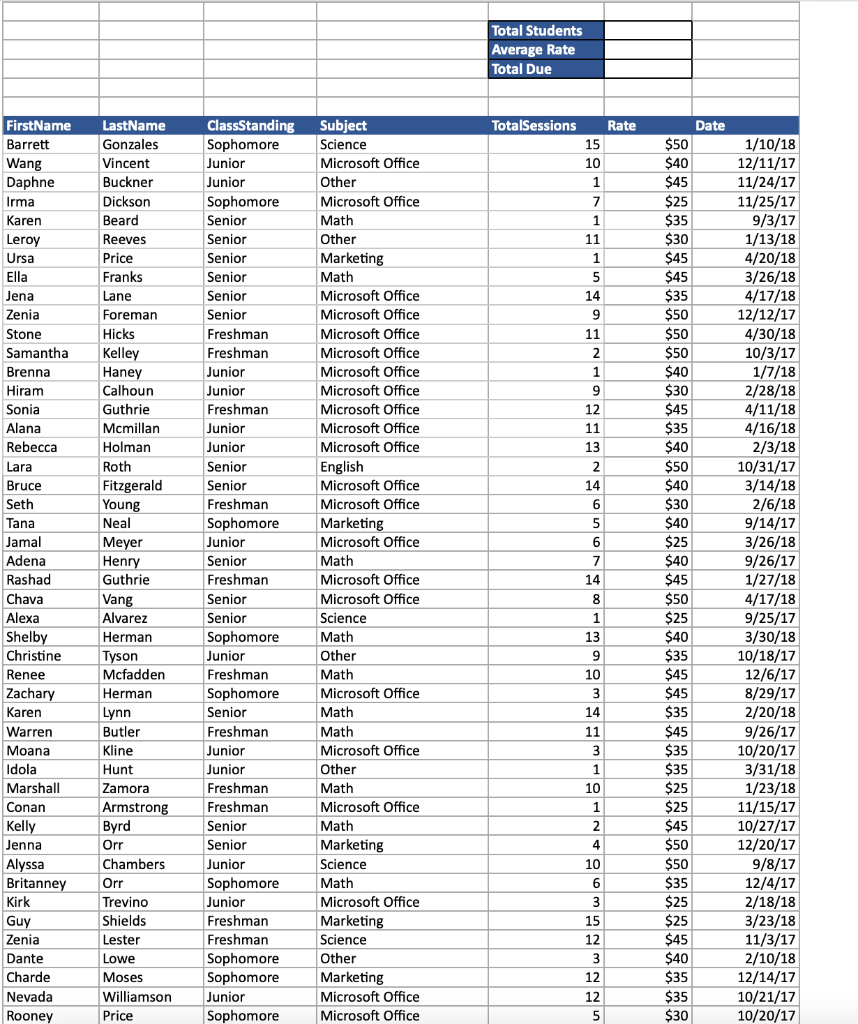
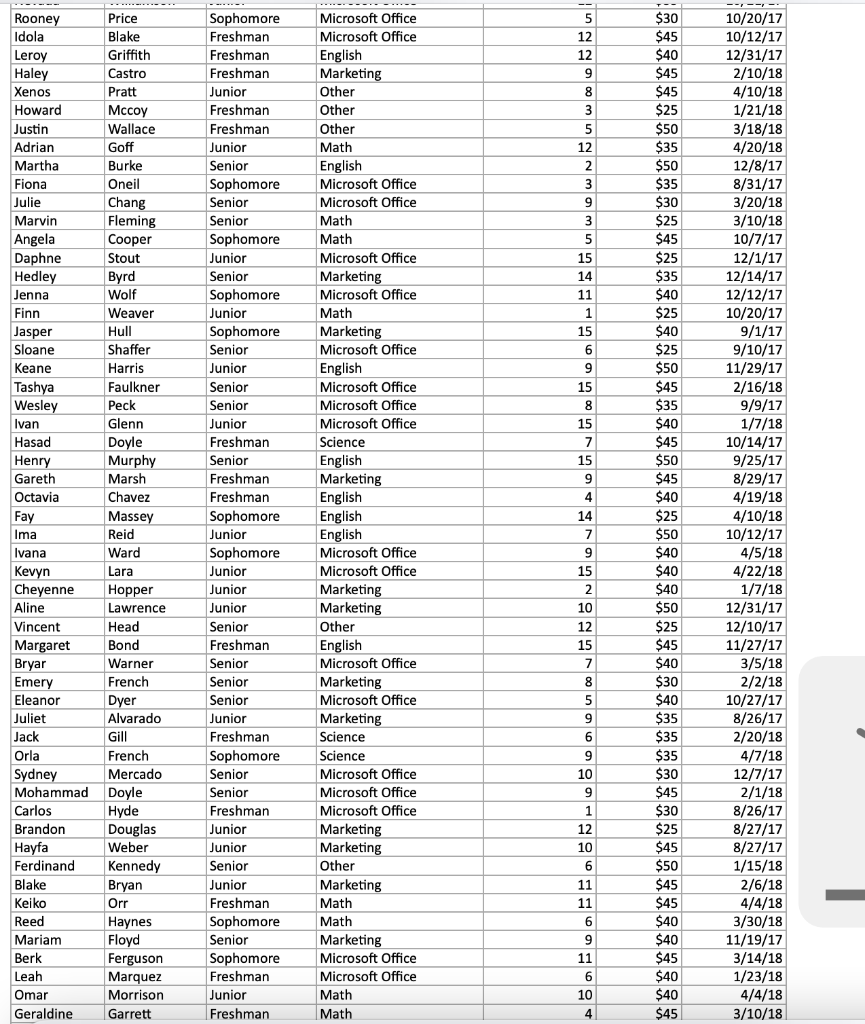
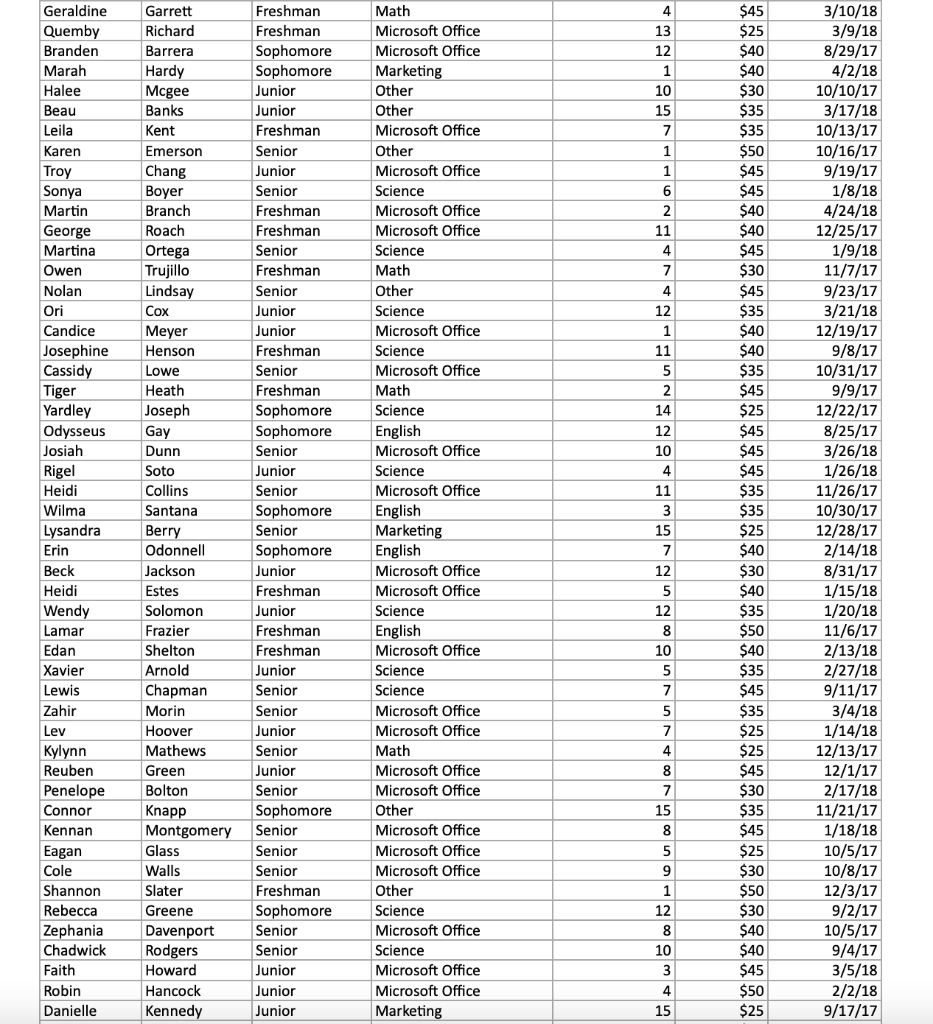
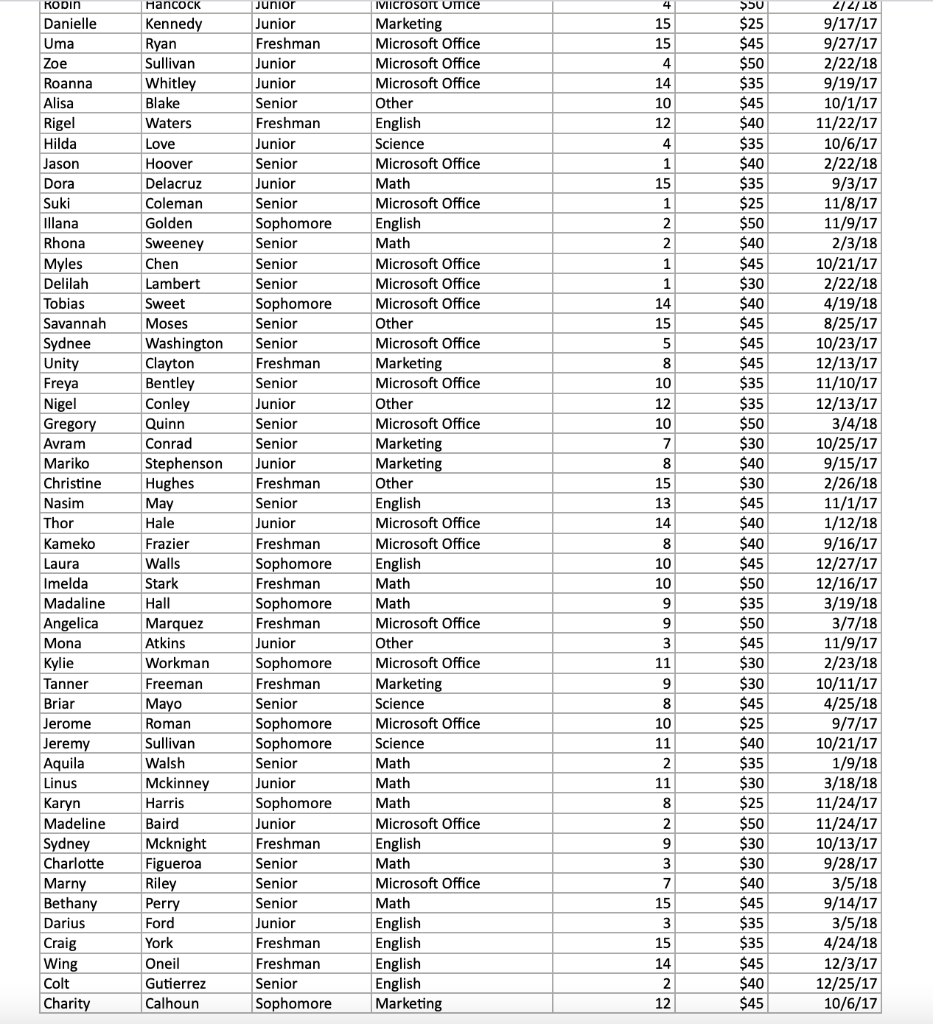
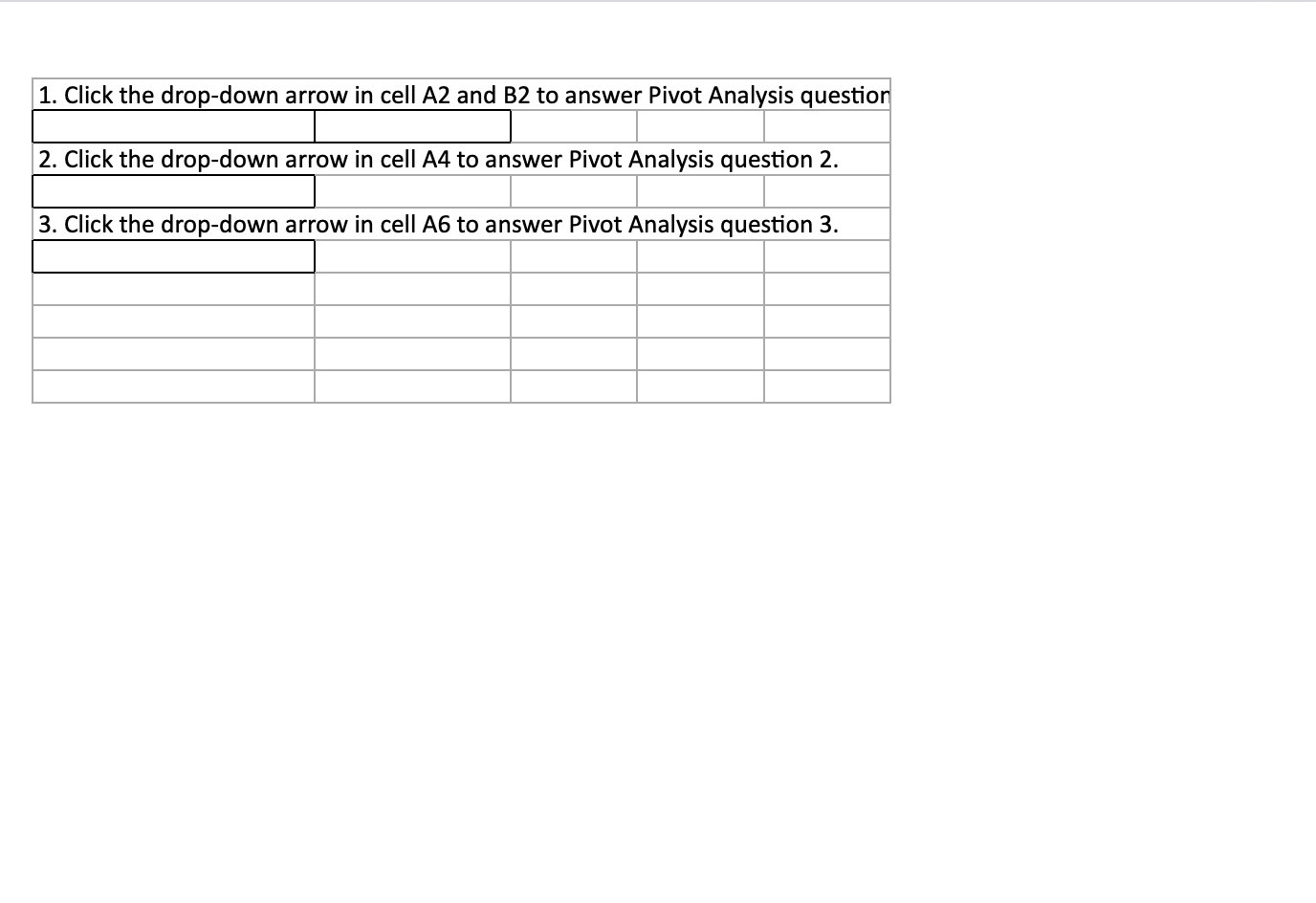
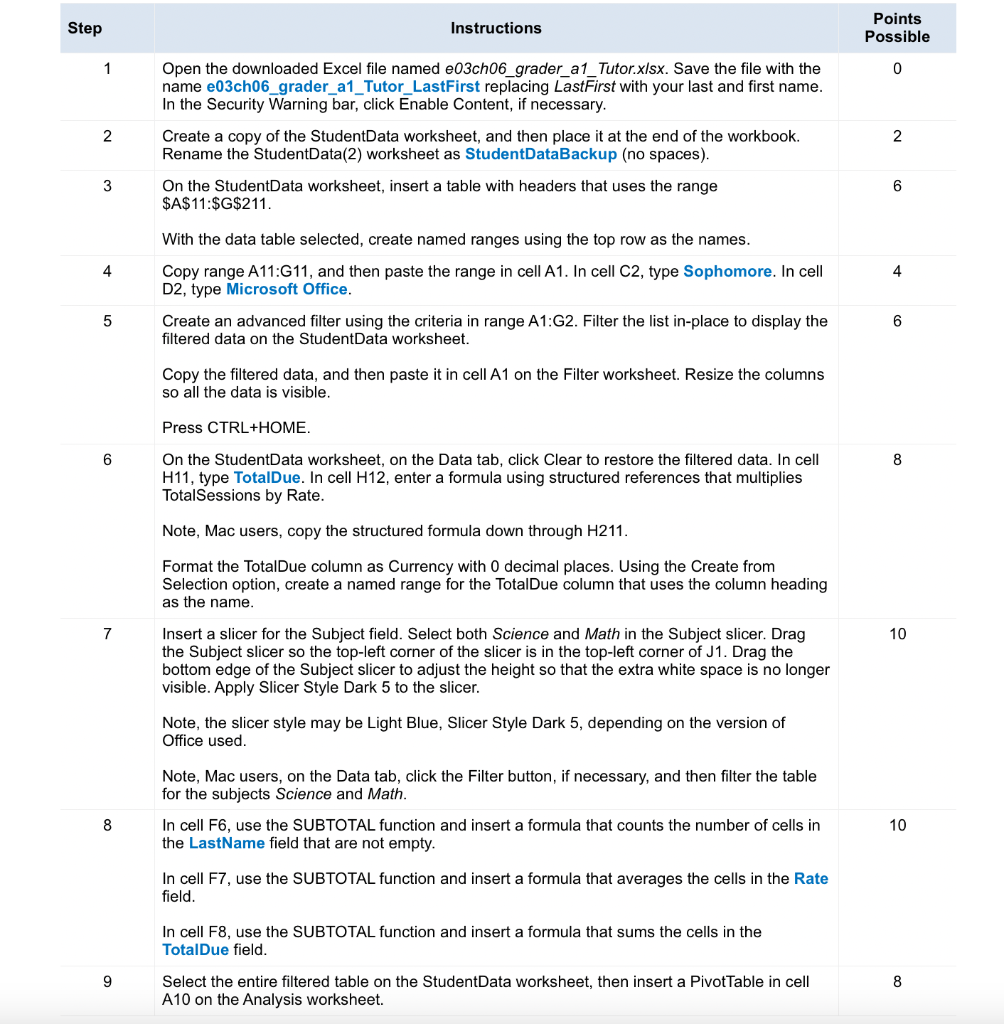
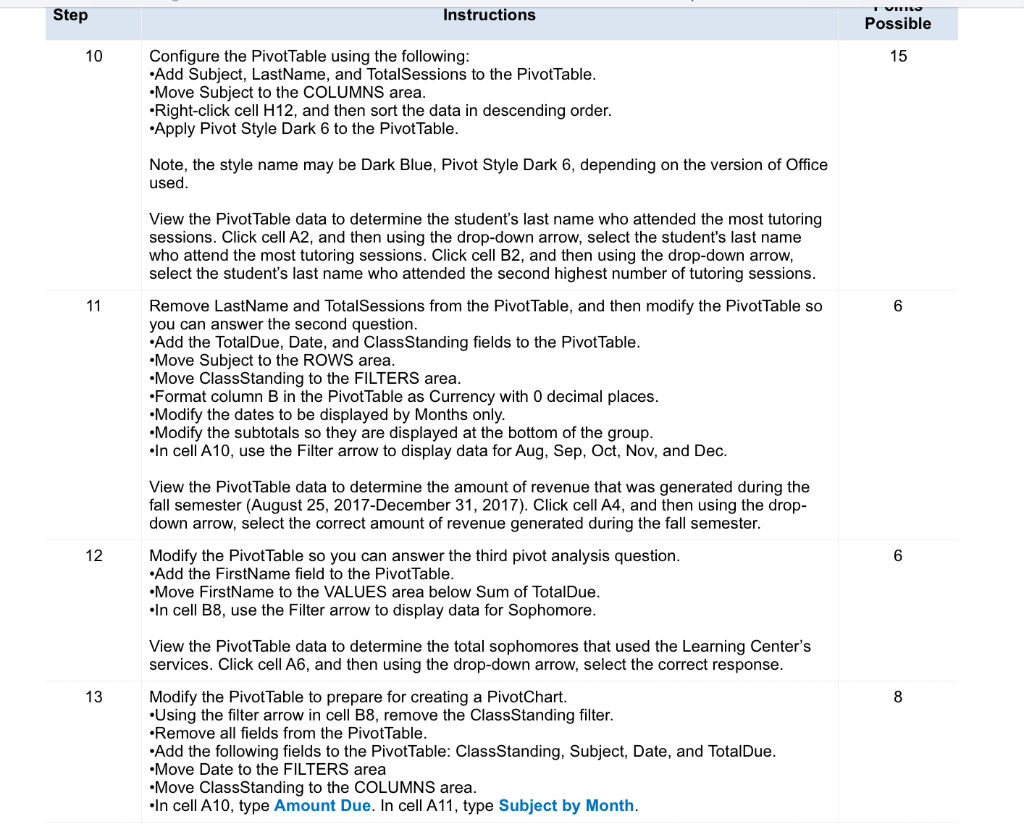
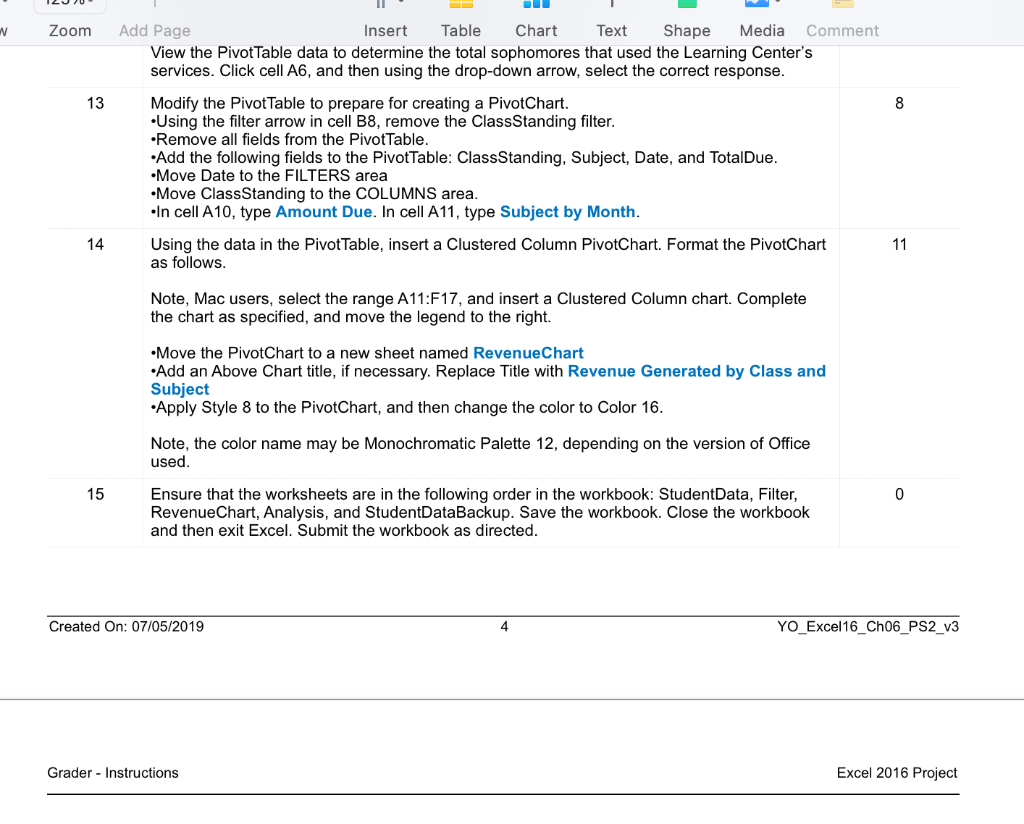
Total Students Average Rate Total Due TotalSessions FirstName Barrett Wang Daphne Irma Karen Leroy Ursa Ella Jena Zenia Stone Samantha Brenna Hiram Rate 15 10 1 7 1 11 1 5 14 9 11 Sonia LastName Gonzales Vincent Buckner Dickson Beard Reeves Price Franks Lane Foreman Hicks Kelley Haney Calhoun Guthrie Mcmillan Holman Roth Fitzgerald Young Neal Meyer Henry Guthrie Vang Alvarez Herman Tyson Mcfadden Herman Lynn ClassStanding Sophomore Junior Junior Sophomore Senior Senior Senior Senior Senior Senior Freshman Freshman Junior Junior Freshman Junior Junior Senior Senior Freshman Sophomore Junior Senior Freshman Senior Senior Sophomore Junior Freshman Sophomore Senior Freshman Junior Junior Freshman Freshman Senior Senior Junior Sophomore Junior Freshman Freshman Sophomore Sophomore Junior Sophomore Subject Science Microsoft Office Other Microsoft Office Math Other Marketing Math Microsoft Office Microsoft Office Microsoft Office Microsoft Office Microsoft Office Microsoft Office Microsoft Office Microsoft Office Microsoft Office English Microsoft Office Microsoft Office Marketing Microsoft Office Math Microsoft Office Microsoft Office Science Math Other Math Microsoft Office Math Alana Rebecca Lara Bruce Seth Tana Jamal Adena Rashad Chava Alexa Shelby Christine Renee Zachary Karen Warren Moana Idola Marshall Conan Kelly Jenna Alyssa Britanney Kirk Guy Zenia Dante Charde Nevada Rooney 2 1 9 12 11 13 2 14 6 5 6 7 14 8 1 13 9 10 3 14 11 3 1 10 1 2 4 10 6 3 15 12 3 12 12 5 Date $50 1/10/18 $40 12/11/17 $45 11/24/17 $25 11/25/17 $35 9/3/17 $30 1/13/18 $45 4/20/18 $45 3/26/18 $35 4/17/18 $50 12/12/17 $50 4/30/18 $50 10/3/17 $40 1/7/18 $30 2/28/18 $45 4/11/18 $35 4/16/18 $40 2/3/18 $50 10/31/17 $40 3/14/18 $30 2/6/18 $40 9/14/17 $25 3/26/18 $40 9/26/17 $45 1/27/18 $50 4/17/18 $25 9/25/17 $40 3/30/18 $35 10/18/17 $45 12/6/17 $45 8/29/17 $35 2/20/18 $45 9/26/17 $35 10/20/17 $35 3/31/18 $25 1/23/18 $25 11/15/17 $45 10/27/17 $50 12/20/17 $50 9/8/17 $35 12/4/17 $25 2/18/18 $25 3/23/18 $45 11/3/17 $40 2/10/18 $35 12/14/17 $35 10/21/17 $30 10/20/17 Butler Math Kline Hunt Zamora Armstrong Byrd Orr Chambers Orr Trevino Shields Lester Lowe Moses Williamson Price Microsoft Office Other Math Microsoft Office Math Marketing Science Math Microsoft Office Marketing Science Other Marketing Microsoft Office Microsoft Office 5 12 12 Castro 9 8 3 5 12 2 3 9 3 5 15 14 11 1 15 Rooney Price Idola Blake Leroy Griffith Haley Xenos Pratt Howard Mccoy Justin Wallace Adrian Goff Martha Burke Fiona Oneil Julie Chang Marvin Fleming Angela Cooper Daphne Stout Hedley Byrd Jenna Wolf Finn Weaver Jasper Hull Sloane Shaffer Keane Harris Tashya Faulkner Wesley Peck Ivan Glenn Hasad Doyle Henry Murphy Gareth Marsh Octavia Chavez Fay Massey Ima Reid Ivana Ward Kevyn Lara Cheyenne Hopper Aline Lawrence Vincent Head Margaret Bond Bryar Warner Emery French Eleanor Dyer Juliet Alvarado Jack Gill Orla French Sydney Mercado Mohammad Doyle Carlos Hyde Brandon Douglas Hayfa Weber Ferdinand Kennedy Blake Bryan Keiko Orr Reed Haynes Mariam Floyd Berk Ferguson Leah Marquez Omar Morrison Geraldine Garrett Sophomore Freshman Freshman Freshman Junior Freshman Freshman Junior Senior Sophomore Senior Senior Sophomore Junior Senior Sophomore Junior Sophomore Senior Junior Senior Senior Junior Freshman Senior Freshman Freshman Sophomore Junior Sophomore Junior Junior Junior Senior Freshman Senior Senior Senior Junior Freshman Sophomore Senior Senior Freshman Junior Junior Senior Junior Freshman Sophomore Senior Sophomore Freshman Junior Freshman Microsoft Office Microsoft Office English Marketing Other Other Other Math English Microsoft Office Microsoft Office Math Math Microsoft Office Marketing Microsoft Office Math Marketing Microsoft Office English Microsoft Office Microsoft Office Microsoft Office Science English Marketing English English English Microsoft Office Microsoft Office Marketing Marketing Other English Microsoft Office Marketing Microsoft Office Marketing Science Science Microsoft Office Microsoft Office Microsoft Office Marketing Marketing Other Marketing Math Math Marketing Microsoft Office Microsoft Office Math Math $30 $45 $40 $45 $45 $25 $50 $35 $50 $35 $30 $25 $45 $25 $35 $40 $25 $40 $25 $50 $45 $35 $40 $45 $50 $45 $ $40 $25 $50 $40 $40 $40 $50 $25 $ $45 $40 6 9 15 8 15 7 15 9 4 14 7 9 15 2 10 12 15 7 8 5 9 6 9 10 9 1 12 10 6 11 11 6 ----- 10/20/17 10/12/17 12/31/17 2/10/18 4/10/18 1/21/18 3/18/18 4/20/18 12/8/17 8/31/17 3/20/18 3/10/18 10/7/17 12/1/17 12/14/17 12/12/17 10/20/17 9/1/17 9/10/17 11/29/17 2/16/18 9/9/17 1/7/18 10/14/17 9/25/17 8/29/17 4/19/18 4/10/18 10/12/17 4/5/18 4/22/18 1/7/18 12/31/17 12/10/17 11/27/17 3/5/18 2/2/18 10/27/17 8/26/17 2/20/18 4/7/18 12/7/17 2/1/18 8/26/17 8/27/17 8/27/17 1/15/18 2/6/18 4/4/18 3/30/18 11/19/17 3/14/18 1/23/18 4/4/18 3/10/18 $30 $40 $35 $35 $35 $30 $45 $30 $25 $45 $50 $45 $45 $40 $40 $45 $40 $40 $45 9 11 6 10 4 4 13 12 1 10 15 7 1 1 Geraldine Quemby Branden Marah Halee Beau Leila Karen Troy Sonya Martin George Martina Owen Nolan Ori Candice Josephine Cassidy 6 2 11 4 7 4 12 1 11 5 Tiger 2 14 12 10 4 Garrett Richard Barrera Hardy Mcgee Banks Kent Emerson Chang Boyer Branch Roach Ortega Trujillo Lindsay Cox Meyer Henson Lowe Heath Joseph Gay Dunn Soto Collins Santana Berry Odonnell Jackson Estes Solomon Frazier Shelton Arnold Chapman Morin Hoover Mathews Green Bolton Knapp Montgomery Glass Walls Slater Greene Davenport Rodgers Howard Hancock Kennedy Freshman Freshman Sophomore Sophomore Junior Junior Freshman Senior Junior Senior Freshman Freshman Senior Freshman Senior Junior Junior Freshman Senior Freshman Sophomore Sophomore Senior Junior Senior Sophomore Senior Sophomore Junior Freshman Junior Freshman Freshman Junior Senior Senior Junior Senior Junior Senior Sophomore Senior Senior Senior Freshman Sophomore Senior Senior Junior Junior Junior Math Microsoft Office Microsoft Office Marketing Other Other Microsoft Office Other Microsoft Office Science Microsoft Office Microsoft Office Science Math Other Science Microsoft Office Science Microsoft Office Math Science English Microsoft Office Science Microsoft Office English Marketing English Microsoft Office Microsoft Office Science English Microsoft Office Science Science Microsoft Office Microsoft Office Math Microsoft Office Microsoft Office Other Microsoft Office Microsoft Office Microsoft Office Other Science Microsoft Office Science Microsoft Office Microsoft Office Marketing Yardley Odysseus Josiah Rigel Heidi Wilma Lysandra Erin Beck Heidi Wendy Lamar Edan Xavier Lewis Zahir Lev Kylynn Reuben Penelope Connor Kennan Eagan Cole Shannon Rebecca Zephania Chadwick Faith Robin Danielle 11 3 15 7 12 5 12 $45 $25 $40 $40 $30 $35 $35 $50 $45 $45 $40 $40 $45 $30 $45 $35 $40 $40 $35 $45 $25 $45 $45 $45 $35 $35 $25 $40 $30 $40 $35 $50 $40 $35 $45 $35 $25 $25 $45 $30 $35 $45 $25 $30 $50 $30 $40 $40 $45 $50 $25 3/10/18 3/9/18 8/29/17 4/2/18 10/10/17 3/17/18 10/13/17 10/16/17 9/19/17 1/8/18 4/24/18 12/25/17 1/9/18 11/7/17 9/23/17 3/21/18 12/19/17 9/8/17 10/31/17 9/9/17 12/22/17 8/25/17 3/26/18 1/26/18 11/26/17 10/30/17 12/28/17 2/14/18 8/31/17 1/15/18 1/20/18 11/6/17 2/13/18 2/27/18 9/11/17 3/4/18 1/14/18 12/13/17 12/1/17 2/17/18 11/21/17 1/18/18 10/5/17 10/8/17 12/3/17 9/2/17 10/5/17 9/4/17 3/5/18 2/2/18 9/17/17 8 10 5 7 5 7 4 8 7 15 8 5 9 1 12 8 10 3 4 15 15 15 4 14 10 12 4 1 15 1 2 2 1 1 14 15 8 10 Robin Danielle Uma Zoe Roanna Alisa Rigel Hilda Jason Dora Suki Illana Rhona Myles Delilah Tobias Savannah Sydnee Unity Freya Nigel Gregory Avram iko Christine Nasim Thor Kameko Laura Imelda Madaline Angelica Mona Kylie Tanner Briar Jerome Jeremy Aquila Linus Karyn Madeline Sydney Charlotte Marny Bethany Darius Craig Wing Colt Charity Hancock Kennedy Ryan Sullivan Whitley Blake Waters Love Hoover Delacruz Coleman Golden Sweeney Chen Lambert Sweet Moses Washington Clayton Bentley Conley Quinn Conrad Stephenson Hughes May Hale Frazier Walls Stark Hall Marquez Atkins Workman Freeman Mayo Roman Sullivan Walsh Mckinney Harris Baird Mcknight Figueroa Riley Perry Ford York Oneil Gutierrez Calhoun Junior Junior Freshman Junior Junior Senior Freshman Junior Senior Junior Senior Sophomore Senior Senior Senior Sophomore Senior Senior Freshman Senior Junior Senior Senior Junior Freshman Senior Junior Freshman Sophomore Freshman Sophomore Freshman Junior Sophomore Freshman Senior Sophomore Sophomore Senior Junior Sophomore Junior Freshman Senior Senior Senior Junior Freshman Freshman Senior Sophomore Microsoft Umce Marketing Microsoft Office Microsoft Office Microsoft Office Other English Science Microsoft Office Math Microsoft Office English Math Microsoft Office Microsoft Office Microsoft Office Other Microsoft Office Marketing Microsoft Office Other Microsoft Office Marketing Marketing Other English Microsoft Office Microsoft Office English Math Math Microsoft Office Other Microsoft Office Marketing Science Microsoft Office Science Math Math Math Microsoft Office English Math Microsoft Office Math English English English English Marketing 12 10 7 8 15 13 14 $25 $45 $50 $35 $45 $40 $35 $40 $35 $25 $50 $40 $45 $30 $40 $45 $45 $45 $35 $35 $50 $30 $40 $30 $45 $40 $40 $45 $50 $35 $50 $45 $30 $30 $45 $25 $40 $35 $30 $25 $50 $30 $30 $40 $45 $35 $35 $45 $40 $45 2/2/18 9/17/17 9/27/17 2/22/18 9/19/17 10/1/17 11/22/17 10/6/17 2/22/18 9/3/17 11/8/17 11/9/17 2/3/18 10/21/17 2/22/18 4/19/18 8/25/17 10/23/17 12/13/17 11/10/17 12/13/17 3/4/18 10/25/17 9/15/17 2/26/18 11/1/17 1/12/18 9/16/17 12/27/17 12/16/17 3/19/18 3/7/18 11/9/17 2/23/18 10/11/17 4/25/18 9/7/17 10/21/17 1/9/18 3/18/18 11/24/17 11/24/17 10/13/17 9/28/17 3/5/18 9/14/17 3/5/18 4/24/18 12/3/17 12/25/17 10/6/17 10 10 9 3 11 9 8 10 11 2 11 8 2 9 3 7 15 3 15 14 2 12 1. Click the drop-down arrow in cell A2 and B2 to answer Pivot Analysis question 2. Click the drop-down arrow in cell A4 to answer Pivot Analysis question 2. 3. Click the drop-down arrow in cell A6 to answer Pivot Analysis question 3. Step Instructions Points Possible 1 0 2 Open the downloaded Excel file named e03ch06_grader_a1_Tutor.x/sx. Save the file with the name e03ch06_grader_a1_Tutor_LastFirst replacing LastFirst with your last and first name. In the Security Warning bar, click Enable Content, if necessary. Create a copy of the StudentData worksheet, and then place it at the end of the workbook. Rename the StudentData(2) worksheet as StudentDataBackup (no spaces). On the StudentData worksheet, insert a table with headers that uses the range $A$11:$G$211. 2 3 6 4 4 With the data table selected, create named ranges using the top row as the names. Copy range A11:G11, and then paste the range in cell A1. In cell C2, type Sophomore. In cell D2, type Microsoft Office. Create an advanced filter using the criteria in range A1:G2. Filter the list in-place to display the filtered data on the StudentData worksheet. 5 6 Copy the filtered data, and then paste it in cell A1 on the Filter worksheet. Resize the columns so all the data is visible. Press CTRL+HOME. 6 8 On the StudentData worksheet, on the Data tab, click Clear to restore the filtered data. In cell H11, type TotalDue. In cell H12, enter a formula using structured references that multiplies TotalSessions by Rate. Note, Mac users, copy the structured formula down through H211. Format the TotalDue column as Currency with 0 decimal places. Using the Create from Selection option, create a named range for the TotalDue column that uses the column heading as the name. 7 10 Insert a slicer for the Subject field. Select both Science and Math in the Subject slicer. Drag the Subject slicer so the top-left corner of the slicer is in the top-left corner of J1. Drag the bottom edge of the Subject slicer to adjust the height so that the extra white space is no longer visible. Apply Slicer Style Dark 5 to the slicer. Note, the slicer style may be Light Blue, Slicer Style Dark 5, depending on the version of Office used. Note, Mac users, on the Data tab, click the Filter button, if necessary, and then filter the table for the subjects Science and Math. In cell F6, use the SUBTOTAL function and insert a formula that counts the number of cells in the LastName field that are not empty. 8 10 In cell F7, use the SUBTOTAL function and insert a formula that averages the cells in the Rate field. In cell F8, use the SUBTOTAL function and insert a formula that sums the cells in the TotalDue field. 9 8 Select the entire filtered table on the StudentData worksheet, then insert a Pivot Table in cell A10 on the Analysis worksheet. VIRILO Step Instructions Possible 10 15 Configure the PivotTable using the following: Add Subject, LastName, and TotalSessions to the Pivot Table. Move Subject to the COLUMNS area. Right-click cell H12, and then sort the data in descending order. Apply Pivot Style Dark 6 to the Pivot Table. Note, the style name may be Dark Blue, Pivot Style Dark 6, depending on the version of Office used. 11 6 View the Pivot Table data to determine the student's last name who attended the most tutoring sessions. Click cell A2, and then using the drop-down arrow, select the student's last name who attend the most tutoring sessions. Click cell B2, and then using the drop-down arrow, select the student's last name who attended the second highest number of tutoring sessions. Remove LastName and TotalSessions from the Pivot Table, and then modify the Pivot Table so you can answer the second question. Add the TotalDue, Date, and Class Standing fields to the Pivot Table. Move Subject to the ROWS area. Move Class Standing to the FILTERS area. Format column B in the Pivot Table as Currency with 0 decimal places. Modify the dates to be displayed by Months only. Modify the subtotals so they are displayed at the bottom of the group. In cell A10, use the Filter arrow to display data for Aug, Sep, Oct, Nov, and Dec. 12 View the Pivot Table data to determine the amount of revenue that was generated during the fall semester (August 25, 2017-December 31, 2017). Click cell A4, and then using the drop- down arrow, select the correct amount of revenue generated during the fall semester. Modify the Pivot Table so you can answer the third pivot analysis question. Add the FirstName field to the Pivot Table. Move FirstName to the VALUES area below Sum of TotalDue. In cell B8, use the Filter arrow to display data for Sophomore. 6 13 8 View the Pivot Table data to determine the total sophomores that used the Learning Center's services. Click cell A6, and then using the drop-down arrow, select the correct response. Modify the Pivot Table to prepare for creating a PivotChart. Using the filter arrow in cell B8, remove the Class Standing filter. Remove all fields from the PivotTable. Add the following fields to the Pivot Table: Class Standing, Subject, Date, and TotalDue. Move Date to the FILTERS area Move Class Standing to the COLUMNS area. In cell A10, type Amount Due. In cell A11, type Subject by Month. w Zoom 13 8 Add Page Insert Table Chart Text Shape Media Comment View the Pivot Table data to determine the total sophomores that used the Learning Center's services. Click cell A6, and then using the drop-down arrow, select the correct response. Modify the Pivot Table to prepare for creating a PivotChart. Using the filter arrow in cell B8, remove the Class Standing filter. Remove all fields from the Pivot Table. Add the following fields to the Pivot Table: Class Standing, Subject, Date, and TotalDue. Move Date to the FILTERS area Move Class Standing to the COLUMNS area. In cell A10, type Amount Due. In cell A11, type Subject by Month. Using the data in the Pivot Table, insert a Clustered Column PivotChart. Format the PivotChart as follows. 14 11 Note, Mac users, select the range A11:F17, and insert a Clustered Column chart. Complete the chart as specified, and move the legend to the right. Move the PivotChart to a new sheet named RevenueChart Add an Above Chart title, if necessary. Replace Title with Revenue Generated by Class and Subject Apply Style 8 to the PivotChart, and then change the color to Color 16. Note, the color name may be Monochromatic Palette 12, depending on the version of Office used! 15 0 Ensure that the worksheets are in the following order in the workbook: StudentData, Filter, RevenueChart, Analysis, and StudentDataBackup. Save the workbook. Close the workbook and then exit Excel. Submit the workbook as directed. Created On: 07/05/2019 4 YO_Excel 16_Ch06_PS2_v3 Grader - Instructions Excel 2016 Project Total Students Average Rate Total Due TotalSessions FirstName Barrett Wang Daphne Irma Karen Leroy Ursa Ella Jena Zenia Stone Samantha Brenna Hiram Rate 15 10 1 7 1 11 1 5 14 9 11 Sonia LastName Gonzales Vincent Buckner Dickson Beard Reeves Price Franks Lane Foreman Hicks Kelley Haney Calhoun Guthrie Mcmillan Holman Roth Fitzgerald Young Neal Meyer Henry Guthrie Vang Alvarez Herman Tyson Mcfadden Herman Lynn ClassStanding Sophomore Junior Junior Sophomore Senior Senior Senior Senior Senior Senior Freshman Freshman Junior Junior Freshman Junior Junior Senior Senior Freshman Sophomore Junior Senior Freshman Senior Senior Sophomore Junior Freshman Sophomore Senior Freshman Junior Junior Freshman Freshman Senior Senior Junior Sophomore Junior Freshman Freshman Sophomore Sophomore Junior Sophomore Subject Science Microsoft Office Other Microsoft Office Math Other Marketing Math Microsoft Office Microsoft Office Microsoft Office Microsoft Office Microsoft Office Microsoft Office Microsoft Office Microsoft Office Microsoft Office English Microsoft Office Microsoft Office Marketing Microsoft Office Math Microsoft Office Microsoft Office Science Math Other Math Microsoft Office Math Alana Rebecca Lara Bruce Seth Tana Jamal Adena Rashad Chava Alexa Shelby Christine Renee Zachary Karen Warren Moana Idola Marshall Conan Kelly Jenna Alyssa Britanney Kirk Guy Zenia Dante Charde Nevada Rooney 2 1 9 12 11 13 2 14 6 5 6 7 14 8 1 13 9 10 3 14 11 3 1 10 1 2 4 10 6 3 15 12 3 12 12 5 Date $50 1/10/18 $40 12/11/17 $45 11/24/17 $25 11/25/17 $35 9/3/17 $30 1/13/18 $45 4/20/18 $45 3/26/18 $35 4/17/18 $50 12/12/17 $50 4/30/18 $50 10/3/17 $40 1/7/18 $30 2/28/18 $45 4/11/18 $35 4/16/18 $40 2/3/18 $50 10/31/17 $40 3/14/18 $30 2/6/18 $40 9/14/17 $25 3/26/18 $40 9/26/17 $45 1/27/18 $50 4/17/18 $25 9/25/17 $40 3/30/18 $35 10/18/17 $45 12/6/17 $45 8/29/17 $35 2/20/18 $45 9/26/17 $35 10/20/17 $35 3/31/18 $25 1/23/18 $25 11/15/17 $45 10/27/17 $50 12/20/17 $50 9/8/17 $35 12/4/17 $25 2/18/18 $25 3/23/18 $45 11/3/17 $40 2/10/18 $35 12/14/17 $35 10/21/17 $30 10/20/17 Butler Math Kline Hunt Zamora Armstrong Byrd Orr Chambers Orr Trevino Shields Lester Lowe Moses Williamson Price Microsoft Office Other Math Microsoft Office Math Marketing Science Math Microsoft Office Marketing Science Other Marketing Microsoft Office Microsoft Office 5 12 12 Castro 9 8 3 5 12 2 3 9 3 5 15 14 11 1 15 Rooney Price Idola Blake Leroy Griffith Haley Xenos Pratt Howard Mccoy Justin Wallace Adrian Goff Martha Burke Fiona Oneil Julie Chang Marvin Fleming Angela Cooper Daphne Stout Hedley Byrd Jenna Wolf Finn Weaver Jasper Hull Sloane Shaffer Keane Harris Tashya Faulkner Wesley Peck Ivan Glenn Hasad Doyle Henry Murphy Gareth Marsh Octavia Chavez Fay Massey Ima Reid Ivana Ward Kevyn Lara Cheyenne Hopper Aline Lawrence Vincent Head Margaret Bond Bryar Warner Emery French Eleanor Dyer Juliet Alvarado Jack Gill Orla French Sydney Mercado Mohammad Doyle Carlos Hyde Brandon Douglas Hayfa Weber Ferdinand Kennedy Blake Bryan Keiko Orr Reed Haynes Mariam Floyd Berk Ferguson Leah Marquez Omar Morrison Geraldine Garrett Sophomore Freshman Freshman Freshman Junior Freshman Freshman Junior Senior Sophomore Senior Senior Sophomore Junior Senior Sophomore Junior Sophomore Senior Junior Senior Senior Junior Freshman Senior Freshman Freshman Sophomore Junior Sophomore Junior Junior Junior Senior Freshman Senior Senior Senior Junior Freshman Sophomore Senior Senior Freshman Junior Junior Senior Junior Freshman Sophomore Senior Sophomore Freshman Junior Freshman Microsoft Office Microsoft Office English Marketing Other Other Other Math English Microsoft Office Microsoft Office Math Math Microsoft Office Marketing Microsoft Office Math Marketing Microsoft Office English Microsoft Office Microsoft Office Microsoft Office Science English Marketing English English English Microsoft Office Microsoft Office Marketing Marketing Other English Microsoft Office Marketing Microsoft Office Marketing Science Science Microsoft Office Microsoft Office Microsoft Office Marketing Marketing Other Marketing Math Math Marketing Microsoft Office Microsoft Office Math Math $30 $45 $40 $45 $45 $25 $50 $35 $50 $35 $30 $25 $45 $25 $35 $40 $25 $40 $25 $50 $45 $35 $40 $45 $50 $45 $ $40 $25 $50 $40 $40 $40 $50 $25 $ $45 $40 6 9 15 8 15 7 15 9 4 14 7 9 15 2 10 12 15 7 8 5 9 6 9 10 9 1 12 10 6 11 11 6 ----- 10/20/17 10/12/17 12/31/17 2/10/18 4/10/18 1/21/18 3/18/18 4/20/18 12/8/17 8/31/17 3/20/18 3/10/18 10/7/17 12/1/17 12/14/17 12/12/17 10/20/17 9/1/17 9/10/17 11/29/17 2/16/18 9/9/17 1/7/18 10/14/17 9/25/17 8/29/17 4/19/18 4/10/18 10/12/17 4/5/18 4/22/18 1/7/18 12/31/17 12/10/17 11/27/17 3/5/18 2/2/18 10/27/17 8/26/17 2/20/18 4/7/18 12/7/17 2/1/18 8/26/17 8/27/17 8/27/17 1/15/18 2/6/18 4/4/18 3/30/18 11/19/17 3/14/18 1/23/18 4/4/18 3/10/18 $30 $40 $35 $35 $35 $30 $45 $30 $25 $45 $50 $45 $45 $40 $40 $45 $40 $40 $45 9 11 6 10 4 4 13 12 1 10 15 7 1 1 Geraldine Quemby Branden Marah Halee Beau Leila Karen Troy Sonya Martin George Martina Owen Nolan Ori Candice Josephine Cassidy 6 2 11 4 7 4 12 1 11 5 Tiger 2 14 12 10 4 Garrett Richard Barrera Hardy Mcgee Banks Kent Emerson Chang Boyer Branch Roach Ortega Trujillo Lindsay Cox Meyer Henson Lowe Heath Joseph Gay Dunn Soto Collins Santana Berry Odonnell Jackson Estes Solomon Frazier Shelton Arnold Chapman Morin Hoover Mathews Green Bolton Knapp Montgomery Glass Walls Slater Greene Davenport Rodgers Howard Hancock Kennedy Freshman Freshman Sophomore Sophomore Junior Junior Freshman Senior Junior Senior Freshman Freshman Senior Freshman Senior Junior Junior Freshman Senior Freshman Sophomore Sophomore Senior Junior Senior Sophomore Senior Sophomore Junior Freshman Junior Freshman Freshman Junior Senior Senior Junior Senior Junior Senior Sophomore Senior Senior Senior Freshman Sophomore Senior Senior Junior Junior Junior Math Microsoft Office Microsoft Office Marketing Other Other Microsoft Office Other Microsoft Office Science Microsoft Office Microsoft Office Science Math Other Science Microsoft Office Science Microsoft Office Math Science English Microsoft Office Science Microsoft Office English Marketing English Microsoft Office Microsoft Office Science English Microsoft Office Science Science Microsoft Office Microsoft Office Math Microsoft Office Microsoft Office Other Microsoft Office Microsoft Office Microsoft Office Other Science Microsoft Office Science Microsoft Office Microsoft Office Marketing Yardley Odysseus Josiah Rigel Heidi Wilma Lysandra Erin Beck Heidi Wendy Lamar Edan Xavier Lewis Zahir Lev Kylynn Reuben Penelope Connor Kennan Eagan Cole Shannon Rebecca Zephania Chadwick Faith Robin Danielle 11 3 15 7 12 5 12 $45 $25 $40 $40 $30 $35 $35 $50 $45 $45 $40 $40 $45 $30 $45 $35 $40 $40 $35 $45 $25 $45 $45 $45 $35 $35 $25 $40 $30 $40 $35 $50 $40 $35 $45 $35 $25 $25 $45 $30 $35 $45 $25 $30 $50 $30 $40 $40 $45 $50 $25 3/10/18 3/9/18 8/29/17 4/2/18 10/10/17 3/17/18 10/13/17 10/16/17 9/19/17 1/8/18 4/24/18 12/25/17 1/9/18 11/7/17 9/23/17 3/21/18 12/19/17 9/8/17 10/31/17 9/9/17 12/22/17 8/25/17 3/26/18 1/26/18 11/26/17 10/30/17 12/28/17 2/14/18 8/31/17 1/15/18 1/20/18 11/6/17 2/13/18 2/27/18 9/11/17 3/4/18 1/14/18 12/13/17 12/1/17 2/17/18 11/21/17 1/18/18 10/5/17 10/8/17 12/3/17 9/2/17 10/5/17 9/4/17 3/5/18 2/2/18 9/17/17 8 10 5 7 5 7 4 8 7 15 8 5 9 1 12 8 10 3 4 15 15 15 4 14 10 12 4 1 15 1 2 2 1 1 14 15 8 10 Robin Danielle Uma Zoe Roanna Alisa Rigel Hilda Jason Dora Suki Illana Rhona Myles Delilah Tobias Savannah Sydnee Unity Freya Nigel Gregory Avram iko Christine Nasim Thor Kameko Laura Imelda Madaline Angelica Mona Kylie Tanner Briar Jerome Jeremy Aquila Linus Karyn Madeline Sydney Charlotte Marny Bethany Darius Craig Wing Colt Charity Hancock Kennedy Ryan Sullivan Whitley Blake Waters Love Hoover Delacruz Coleman Golden Sweeney Chen Lambert Sweet Moses Washington Clayton Bentley Conley Quinn Conrad Stephenson Hughes May Hale Frazier Walls Stark Hall Marquez Atkins Workman Freeman Mayo Roman Sullivan Walsh Mckinney Harris Baird Mcknight Figueroa Riley Perry Ford York Oneil Gutierrez Calhoun Junior Junior Freshman Junior Junior Senior Freshman Junior Senior Junior Senior Sophomore Senior Senior Senior Sophomore Senior Senior Freshman Senior Junior Senior Senior Junior Freshman Senior Junior Freshman Sophomore Freshman Sophomore Freshman Junior Sophomore Freshman Senior Sophomore Sophomore Senior Junior Sophomore Junior Freshman Senior Senior Senior Junior Freshman Freshman Senior Sophomore Microsoft Umce Marketing Microsoft Office Microsoft Office Microsoft Office Other English Science Microsoft Office Math Microsoft Office English Math Microsoft Office Microsoft Office Microsoft Office Other Microsoft Office Marketing Microsoft Office Other Microsoft Office Marketing Marketing Other English Microsoft Office Microsoft Office English Math Math Microsoft Office Other Microsoft Office Marketing Science Microsoft Office Science Math Math Math Microsoft Office English Math Microsoft Office Math English English English English Marketing 12 10 7 8 15 13 14 $25 $45 $50 $35 $45 $40 $35 $40 $35 $25 $50 $40 $45 $30 $40 $45 $45 $45 $35 $35 $50 $30 $40 $30 $45 $40 $40 $45 $50 $35 $50 $45 $30 $30 $45 $25 $40 $35 $30 $25 $50 $30 $30 $40 $45 $35 $35 $45 $40 $45 2/2/18 9/17/17 9/27/17 2/22/18 9/19/17 10/1/17 11/22/17 10/6/17 2/22/18 9/3/17 11/8/17 11/9/17 2/3/18 10/21/17 2/22/18 4/19/18 8/25/17 10/23/17 12/13/17 11/10/17 12/13/17 3/4/18 10/25/17 9/15/17 2/26/18 11/1/17 1/12/18 9/16/17 12/27/17 12/16/17 3/19/18 3/7/18 11/9/17 2/23/18 10/11/17 4/25/18 9/7/17 10/21/17 1/9/18 3/18/18 11/24/17 11/24/17 10/13/17 9/28/17 3/5/18 9/14/17 3/5/18 4/24/18 12/3/17 12/25/17 10/6/17 10 10 9 3 11 9 8 10 11 2 11 8 2 9 3 7 15 3 15 14 2 12 1. Click the drop-down arrow in cell A2 and B2 to answer Pivot Analysis question 2. Click the drop-down arrow in cell A4 to answer Pivot Analysis question 2. 3. Click the drop-down arrow in cell A6 to answer Pivot Analysis question 3. Step Instructions Points Possible 1 0 2 Open the downloaded Excel file named e03ch06_grader_a1_Tutor.x/sx. Save the file with the name e03ch06_grader_a1_Tutor_LastFirst replacing LastFirst with your last and first name. In the Security Warning bar, click Enable Content, if necessary. Create a copy of the StudentData worksheet, and then place it at the end of the workbook. Rename the StudentData(2) worksheet as StudentDataBackup (no spaces). On the StudentData worksheet, insert a table with headers that uses the range $A$11:$G$211. 2 3 6 4 4 With the data table selected, create named ranges using the top row as the names. Copy range A11:G11, and then paste the range in cell A1. In cell C2, type Sophomore. In cell D2, type Microsoft Office. Create an advanced filter using the criteria in range A1:G2. Filter the list in-place to display the filtered data on the StudentData worksheet. 5 6 Copy the filtered data, and then paste it in cell A1 on the Filter worksheet. Resize the columns so all the data is visible. Press CTRL+HOME. 6 8 On the StudentData worksheet, on the Data tab, click Clear to restore the filtered data. In cell H11, type TotalDue. In cell H12, enter a formula using structured references that multiplies TotalSessions by Rate. Note, Mac users, copy the structured formula down through H211. Format the TotalDue column as Currency with 0 decimal places. Using the Create from Selection option, create a named range for the TotalDue column that uses the column heading as the name. 7 10 Insert a slicer for the Subject field. Select both Science and Math in the Subject slicer. Drag the Subject slicer so the top-left corner of the slicer is in the top-left corner of J1. Drag the bottom edge of the Subject slicer to adjust the height so that the extra white space is no longer visible. Apply Slicer Style Dark 5 to the slicer. Note, the slicer style may be Light Blue, Slicer Style Dark 5, depending on the version of Office used. Note, Mac users, on the Data tab, click the Filter button, if necessary, and then filter the table for the subjects Science and Math. In cell F6, use the SUBTOTAL function and insert a formula that counts the number of cells in the LastName field that are not empty. 8 10 In cell F7, use the SUBTOTAL function and insert a formula that averages the cells in the Rate field. In cell F8, use the SUBTOTAL function and insert a formula that sums the cells in the TotalDue field. 9 8 Select the entire filtered table on the StudentData worksheet, then insert a Pivot Table in cell A10 on the Analysis worksheet. VIRILO Step Instructions Possible 10 15 Configure the PivotTable using the following: Add Subject, LastName, and TotalSessions to the Pivot Table. Move Subject to the COLUMNS area. Right-click cell H12, and then sort the data in descending order. Apply Pivot Style Dark 6 to the Pivot Table. Note, the style name may be Dark Blue, Pivot Style Dark 6, depending on the version of Office used. 11 6 View the Pivot Table data to determine the student's last name who attended the most tutoring sessions. Click cell A2, and then using the drop-down arrow, select the student's last name who attend the most tutoring sessions. Click cell B2, and then using the drop-down arrow, select the student's last name who attended the second highest number of tutoring sessions. Remove LastName and TotalSessions from the Pivot Table, and then modify the Pivot Table so you can answer the second question. Add the TotalDue, Date, and Class Standing fields to the Pivot Table. Move Subject to the ROWS area. Move Class Standing to the FILTERS area. Format column B in the Pivot Table as Currency with 0 decimal places. Modify the dates to be displayed by Months only. Modify the subtotals so they are displayed at the bottom of the group. In cell A10, use the Filter arrow to display data for Aug, Sep, Oct, Nov, and Dec. 12 View the Pivot Table data to determine the amount of revenue that was generated during the fall semester (August 25, 2017-December 31, 2017). Click cell A4, and then using the drop- down arrow, select the correct amount of revenue generated during the fall semester. Modify the Pivot Table so you can answer the third pivot analysis question. Add the FirstName field to the Pivot Table. Move FirstName to the VALUES area below Sum of TotalDue. In cell B8, use the Filter arrow to display data for Sophomore. 6 13 8 View the Pivot Table data to determine the total sophomores that used the Learning Center's services. Click cell A6, and then using the drop-down arrow, select the correct response. Modify the Pivot Table to prepare for creating a PivotChart. Using the filter arrow in cell B8, remove the Class Standing filter. Remove all fields from the PivotTable. Add the following fields to the Pivot Table: Class Standing, Subject, Date, and TotalDue. Move Date to the FILTERS area Move Class Standing to the COLUMNS area. In cell A10, type Amount Due. In cell A11, type Subject by Month. w Zoom 13 8 Add Page Insert Table Chart Text Shape Media Comment View the Pivot Table data to determine the total sophomores that used the Learning Center's services. Click cell A6, and then using the drop-down arrow, select the correct response. Modify the Pivot Table to prepare for creating a PivotChart. Using the filter arrow in cell B8, remove the Class Standing filter. Remove all fields from the Pivot Table. Add the following fields to the Pivot Table: Class Standing, Subject, Date, and TotalDue. Move Date to the FILTERS area Move Class Standing to the COLUMNS area. In cell A10, type Amount Due. In cell A11, type Subject by Month. Using the data in the Pivot Table, insert a Clustered Column PivotChart. Format the PivotChart as follows. 14 11 Note, Mac users, select the range A11:F17, and insert a Clustered Column chart. Complete the chart as specified, and move the legend to the right. Move the PivotChart to a new sheet named RevenueChart Add an Above Chart title, if necessary. Replace Title with Revenue Generated by Class and Subject Apply Style 8 to the PivotChart, and then change the color to Color 16. Note, the color name may be Monochromatic Palette 12, depending on the version of Office used! 15 0 Ensure that the worksheets are in the following order in the workbook: StudentData, Filter, RevenueChart, Analysis, and StudentDataBackup. Save the workbook. Close the workbook and then exit Excel. Submit the workbook as directed. Created On: 07/05/2019 4 YO_Excel 16_Ch06_PS2_v3 Grader - Instructions Excel 2016 Project









 Study Help