Question: I keep getting caught up on the formulas, not sure if it is because I am on a Mac - but a step by step
 I keep getting caught up on the formulas, not sure if it is because I am on a Mac - but a step by step would really be helpful!!!
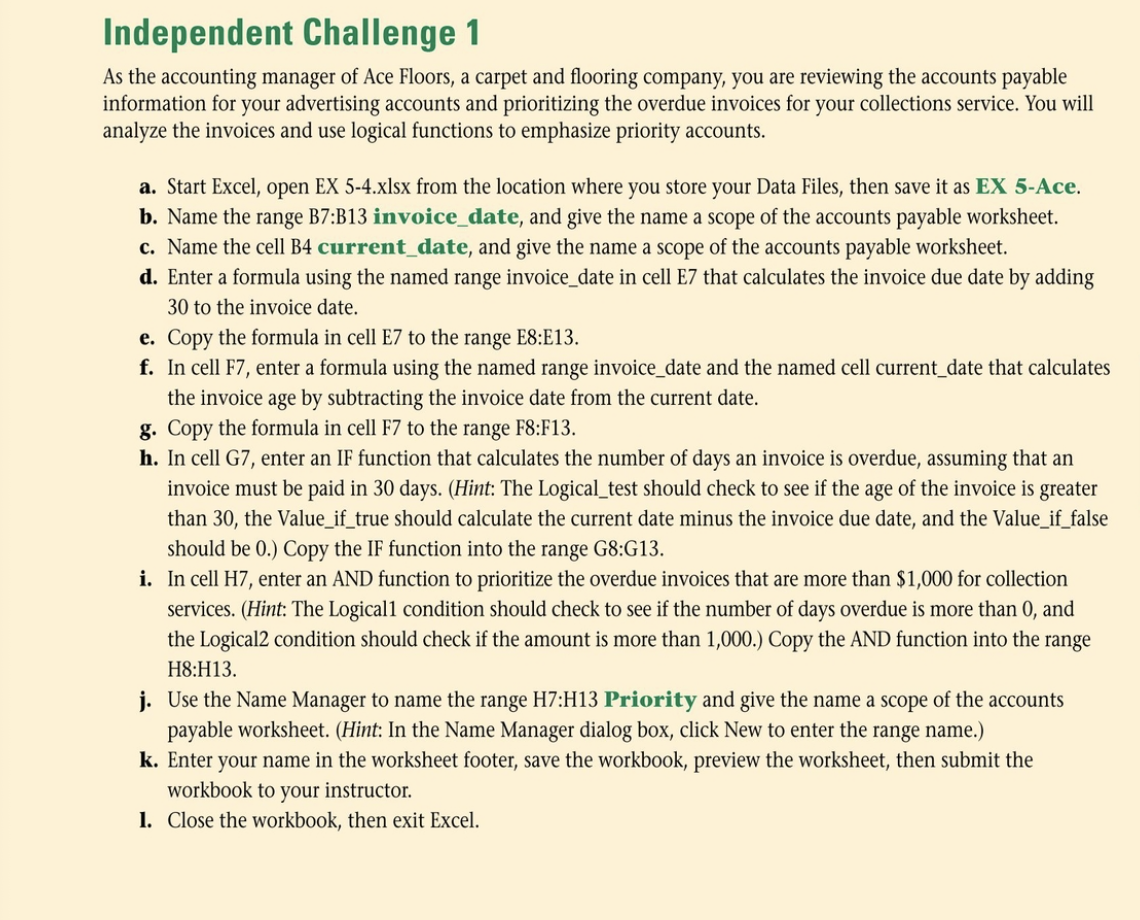
Independent Challenge 1 As the accounting manager of Ace Floors, a carpet and flooring company, you are reviewing the accounts payable information for your advertising accounts and prioritizing the overdue invoices for your collections service. You will analyze the invoices and use logical functions to emphasize priority accounts. a. Start Excel, open EX 5-4.xlsx from the location where you store your Data Files, then save it as EX 5-Ace. b. Name the range B7:B13 invoice_date, and give the name a scope of the accounts payable worksheet. c. Name the cell B4 current_date, and give the name a scope of the accounts payable worksheet. d. Enter a formula using the named range invoice_date in cell E7 that calculates the invoice due date by adding 30 to the invoice date. e. Copy the formula in cell E7 to the range E8:E13. f. In cell F7, enter a formula using the named range invoice_date and the named cell current_date that calculates the invoice age by subtracting the invoice date from the current date. g. Copy the formula in cell F7 to the range F8:F13. h. In cell G7, enter an IF function that calculates the number of days an invoice is overdue, assuming that an invoice must be paid in 30 days. (Hint: The Logical_test should check to see if the age of the invoice is greater than 30, the Value_if_true should calculate the current date minus the invoice due date, and the Value_if_false should be 0.) Copy the IF function into the range G8:G13. i. In cell H7, enter an AND function to prioritize the overdue invoices that are more than $1,000 for collection services. (Hint: The Logical1 condition should check to see if the number of days overdue is more than 0, and the Logical2 condition should check if the amount is more than 1,000.) Copy the AND function into the range H8:H13. j. Use the Name Manager to name the range H7:H13 Priority and give the name a scope of the accounts payable worksheet. (Hint: In the Name Manager dialog box, click New to enter the range name.) k. Enter your name in the worksheet footer, save the workbook, preview the worksheet, then submit the workbook to your instructor. 1. Close the workbook, then exit Excel









 Study Help