







Question: I mainly need help adding the timer function and with error reporting. My current code and the directions are below import java.awt.BorderLayout; import java.awt.Color; import
I mainly need help adding the timer function and with error reporting. My current code and the directions are below
import java.awt.BorderLayout; import java.awt.Color; import java.awt.Dimension; import java.awt.Font; import java.awt.GradientPaint; import java.awt.Graphics; import java.awt.Graphics2D; import java.awt.GridBagConstraints; import java.awt.GridBagLayout; import java.awt.RenderingHints; import java.awt.event.ActionListener; import java.awt.event.KeyEvent; import java.awt.event.KeyListener; import java.util.HashMap; import java.util.Map; import javax.swing.JButton; import javax.swing.JFrame; import javax.swing.JLabel; import javax.swing.JPanel; import javax.swing.JTextArea; import javax.swing.Timer; public class Keyboard extends JFrame implements KeyListener { private static final long serialVersionUID = 1L; Map map = new HashMap(); String firstRow[] = {"~", "1", "2", "3", "4", "5", "6", "7", "8", "9", "0", "-", "+", "fill", "BackSpace"}; String secondRow[] = {"Tab", "Q", "W", "E", "R", "T", "Y", "U", "I", "O", "P", "[", "]", "\"}; String thirdRow[] = {"Caps", "A", "S", "D", "F", "G", "H", "J", "K", "L", ":", """, "fill", "fill", "Enter"}; String fourthRow[] = {"Shift", "Z", "X", "C", "V", "B", "N", "M", ",", ".", "?", "blank", "^"}; String fifthRow[] = {"blank", "blank", "fill", "fill", "fill", "fill", "fill", "fill", "fill", "fill", "", ""}; String strText = ""; String noShift = "`1234567890-=qwertyuiop[]\asdfghjkl;'zxcvbnm,./"; String specialChars = "~-+[]\;',.?"; int keycode; JTextArea text = new JTextArea(); JButton first[]; JButton second[]; JButton third[]; JButton fourth[]; JButton fifth[]; Color cc = new JButton().getBackground(); public static void main(String[] args) { Keyboard a = new Keyboard(); }// end of main public Keyboard() { super("Type - My JAC444"); gradientBg(); init(); } public final void init() { // set the info label on top JLabel info = new JLabel( " Type some text using your keyboard.The keys " + "you press will be highlighted and text will be displayed." + " Note : Clicking the buttons with your " + "mouse will not perform any action. "); // set the bold font for info info.setFont(new Font("Verdana", Font.BOLD, 12)); // set the layout and place component in place and pack it setLayout(new BorderLayout()); // Various panel for the layout JPanel jpNorth = new JPanel(); JPanel jpWest = new JPanel(); JPanel jpEast = new JPanel(); JPanel jpCenter = new JPanel(); JPanel jpKeyboard = new JPanel(new GridBagLayout()); JPanel jpNote = new JPanel(); // adding Panels add(jpNorth, BorderLayout.NORTH); add(jpNote); // adding Panels add(jpWest, BorderLayout.WEST); add(jpEast, BorderLayout.EAST); // adding Panels add(jpCenter, BorderLayout.CENTER); add(jpKeyboard, BorderLayout.SOUTH); // setting layout and adding BorderLayout jpNorth.setLayout(new BorderLayout()); jpNorth.add(info, BorderLayout.SOUTH); // setting layout and adding BorderLayout jpCenter.setLayout(new BorderLayout()); //jpCenter.add(text, BorderLayout.WEST); jpCenter.add(text, BorderLayout.CENTER); // setting preferredsize jpCenter.setPreferredSize(new Dimension(520, 460)); // creating buttons first = new JButton[firstRow.length]; second = new JButton[secondRow.length]; third = new JButton[thirdRow.length]; fourth = new JButton[fourthRow.length]; fifth = new JButton[fifthRow.length]; // adding buttons addKeys(jpKeyboard, 0, firstRow, first); addKeys(jpKeyboard, 1, secondRow, second); addKeys(jpKeyboard, 2, thirdRow, third); addKeys(jpKeyboard, 3, fourthRow, fourth); addKeys(jpKeyboard, 4, fifthRow, fifth); // setting preferredSize jpKeyboard.setPreferredSize(new Dimension(620, 460)); // fixing background and panels overflow info.setOpaque(false); jpNote.setOpaque(false); jpWest.setOpaque(false); jpEast.setOpaque(false); jpNorth.setOpaque(false); jpCenter.setOpaque(false); jpKeyboard.setOpaque(false); // add listeners text.addKeyListener(this); // setting default close operation this.setDefaultCloseOperation(JFrame.EXIT_ON_CLOSE); // set non re-sizable this.setResizable(false); // set size of the content pane ie frame this.getContentPane().setPreferredSize(new Dimension(1000, 610)); // putting everything together pack(); // brings this Window to the front and may make it the focused Window this.toFront(); // Window appears center this.setLocationRelativeTo(null); // setting visible this.setVisible(true); }// end of init // background gradient function public final void gradientBg() { // Creating gradient background JPanel contentPane = new JPanel() { private static final long serialVersionUID = 1L; @Override protected void paintComponent(Graphics grphcs) { Graphics2D g2d = (Graphics2D) grphcs; Dimension d = this.getSize(); g2d.setRenderingHint(RenderingHints.KEY_ANTIALIASING, RenderingHints.VALUE_ANTIALIAS_ON); GradientPaint gp = new GradientPaint(0, 0, getBackground().brighter(), 0, d.height, getBackground().darker().darker()); g2d.setPaint(gp); g2d.fillRect(0, 0, d.width, d.height); super.paintComponent(grphcs); } }; contentPane.setOpaque(false); setContentPane(contentPane); }// end of gradientBg @Override public void keyPressed(KeyEvent evt) { keycode = evt.getKeyCode(); strText = String.format("%s", KeyEvent.getKeyText(evt.getKeyCode())); JButton btn = map.get(keycode); if (btn != null) { map.get(keycode).setBackground(new Color(135, 206, 235)); } }// end of key pressed // Invoked when a key has been released @Override public void keyReleased(KeyEvent evt) { keycode = evt.getKeyCode(); strText = String.format("%s", KeyEvent.getKeyText(evt.getKeyCode())); JButton btn = map.get(keycode); if (btn != null) { map.get(keycode).setBackground(Color.WHITE); } }// end of keyReleased @Override public void keyTyped(KeyEvent evt) { strText = String.format("%s", evt.getKeyChar()); }// end of key typed protected final void addKeys(JPanel parent, int row, String[] keys, JButton[] buttons) { GridBagConstraints gbc = new GridBagConstraints(); gbc.gridy = row; gbc.gridx = 0; gbc.fill = GridBagConstraints.BOTH; int gap = 0; for (int index = 0; index WHITE); map.put(getKeyCode(key), btn); } } } private int getKeyCode(String key) { switch (key) { case "BackSpace": return KeyEvent.VK_BACK_SPACE; case "Tab": return KeyEvent.VK_TAB; case "Caps": return KeyEvent.VK_CAPS_LOCK; case "Enter": return KeyEvent.VK_ENTER; case "Shift": return KeyEvent.VK_SHIFT; case "": return KeyEvent.VK_SPACE; case "+": return KeyEvent.VK_EQUALS; case ":": return KeyEvent.VK_SEMICOLON; case """: return KeyEvent.VK_QUOTE; case "?": return KeyEvent.VK_SLASH; case "~": return KeyEvent.VK_BACK_QUOTE; case "^": return KeyEvent.VK_UP; case "v": return KeyEvent.VK_DOWN; case "VK_LEFT; case ">": return KeyEvent.VK_RIGHT; default: return (int) key.charAt(0); } } } 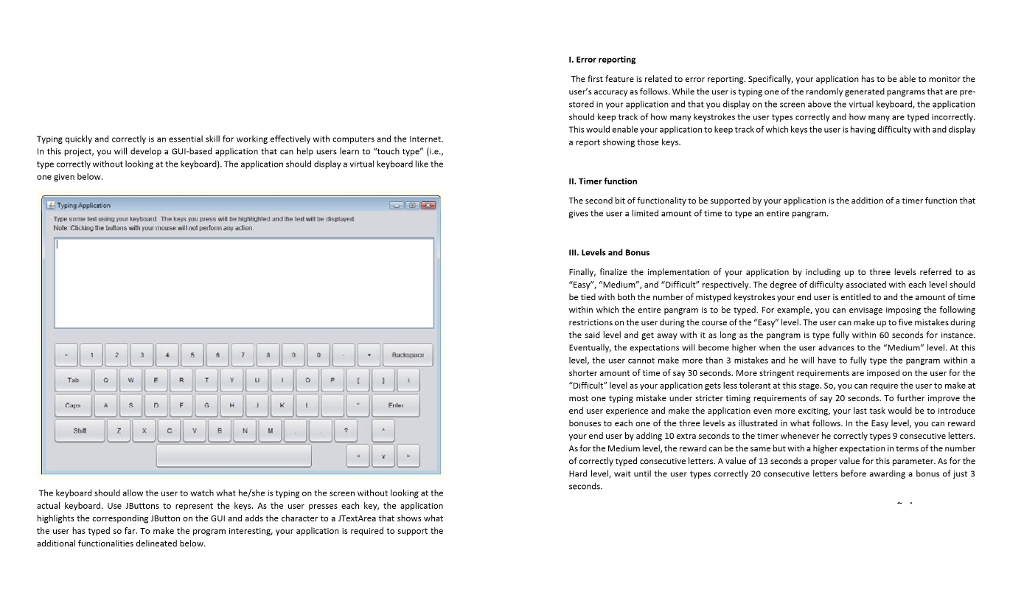
I. Error reporting The first feature is related to error reporting. Specifically, your application has to be able to monitor the user's accuracy as follows. While the user is typing one of the randomly generated pangrams that are pre- stored in your application and that you display on the screen above the virtual keyboard, the applicationn should keep track of how many keystrokes the user types correctly and how many are typed incorrectly This would enable your application to keep track of which keys the user is having difficulty with and display a report showing those keys. Typing quickly and correctly is an essential skill for working effectively with computers and the Internet. In this project, you will develop a GUI-based application that can help users learn to "touch type" (i.e., type correctly without looking at the keyboard). The application should display a virtual keyboard like the one given below Il. Timer function The second bit of functionality to be supported by your application is the addition of a timer function that gives the user a limited amount of time to type an entire pangram. Tysing Applicatien IlI. Levels and Bonus Finally, finalize the implementation of your application by including up to three levels referred to as "Easy". "Medium", and "Difficult" respectively. The degree of difficulty associated with each level should be tied with both the number of mistyped keystrokes your end user is entitled to and the amount of time within which the entire pangram is to be typed. For example, you can envisage imposing the following restrictions on the user during the course of the "Easy" level. The user can make up to five mistakes during the said level and get away with it as long as the pangram is type fully within 60 seconds for instance. Eventually, the expectations will become higher when the user advances to the "Mediumlevel. At this level, the user cannot make more than 3 mistakes and he will have to fully type the pangram within a shorter amount of time of say 30 seconds. More stringent requirements are imposed on the user for the Difficult" level as your application gets less tolerant at this stage. So, you can require the user to make at most one typing mistake under stricter timing requirements of say 20 seconds. To further improve the end user experience and make the application even more exciting, your last task would be to introduce bonuses to each one of the three levels as illustrated in what follows. In the Easy level, you can reward your end user by adding 10 extra seconds to the timer whenever he correctly types 9 consecutive letters. As for the Medium level, the reward can be the same but with a higher expectation in terms of the number of correctly typed consecutive letters. A value of 13 seconds a proper value for this parameter. As for the Hard level, wait until the user types correctly 20 consecutive letters before awarding a bonus of just 3 Caps The keyboard should allow the user to watch what he/she is typing on the screen without looking at the actual keyboard. Use JButtons to represent the keys. As the user presses each key, the application highlights the corresponding JButton on the GUI and adds the character to a TextArea that shows what the user has typed so far. To make the program interesting, your application is required to support the additional functionalities delineated below, I. Error reporting The first feature is related to error reporting. Specifically, your application has to be able to monitor the user's accuracy as follows. While the user is typing one of the randomly generated pangrams that are pre- stored in your application and that you display on the screen above the virtual keyboard, the applicationn should keep track of how many keystrokes the user types correctly and how many are typed incorrectly This would enable your application to keep track of which keys the user is having difficulty with and display a report showing those keys. Typing quickly and correctly is an essential skill for working effectively with computers and the Internet. In this project, you will develop a GUI-based application that can help users learn to "touch type" (i.e., type correctly without looking at the keyboard). The application should display a virtual keyboard like the one given below Il. Timer function The second bit of functionality to be supported by your application is the addition of a timer function that gives the user a limited amount of time to type an entire pangram. Tysing Applicatien IlI. Levels and Bonus Finally, finalize the implementation of your application by including up to three levels referred to as "Easy". "Medium", and "Difficult" respectively. The degree of difficulty associated with each level should be tied with both the number of mistyped keystrokes your end user is entitled to and the amount of time within which the entire pangram is to be typed. For example, you can envisage imposing the following restrictions on the user during the course of the "Easy" level. The user can make up to five mistakes during the said level and get away with it as long as the pangram is type fully within 60 seconds for instance. Eventually, the expectations will become higher when the user advances to the "Mediumlevel. At this level, the user cannot make more than 3 mistakes and he will have to fully type the pangram within a shorter amount of time of say 30 seconds. More stringent requirements are imposed on the user for the Difficult" level as your application gets less tolerant at this stage. So, you can require the user to make at most one typing mistake under stricter timing requirements of say 20 seconds. To further improve the end user experience and make the application even more exciting, your last task would be to introduce bonuses to each one of the three levels as illustrated in what follows. In the Easy level, you can reward your end user by adding 10 extra seconds to the timer whenever he correctly types 9 consecutive letters. As for the Medium level, the reward can be the same but with a higher expectation in terms of the number of correctly typed consecutive letters. A value of 13 seconds a proper value for this parameter. As for the Hard level, wait until the user types correctly 20 consecutive letters before awarding a bonus of just 3 Caps The keyboard should allow the user to watch what he/she is typing on the screen without looking at the actual keyboard. Use JButtons to represent the keys. As the user presses each key, the application highlights the corresponding JButton on the GUI and adds the character to a TextArea that shows what the user has typed so far. To make the program interesting, your application is required to support the additional functionalities delineated below
Step by Step Solution
There are 3 Steps involved in it

Get step-by-step solutions from verified subject matter experts
 Study Help