







Question: I NEED HELP IN HOW TO USE THE IF FUNCTION AND THE VLOOKUP FUNCTION FOR EXCELL I NEED TO KNOW WHICH FORMULA SHOULD USE. H28
I NEED HELP IN HOW TO USE THE IF FUNCTION AND THE VLOOKUP FUNCTION FOR EXCELL I NEED TO KNOW WHICH FORMULA SHOULD USE.
H28 - IF function (note that the format of this cell is percentage)
H29 - use a VLOOKUP function
Grade Calculator Assignment (Excel) ISM3011 F18
Take advantage of class/contact hours to clarify any questions you have. Refer to the syllabus on Academic Dishonesty and group/individual work and allowable help for all projects also remember its your responsibility to protect your work.
Before you start -- read this whole assignment and use an optional text and/or review the tutorials as necessary. Ive posted a project overview as well as some individual skills tips.
You will create a spreadsheet to keep track of your grades in this class. From the syllabus, course grades are calculated as follows:
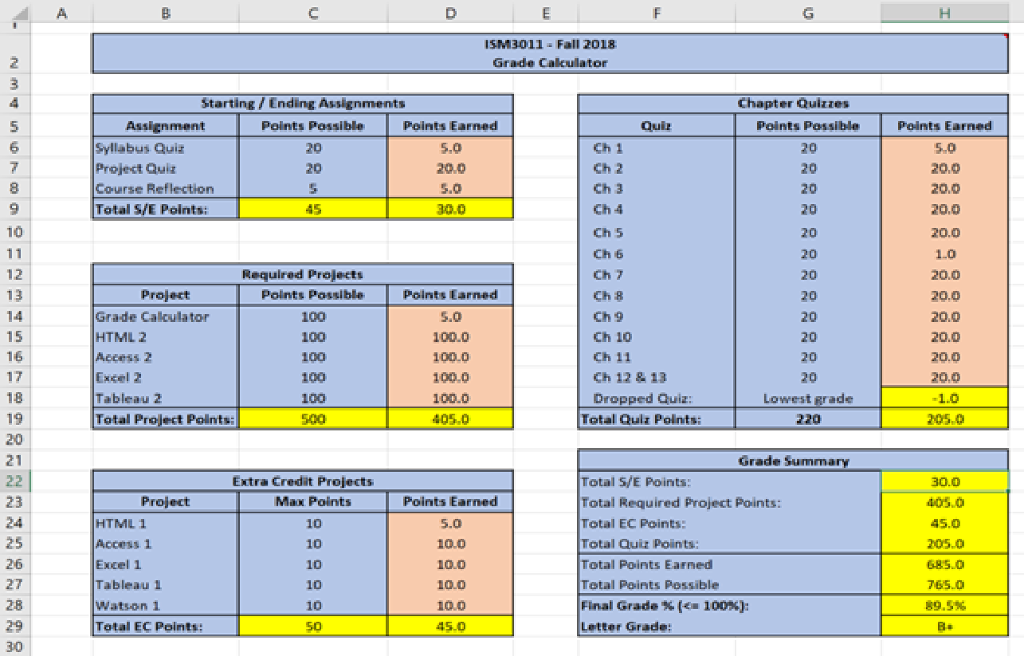
When finished, your grade calculator should look like this: Feel free to use different colors, fonts, but keep the layout the same.
Notes:
Orange cells = grades, typed in, these values can be changed when the worksheet is protected. Data validation is applied to all orange cells.
Blue cells = labels, typed in, cannot be changed when the worksheet is protected
Yellow cells = formulas, cannot be changed when the worksheet is protected.
This is not done using the 'tables' feature of Excel, it's just text, color backgrounds, borders and formulas. Do not use Excel tables.
Details
Open a blank workbook. Name it using your Last name followed by your initials and _ GradeCalc.xlsx. For Example: mine would be called WarnerBL_GradeCalc.xlsx.
Type in the labels and titles (blue cells above) and grades (orange cells above)
Use the merge & center feature to span the headings over multiple columns and in the Grade Summary cells.
Use the wrap feature to so that the worksheet title has the text on two lines within one merged cell (B2:H2 in my example).
Add background colors and borders to the cells (you can use the same colors or other colors)
Add a comment to the spreadsheet title cells (row 2) with your name and email address. Use Excels comment feature
The yellow cells above contain formulas. These formulas should include:
Formulas you write using addition, subtraction, division, multiplication, etc. and may have to be combined with functions (Final Grade %, displayed as a percent with one decimal place)
These required functions:
C9, D9, C19, D19, C29, D29, H19, H26, H27 - SUM formulas
H18 - MIN formula
H22:H25 - formula to reference other cells
H28 - IF function (note that the format of this cell is percentage)
H29 - use a VLOOKUP function
For the Final Grade cell (H29), first create the grading scale cells (right) on another worksheet within your workbook called Grades. Give this block of cells a name, GradeList (use the named range feature). On the first worksheet with the grades, use a VLOOKUP formula (with your named range) to determine the letter grade, based on the value in the Final Grade % cell.
ISM3011 Fall 2018 Grade Calculator Starting/Ending Assignments Chapter Quizzes Assignment Peints Passible Points Earned 5.0 20.0 Points Passible Points Earned Syllabus Quir Project Quiz Course Reflection Total S/E Points Ch 1 Ch 2 Ch 3 ch 4 Ch 5 Ch 6 Ch 7 Ch 8 Ch 9 Ch 10 20.0 20.0 20.0 20.0 20 5 20 20 30.0 20 20 20.0 20.0 20.0 20.0 20.0 20.0 Required Projects Project Points Possible 100 100 100 100 100 500 Points Earned Grade Calculator HTML 2 Aceess 2 Exeel 2 Tableau 2 Total Project Peints 100.0 100.0 100.0 100.0 405.0 20 Ch 12& 13 Dropped Quiz Lowest grade 220 Total Qulz Points 205.0 20 Grade Summary Extra Credit Projects Total S/E Points Total Required Project Points Total EC Points: Total Cuiz Points Total Points Earned Tetal Peints Possible Final Grade % 14-100%): Letter Grade 30.0 Project Max Points HTML 1 Access 1 Exxcel 1 Tableau 1 Watson 1 Total EC Points: Points Earned 5.0 10.0 10.0 10.0 10.0 45.0 45.0 205.0 685.0 765.0 89, 5% 28 30
Step by Step Solution
There are 3 Steps involved in it

Get step-by-step solutions from verified subject matter experts
 Study Help