







Question: Instructions Start Excel. Open the downloaded Excel file named e03ch06_grader h1_ShopSales.xisx. Save the file with the name 003ch06 grader_h1_ShopSales_LastFirst, using your last and first name.
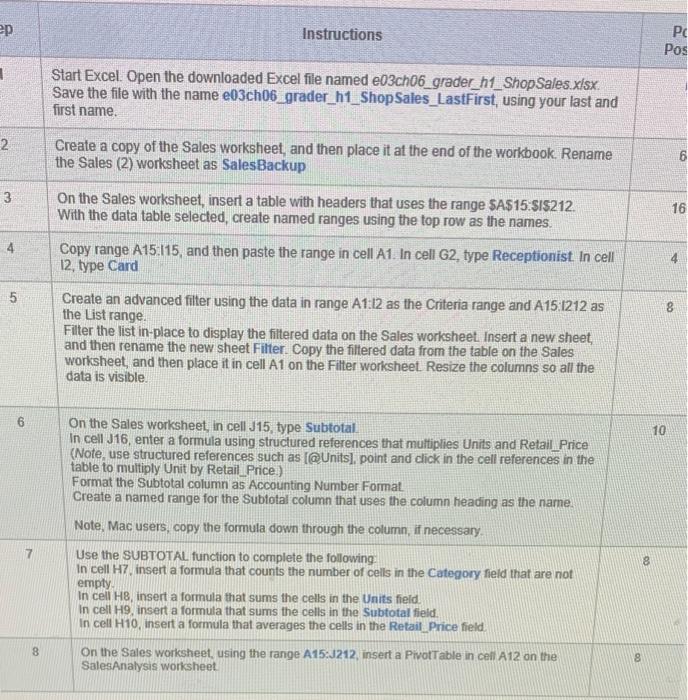
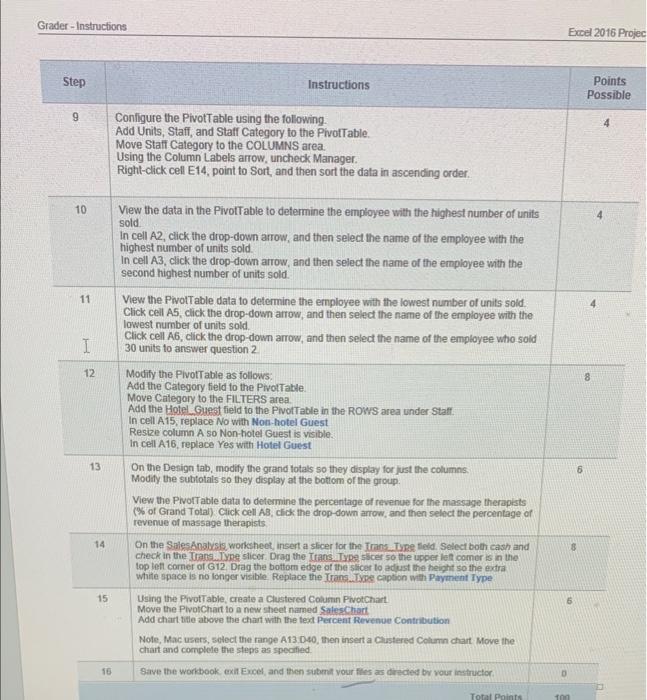
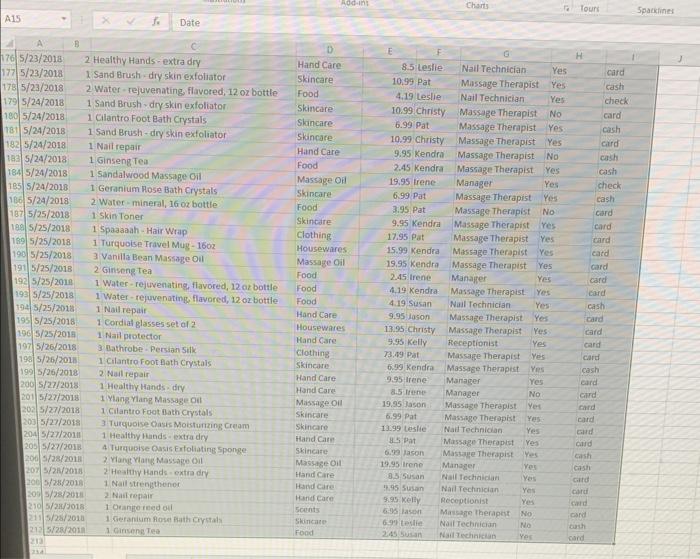
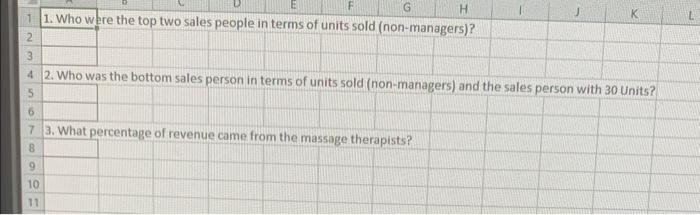
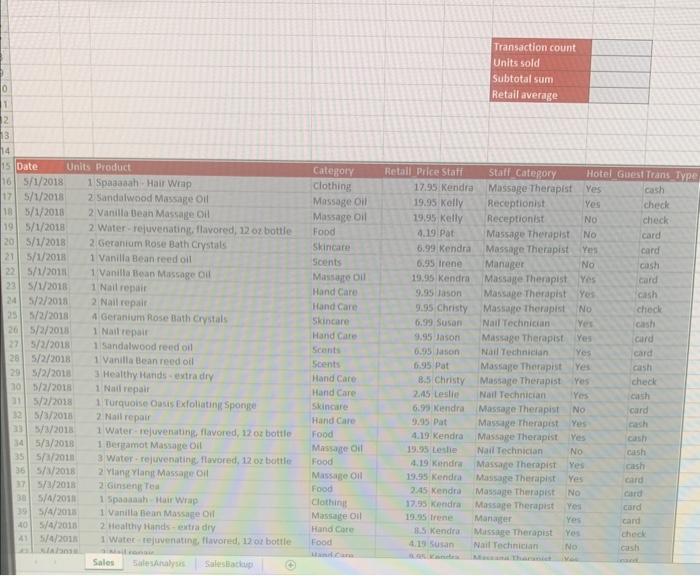

Instructions Start Excel. Open the downloaded Excel file named e03ch06_grader h1_ShopSales.xisx. Save the file with the name 003ch06 grader_h1_ShopSales_LastFirst, using your last and first name. Create a copy of the Sales worksheet, and then place it at the end of the workbook. Rename the Sales (2) worksheet as SalesBackup On the Sales worksheet, insert a table with headers that uses the range SA\$15:SIS212. With the data table selected, create named ranges using the top row as the names. Copy range A15:115, and then paste the range in cell A1. In cell G2, type Receptionist. In cell 12, type Card Create an advanced filter using the data in range A1:12 as the Criteria range and A15:1212 as the List range. Filter the list in-place to display the fittered data on the Sales worksheet. Insert a new sheet, and then rename the new sheet Filter. Copy the filtered data from the table on the Sales worksheet, and then place it in cell A1 on the Filter worksheet. Resize the columns so all the data is visible. 6 On the Sales worksheet, in cell J15, type Subtotal. In cell J16, enter a formula using structured references that multiplies Units and Retail Price (Note, use structured references such as [@Units], point and dick in the cell references in the table to multiply Unit by Retail.Price.) Format the Subtotal column as Accounting Number Format. Create a named range for the Subtotal column that uses the column heading as the name. Note, Mac users, copy the formula down through the column, if necessary. 7 Use the SUBTOTAL function to complete the following In cell H7. insert a formula that counts the number of cells in the Category field that are not empty. In cell H8, insert a formula that sums the cells in the Units field. In cell 49 , insert a formula that sums the cells in the Subtotal field. In cell H10, insert a formula that averages the cells in the Retail Price field. 8 On the Sales worksheet, using the range A15:J212, insert a PivotTable in celi A12 on the SalesAnalysis worksheet. Grader-Instructions Exrel 2016 Projec 3. What percentage of revenue came from the massage therapists? The sales team at the Painted Treasures Gift Shop would like to review its staff's sales after some of the new staff members have finished a sales training program. You have been given the data for May 2018 and more data will be added in the future. The sales team wants you to review the data, perform some data analyses, and answer some specific questions. This will help the sales team determine how well the staff is performing, and who needs further training. Steps to Perform: Instructions Start Excel. Open the downloaded Excel file named e03ch06_grader h1_ShopSales.xisx. Save the file with the name 003ch06 grader_h1_ShopSales_LastFirst, using your last and first name. Create a copy of the Sales worksheet, and then place it at the end of the workbook. Rename the Sales (2) worksheet as SalesBackup On the Sales worksheet, insert a table with headers that uses the range SA\$15:SIS212. With the data table selected, create named ranges using the top row as the names. Copy range A15:115, and then paste the range in cell A1. In cell G2, type Receptionist. In cell 12, type Card Create an advanced filter using the data in range A1:12 as the Criteria range and A15:1212 as the List range. Filter the list in-place to display the fittered data on the Sales worksheet. Insert a new sheet, and then rename the new sheet Filter. Copy the filtered data from the table on the Sales worksheet, and then place it in cell A1 on the Filter worksheet. Resize the columns so all the data is visible. 6 On the Sales worksheet, in cell J15, type Subtotal. In cell J16, enter a formula using structured references that multiplies Units and Retail Price (Note, use structured references such as [@Units], point and dick in the cell references in the table to multiply Unit by Retail.Price.) Format the Subtotal column as Accounting Number Format. Create a named range for the Subtotal column that uses the column heading as the name. Note, Mac users, copy the formula down through the column, if necessary. 7 Use the SUBTOTAL function to complete the following In cell H7. insert a formula that counts the number of cells in the Category field that are not empty. In cell H8, insert a formula that sums the cells in the Units field. In cell 49 , insert a formula that sums the cells in the Subtotal field. In cell H10, insert a formula that averages the cells in the Retail Price field. 8 On the Sales worksheet, using the range A15:J212, insert a PivotTable in celi A12 on the SalesAnalysis worksheet. Grader-Instructions Exrel 2016 Projec 3. What percentage of revenue came from the massage therapists? The sales team at the Painted Treasures Gift Shop would like to review its staff's sales after some of the new staff members have finished a sales training program. You have been given the data for May 2018 and more data will be added in the future. The sales team wants you to review the data, perform some data analyses, and answer some specific questions. This will help the sales team determine how well the staff is performing, and who needs further training. Steps to Perform
Step by Step Solution
There are 3 Steps involved in it

Get step-by-step solutions from verified subject matter experts
 Study Help